How to Start Lending?
Set Up the ReinvestYae Auto-Lending Bot From Scratch
In this video, I'll walk you through setting up the ReinvestYae auto-lending bot from zero.
If you're already into crypto, don't worry: I won't be teaching you how to buy coins or how to move money around between exchanges. What I will cover is how to use the ReinvestYae platform: how to sign up, how to connect your Bitfinex API key to our bot, and how to set your lending preferences.
Once everything's connected, the bot works 24/7 to find you the best lending rates. You don't have to sit there watching the market.
STEP 1: Sign Up for a Free Account
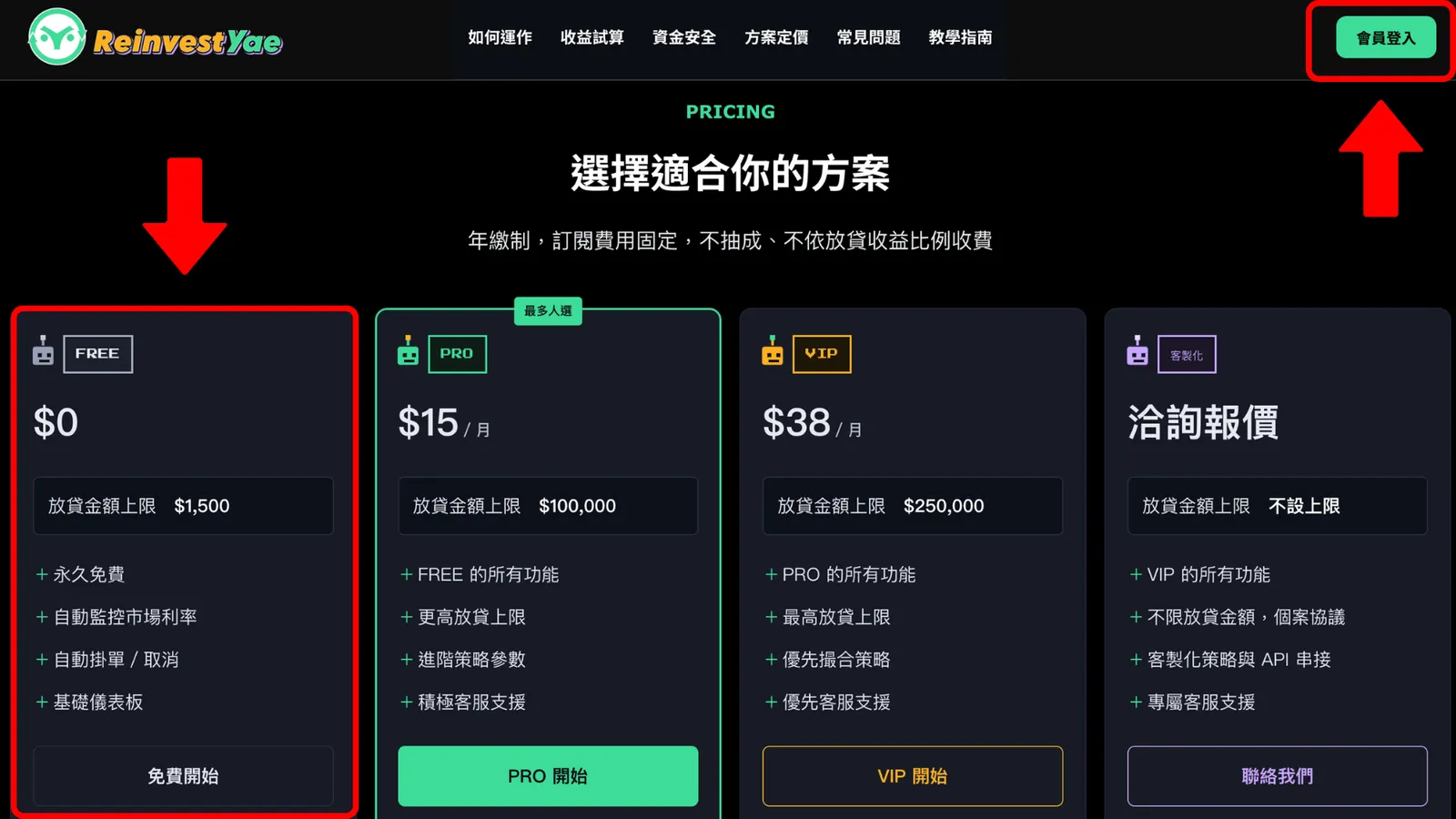
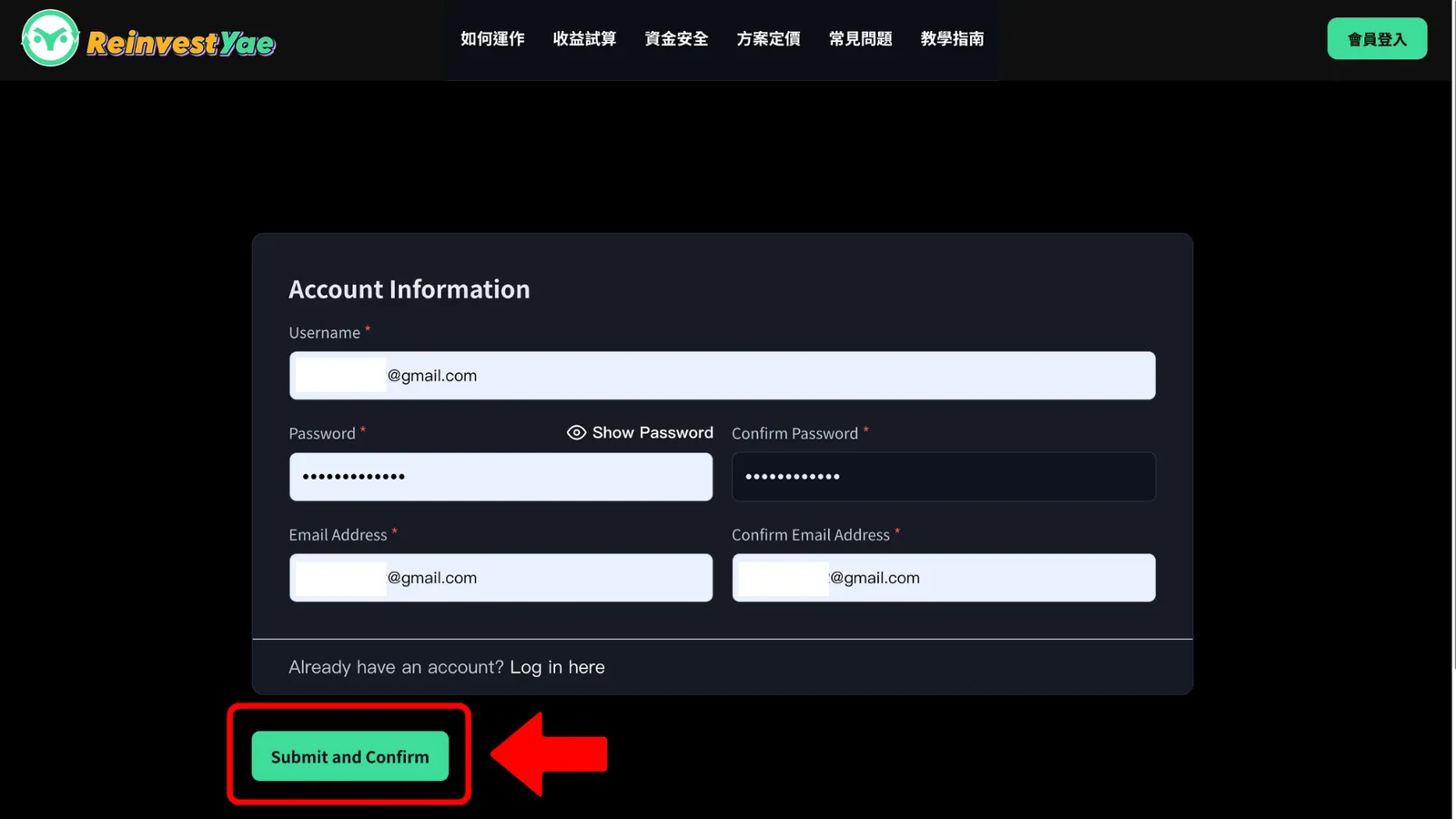
First things first: you need to sign up for a free account. It doesn't matter which plan you end up choosing. Even if you click on a paid plan, it'll ask you to join as a member first. So step one is always getting a FREE account.
Go to the ReinvestYae homepage and click Member Login. That takes you to the sign-up page. Enter your email and a password, hit submit, and boom, you've got a FREE plan account. It's just like signing up on any other website. Super easy.
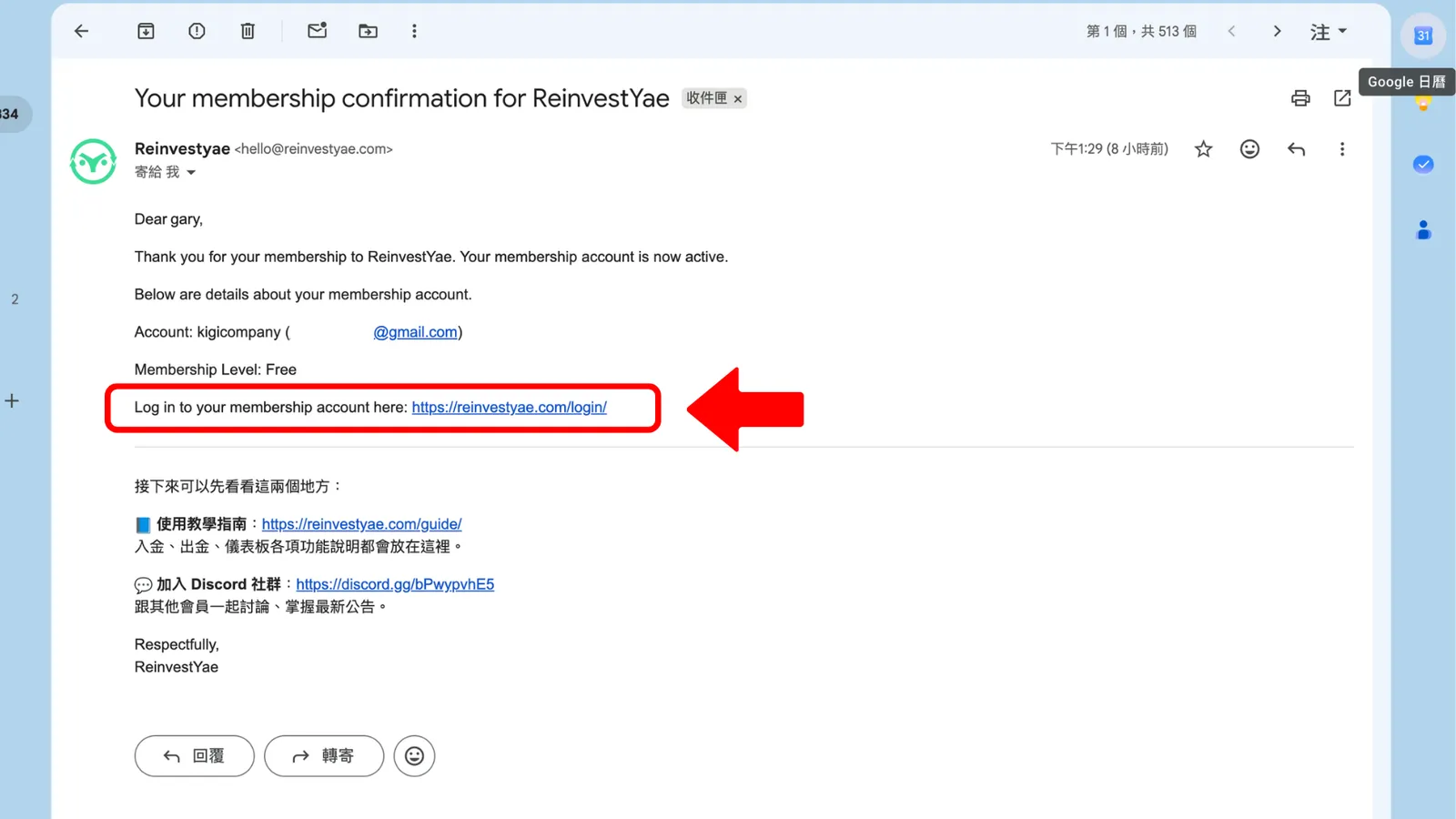
After you sign up, check your inbox for the verification email and click the confirmation link. Your account won't be active until you do that.
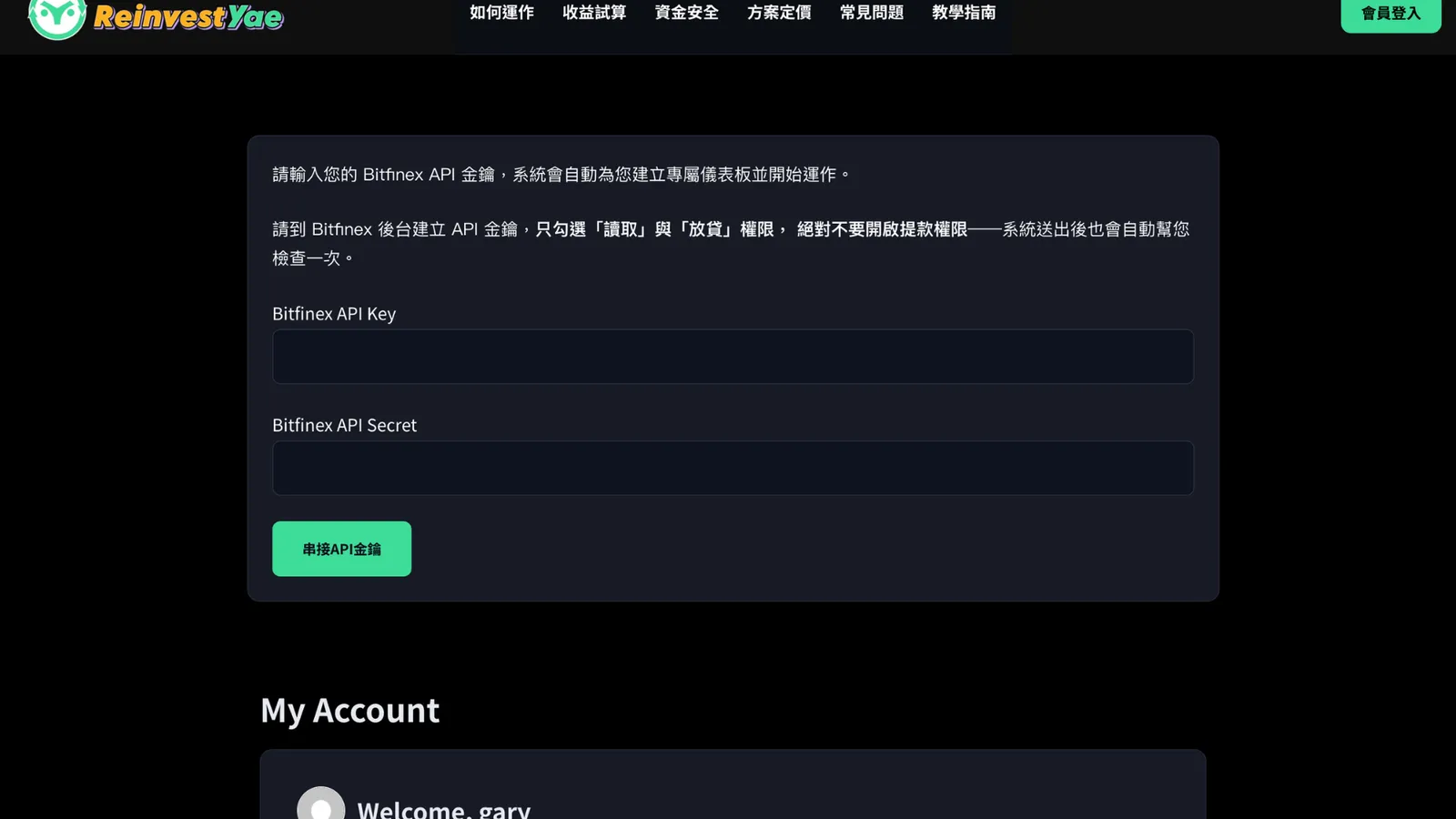
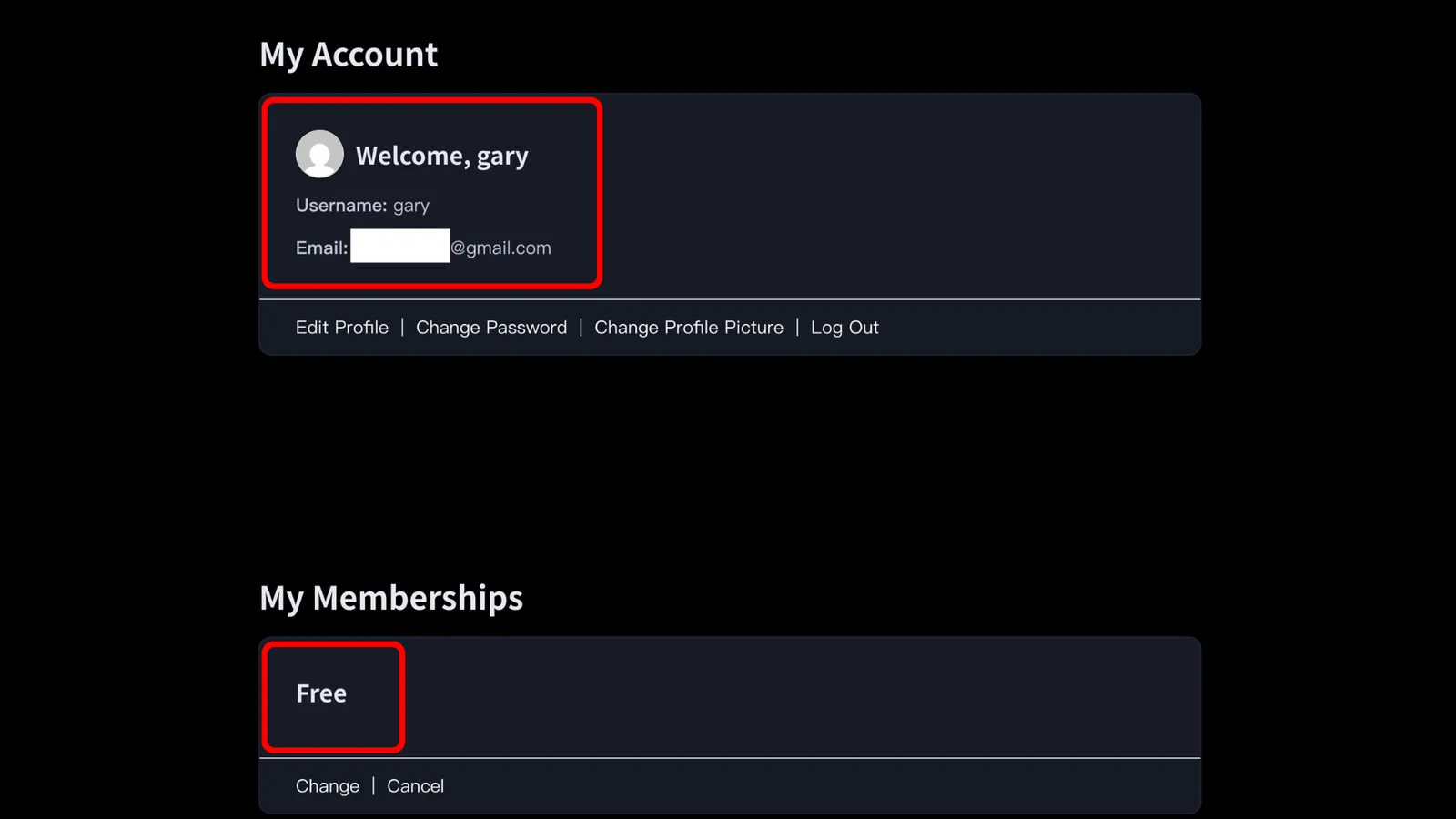
Go back to ReinvestYae and open the “Member Area”. This is where you enter your Bitfinex API key and check your membership status.
STEP 2: Create Your API Key
Next up: signing up and linking your API key. For this, you'll need your Bitfinex account ready.
Here's something important to know: ReinvestYae never holds your money. Your funds stay in your own Bitfinex account the whole time. Our bot just uses an "API key" to operate your account and lend on your behalf. Your money is always under your own name, on your own exchange account.
Now for the really important part: creating the API key.
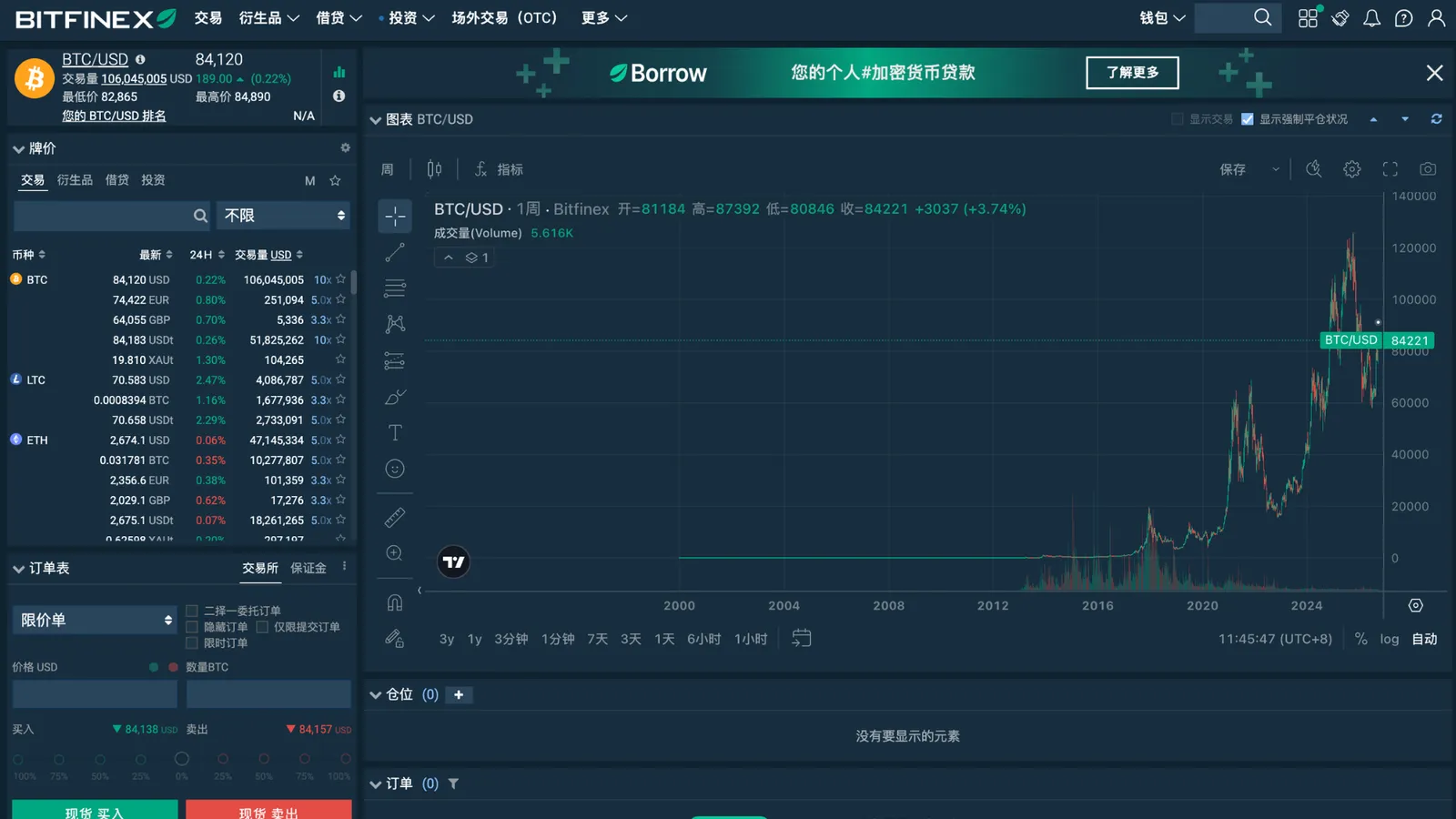
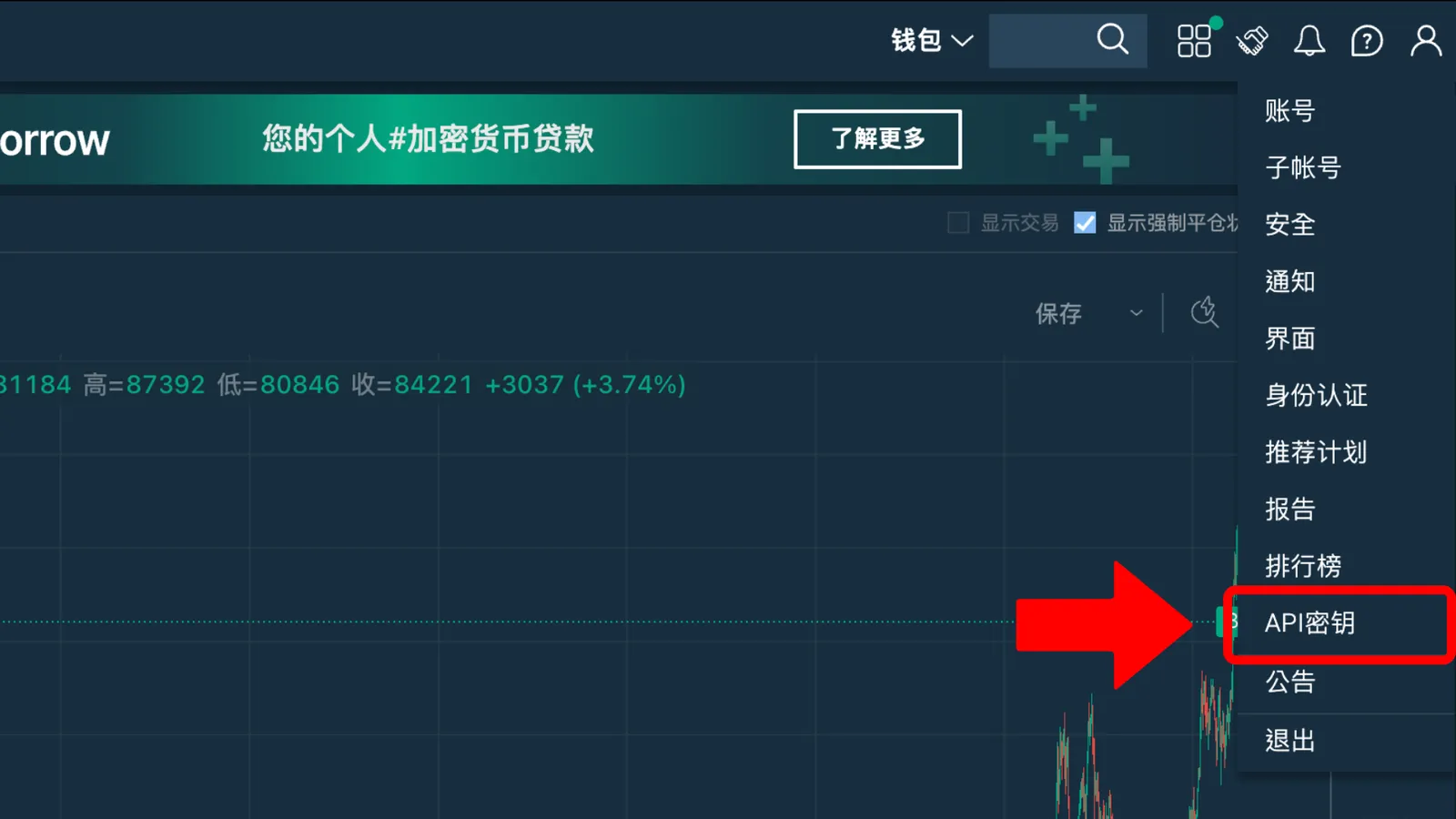
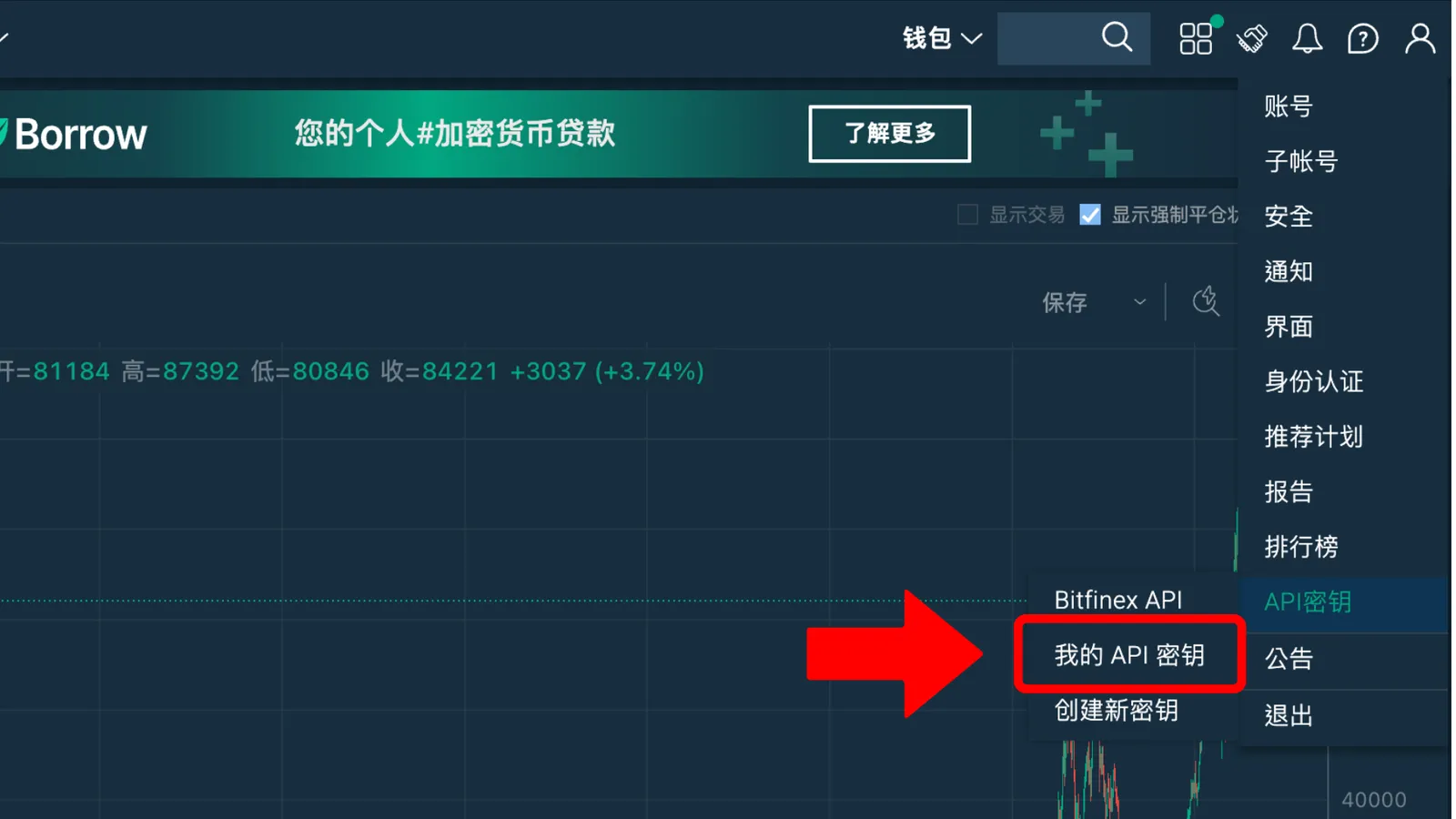
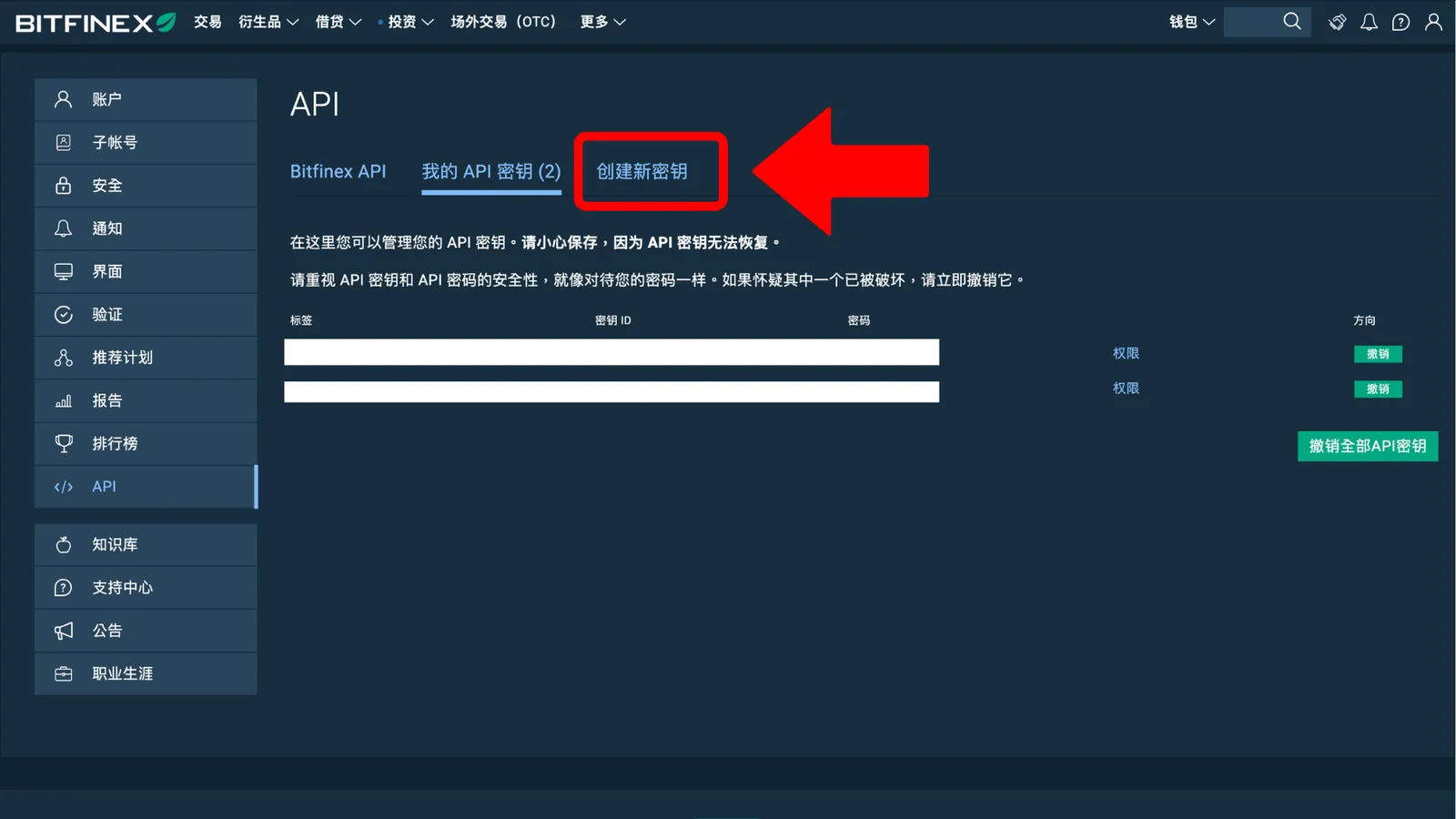
Log in to Bitfinex, click the profile icon in the top right, choose "API Keys," then "My API Keys," and create a new key.
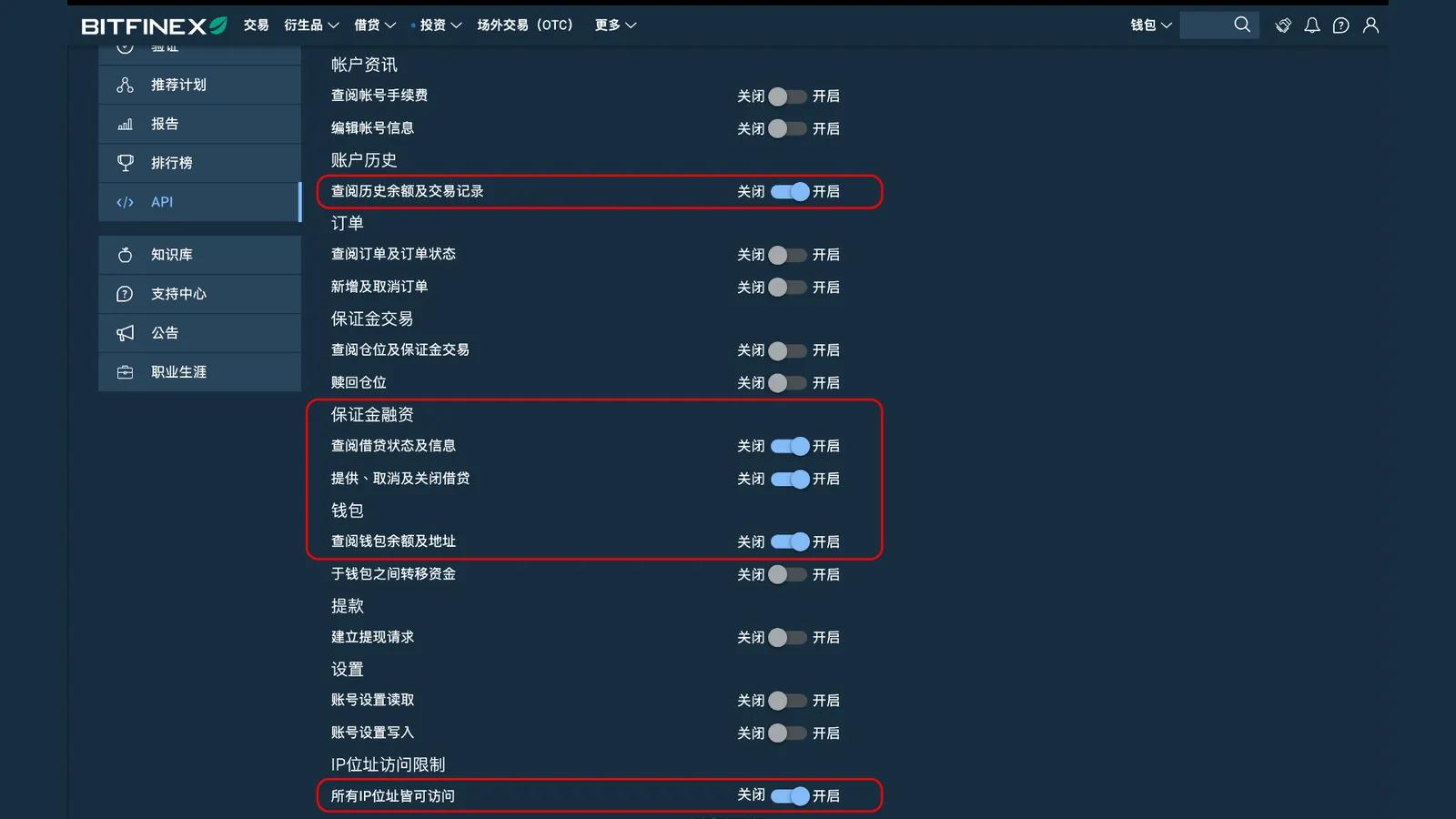
Be careful with the permissions. Follow the screenshot and only turn on these:
View historical balances and trade history
- View funding status and info
- Offer, cancel, and close funding
View balance wallets and addresses
- Allow access from all IP addresses
With those on, the bot can check your balance and place lending offers for you.
And whatever you do, do NOT turn on "Transfer between wallets." The bot should never have permission to move your money. This is the single most important step for keeping your funds safe.
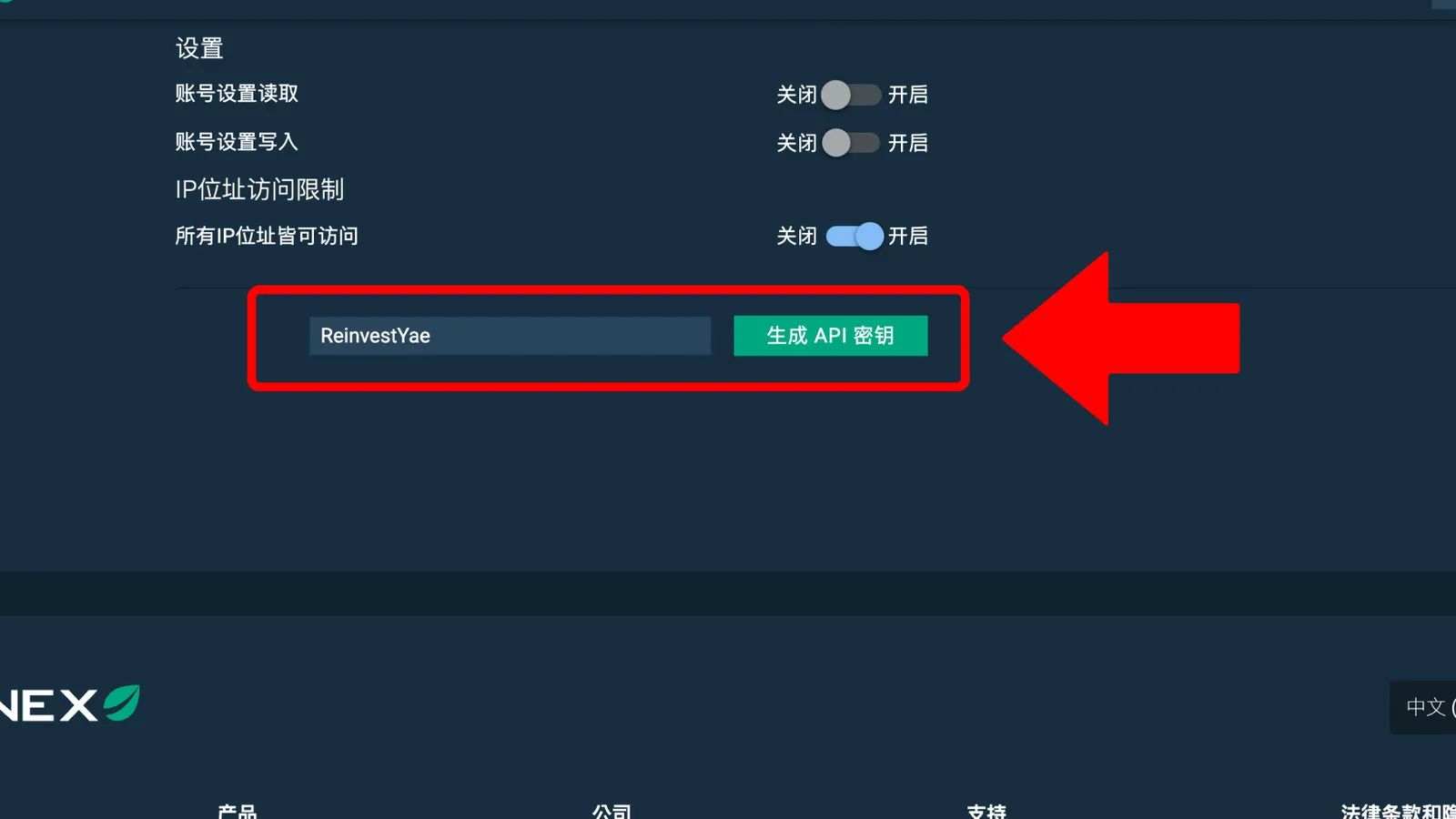
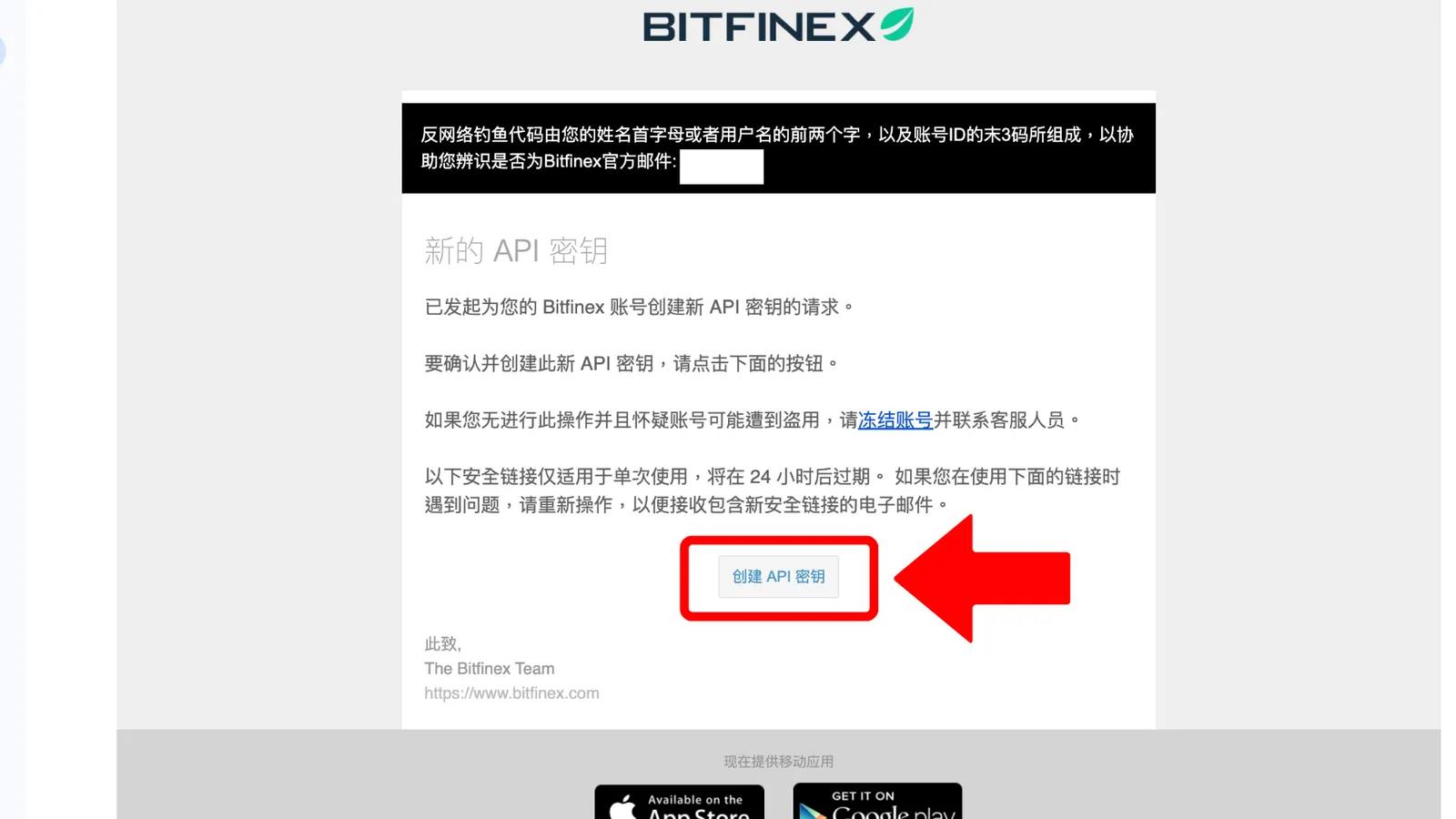
Once that's set, give the key a name and click Generate. Bitfinex will send you a confirmation email. Just click the link in it and your new API key is created.
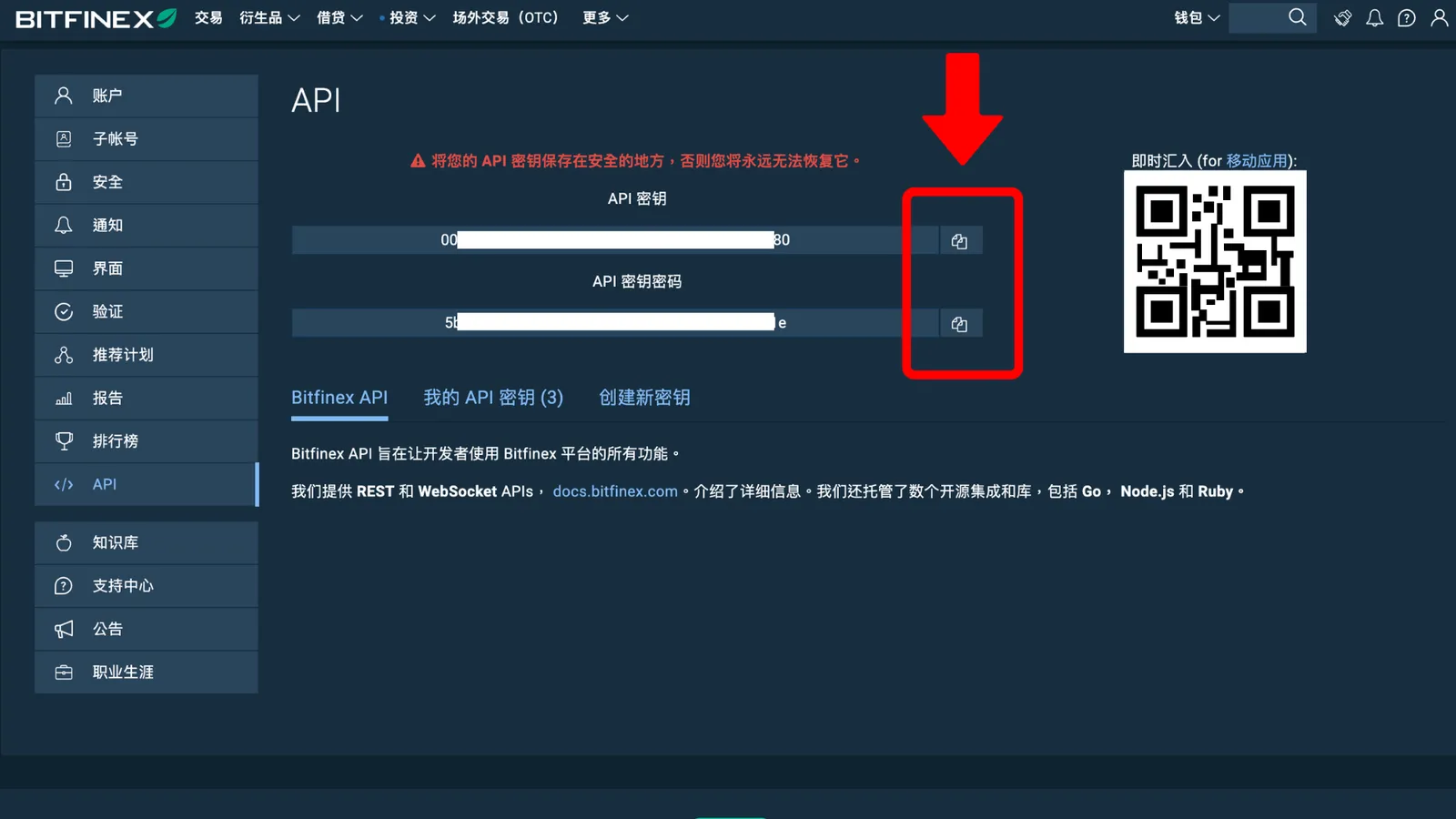
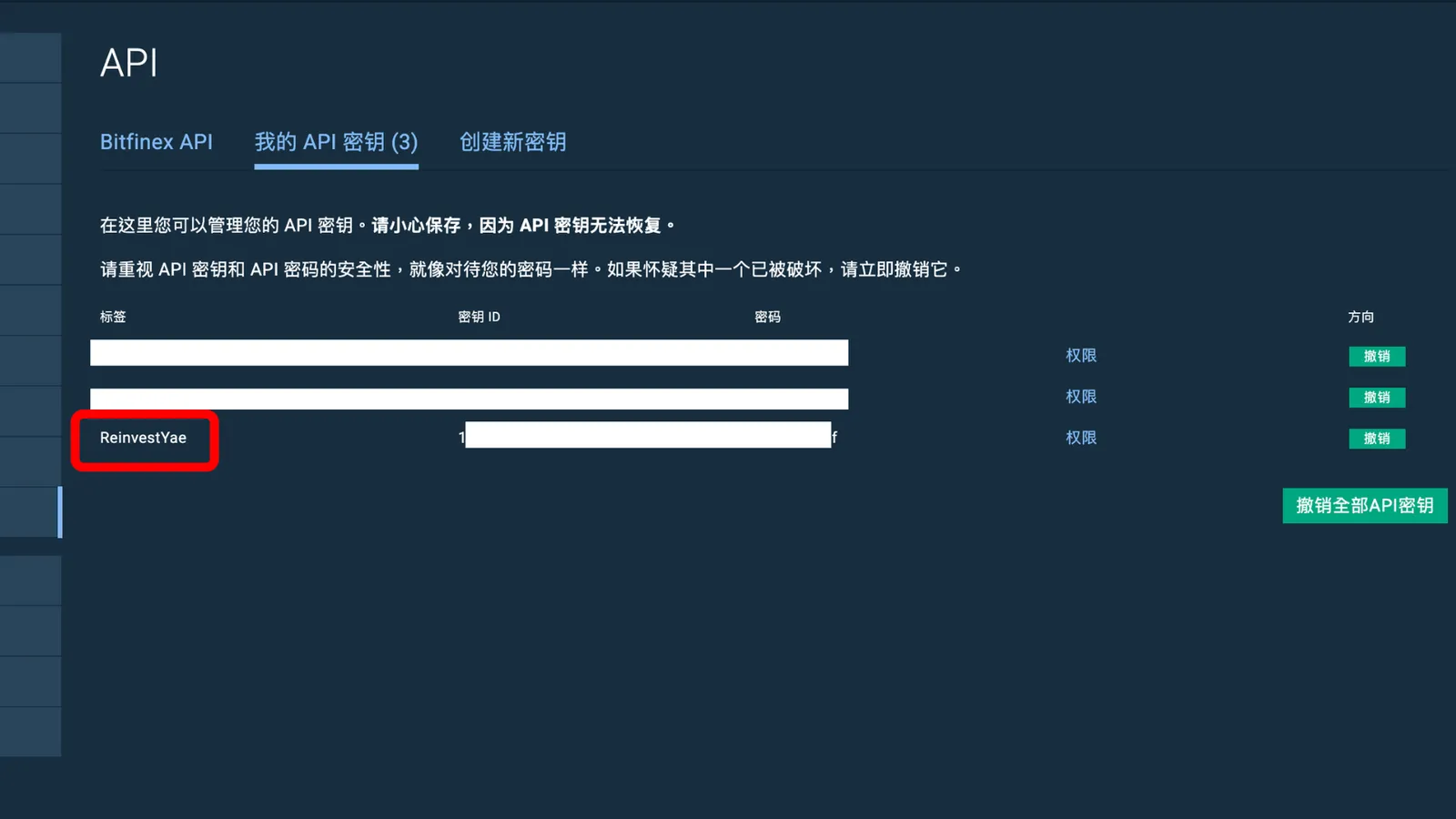
One more thing to watch out for: after the key is generated, Bitfinex only shows you the API Key and API Secret once. So copy them and save them somewhere safe right away. You'll need them in a minute when you link everything to the dashboard. Your new key will be saved under "My API Keys."
STEP 3: Move Your Funds to the Funding Wallet
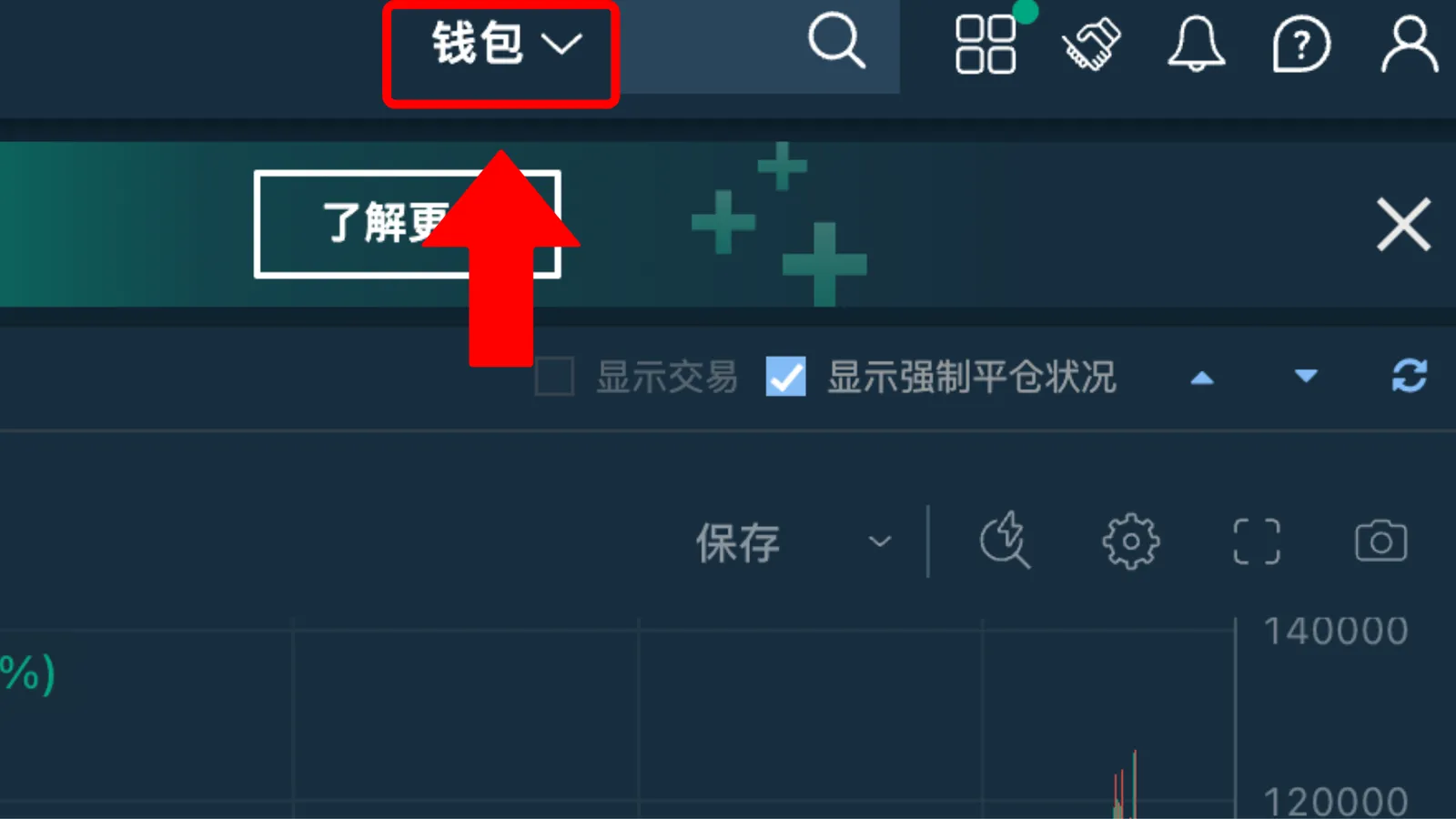
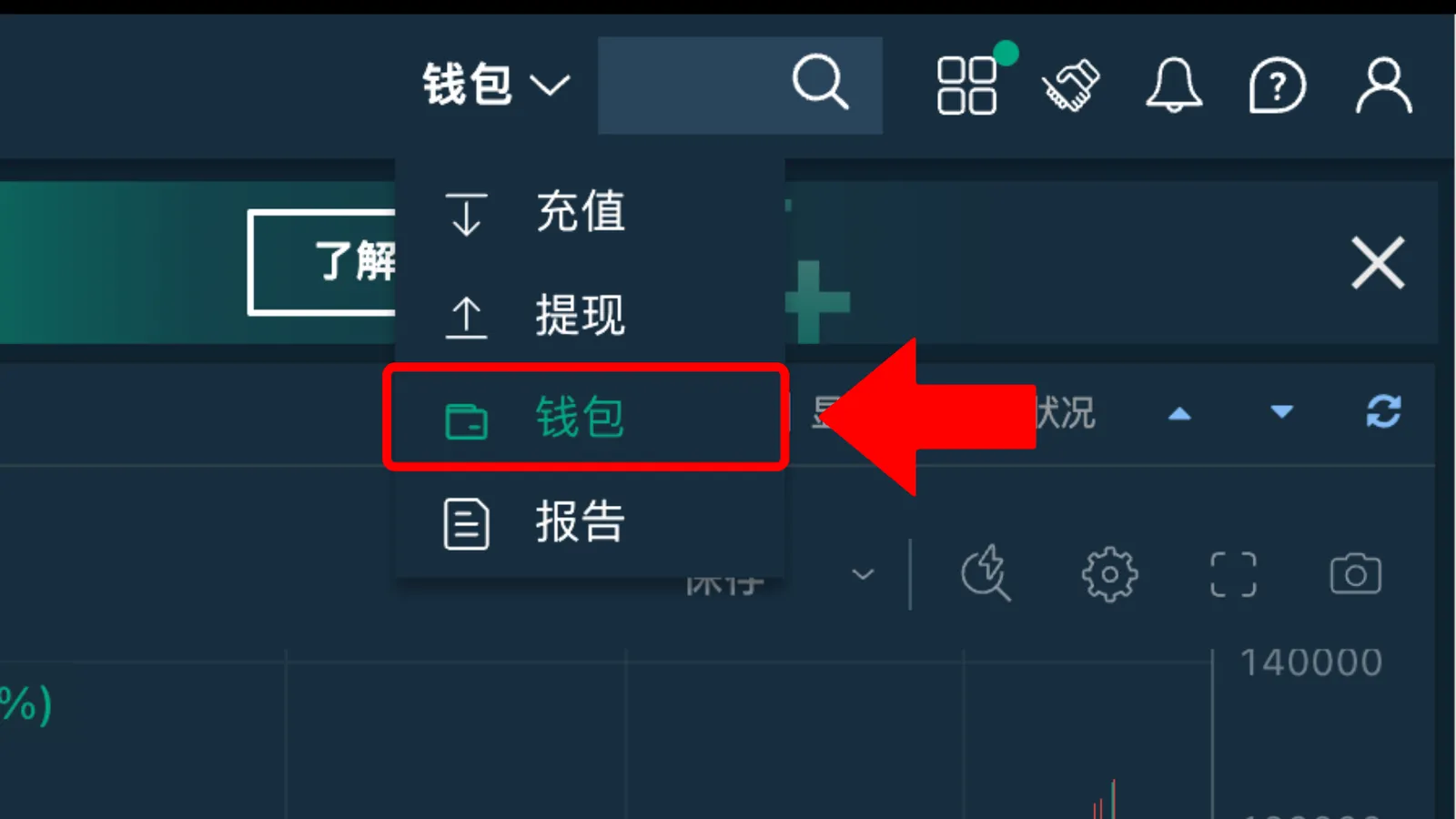
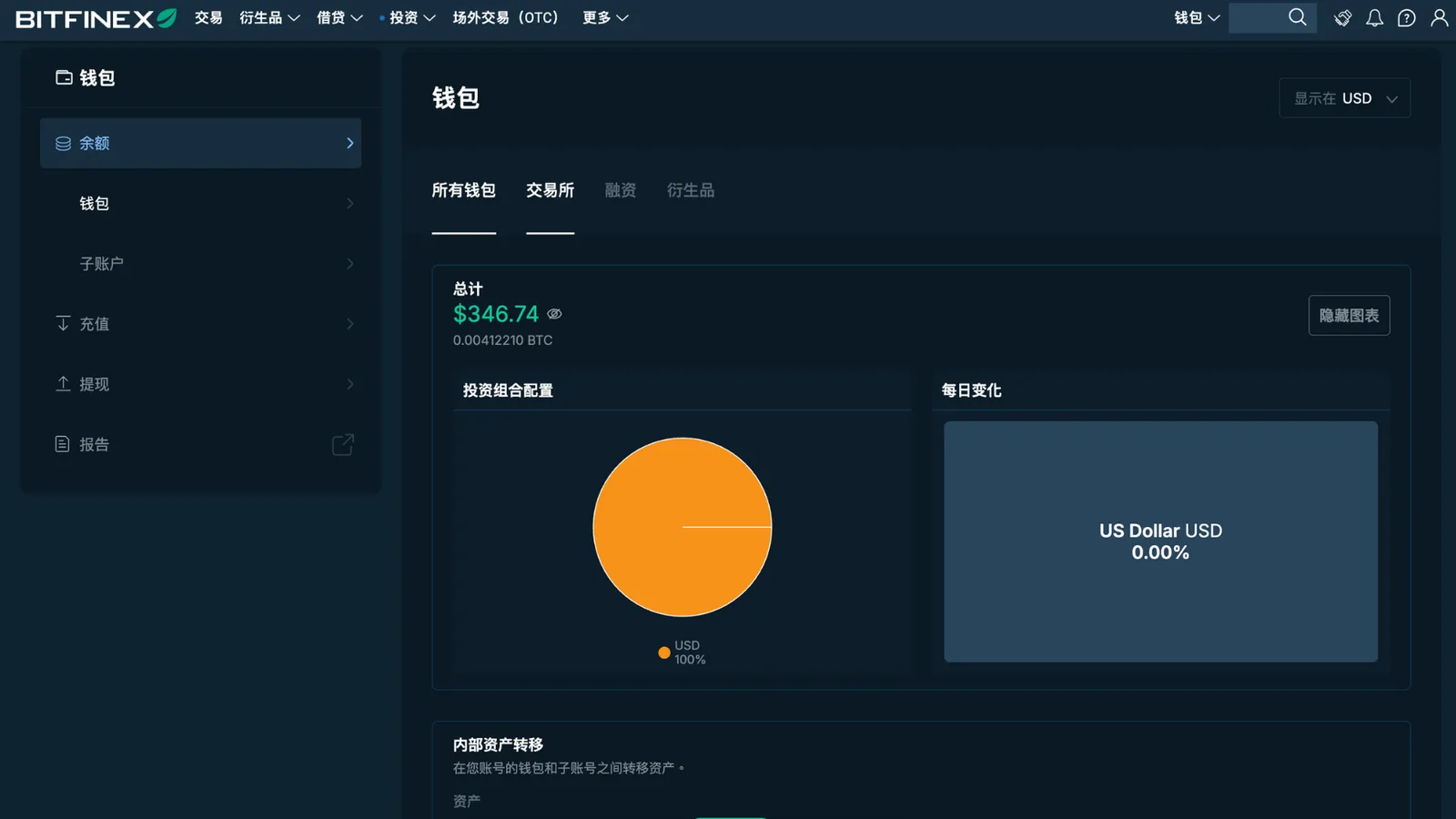
This is where a lot of people get stuck the first time, so pay attention. Bitfinex has three kinds of wallets. For regular crypto trading, you use the "Exchange" wallet. But lending uses the "Funding" wallet. Go to the Wallets page at the top of Bitfinex.
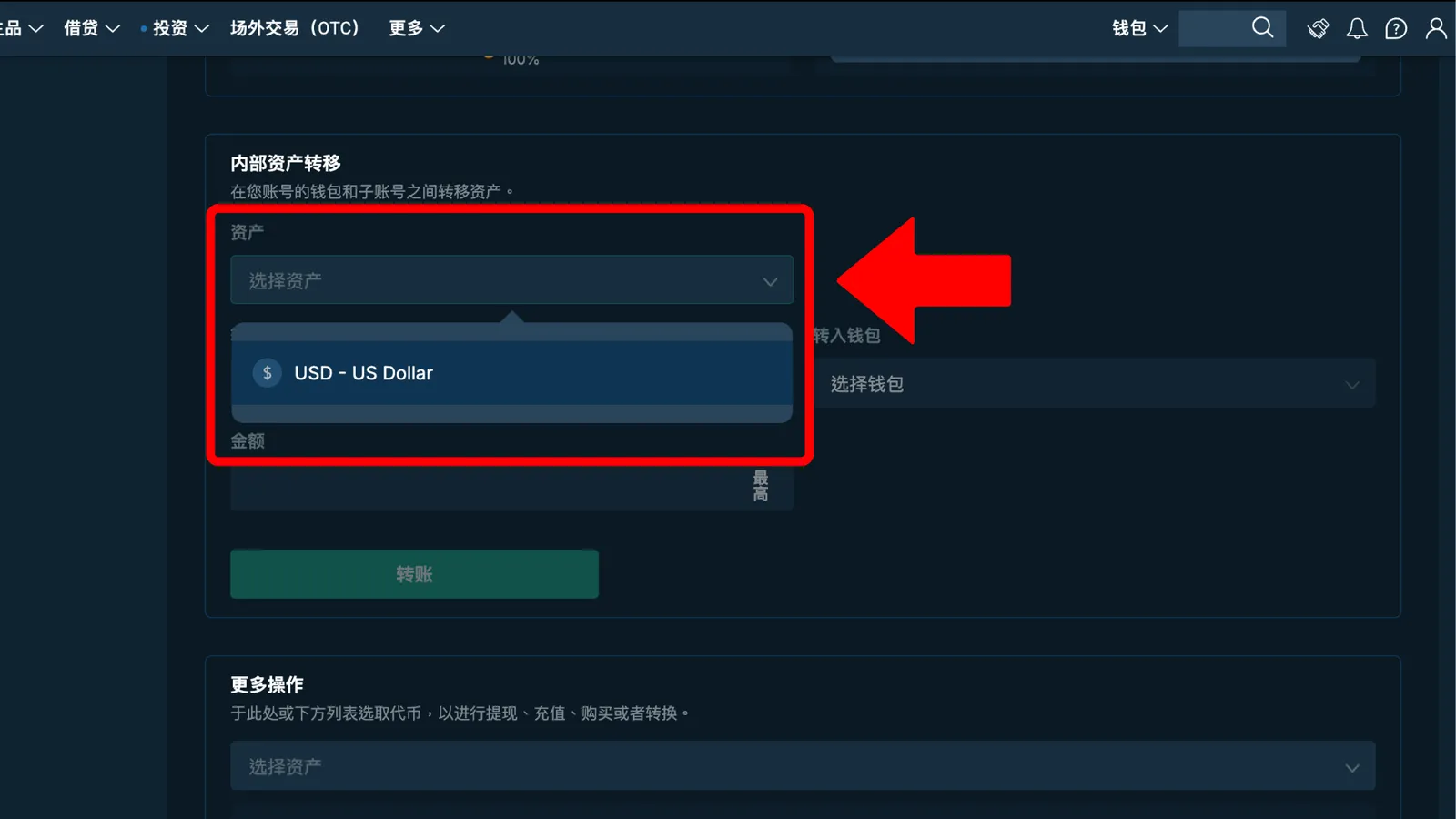
If your money is sitting in the Exchange wallet, the bot can't see it and won't lend it, because it only reads your Funding balance. So once you're in Wallets, scroll down to "Internal Transfer."
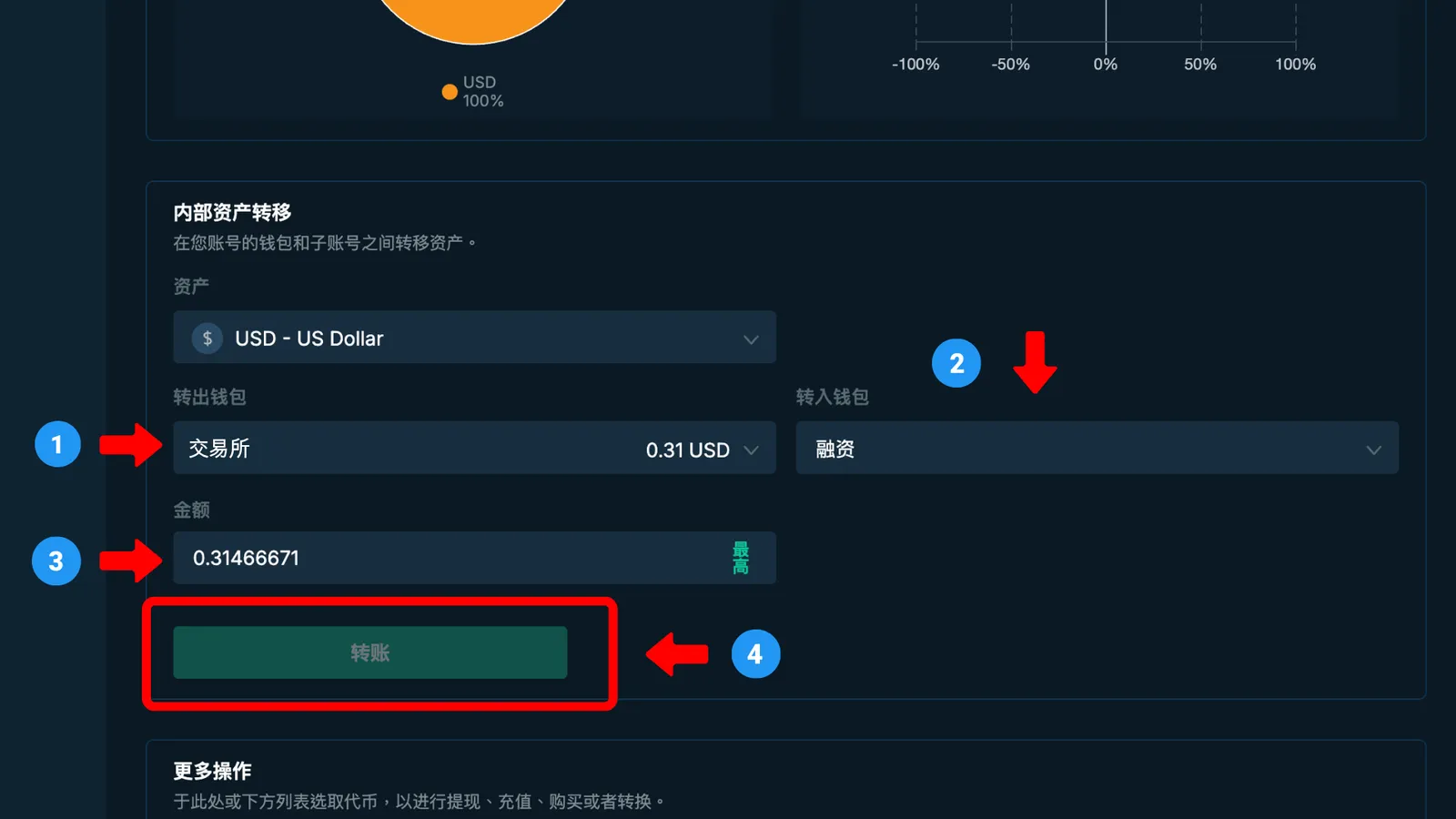
It's really simple. Pick the currency you want to move, then:
1. From: Exchange
2. To: Funding
3. Amount: type in how much you want to move (or hit Max to fill in everything)
4. Double-check, then click Transfer, and you're done.
Think of an internal transfer like moving money from your left pocket to your right pocket. It's all inside your own wallet, so it's not a transfer to anyone else. No fees, and it happens instantly.
STEP 4: Link Your API Key to the Dashboard
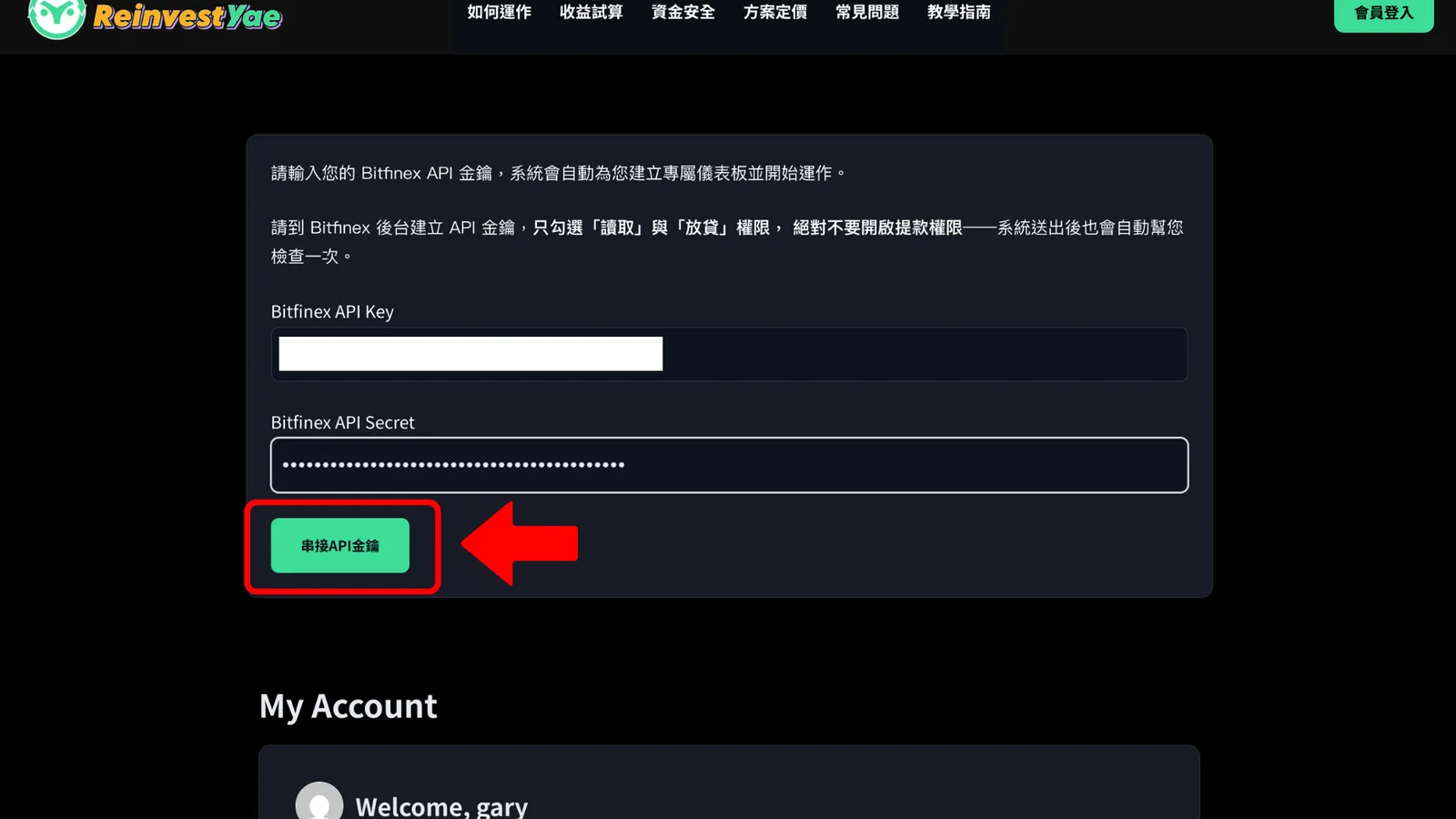
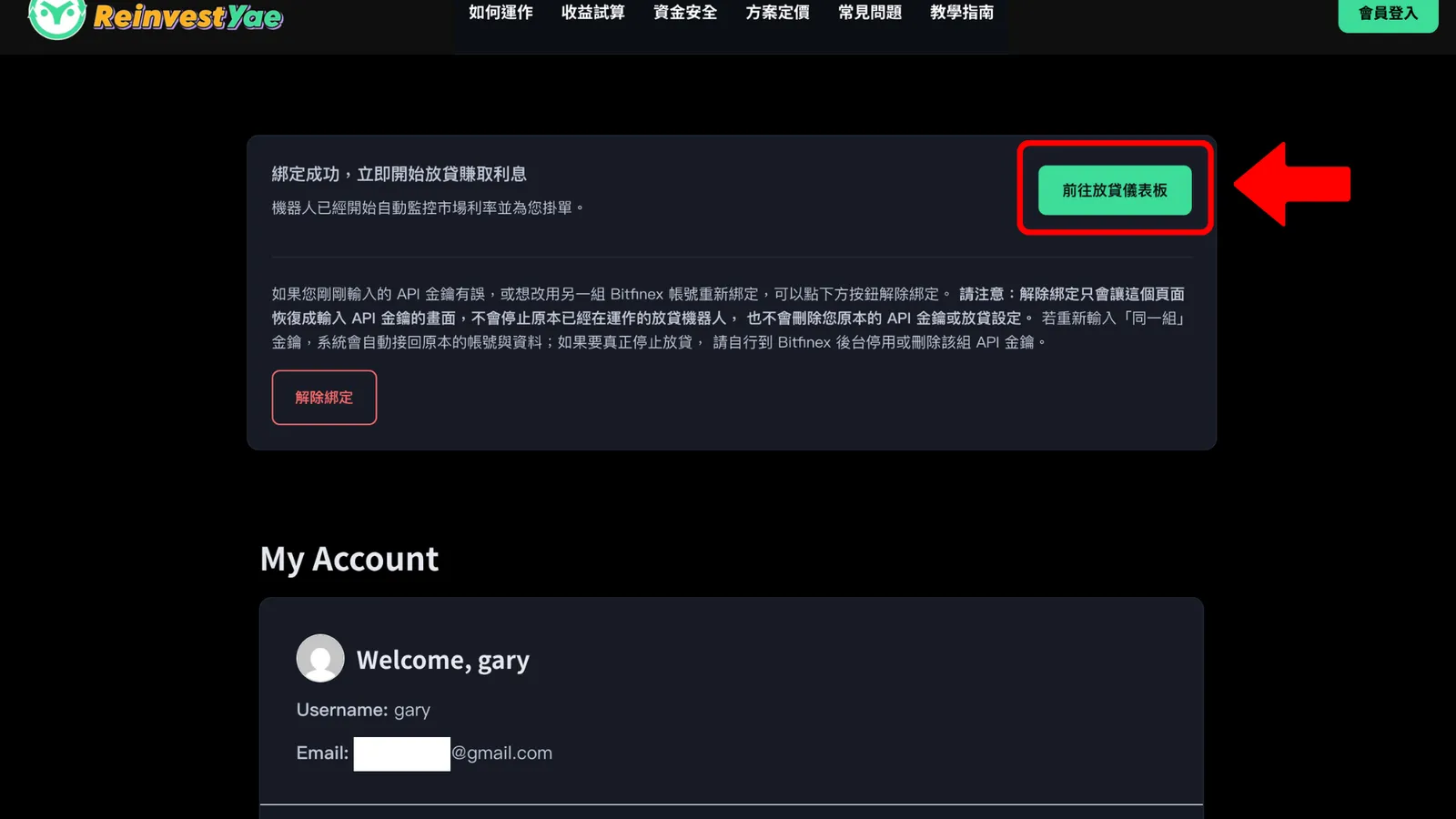
After transferring your funds to the Funding wallet, go back to ReinvestYae and open the “Member Area”. Copy the API Key and API Secret you just generated on Bitfinex, paste them in, and click “Connect API Key” to link your account.
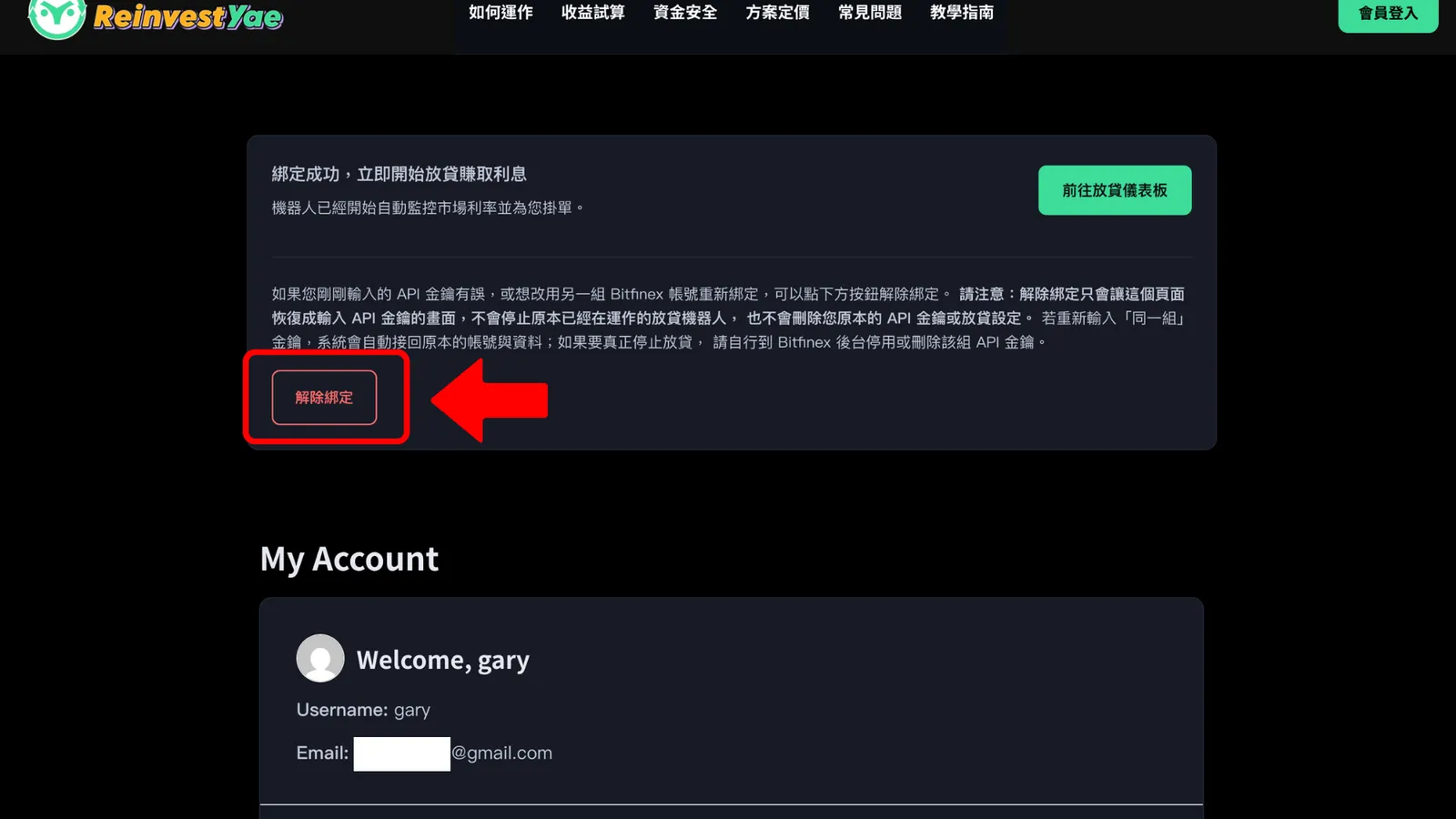
When the link goes through, the system creates a personal dashboard link for you. Click "Go to Lending Dashboard" and you're in. That link only shows your own data. And if you ever want to stop using it, just click "Unlink."
STEP 5: Set Up Your Lending Dashboard
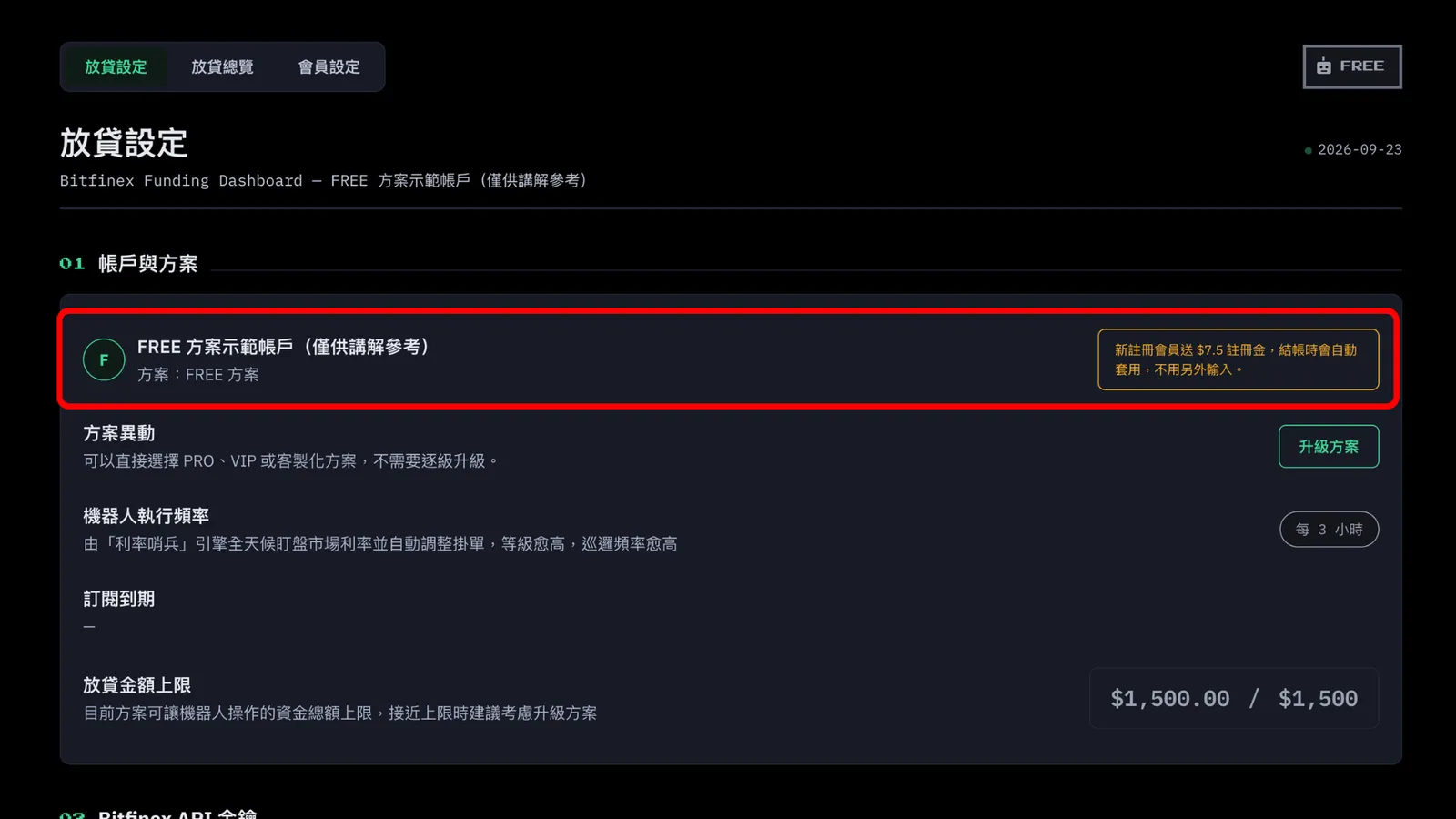
Now I'll go through the dashboard features one by one.
I'm only covering the FREE plan here. PRO and above have their own detailed guides.
01. Account and Plan:
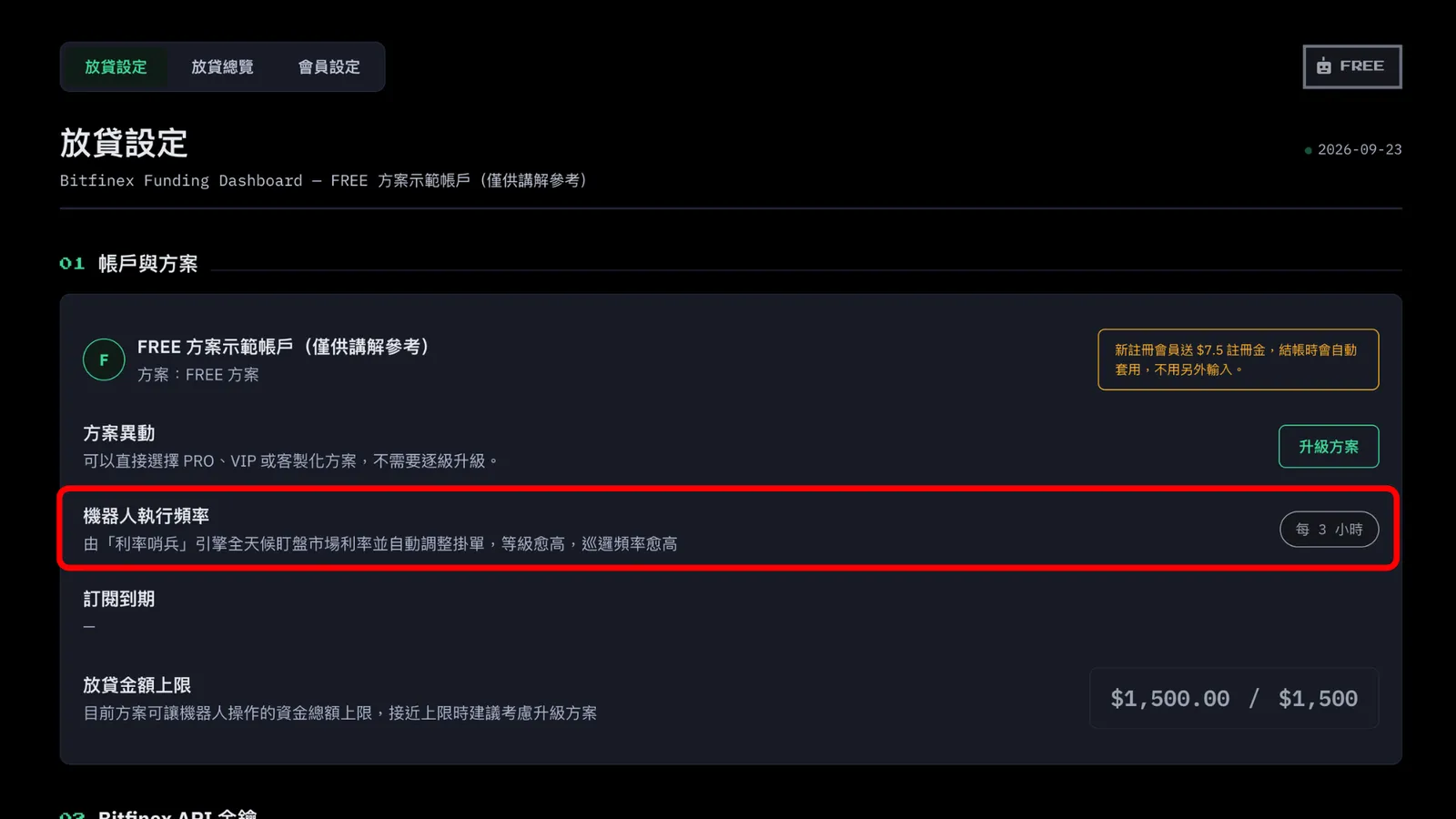
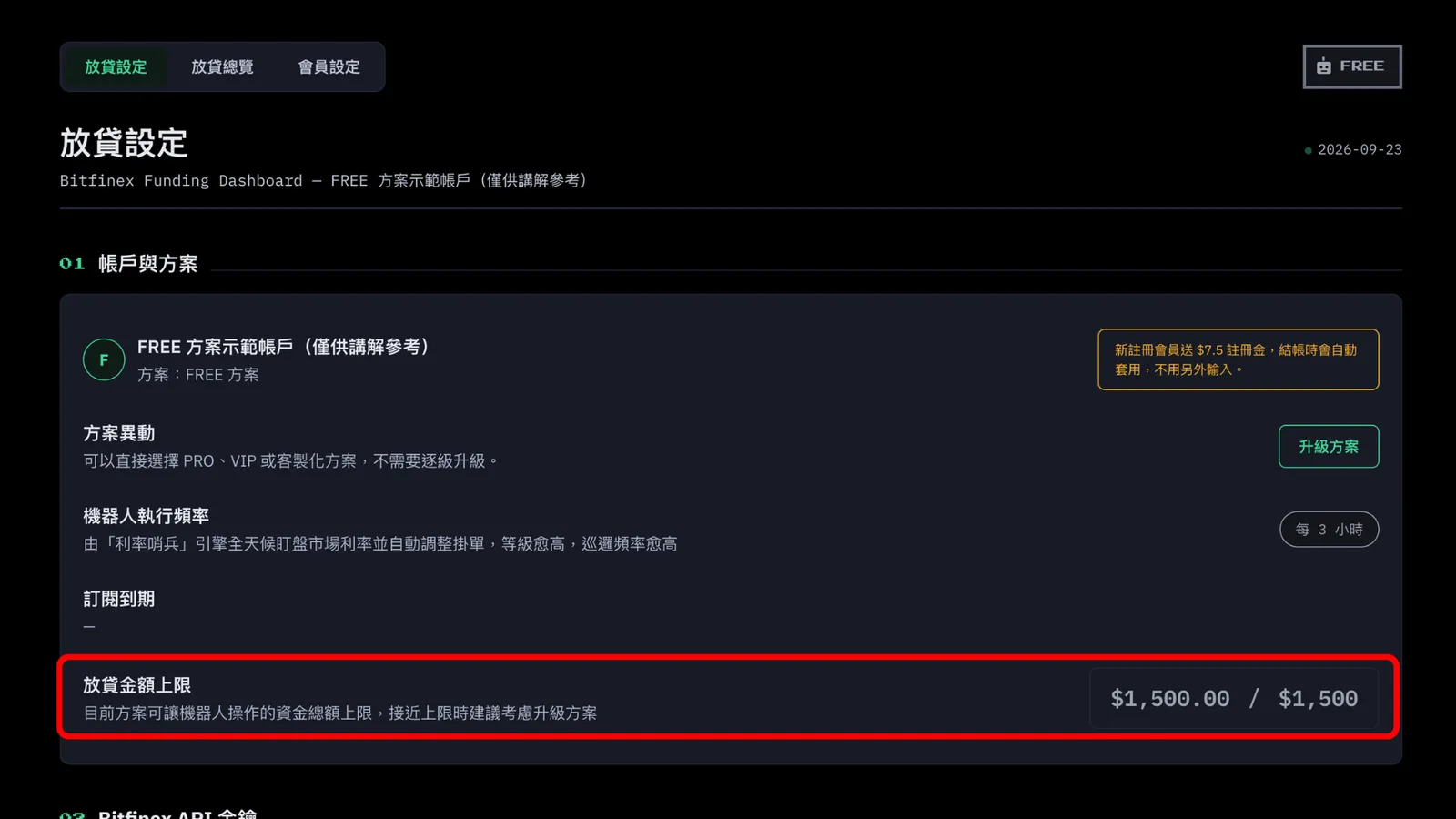
This shows your current plan. On the right, you'll see the $7.50 sign-up credit that every new member gets. You can use it as a discount once you start paying for a plan. You'll also see the Upgrade button, the bot's lending frequency, and your lending amount limit.
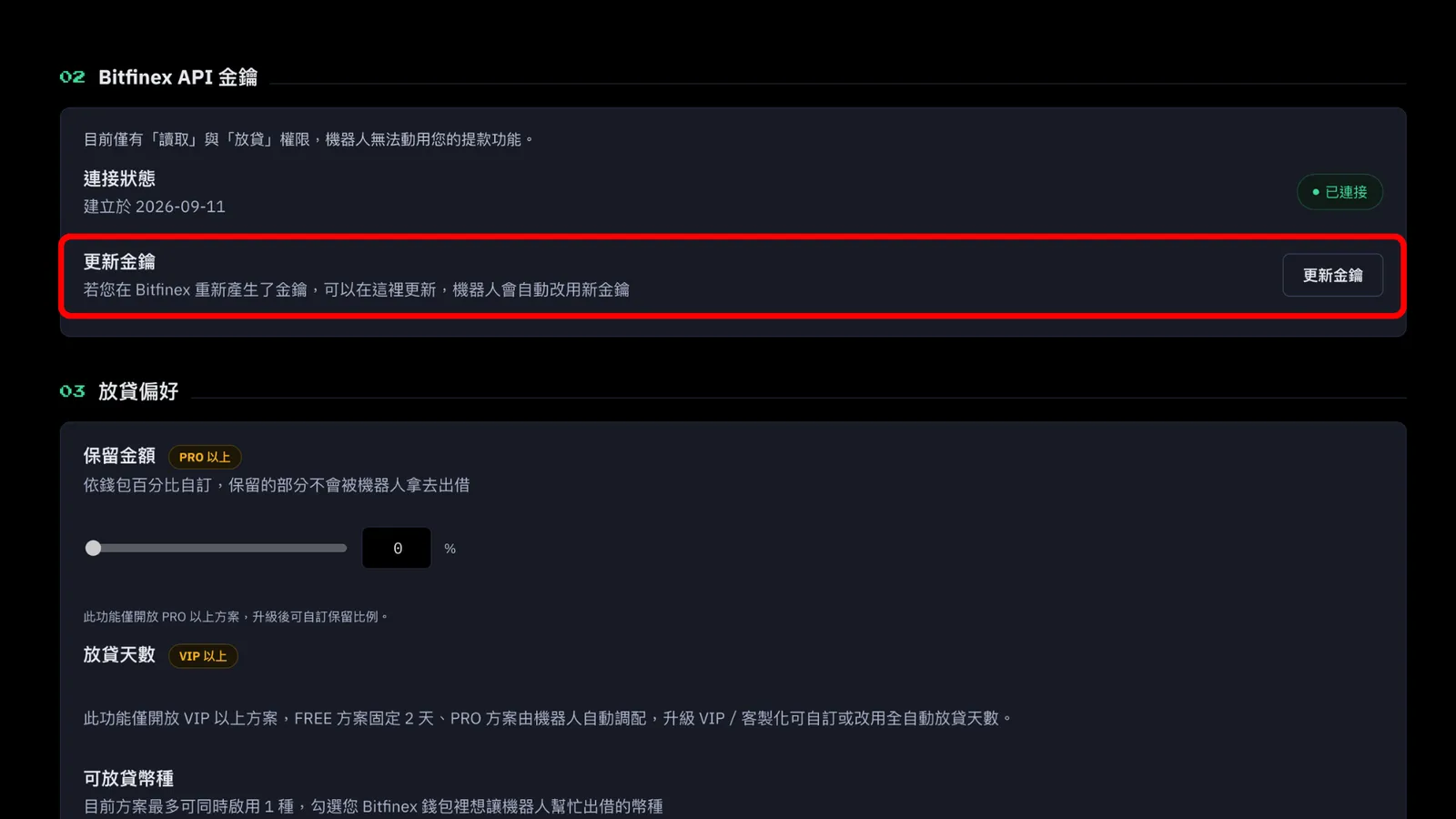
02. Bitfinex API Key:
Forgot to copy your API Key and Secret, or just want a new key? No stress. Just follow what I showed you in step 2 to create a new key on Bitfinex, then come back to the dashboard and click "Update Key." Paste in your new API Key and Secret, save it, and the bot automatically switches to the new key. No need to sign up again.
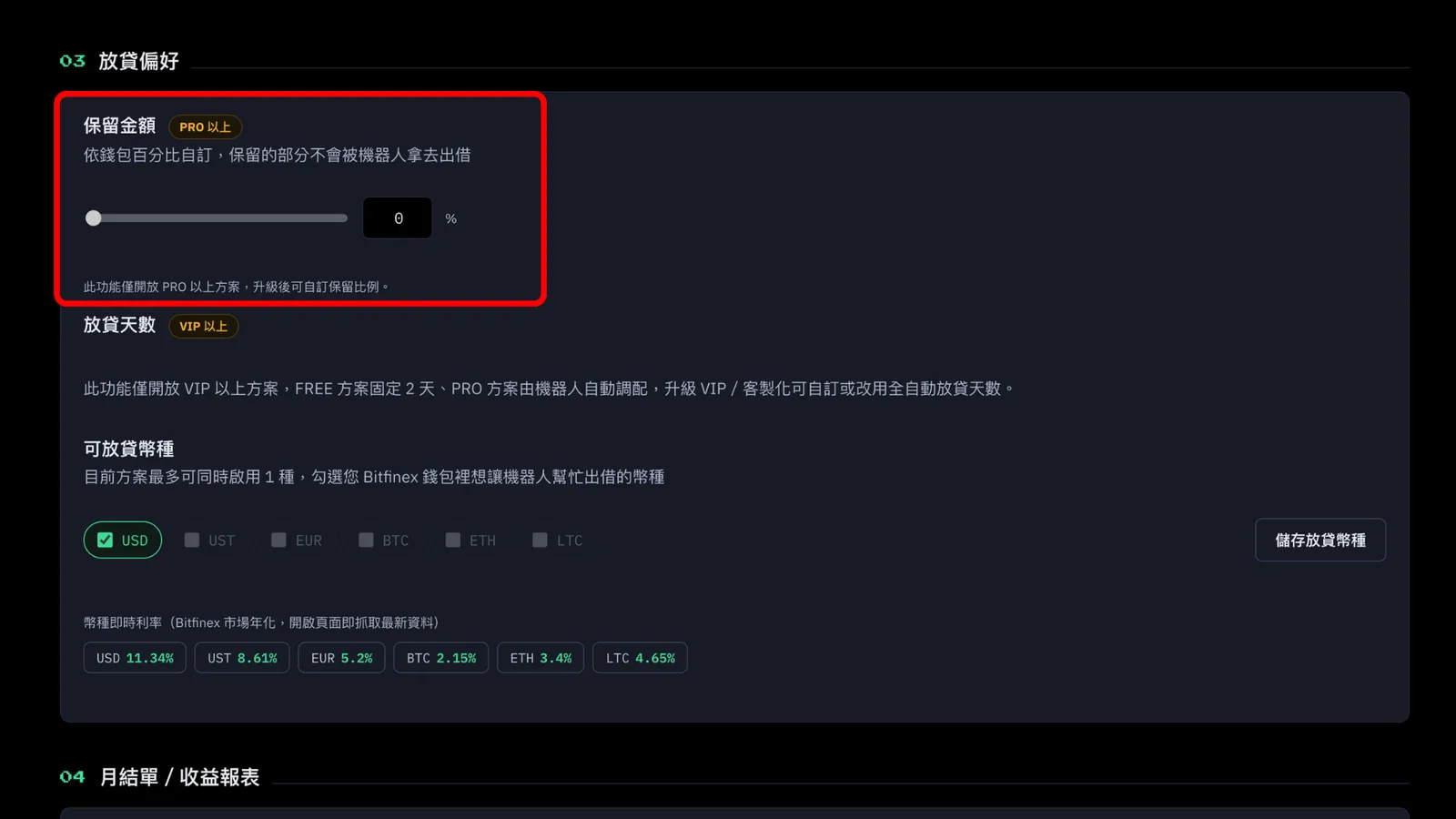
03. Lending Preferences:
- Reserve Amount: you can decide what percentage of your wallet to keep aside and not lend out, so you can use it yourself. The bot only lends the rest. Set the percentage, click "Save Reserve Amount," and it takes effect right away.
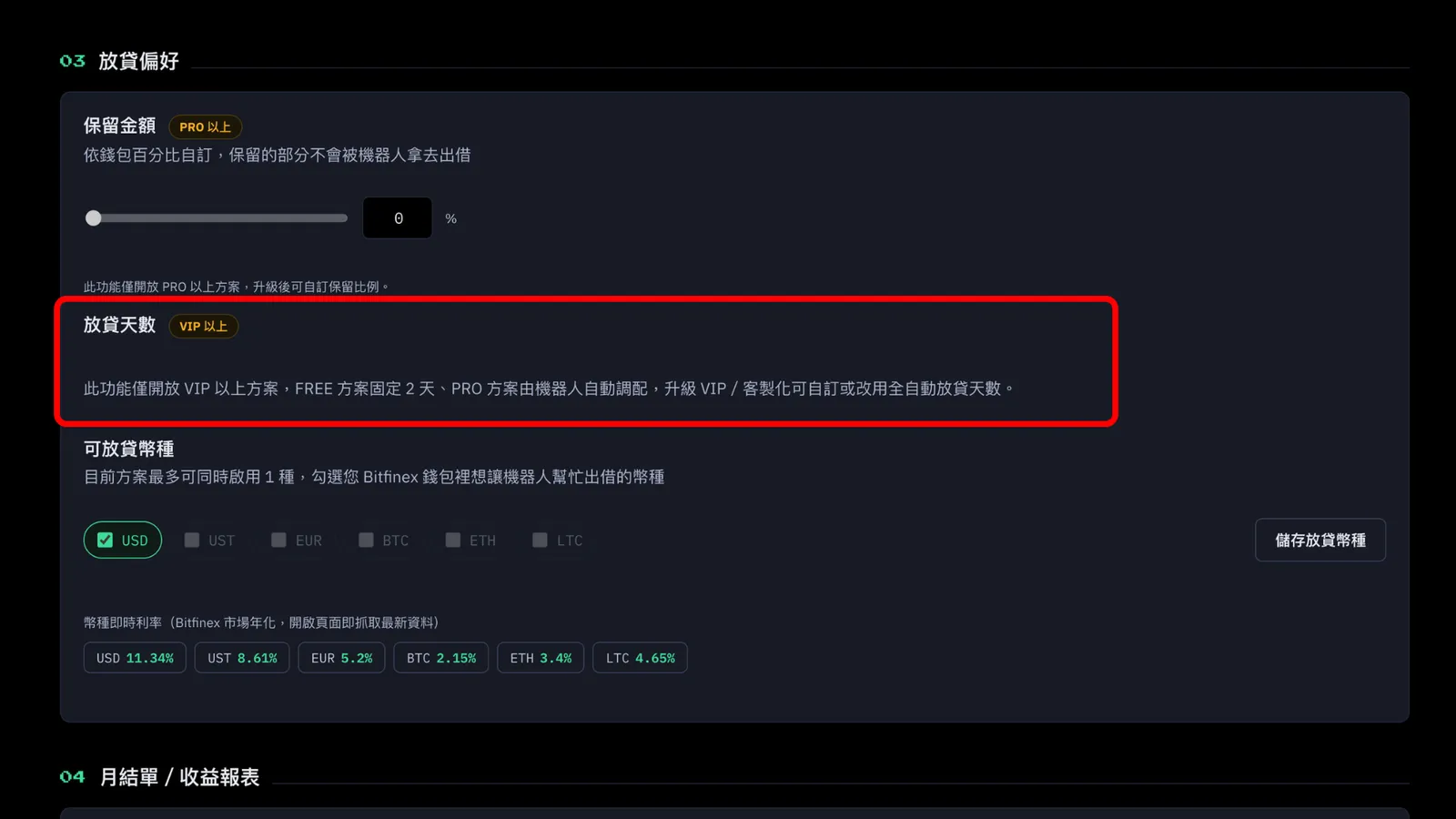
- Lending Period: this depends on your plan, so what you see may look a little different. Every plan is fully automatic. The bot decides for you based on the market rate curve, mixing short, medium, and long terms, so you don't have to think about it.
The difference is that the bot's efficiency varies by plan. Just keep in mind that money you've lent out only comes back once the loan ends or the borrower repays early, so plan around how soon you need your cash.
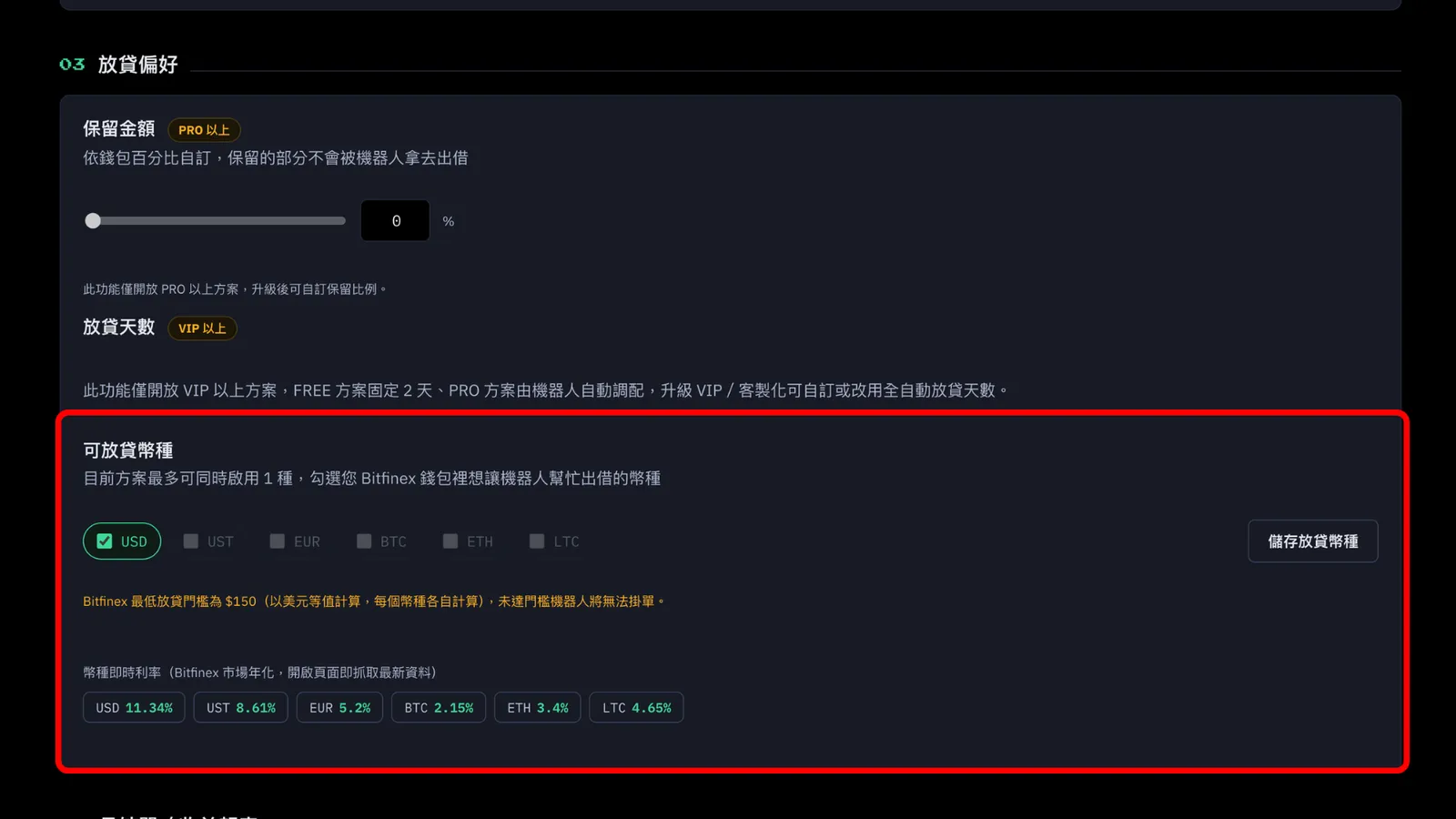
- Currencies: tick the currencies you want the bot to lend. You'll also need to have those currencies in your Bitfinex Funding wallet. The number of currencies you can lend depends on your plan. Once you save, the bot starts lending those currencies and your dashboard syncs up.
you can check the market's annual rates for different currencies.
Quick reminder: Bitfinex has a minimum lending amount of $150 (in USD equivalent, calculated separately for each currency). If you're under that, the bot can't place offers.
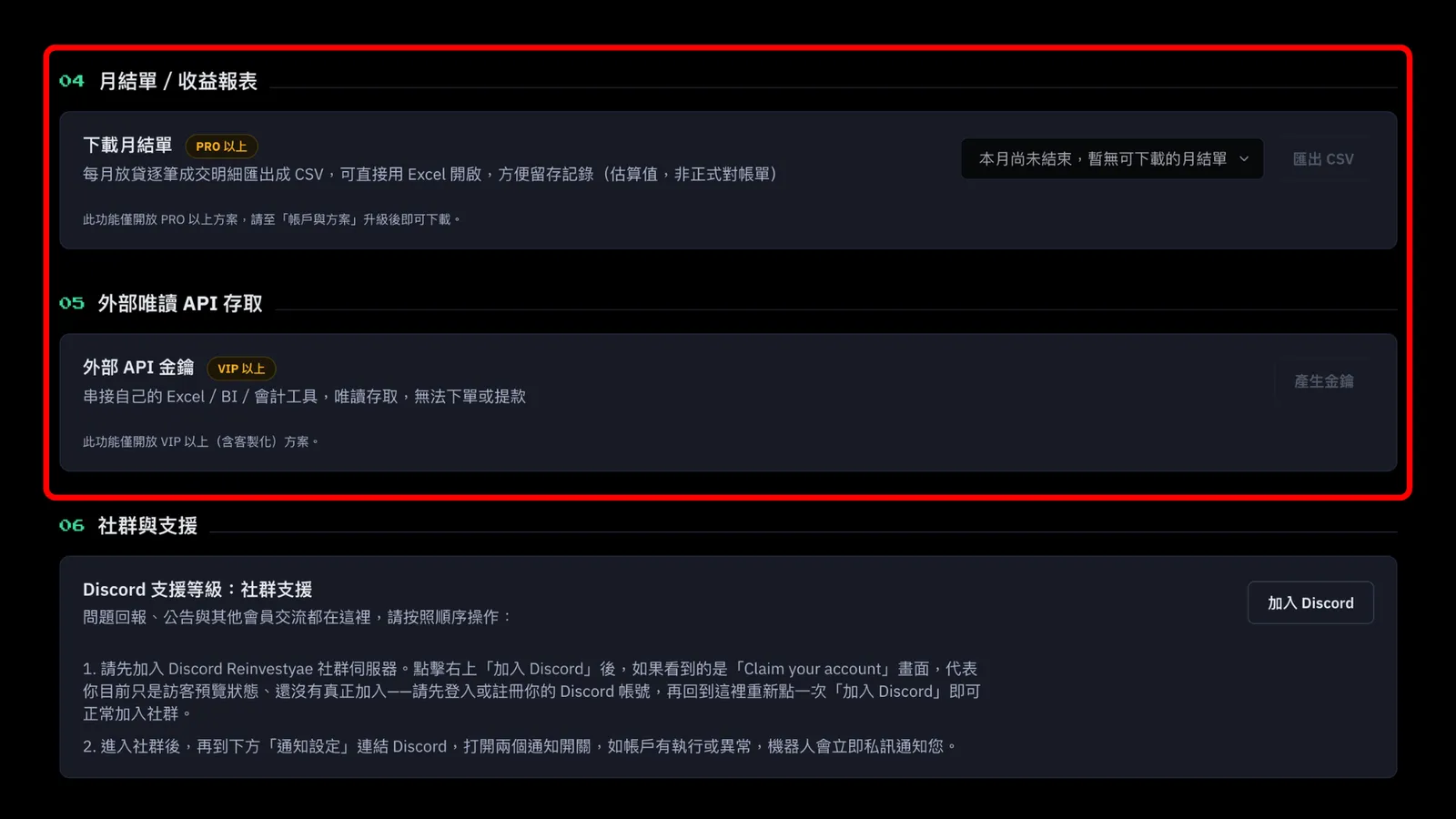
04. Monthly Statement / Earnings Report:
PRO and above can download their lending details every month.
05. External Read-Only API Access:
For VIP and above. You can connect your own Excel, BI, or accounting tools and generate lending records automatically.
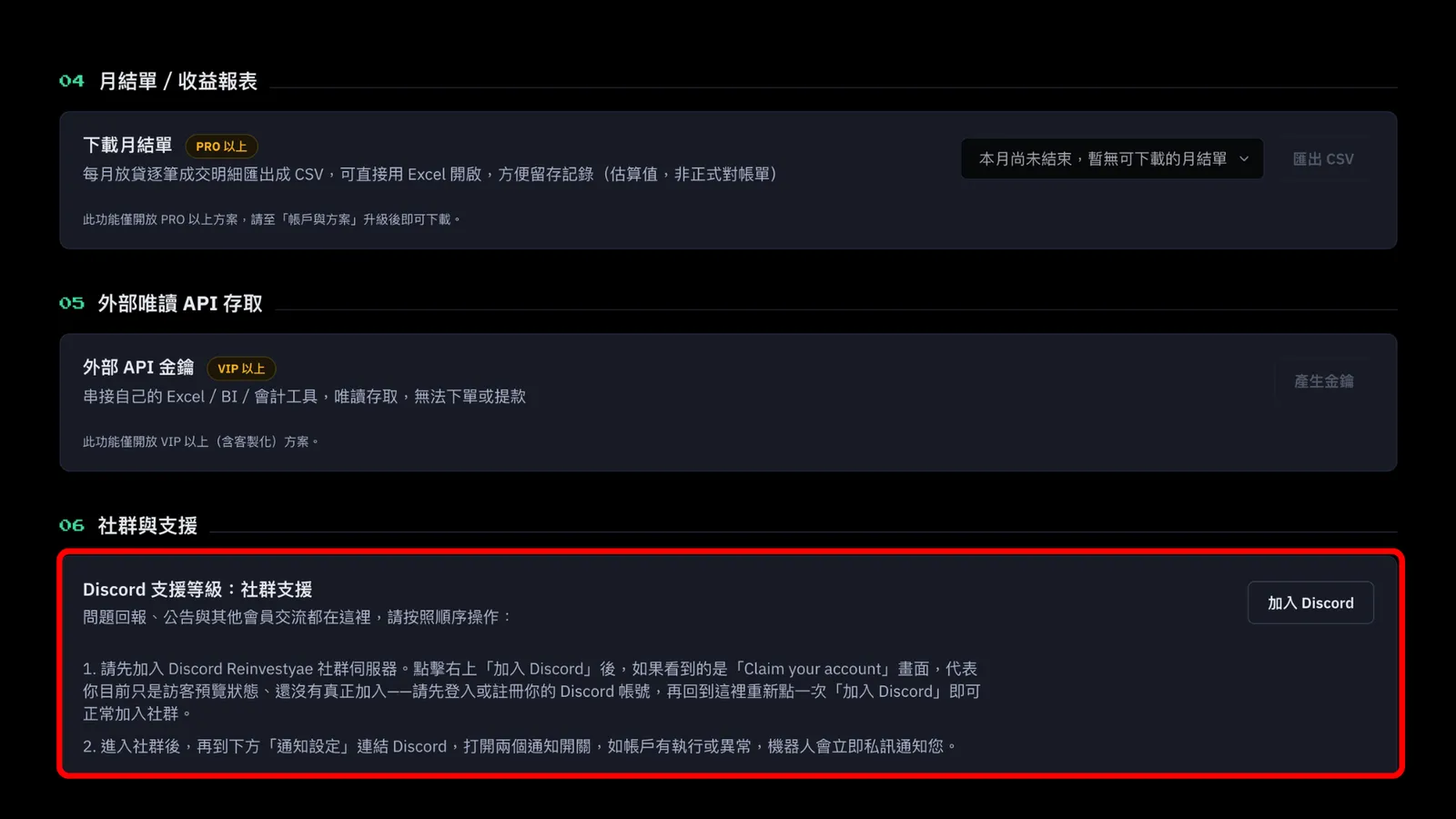
06. Community and Support:
If you're getting ready to lend, please make sure you join our ReinvestYae Discord community. Read the info on the page and click the button on the right to join.
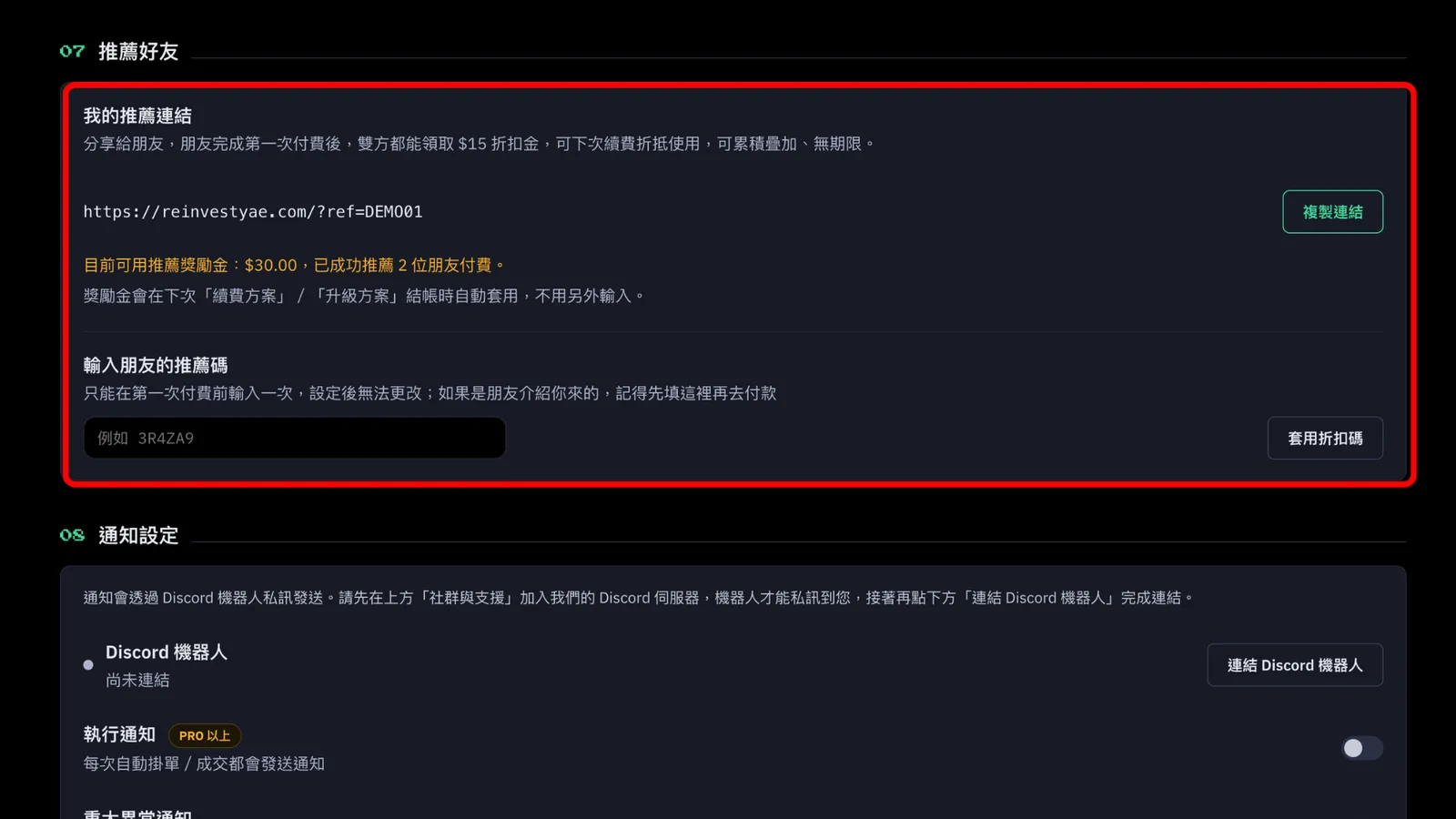
07. Refer a Friend:
Share it with a friend, and once they make their first payment, you both get a $15 discount credit. You can use it toward your next renewal. Credits stack up and never expire.
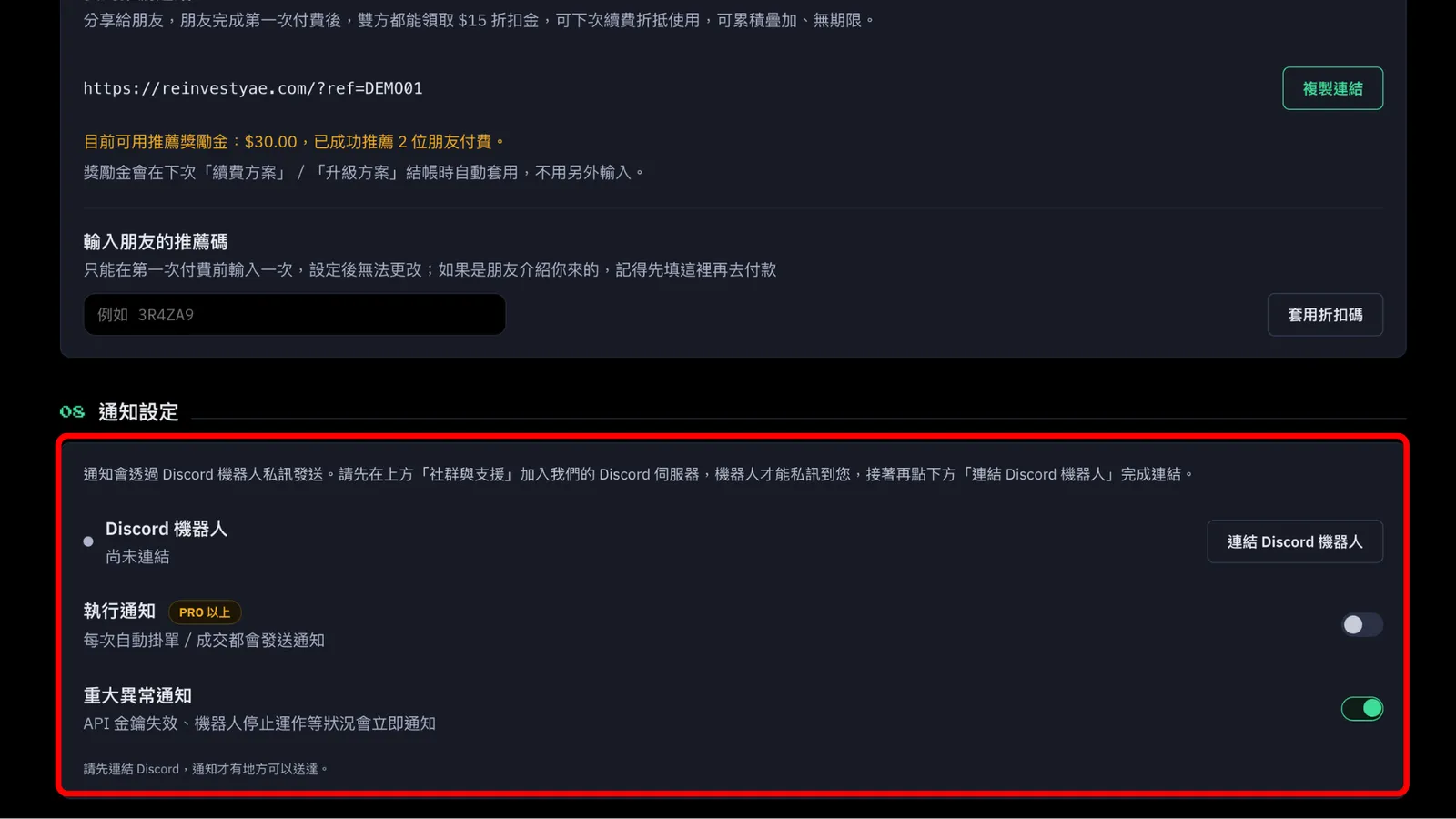
08. Notification Settings:
Make sure you connect the Discord bot and turn on critical alerts.
For PRO and above, you'll also get a Discord notification every time the bot places a lending offer.
STEP 6: Check That the Bot Is Running
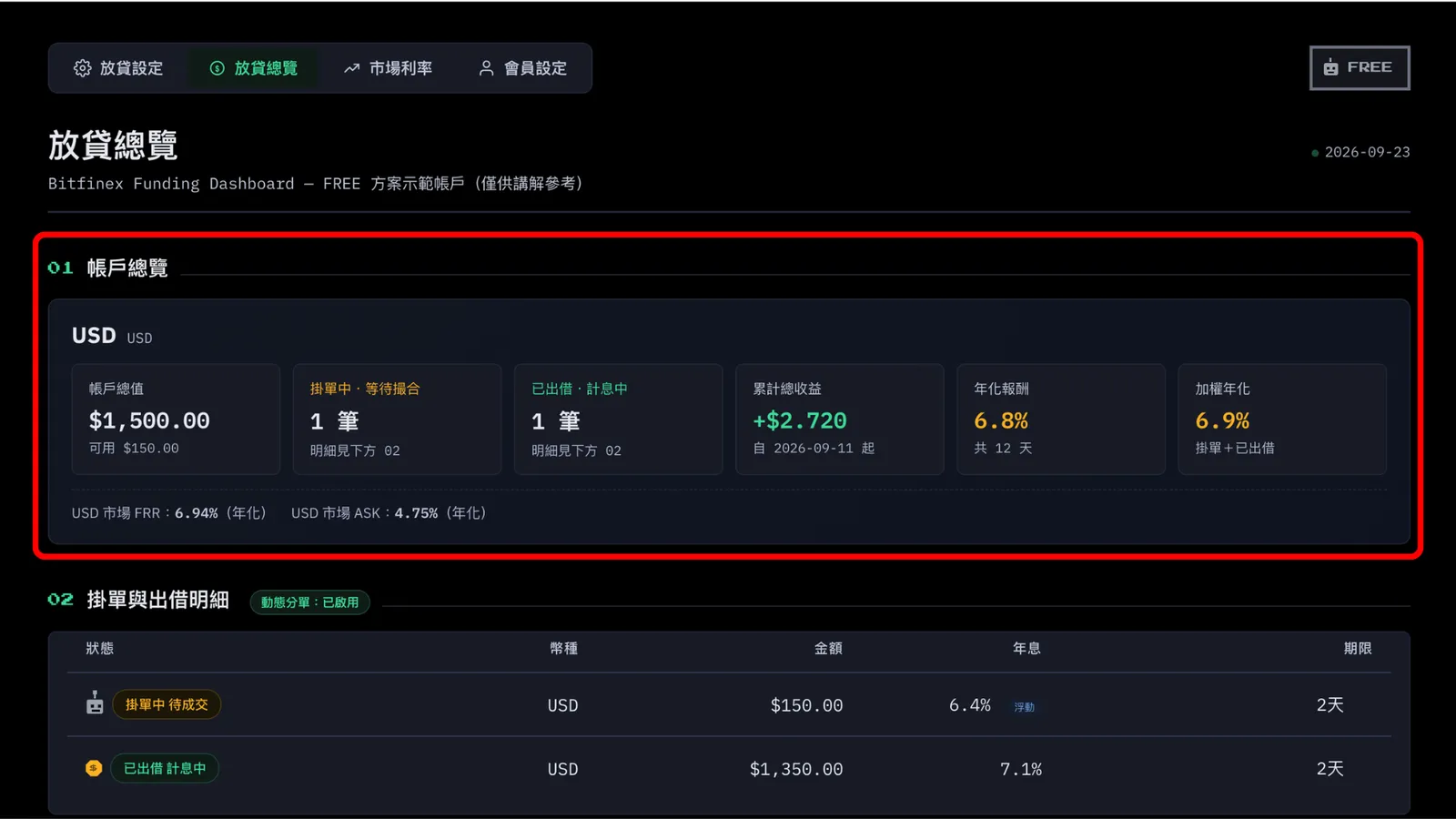
After you've saved all your settings, click Lending Overview and you'll see the full dashboard. If nothing shows up yet, don't worry. The bot's next check cycle will pick up your new settings automatically. Give it a few minutes, or just refresh the page. No need to log in again or do anything extra. Now let me walk you through the overview page.
01. Account Overview:
You can see the currencies you're lending, the total amount, your open offers, how many loans are out, your total earnings, plus your estimated annual rate and weighted annual rate.
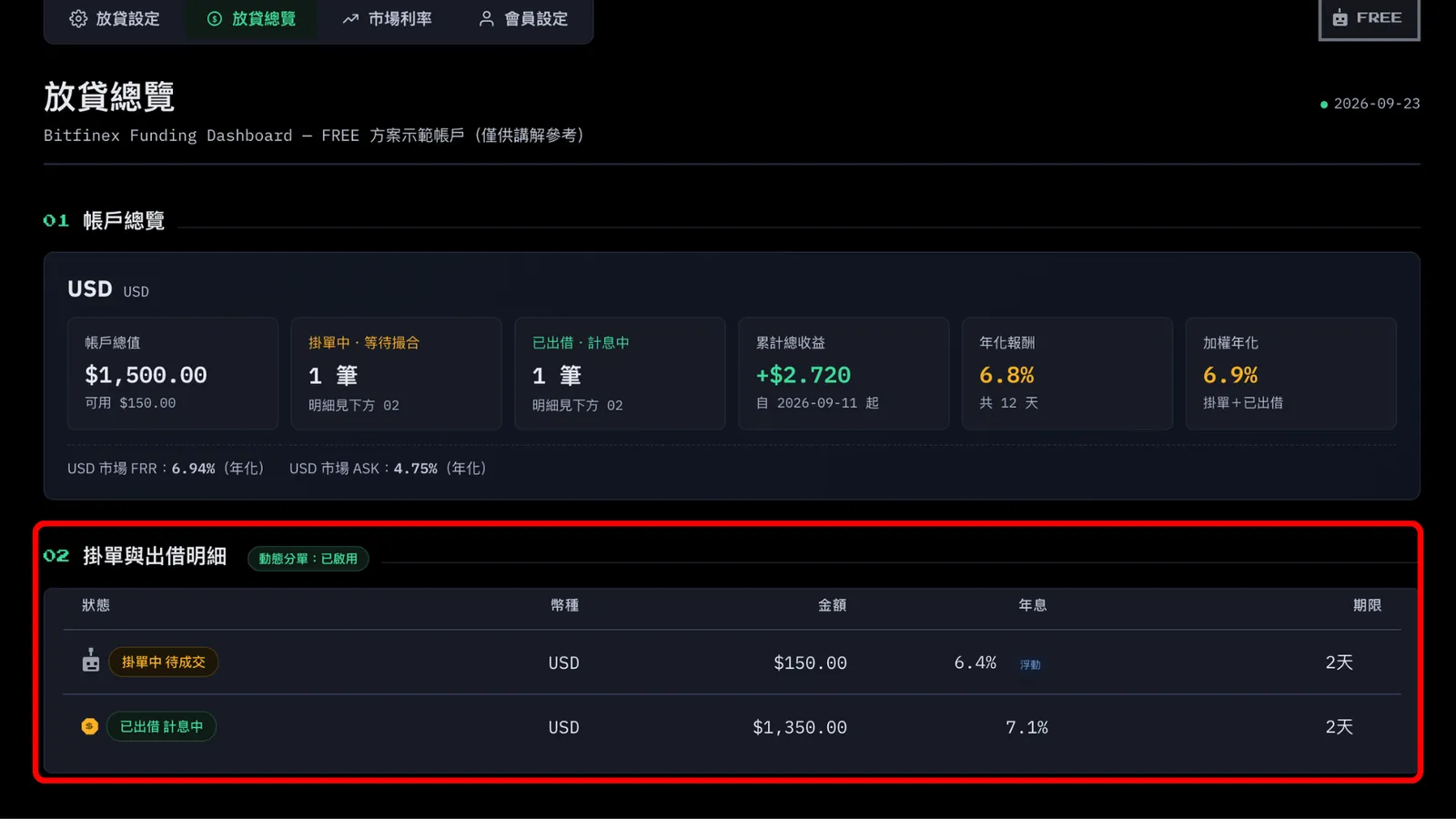
02. Offers and Loan Details:
This shows the currency, amount, interest rate, and term. When it says "Offer Pending," you'll see your plan's robot icon. That means the bot has already put your funds out there and is waiting for a borrower. When it says "Lent Out, Earning Interest," you'll see a gold coin, which means the loan went through and you're earning interest.
If your amount is small, or the market rate isn't great right now, the bot might have to wait a few rounds before it gets matched. That's totally normal. The bot keeps adjusting the rate and trying again, all on its own. You don't have to do anything.
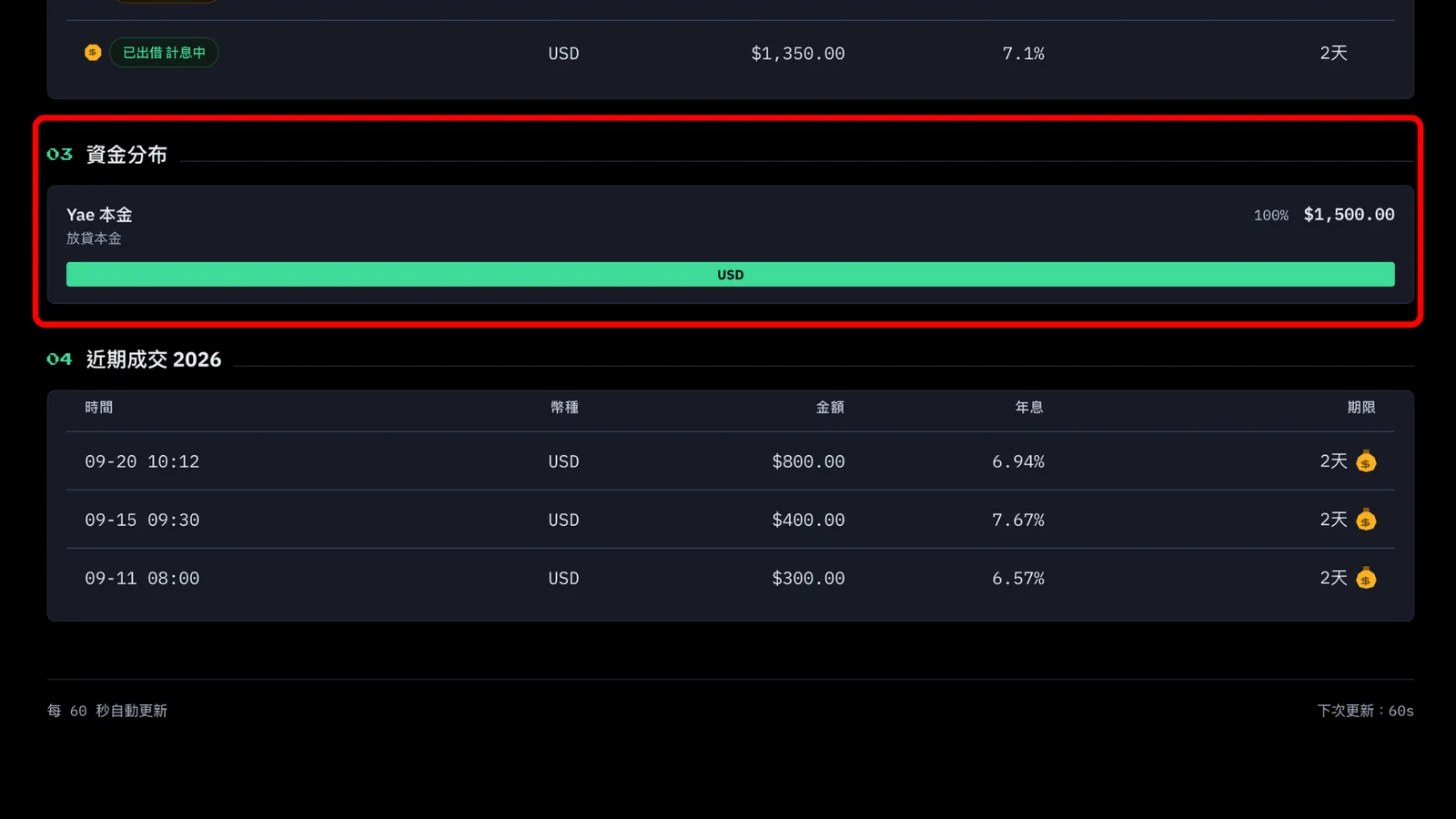
03. Fund Distribution:
This shows the different currencies in your Funding wallet, and it tells you the bot is lending 100% of the currencies you selected. The only exceptions are when the amount is too small, or when funds are in your reserve and can't be lent.
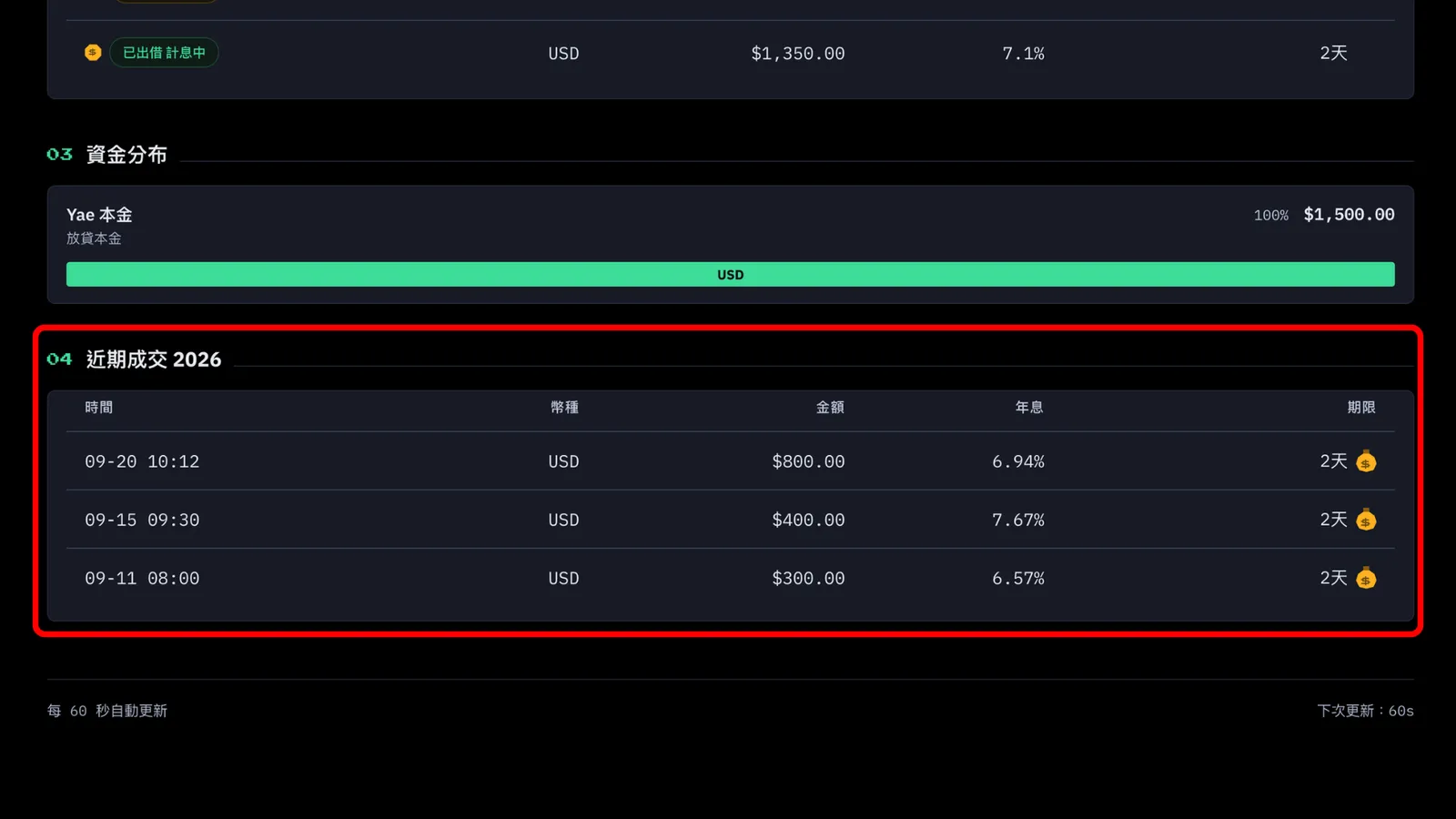
04. Recent Trades:
Finally, this shows your recent trades: the date, currency, amount, interest rate, and term. You'll see a money bag icon, which means the interest has made its way back to your account.
STEP 7: Add the Dashboard to Your Phone's Home Screen
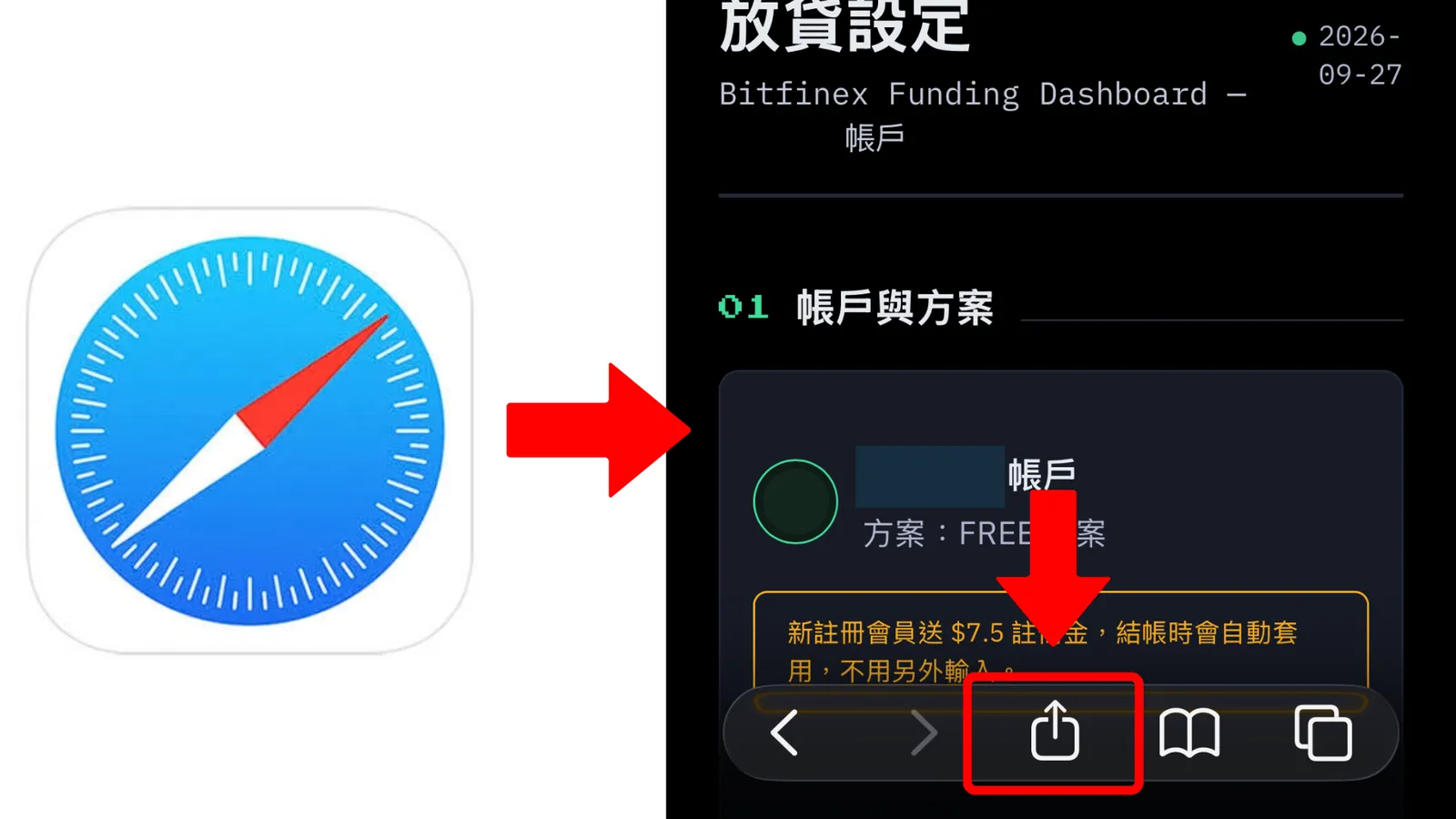
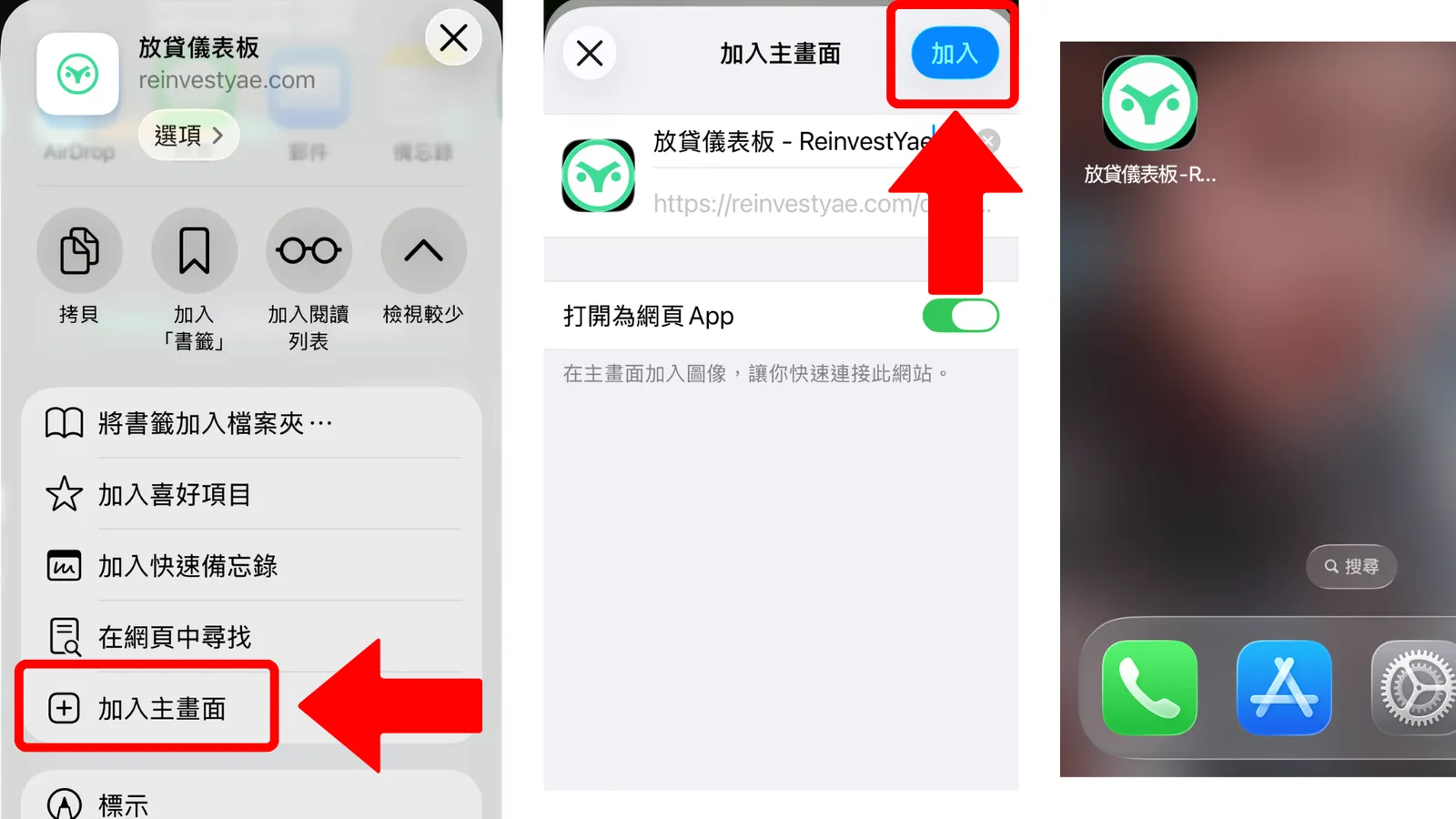
If you want to check on your lending from your phone anytime, here's a little trick. You can add the dashboard as a shortcut on your home screen. After that, one tap on the icon opens it right up, with no logging in again and no hunting for the link.
iPhone (iOS):
Open Safari and go to your dashboard page. Tap the Share button at the bottom (the square with the arrow pointing up), scroll down, and tap "Add to Home Screen." Confirm the name, tap "Add," and an icon shows up on your home screen. Tap it and you're straight in the dashboard, just like opening an app.
Android:
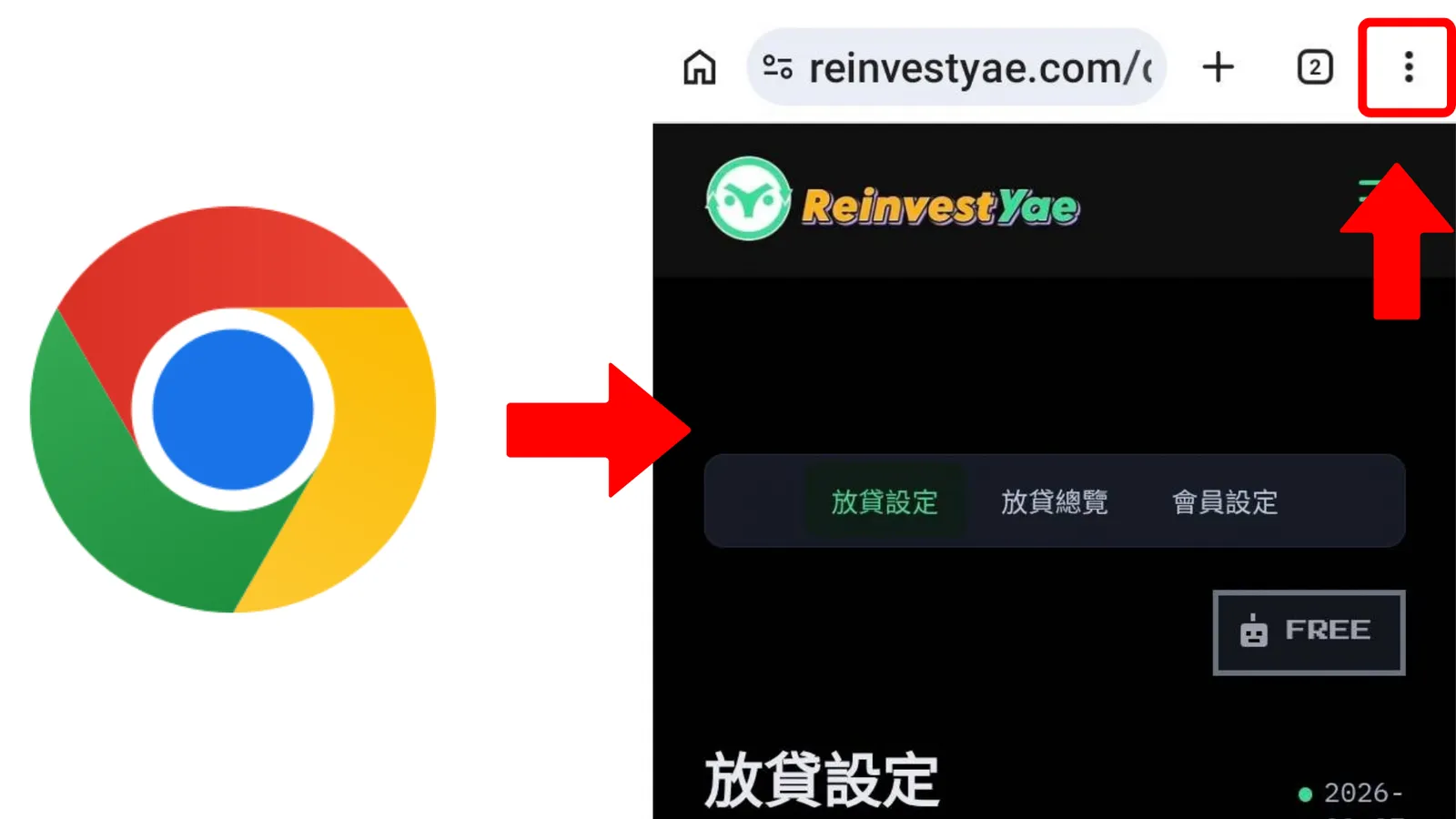
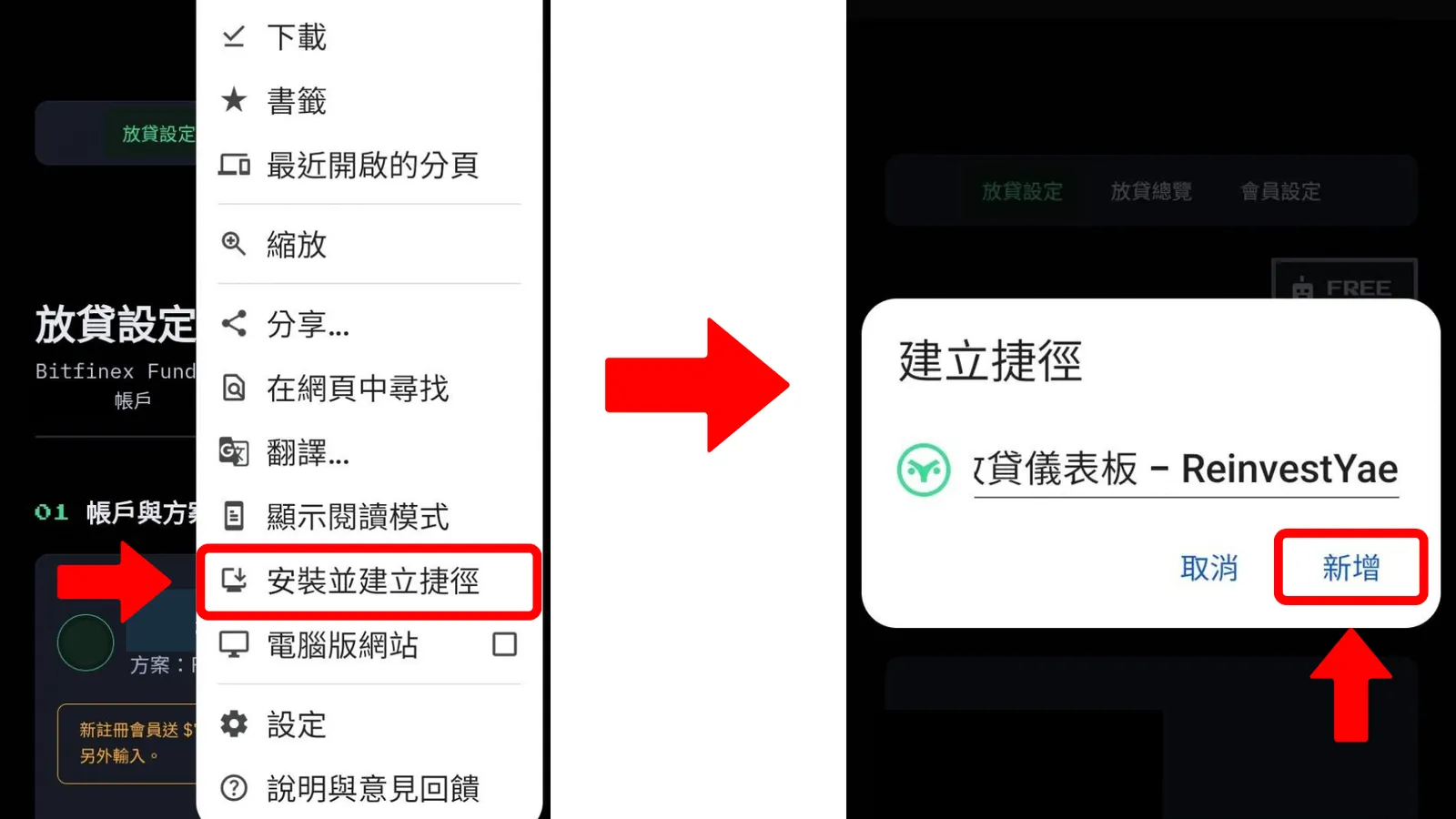
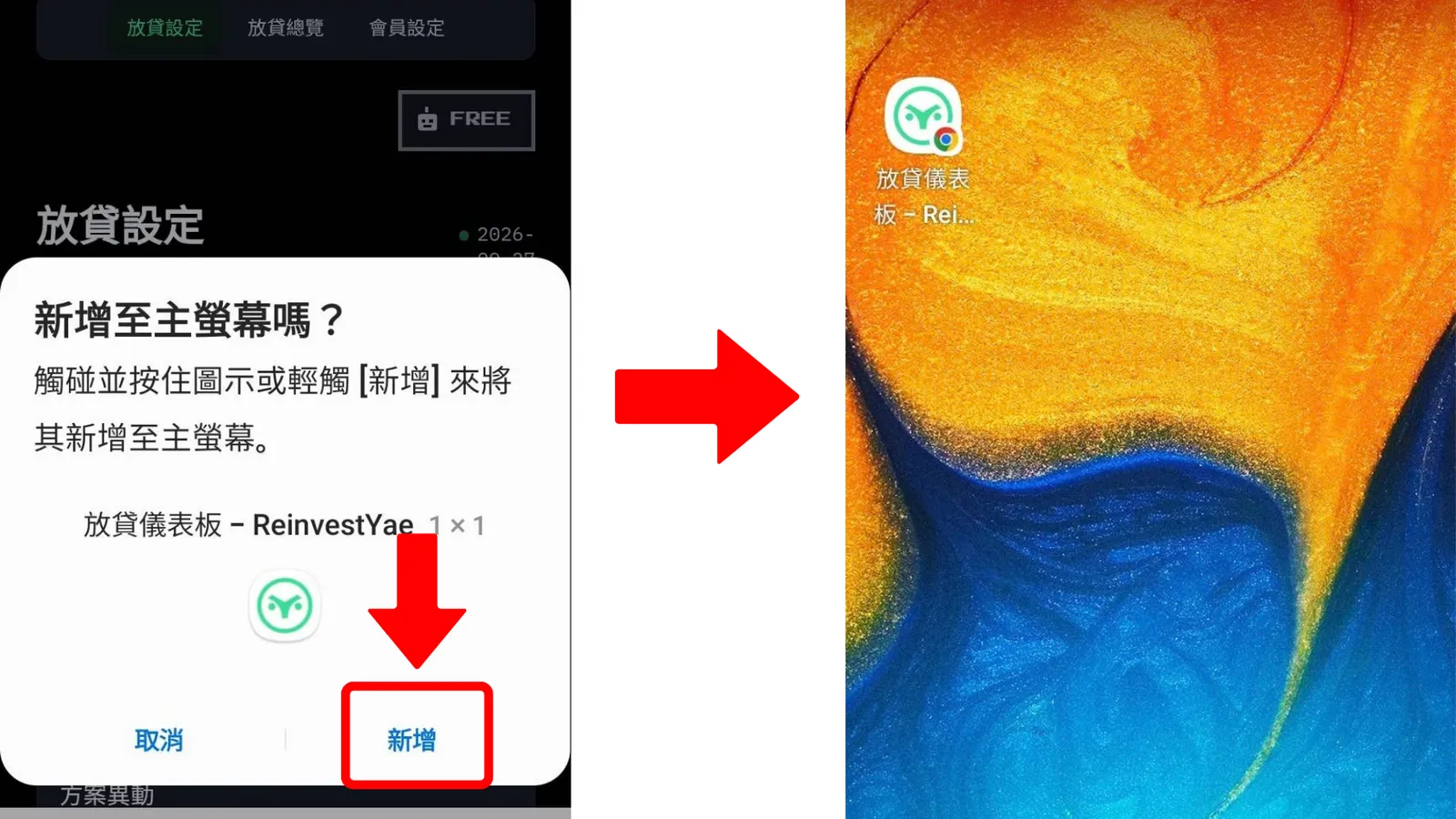
Open Chrome and go to your dashboard page. Tap the three dots in the top right, choose "Install app" or "Add to Home screen," and confirm. A shortcut icon appears on your home scre
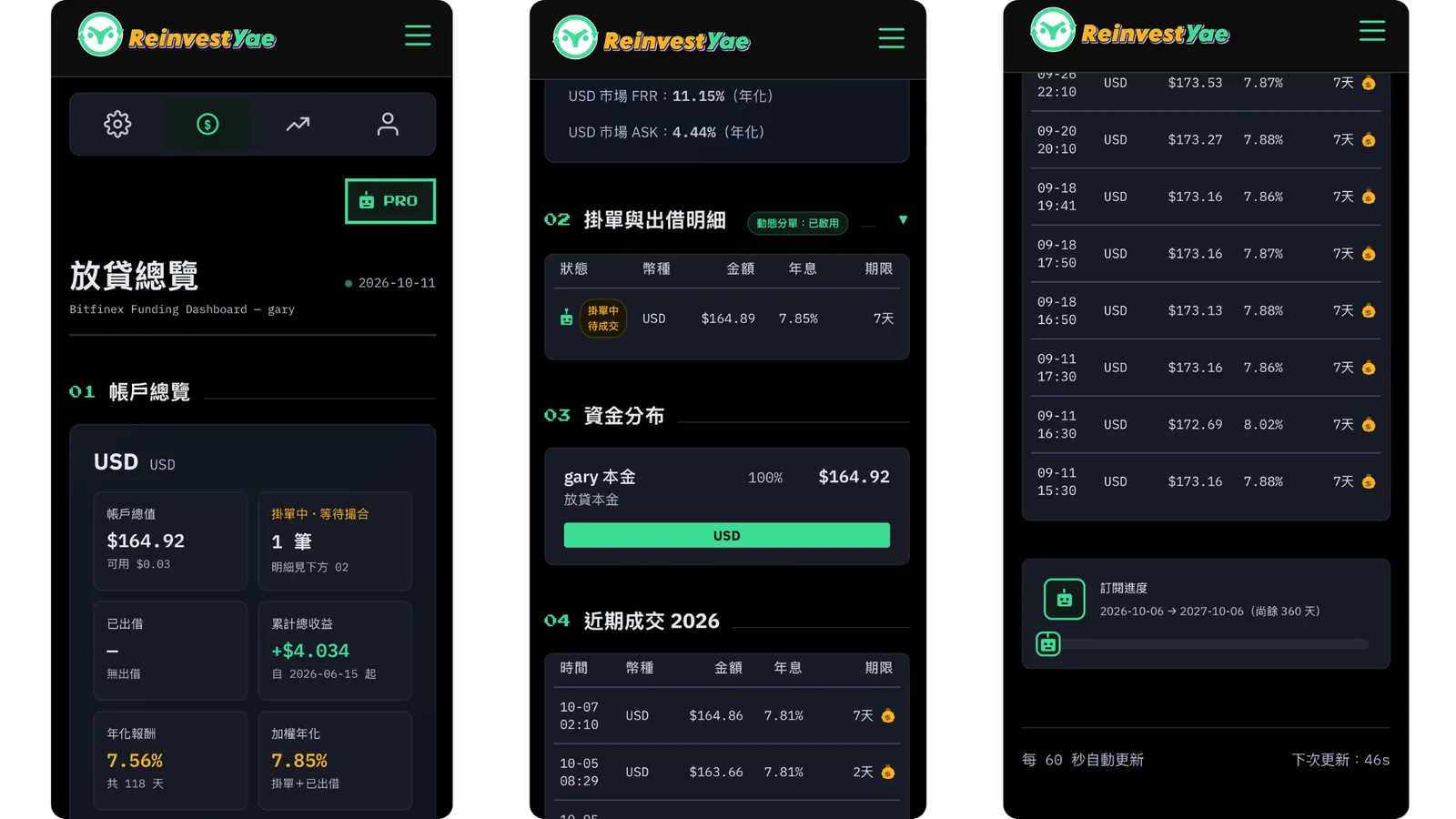
Mobile Dashboard
On your phone, the dashboard opens right up and shows everything about your lending. Super convenient.
And that's it! You've gone through the whole process, from signing up to linking the bot and starting auto-lending. Congratulations! From here, the bot does the hard work for you. All you need to do is enjoy collecting interest every day, and check back once in a while to see how you're doing.
Also, come join our Discord community! If you run into any problems along the way, ask there, or use the official email and Discord support center at the bottom of our website. We'd love to have you.
8.FAQ
Q1: Why is part of my money still showing as "pending offers" and not lent out?
A: Lending only happens when a borrower accepts your offer, so funds are not lent out the moment an offer is placed. The bot sets a minimum rate and does not push the rate down just to get filled faster, because a lower rate means less interest even if the loan goes through. When market rates are low, offers may take a while to fill. This is by design, not a malfunction. You do not need to cancel or adjust anything. The bot keeps watching the market and fills automatically when conditions are right.
Q2: Can the bot move my money out of my account?
A: No. The API key you create only has "Read" and "Lend" permissions, and no "Withdrawal" permission, so the bot technically cannot move funds out of Bitfinex. Please make sure withdrawals were not enabled when you created the key.
Q3: Can I take my money back at any time?
A: Offers that have not been filled can be cancelled on Bitfinex at any time, and the funds return immediately. Funds that are already lent out and earning interest become available only when the loan period ends and cannot be recalled early. This is a Bitfinex lending rule, so please plan ahead if you may need the funds.
Q4: What is the minimum amount for lending?
A: About 150 USD per currency (calculated in USD equivalent, per currency). Below that, the bot will not place offers, and no error message will appear.
Q5: How often does the bot check and re-place offers?
A: It depends on your plan: every 3 hours on FREE, every 3 minutes on PRO, and every minute on VIP. Custom plans follow the agreed terms.
Q6: How is the lending period decided? Is longer better?
A: FREE uses a fixed period of 2 days. On PRO, the bot decides automatically based on market conditions (up to 60 days). VIP can choose automatic mode or set the period manually (up to 120 days). A longer period means your funds are locked for longer. It is not necessarily better, so choose based on your own cash needs.
Q7: I added a new currency. Will the bot lend it automatically?
A: No. Go to "Lending Settings" → "Currencies to Lend" in the dashboard, select the currency and save. The bot will start lending it from its next cycle.
Q8: Is the interest rate fixed? About how much will I earn?
A: It is not fixed. Lending rates are set by market supply and demand and change over time. Actual earnings depend on market conditions and how your offers are filled. We do not guarantee any returns.
Q9: Do I need to keep my computer or the dashboard open?
A: No. The bot runs continuously on our servers. Open the dashboard only when you want to check your lending status.
Q10: How do I pause or stop lending?
A: You can cancel unfilled offers on Bitfinex, and the funds return to your available balance right away (funds already lent out return at maturity). To stop the bot completely, delete the API key you gave the bot in your Bitfinex API settings.