How to Subscribe to the Lending Bot?

Subscribing to the lending bot is easy. Here's how paying works: you send USDT from your own Bitfinex account to the Bitfinex deposit address that ReinvestYae gives you.

It's a transfer within the same platform, so there are no fees. The system automatically matches your payment and activates your plan. No manual review needed.

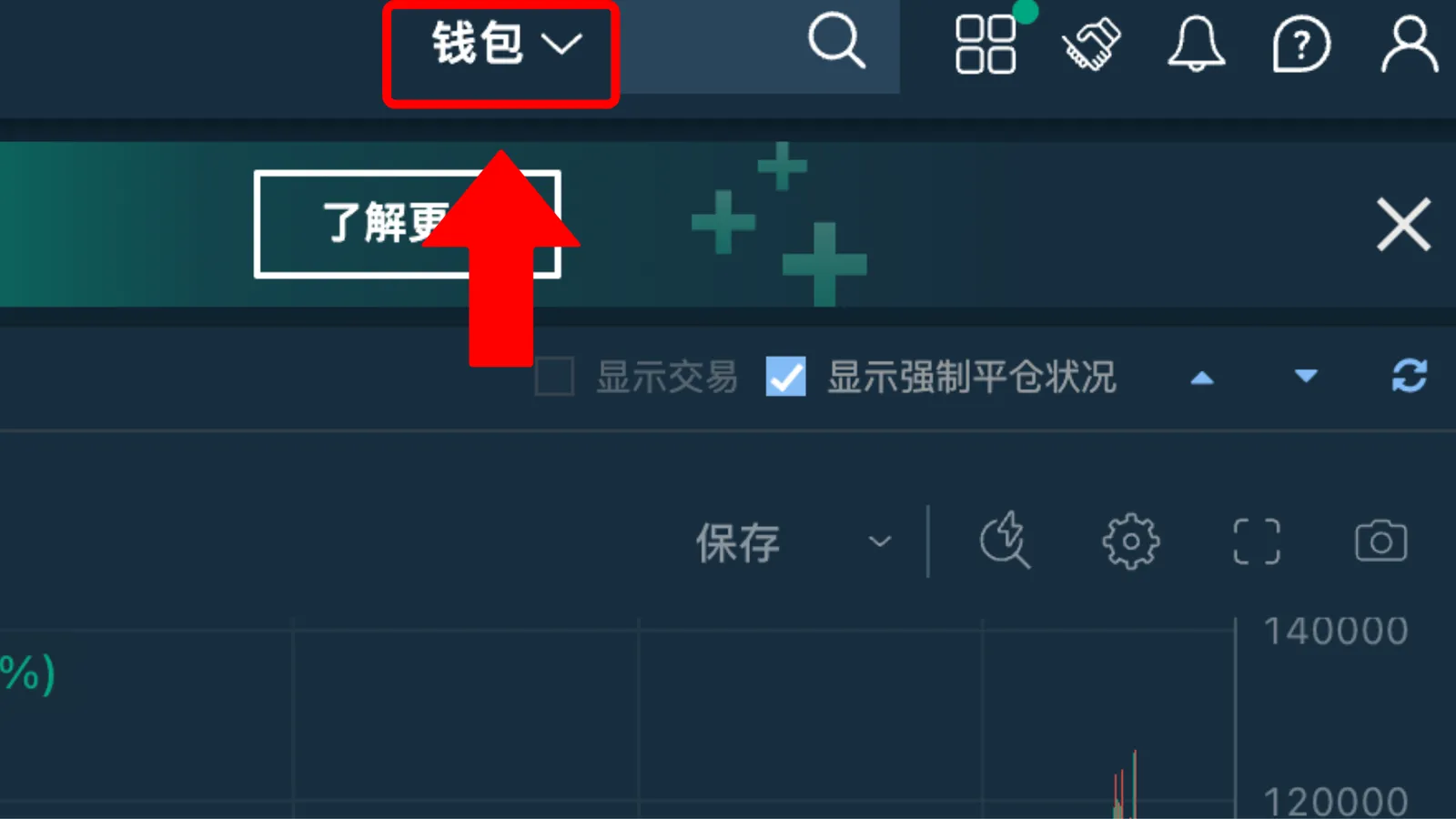
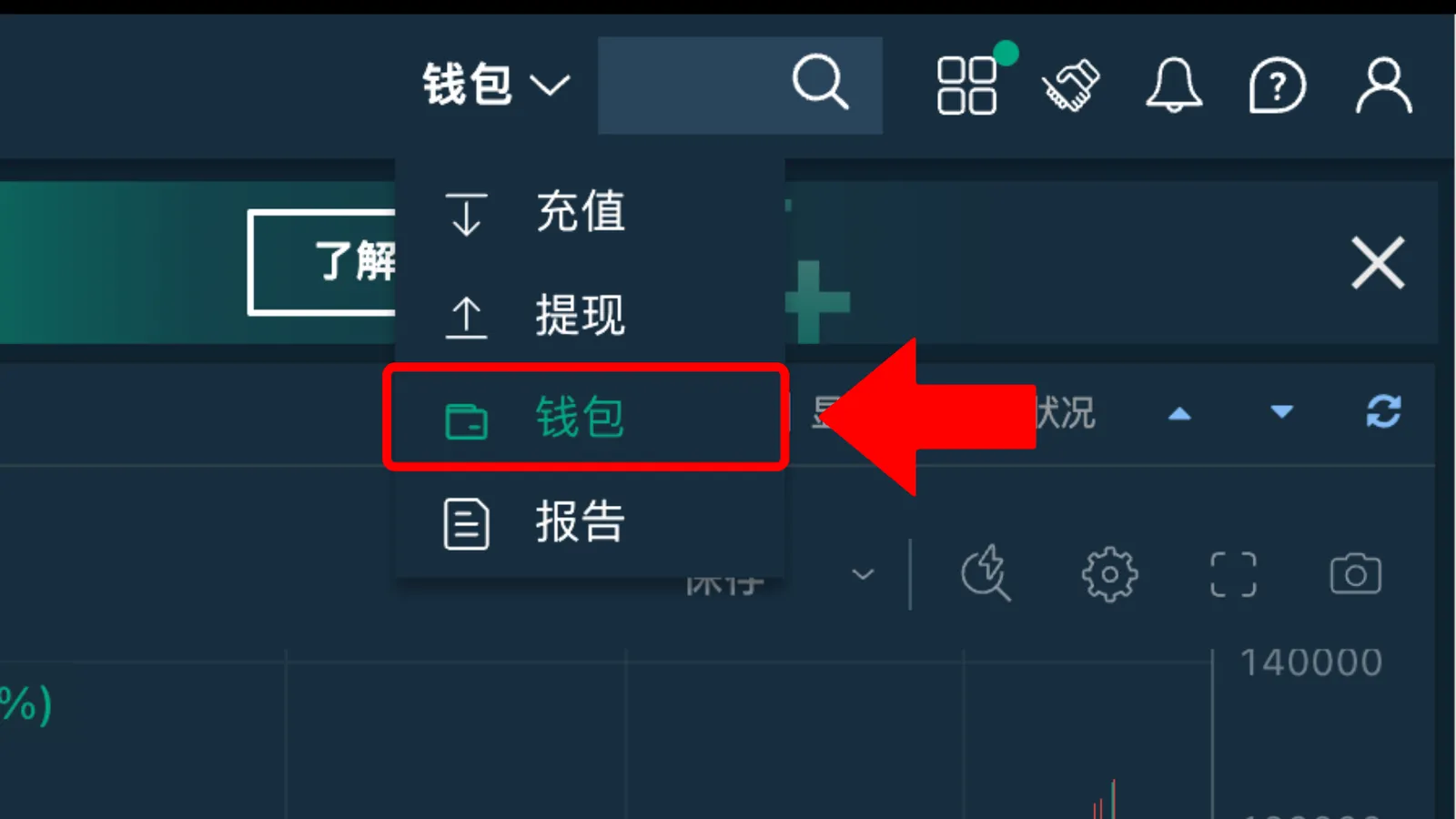
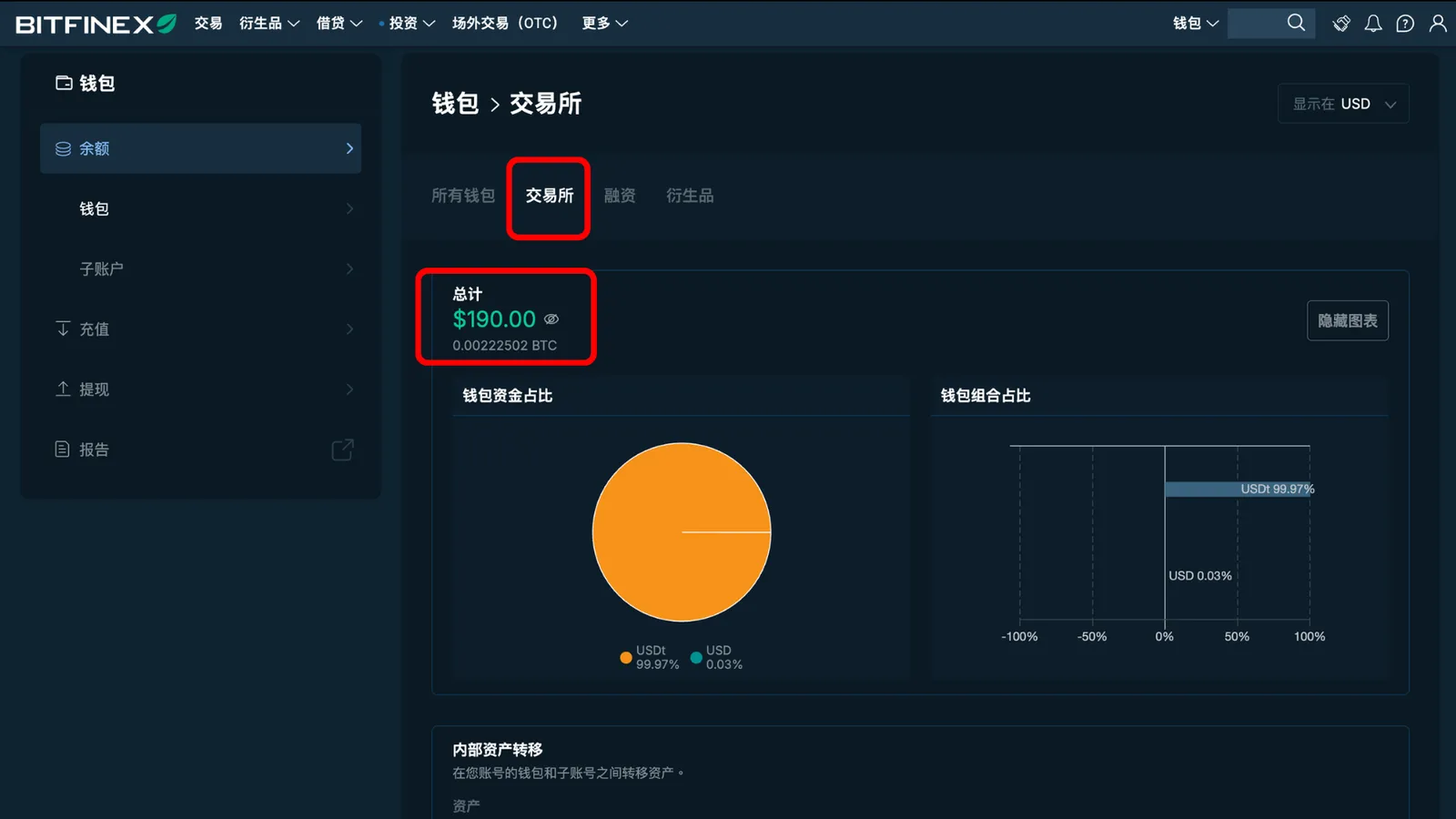
First, log in to your Bitfinex account. In the top menu, click "Wallets," then "Wallets" again.

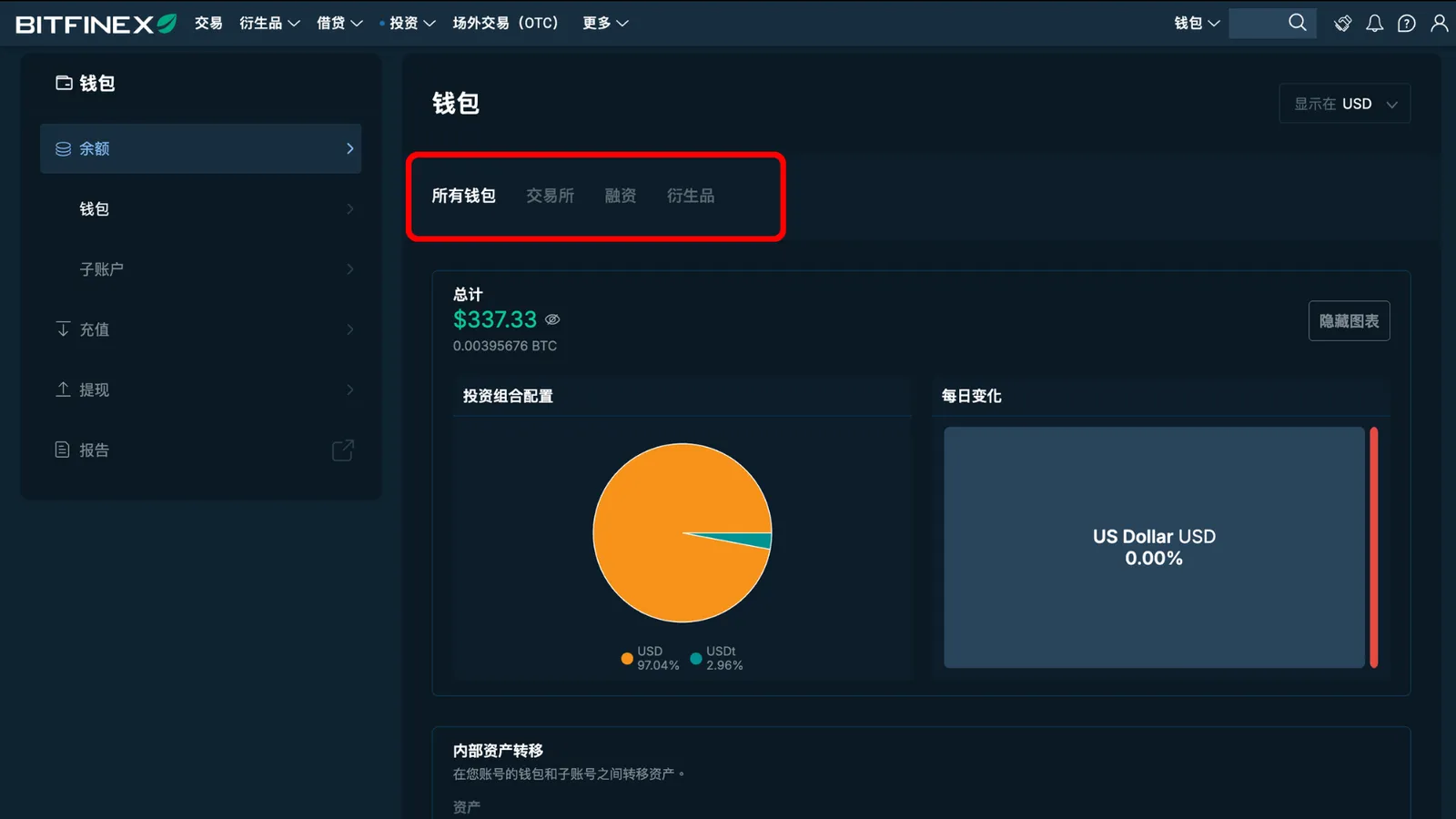
You'll see three kinds of wallets. Take a look at where your money is sitting:

- Exchange: you can buy, sell, and withdraw from here. The USDT you pay with needs to be in this wallet.

- Funding: this is your lending wallet. The money the bot lends out lives here.

- Margin (derivatives): this is the margin wallet. Most people never use it.

Make sure one of your wallets has enough to cover the subscription, and it has to be USDT. If you don't have enough, or it isn't USDT, you'll need to deposit more or convert it to USDT before you can subscribe.

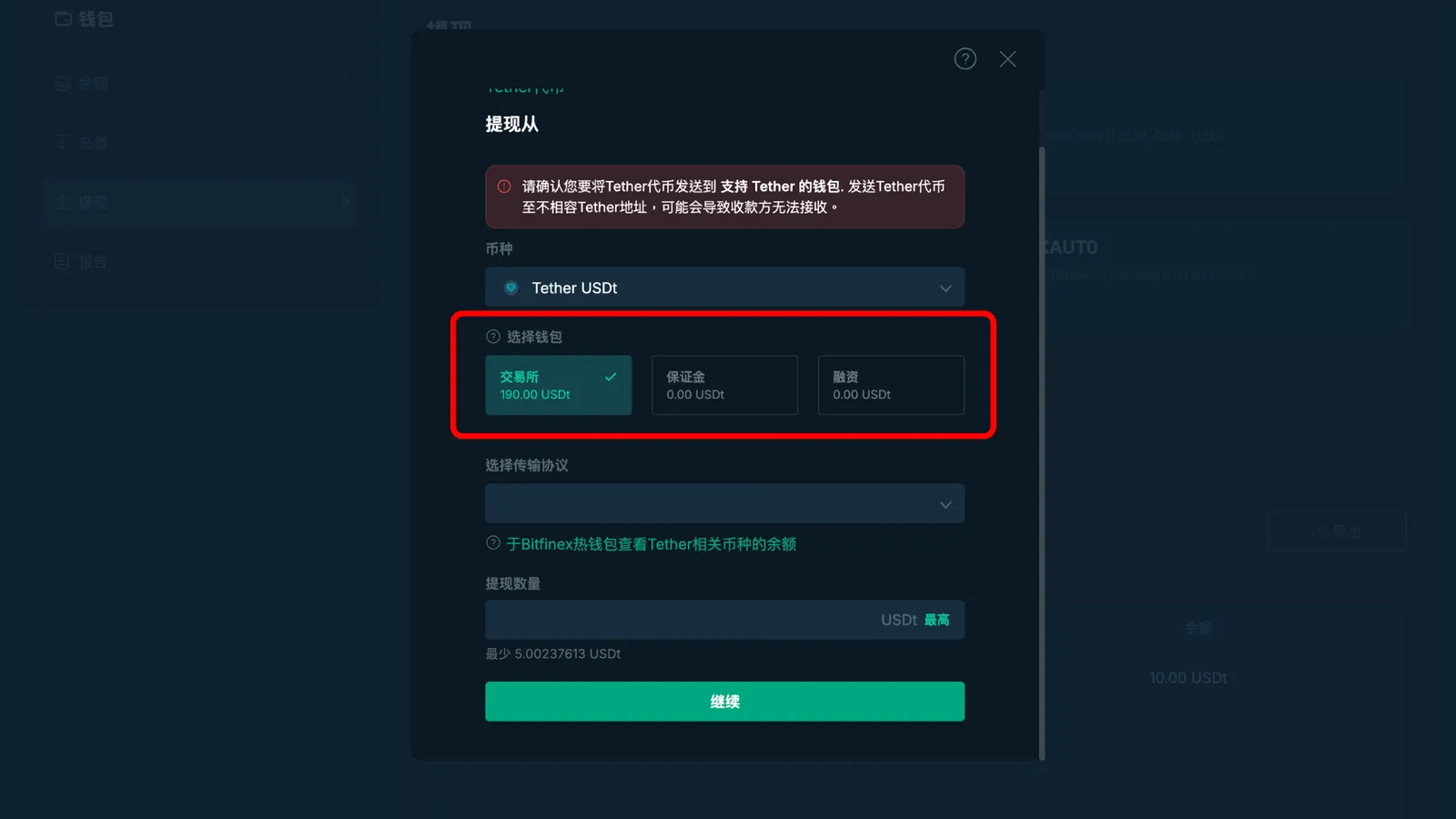
On the withdrawal page, if any of the three wallets shows a USDT balance, and one of them has enough USDT, you can pick that wallet directly to withdraw from and subscribe to the bot.

Heads up: Bitfinex sometimes records a USDT deposit as "USD." So if you see USD in your balance, you'll need to swap that USD for USDT. That's just how Bitfinex normally displays it.

If one of your three wallets already has enough USDT to subscribe, you can skip this step and jump straight to Step 4, "Withdraw (Transfer) to Subscribe."

If you have USD and need to buy USDT, and your money is in Funding, you'll first need to move it to Exchange.

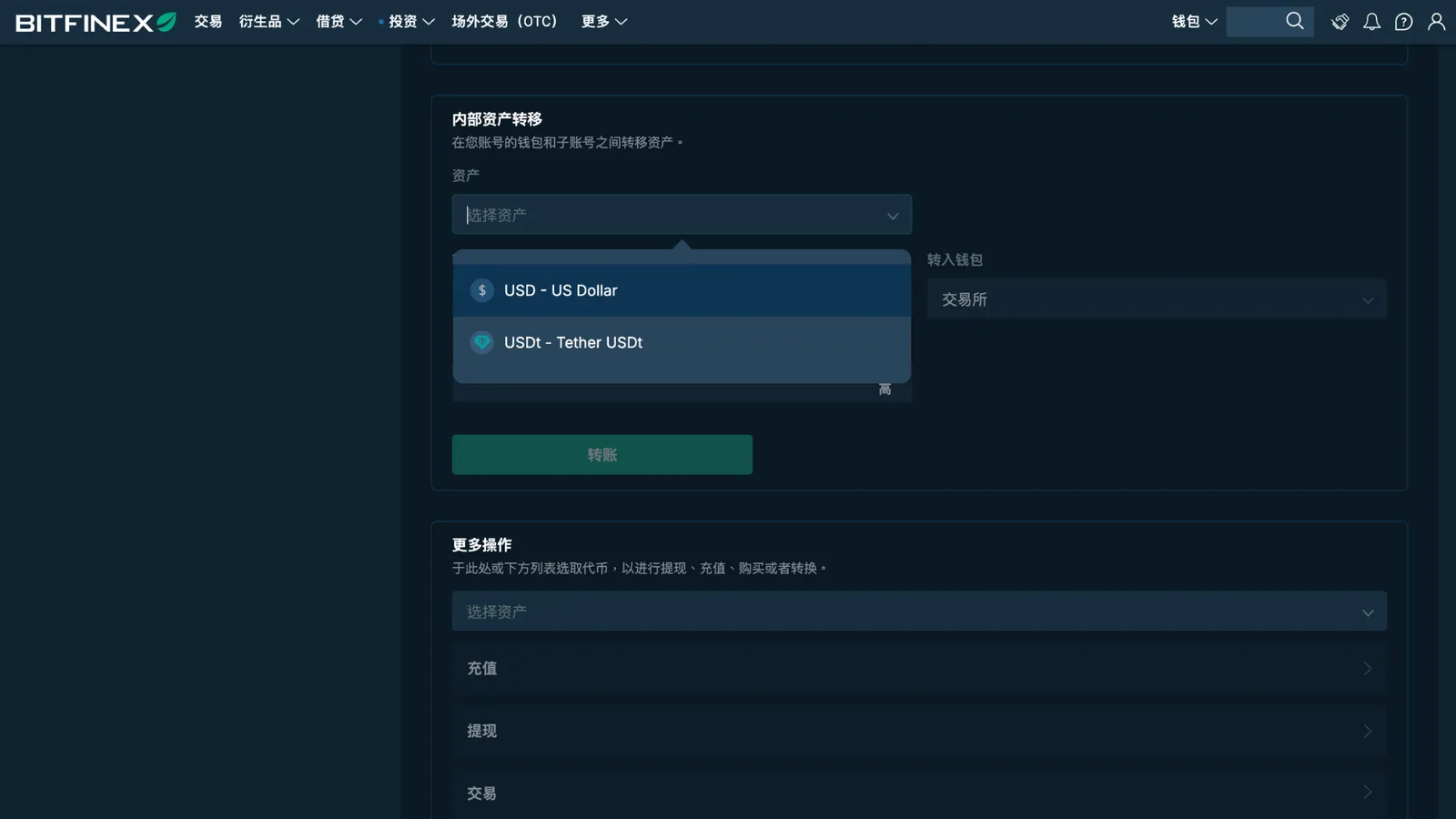
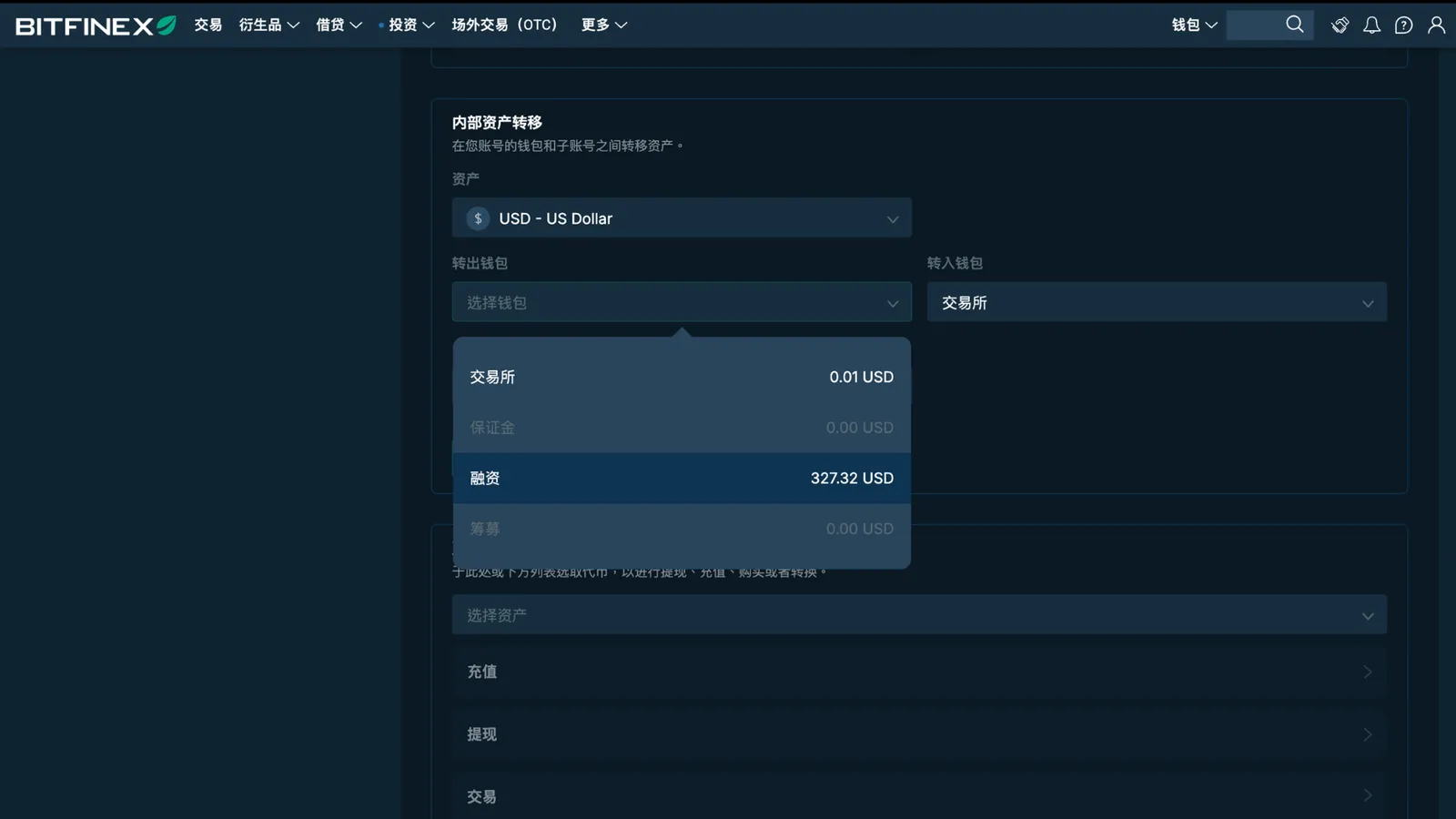
Scroll down the Wallets page and you'll see the "Internal Transfer" section. Under "Currency," pick your currency. For "From Wallet," choose Funding.

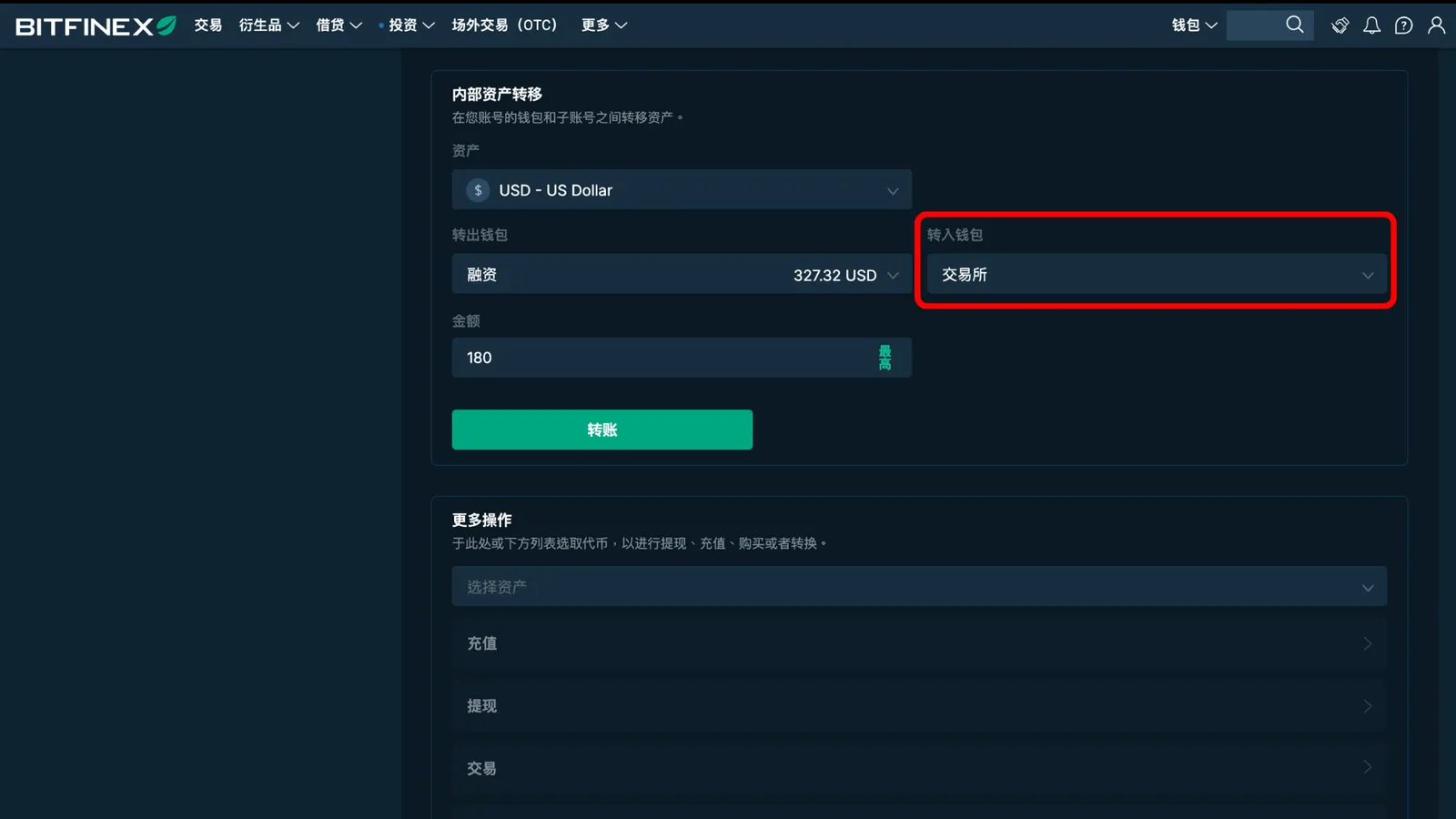
For "To Wallet," choose Exchange. Enter the amount of your subscription plan and click "Transfer." Your funds move from Funding over to Exchange. Since it's just a move between your own wallets, there's no fee at all.

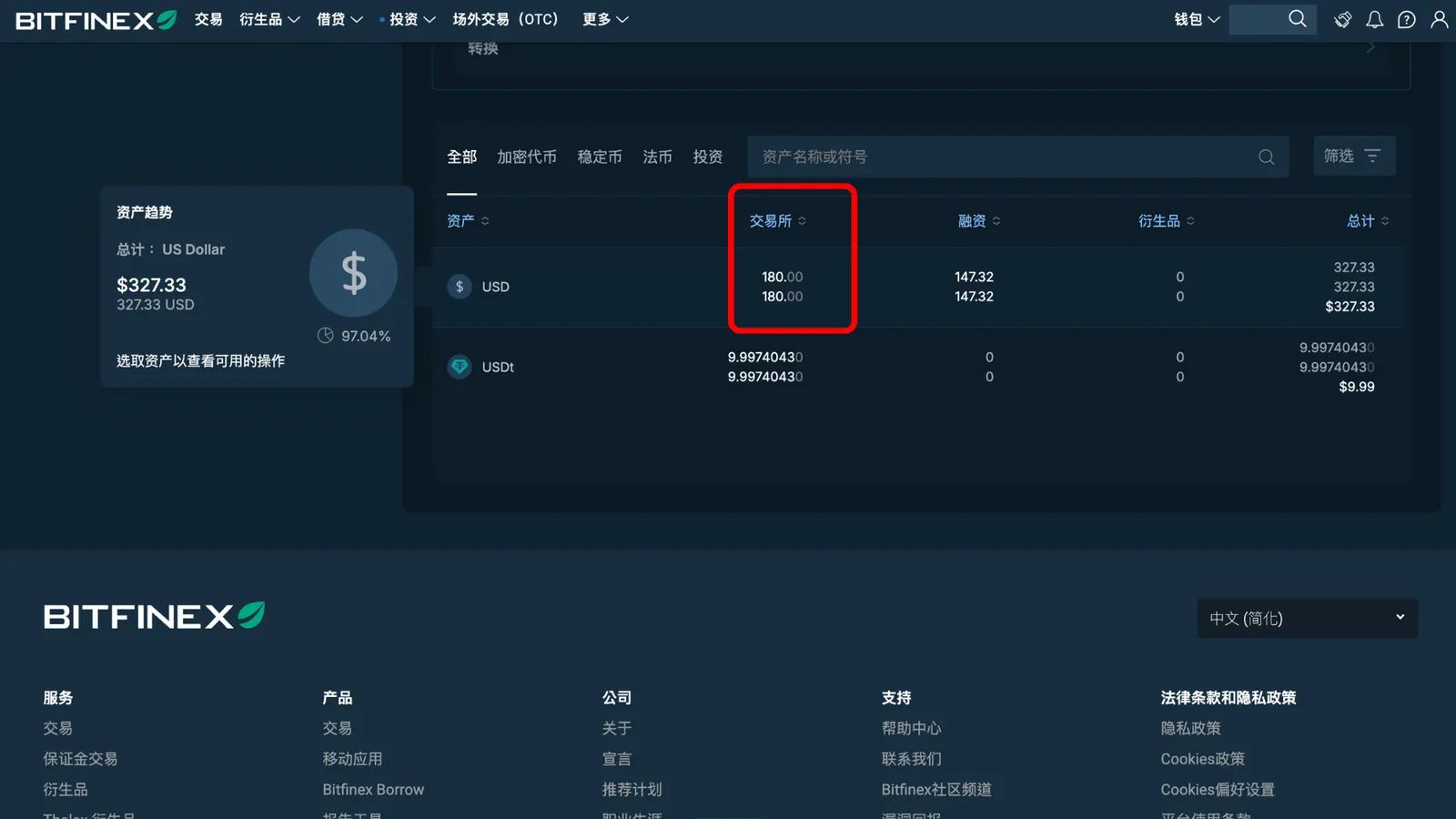
Scroll down a little more and you'll see your USD has arrived in Exchange. Next, we'll go to the trading market and buy USDT.

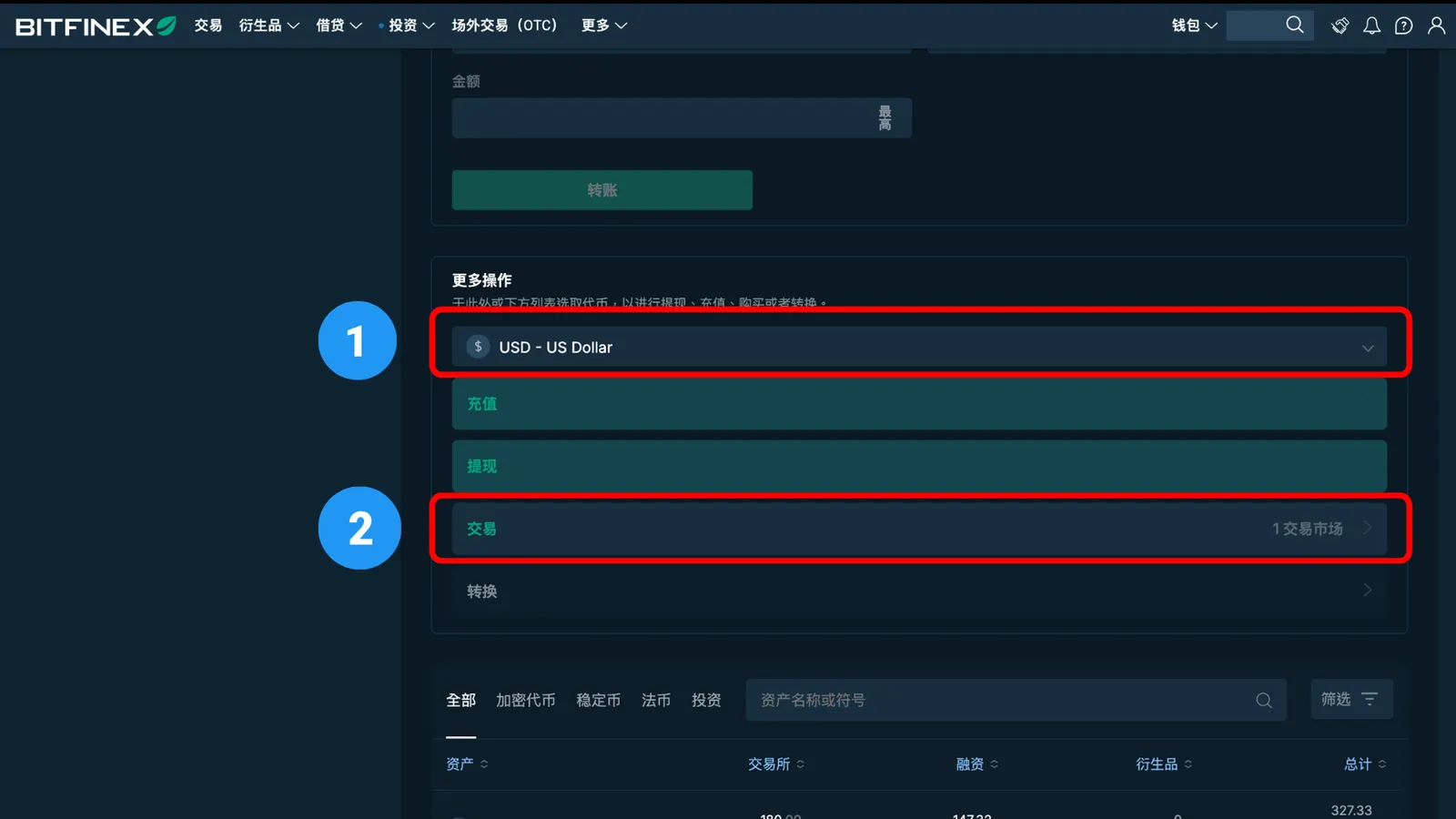
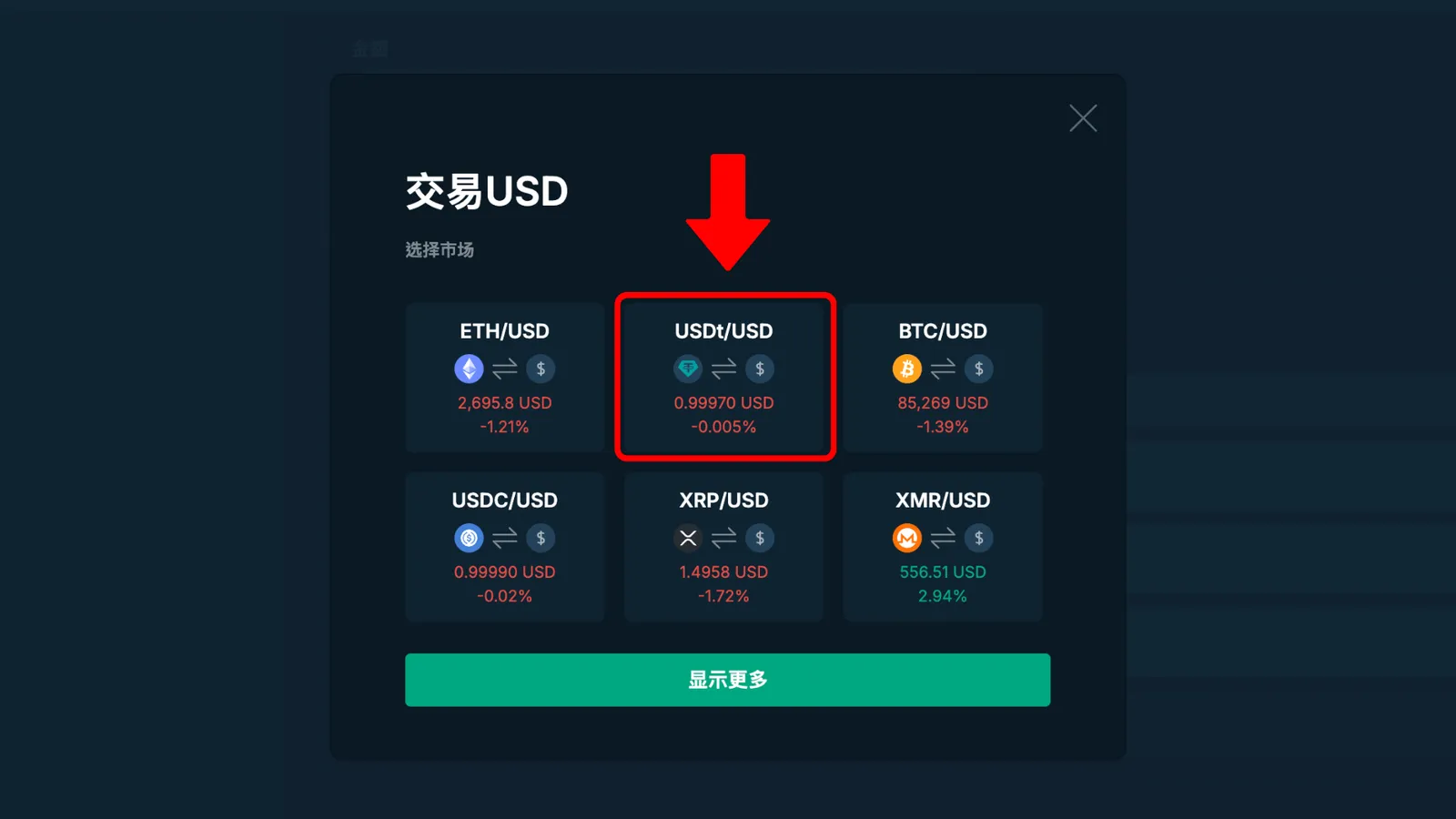
On the same Wallets page, scroll to the "More Actions" section. First pick the currency, then pick Trade. A window pops up to choose the trading pair. Select "USDt/USD."

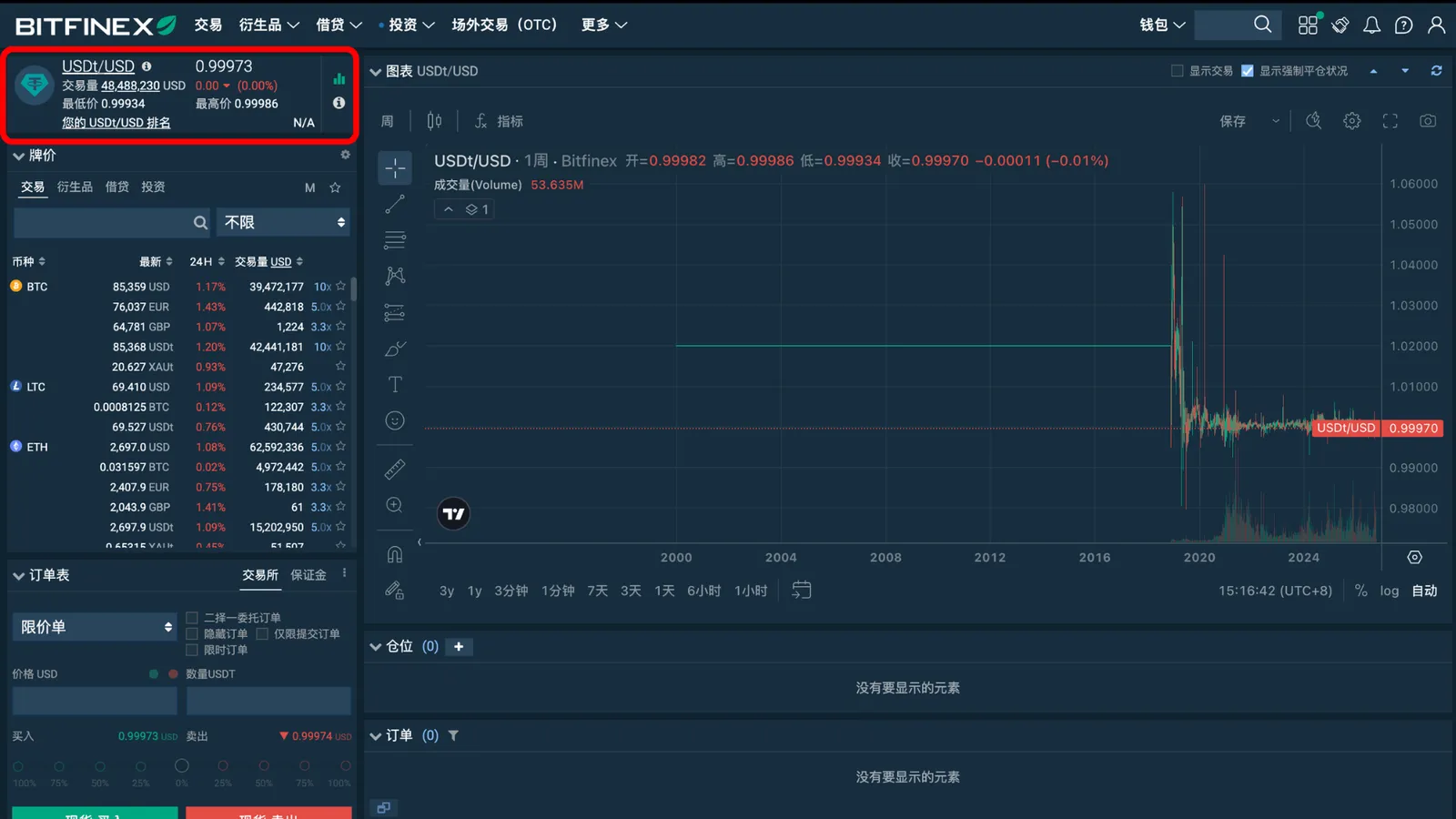
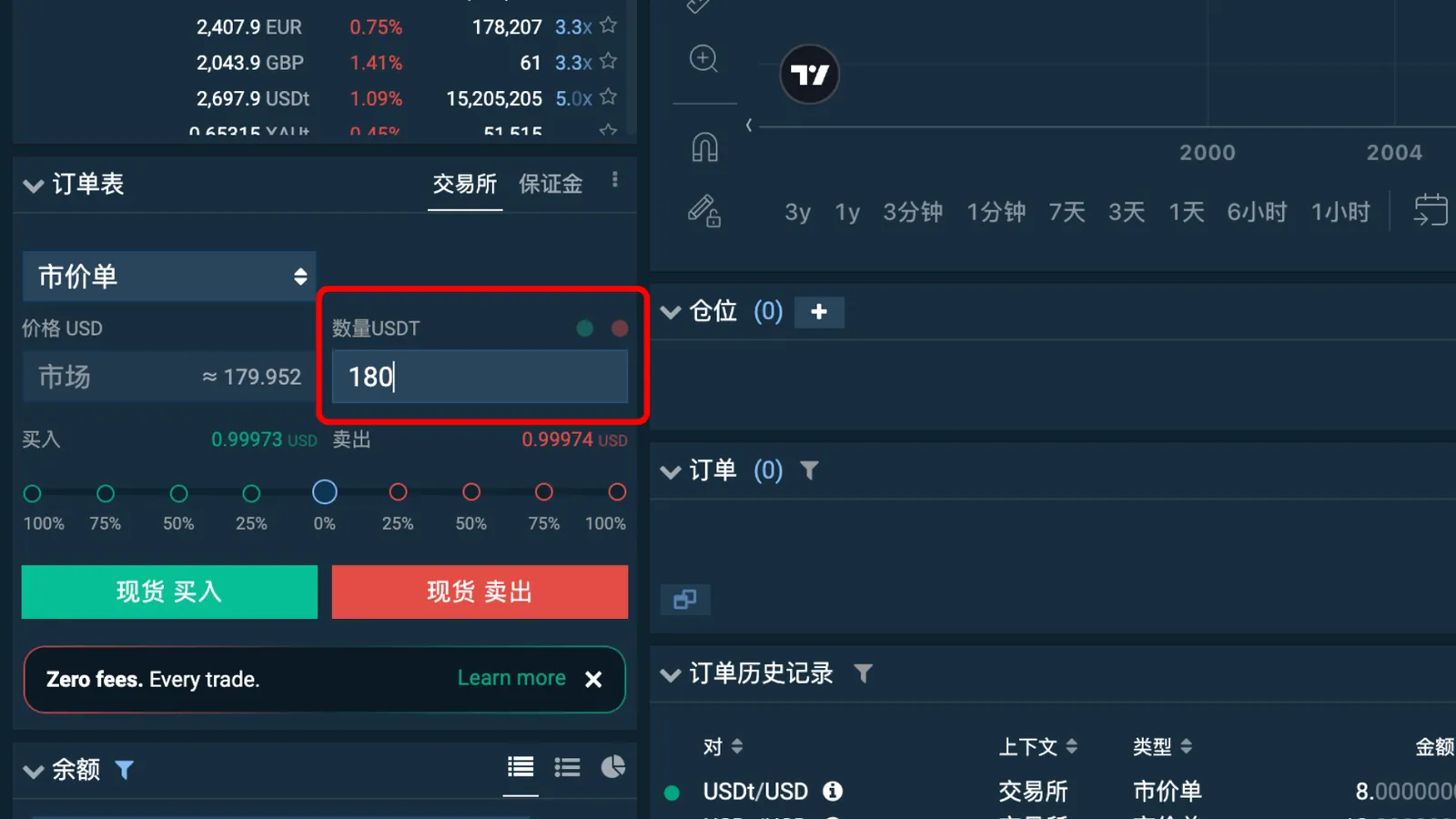
That takes you to the trading market. (Keep an eye on the top left. Whichever currency you pick shows up there, so if you choose USDT, you'll see the USDT label.) Scroll down on the same page and you'll find the "Exchange" section.

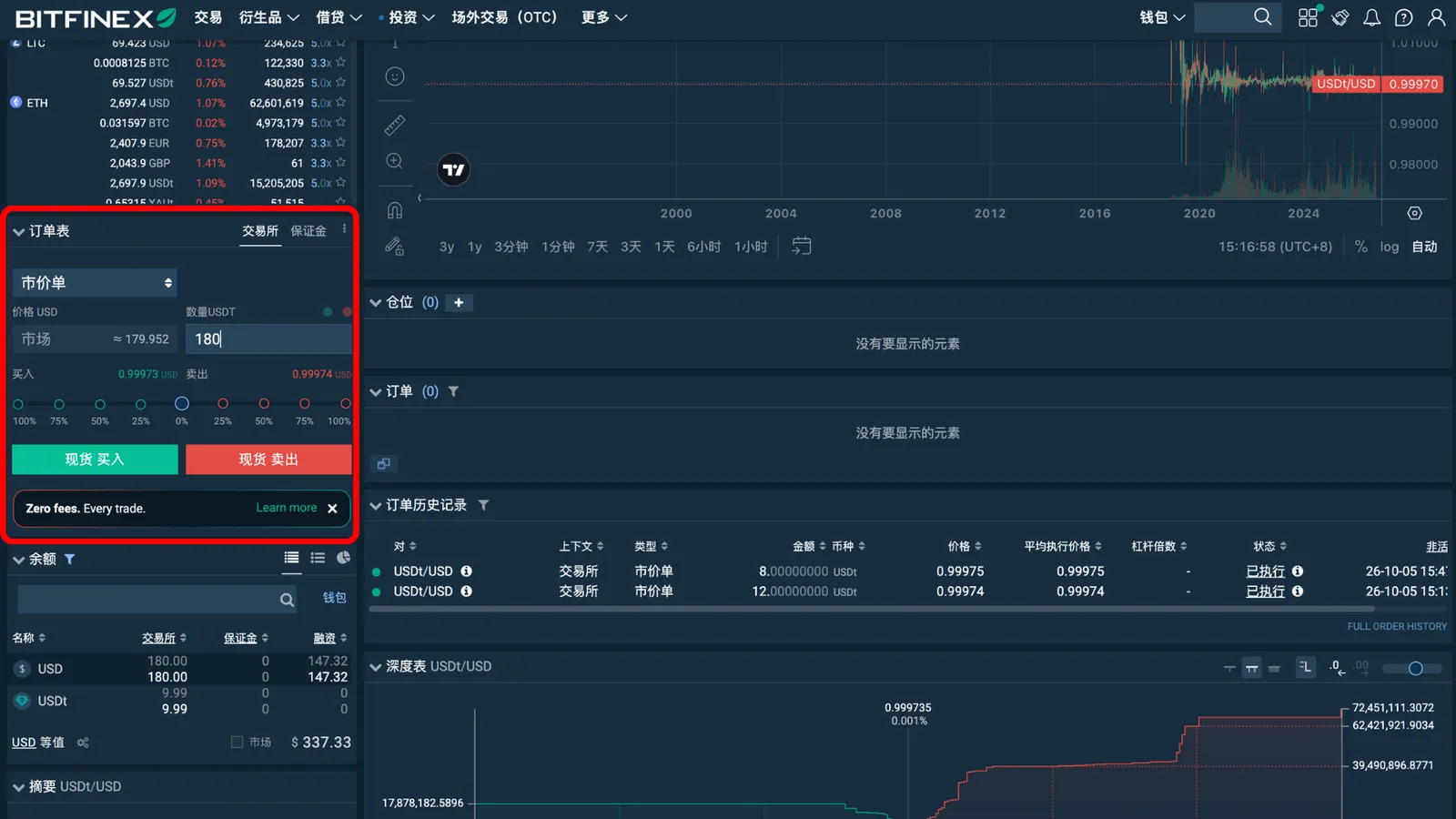
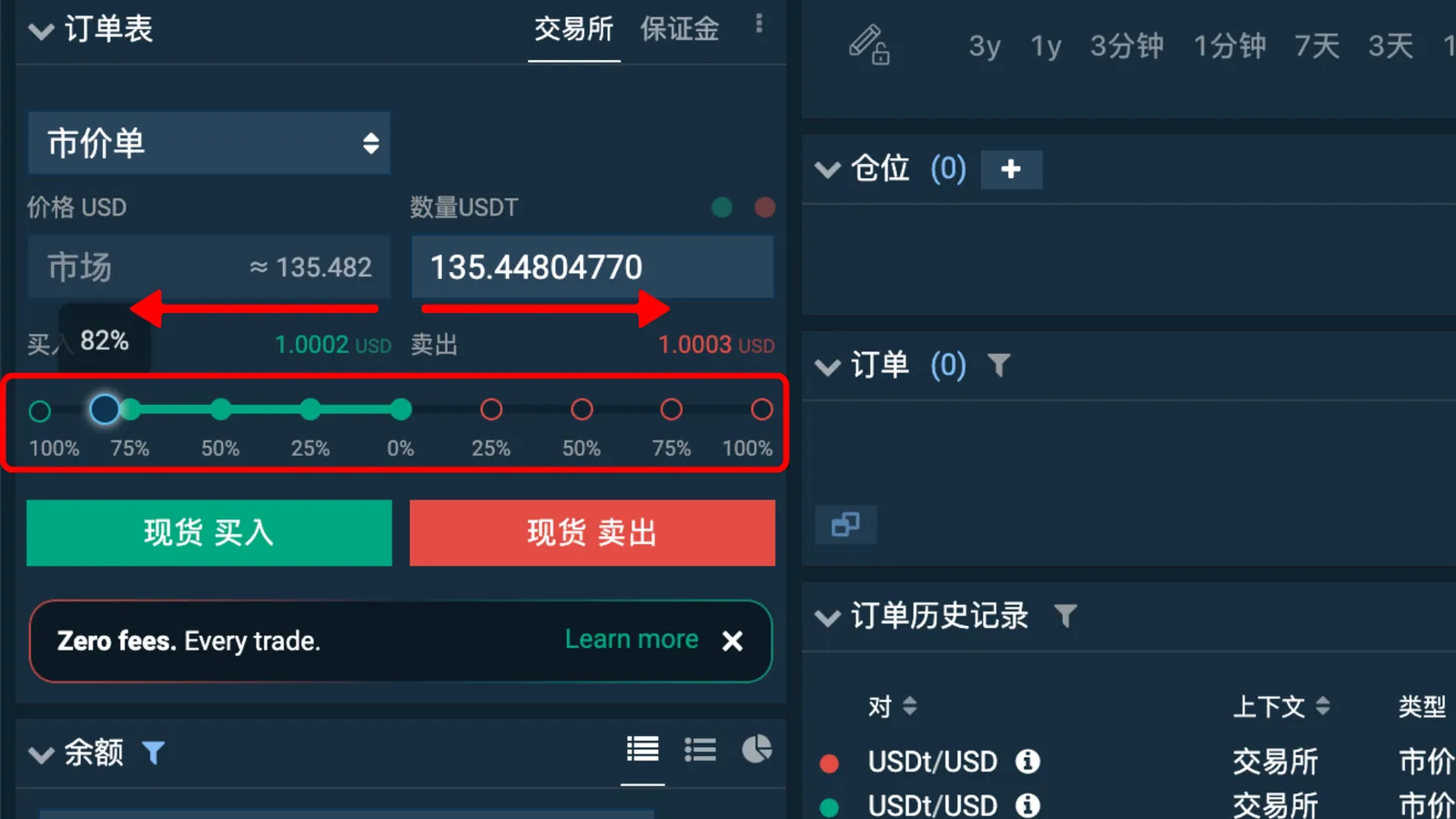
You can type the amount you want to buy directly into the “Amount (USDT)” field, or use the percentage slider: drag it to the left (green) to buy, or to the right (red) to sell.

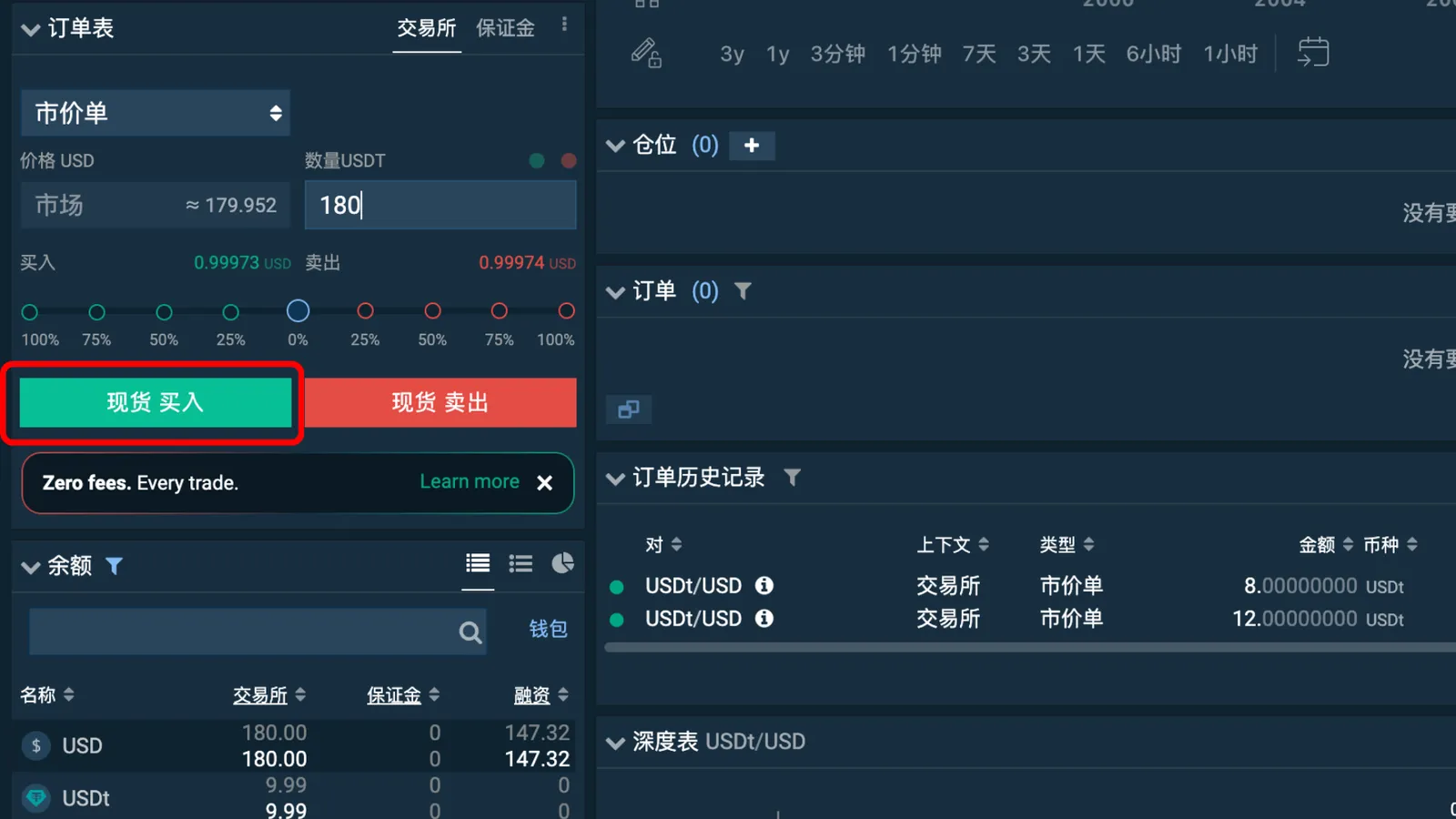
For the order type, choose "Market." A market order just fills right away at the current price, so it's the easiest. Enter how much USDT you want to buy, then click "Buy." And that's it, you've bought your USDT. This trading pair currently has zero fees.

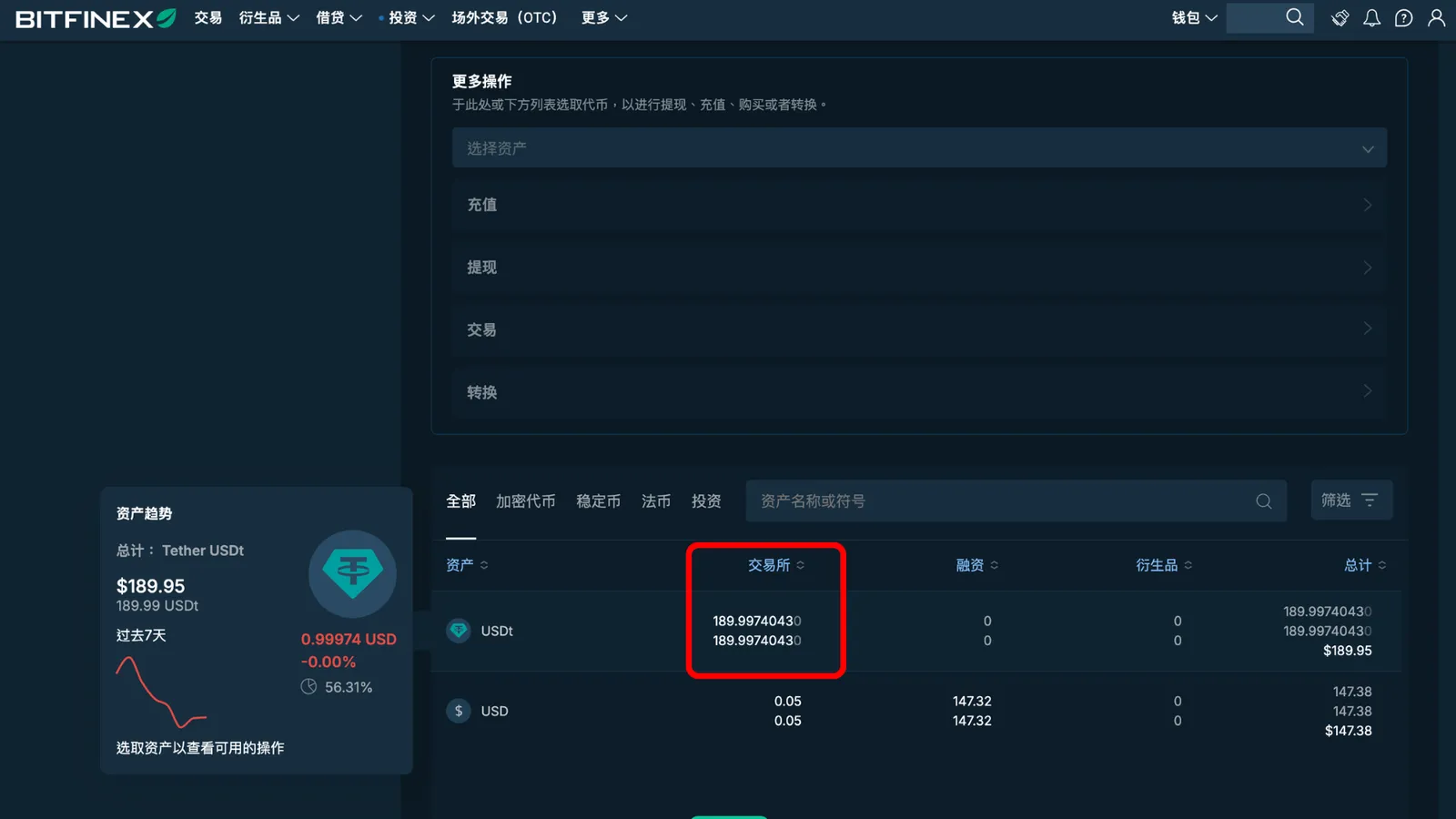
After you've bought it, go back to Wallets and you'll see the USDT in your Exchange wallet.

Next up: how to actually subscribe to the ReinvestYae lending bot.

Now we'll send the money to ReinvestYae's deposit address and subscribe to the bot. There are quite a few steps to the transfer, so don't rush. Take your time.

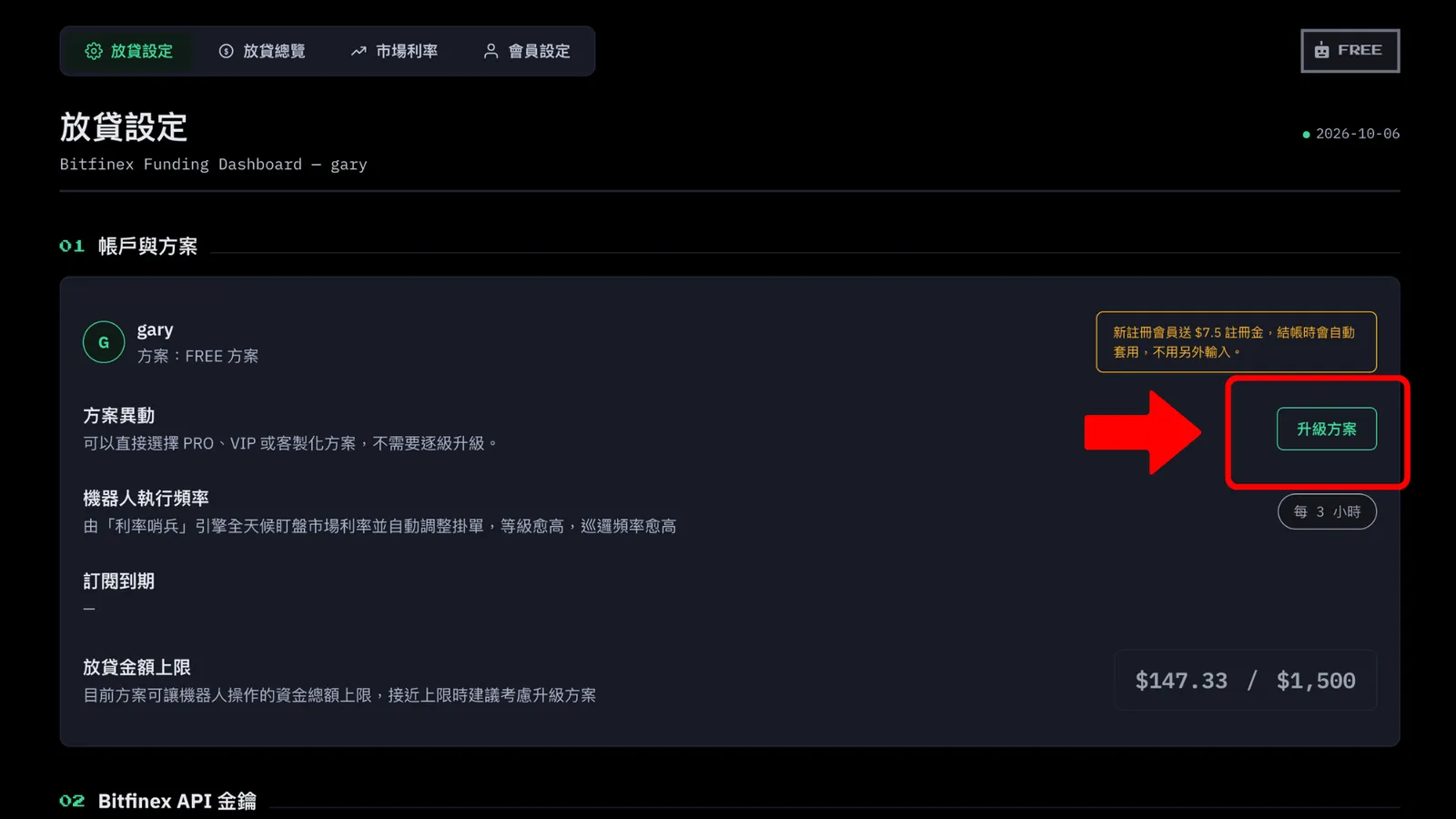
First, go to your own lending dashboard and click "Lending Settings." Under 01 "Account and Plan," click "Upgrade Plan" on the right.

訂閱放貸機器人付款流程

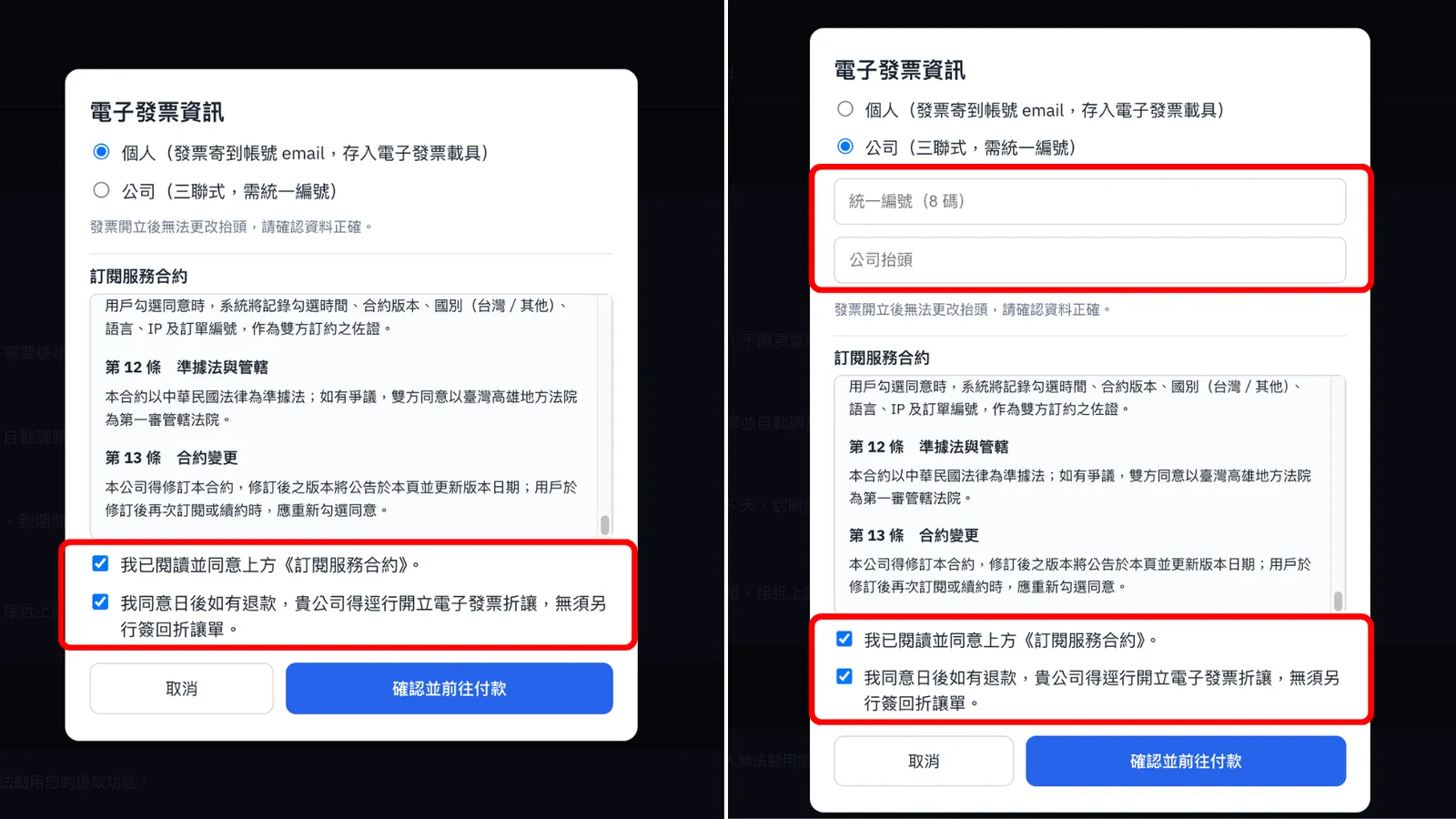
Before subscribing, fill in your invoice details: choose Individual or Company (for a company, enter the Tax ID and company name, and double-check them). Then scroll the subscription agreement to the bottom, read it carefully, tick both agreement boxes, and click "Confirm and continue to payment". (Your invoice choice, whether Individual or Company, is saved and filled in automatically next time. The agreement boxes must be ticked again at every subscription.)

Users outside Taiwan do not need to enter invoice details. Before subscribing, scroll the subscription agreement to the bottom, read it carefully, tick both agreement boxes, and click "Confirm and continue to payment".

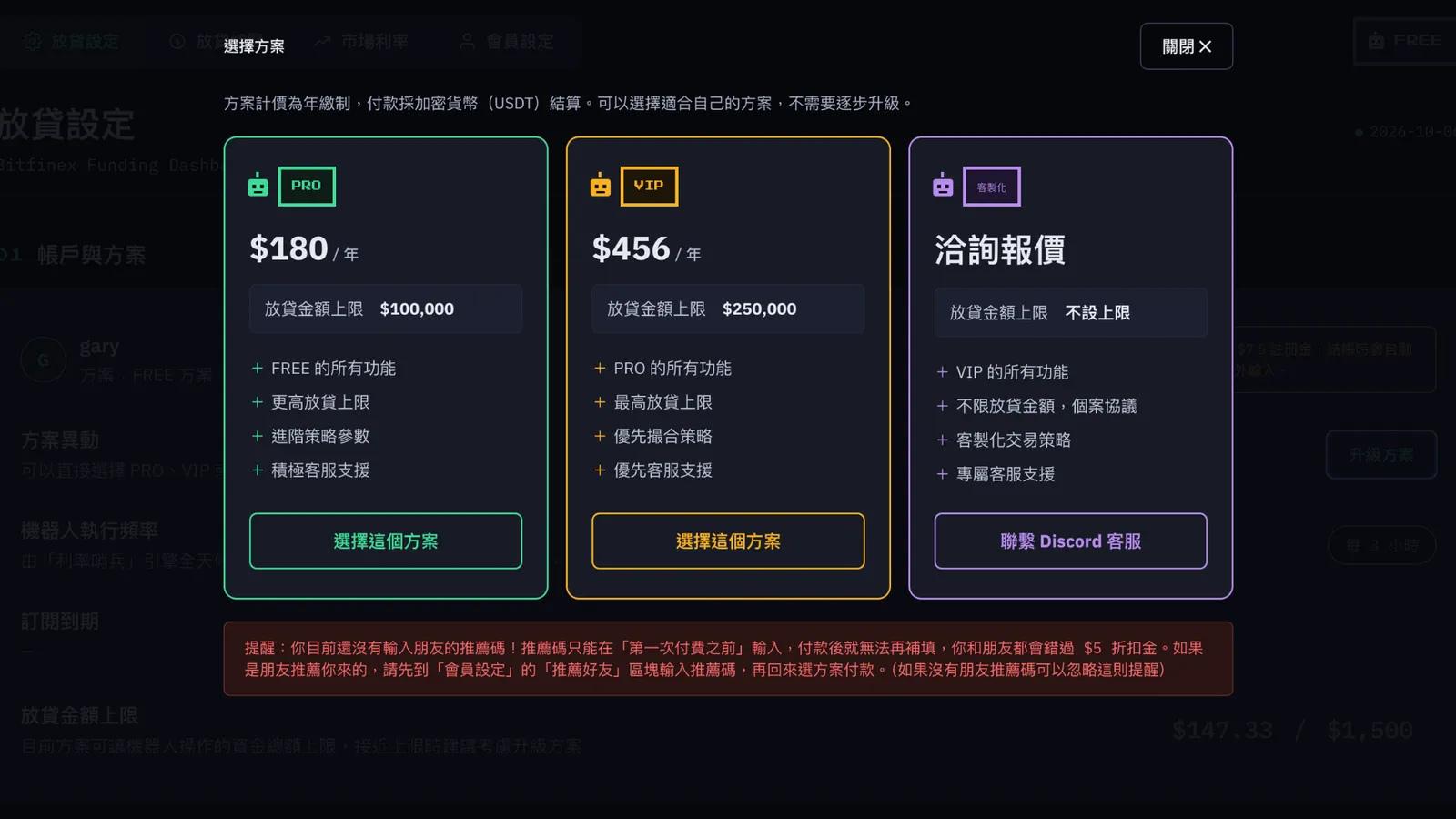
You'll see three plan options. Apart from "Custom," the other two are fixed-price subscriptions. Let's use PRO as an example. Click "Choose This Plan."

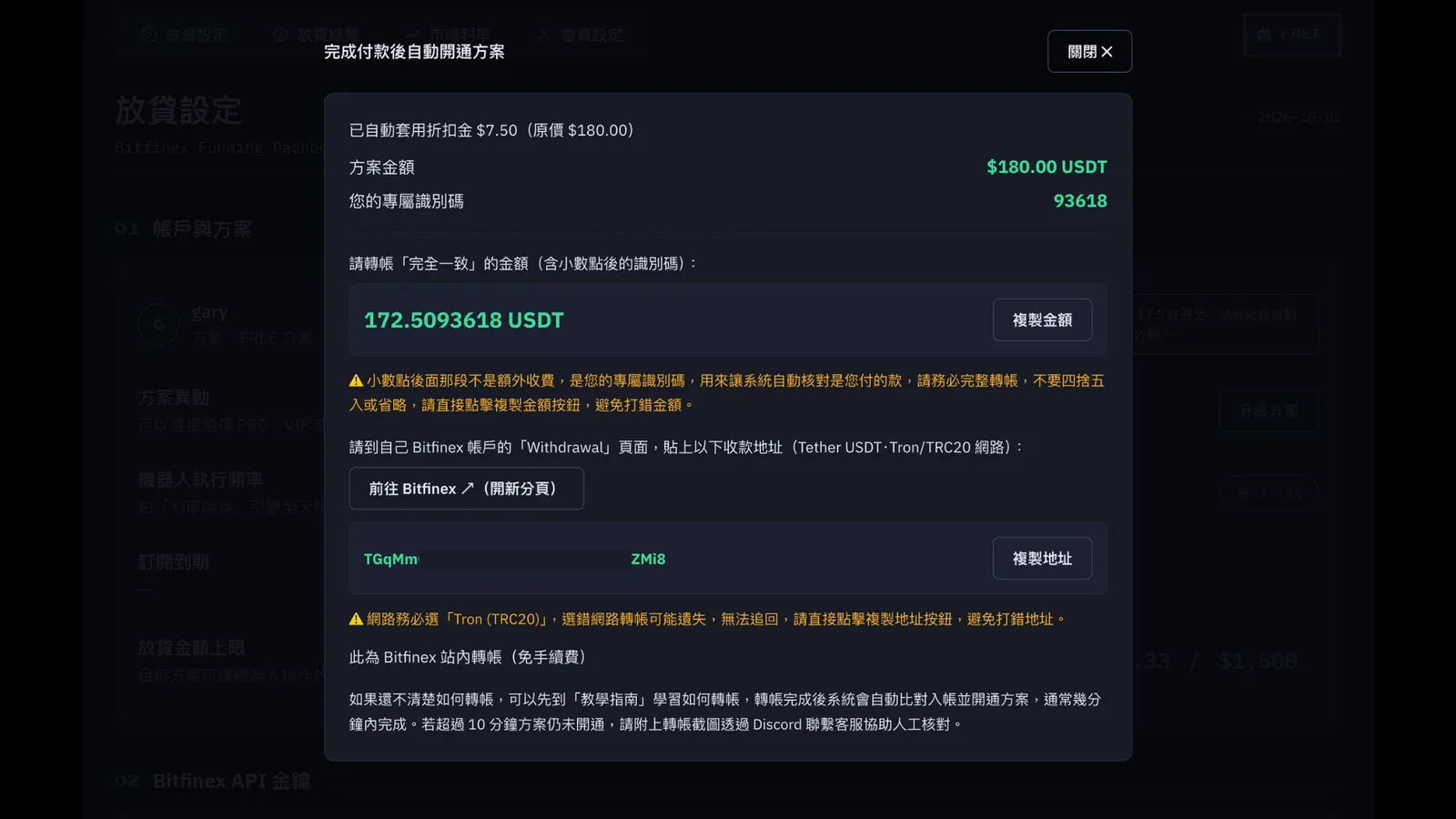
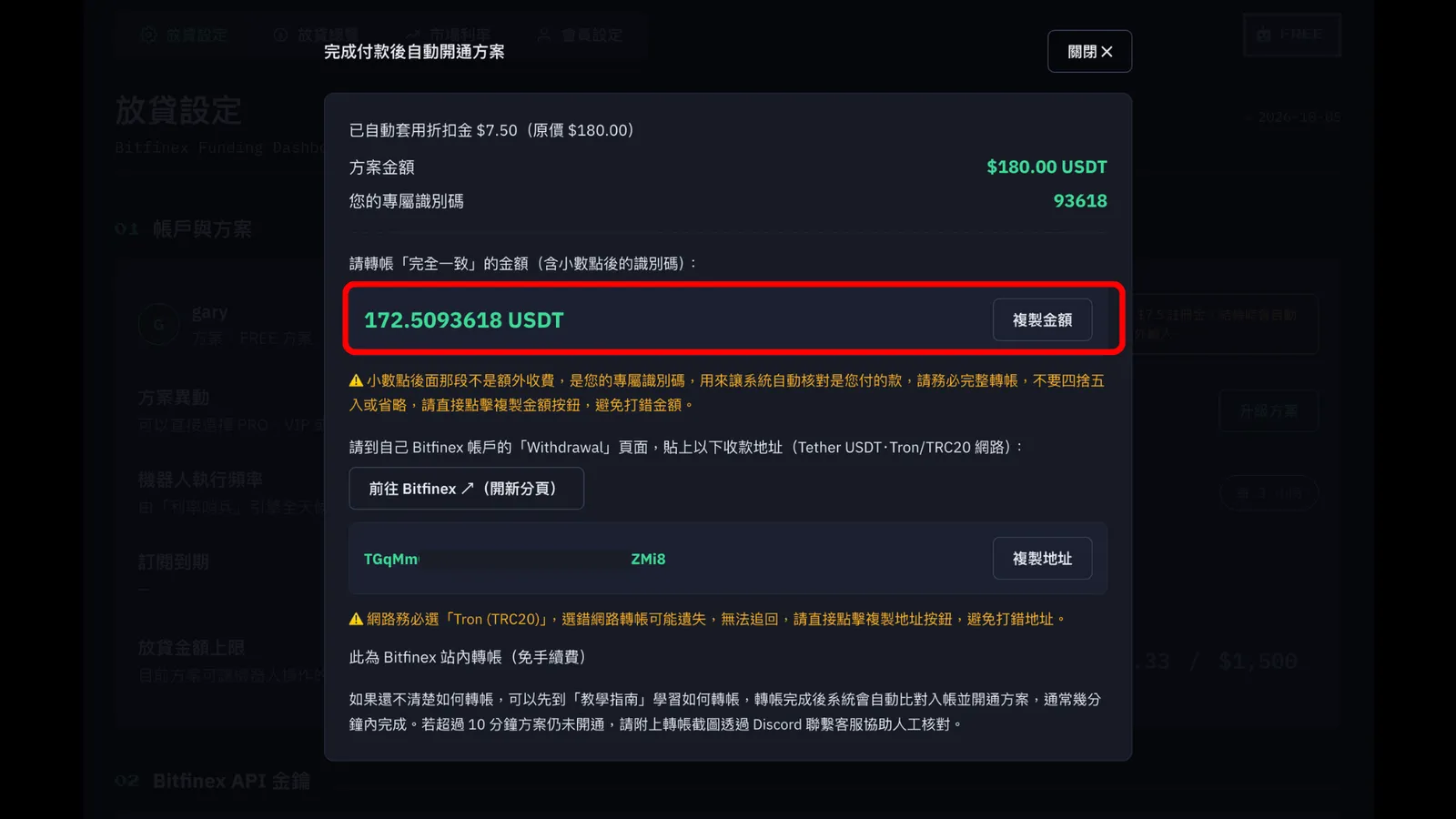
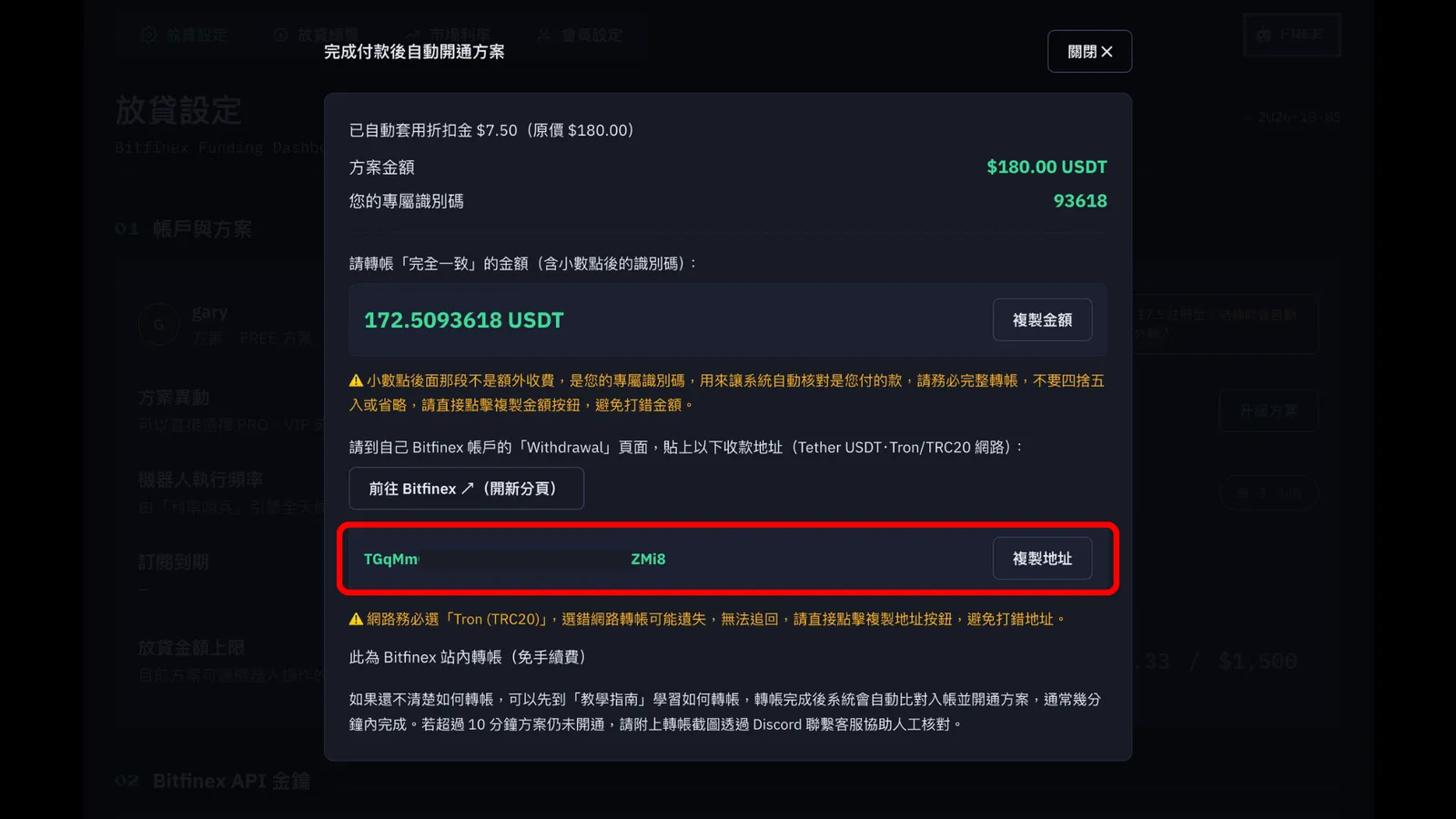
The ReinvestYae payment window pops up. Please read the payment info carefully. Every user dashboard has its own unique ID code. (The screenshot is just for reference. Please don't use the ID code in the screenshot.) If it's your first time, the $7.50 discount credit gets applied automatically.

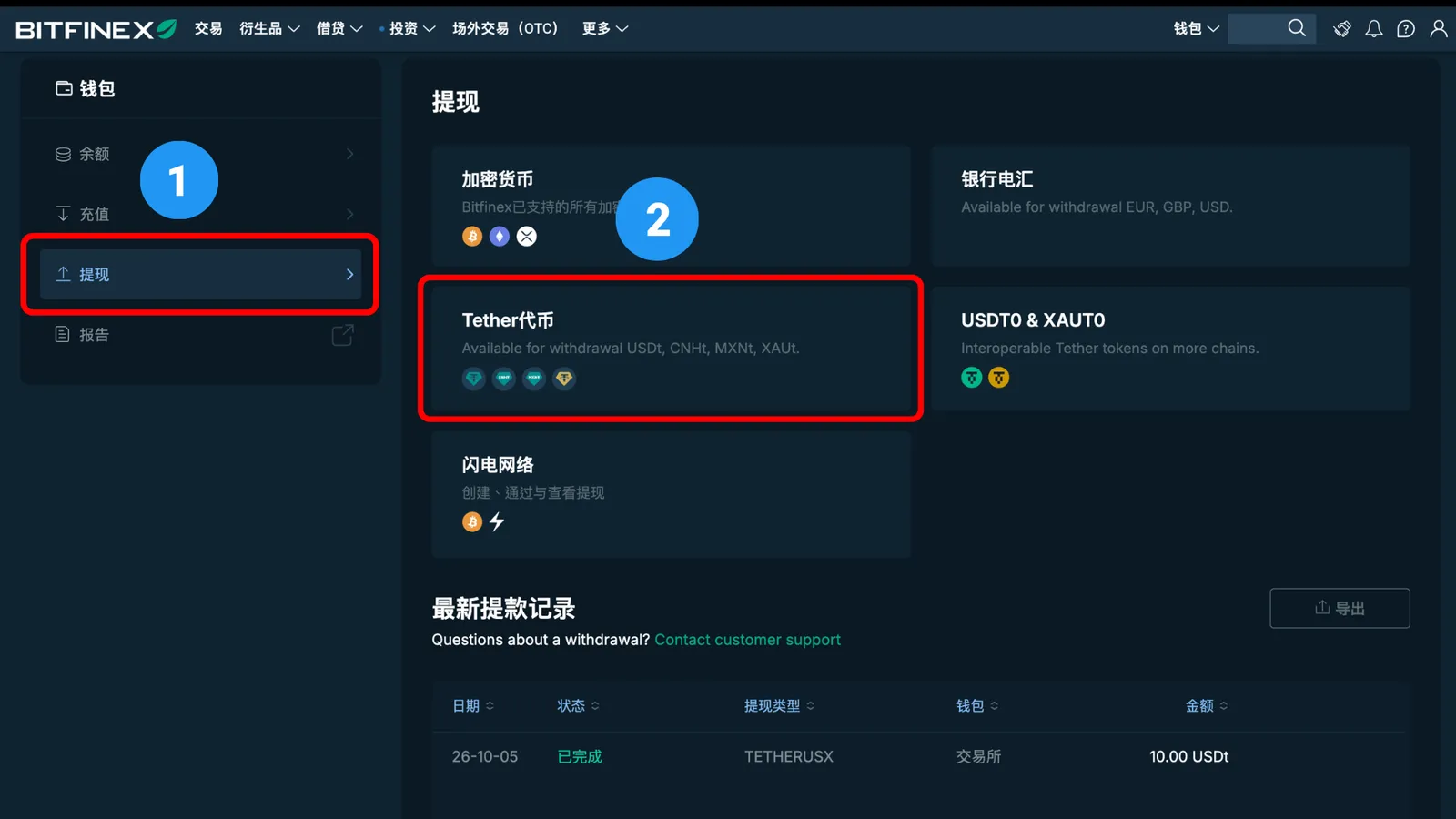
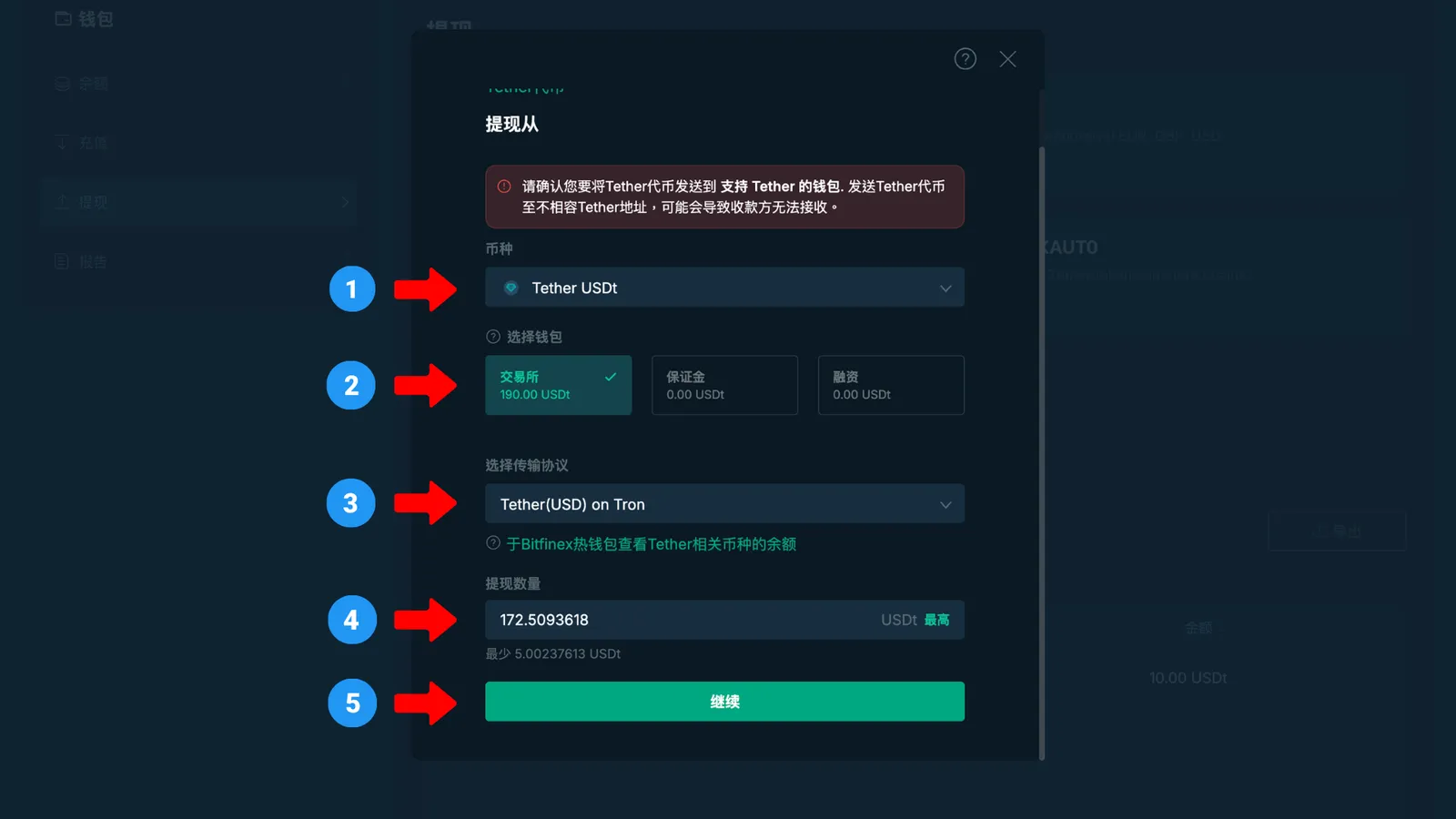
Go to the Wallets page. On the left menu, first click "Withdraw," then click "Tether." The withdrawal page pops up.

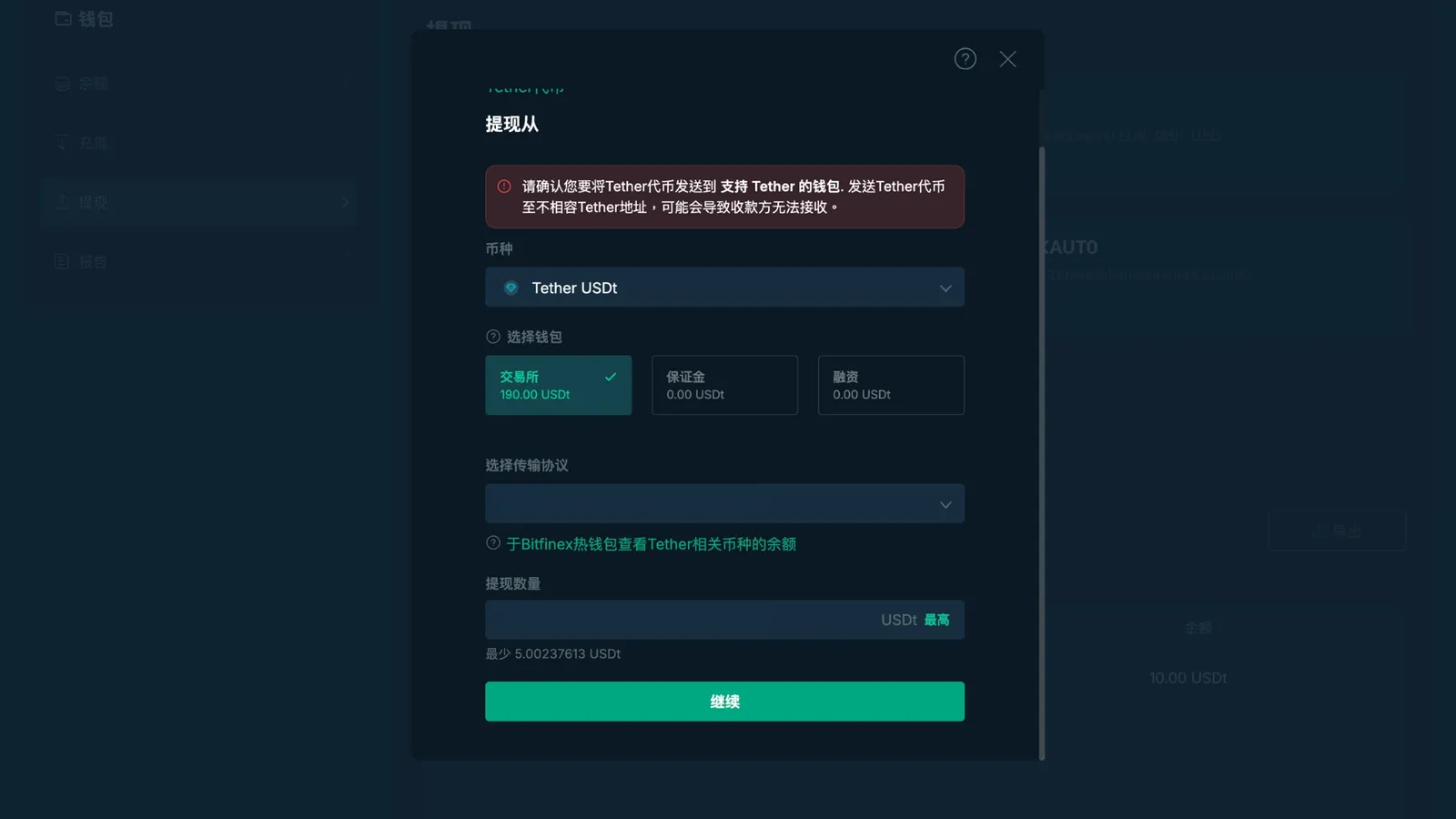
Now switch over to the Bitfinex withdrawal page and fill in these, one by one:

1. Currency: Tether USDt

2. Wallet: Exchange

3. Network: Tether (USD) on Tron (TRC20)

4. Withdrawal amount: paste the amount you just copied from ReinvestYae

5. Once everything looks right, click "Continue" and you'll land on the "Recipient Address" page.

Switch back to the ReinvestYae payment window and click "Copy Address."

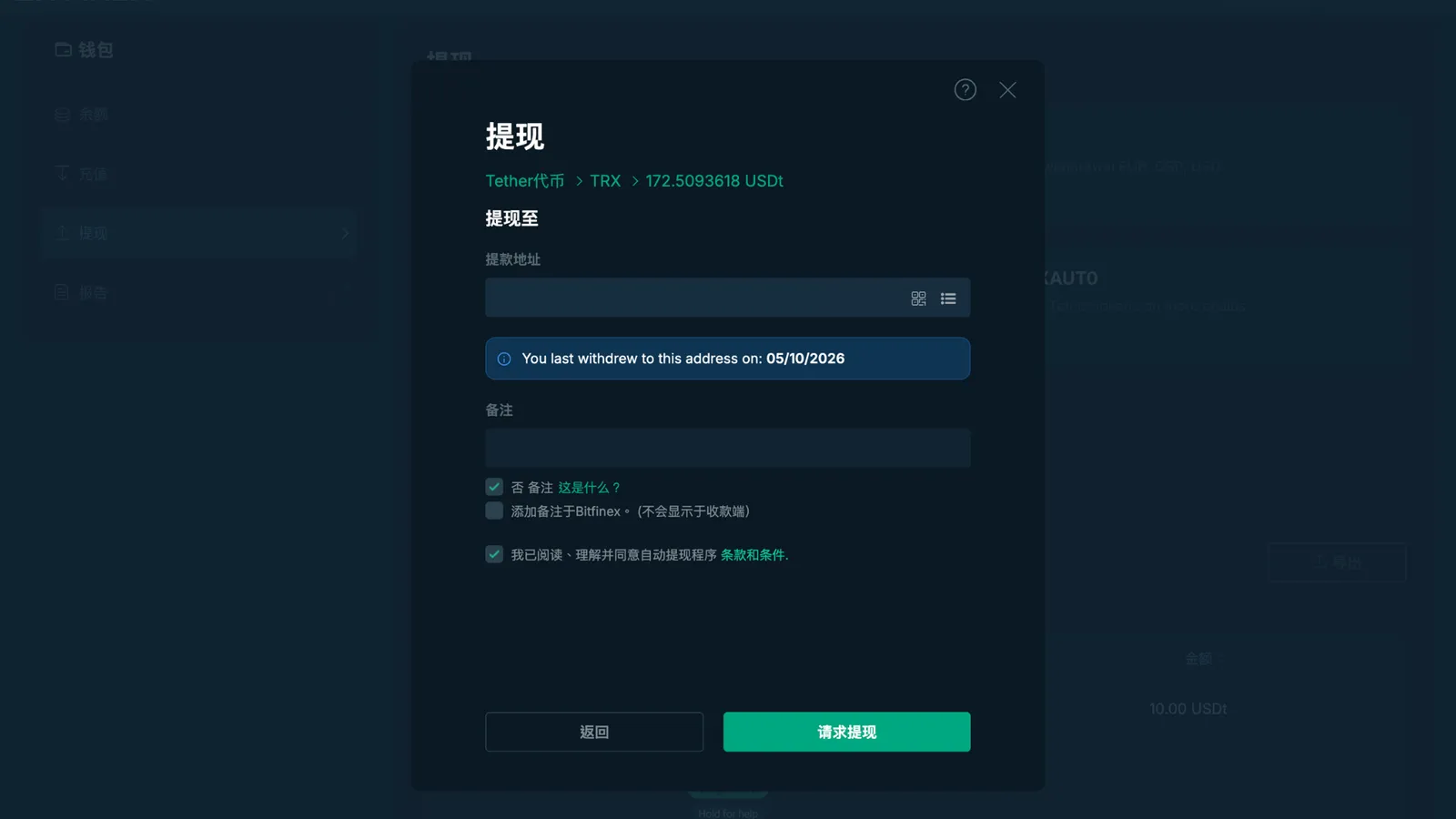
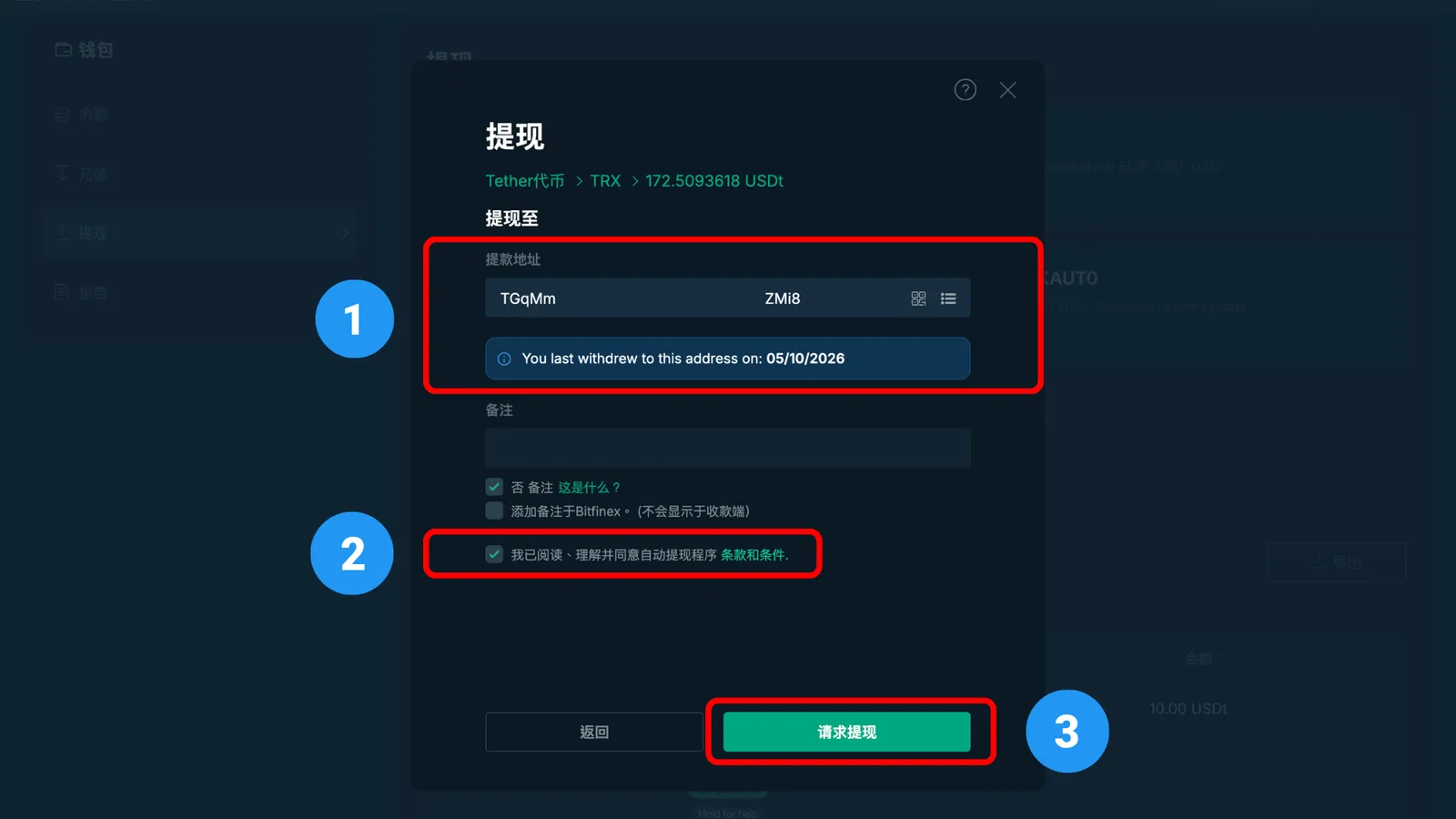
Back on the Bitfinex withdrawal page, fill in:

1. Withdrawal address: paste the address you just copied from ReinvestYae

2. Tick the box saying you've read the notice

3. Once everything looks right, click "Request Withdrawal"

Now we get to the most important part: two verifications and two approvals.

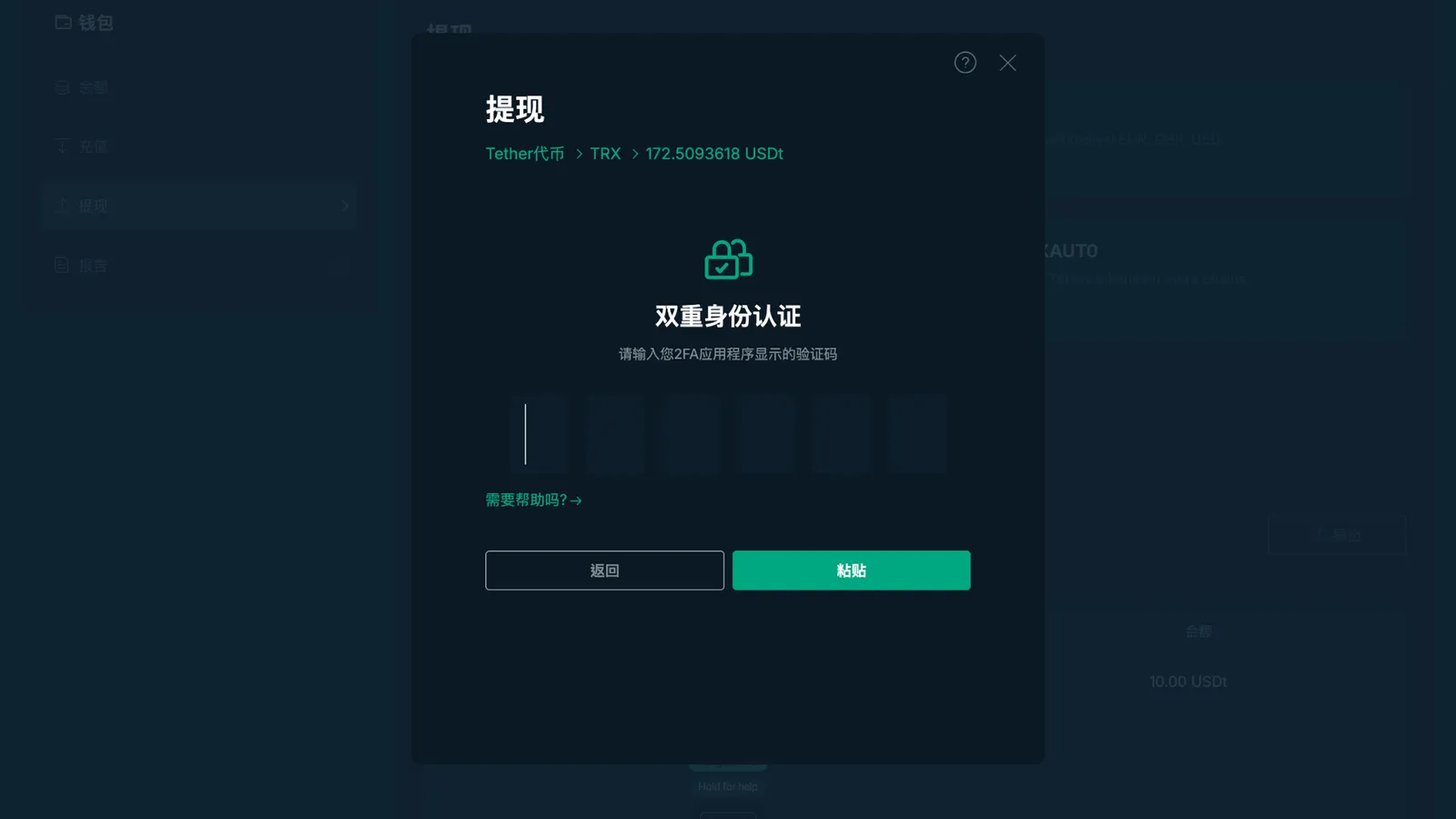
First verification: Authenticator code.

Open the Google Authenticator app on your phone and enter the 6-digit code. (The code changes every 30 seconds, so if it's expired, just enter the new one.)

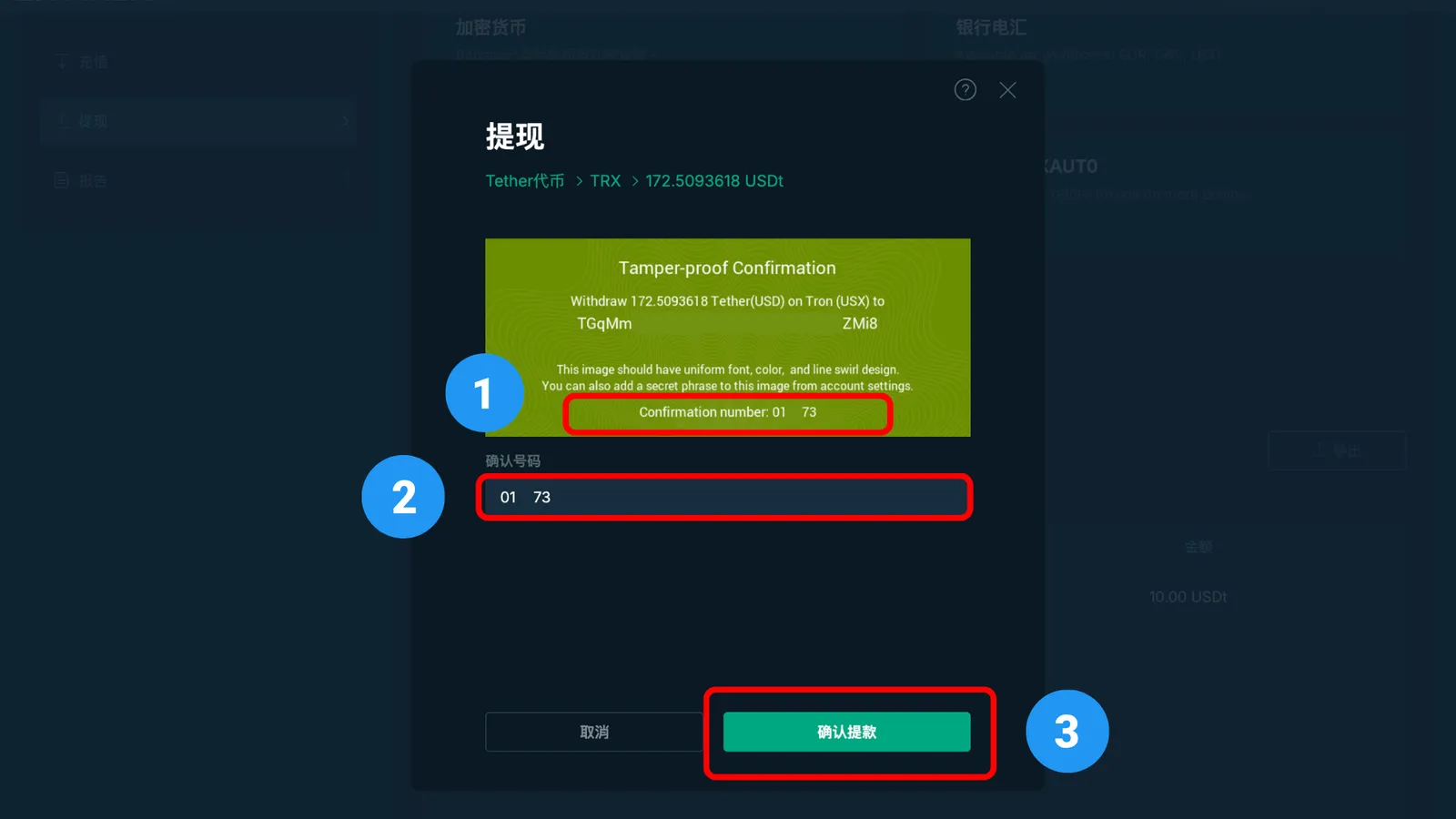
Second verification: anti-tampering confirmation.

Bitfinex shows you an "anti-tampering confirmation" image.

First, check that the amount and address on the image exactly match the ReinvestYae payment window. Once you've confirmed that:

1. Enter the Confirmation number shown on the image into the field.

2. Confirmation number: type in the number from the image. (This number is different every time, so the one in the screenshot is just for reference.)

3. Once everything looks right, click "Confirm Withdrawal."

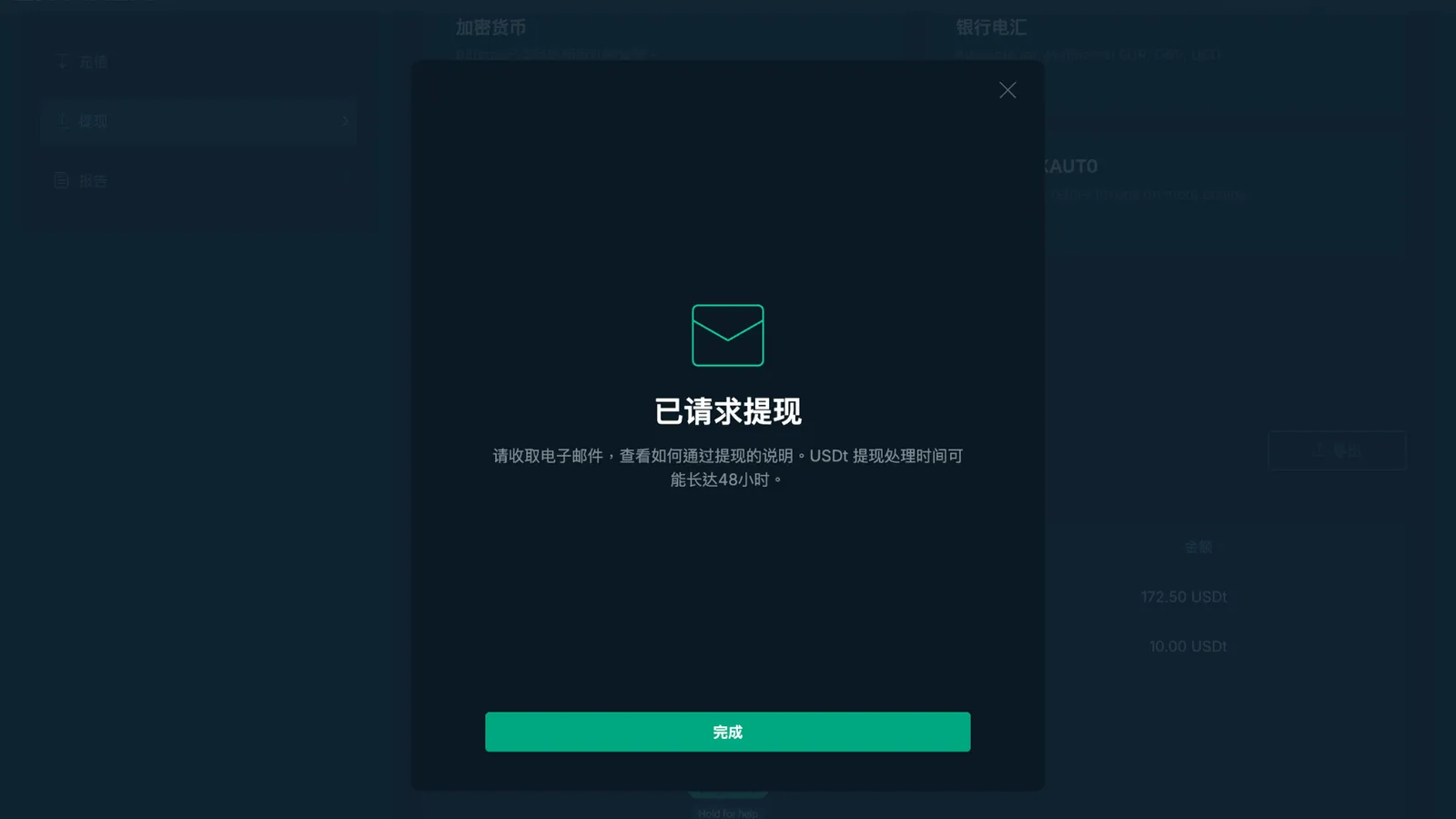
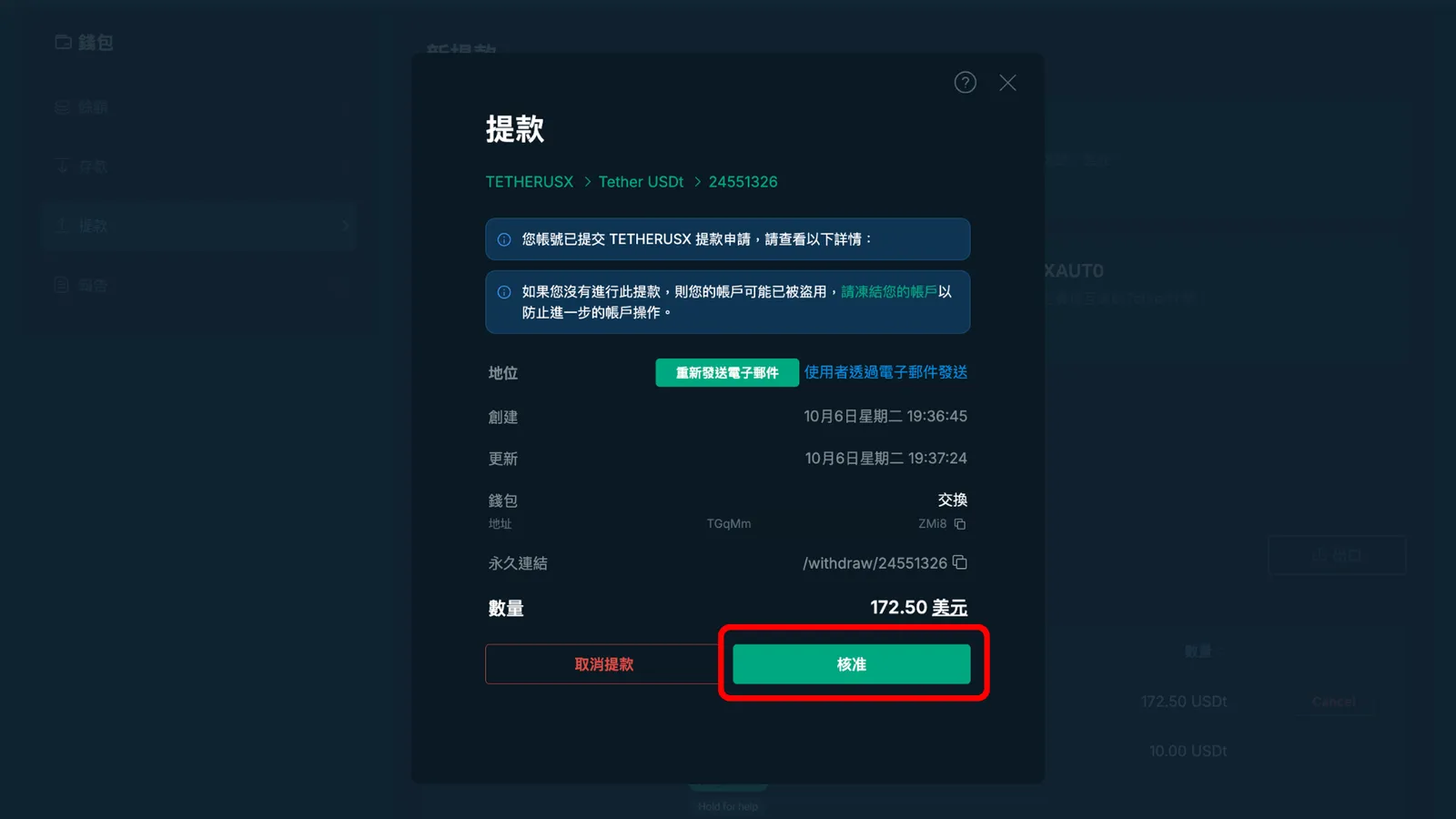
After the two verifications, it's time for the two approvals. Bitfinex sends you an approval email.

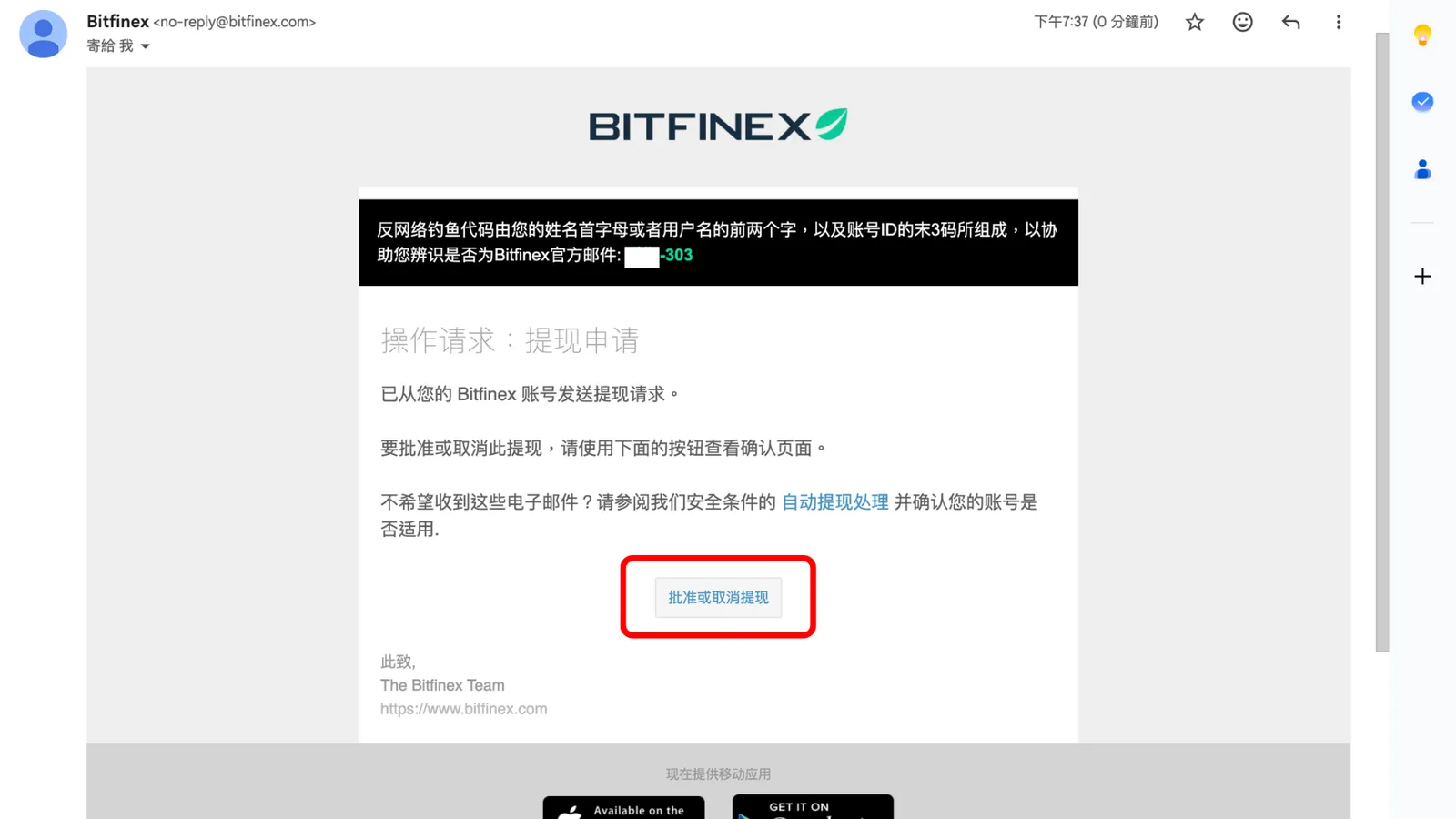
First approval: the email.

Bitfinex sends an approval email to the address you registered with. Go to your inbox and click "Approve or Cancel Withdrawal."

If you don't click it, your withdrawal will stay stuck. (If you can't find the email, check your spam folder.)

After you click approve, switch back to the Bitfinex page for the second approval.

Second approval: the final withdrawal approval.

The Bitfinex page pops up an approval window again. Please double-check that the amount and address are correct.

This is the last step. If you don't click here, the withdrawal stays stuck. (If you didn't get the first approval email, you can click "Resend Email" to get it again.)

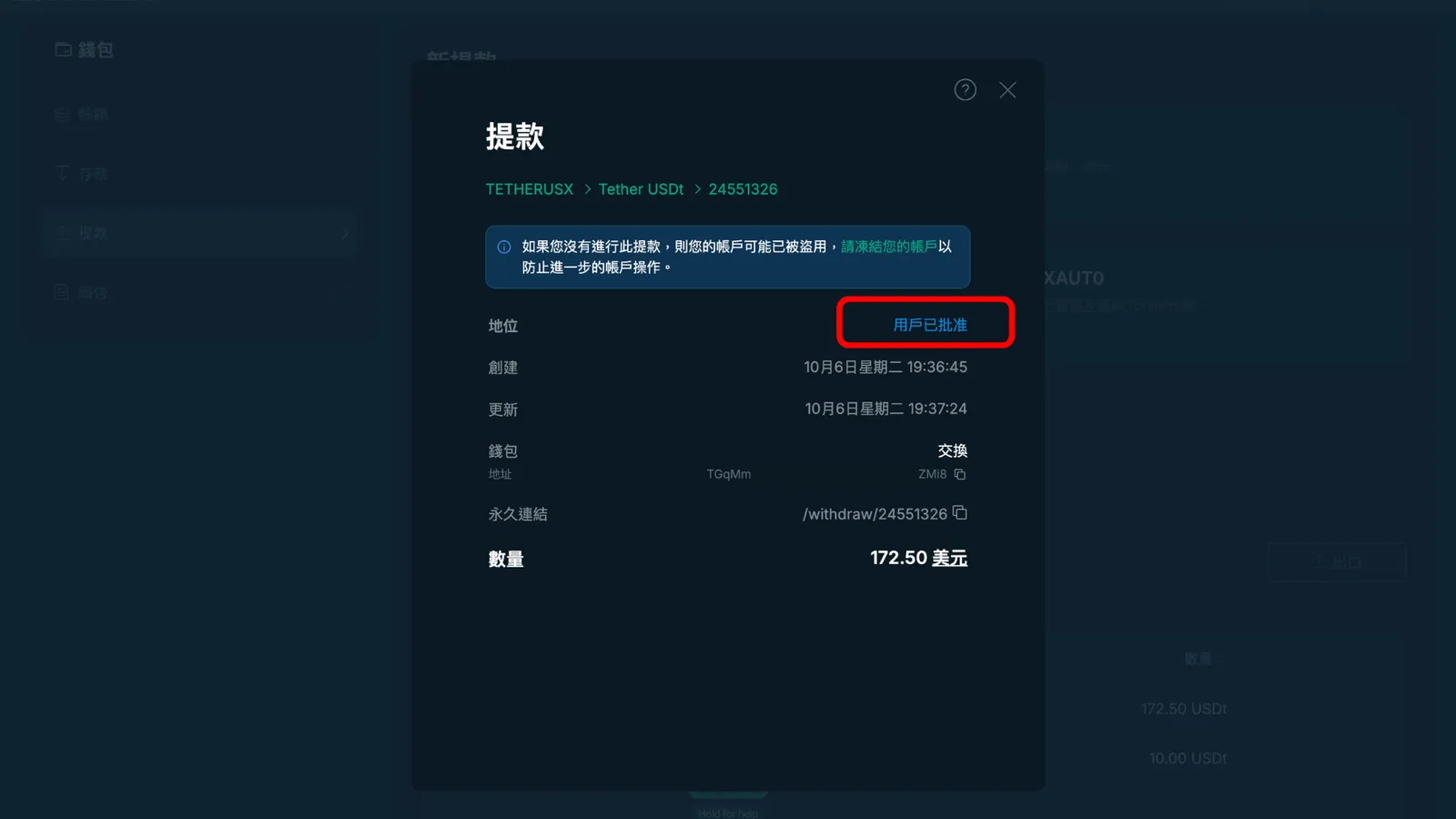
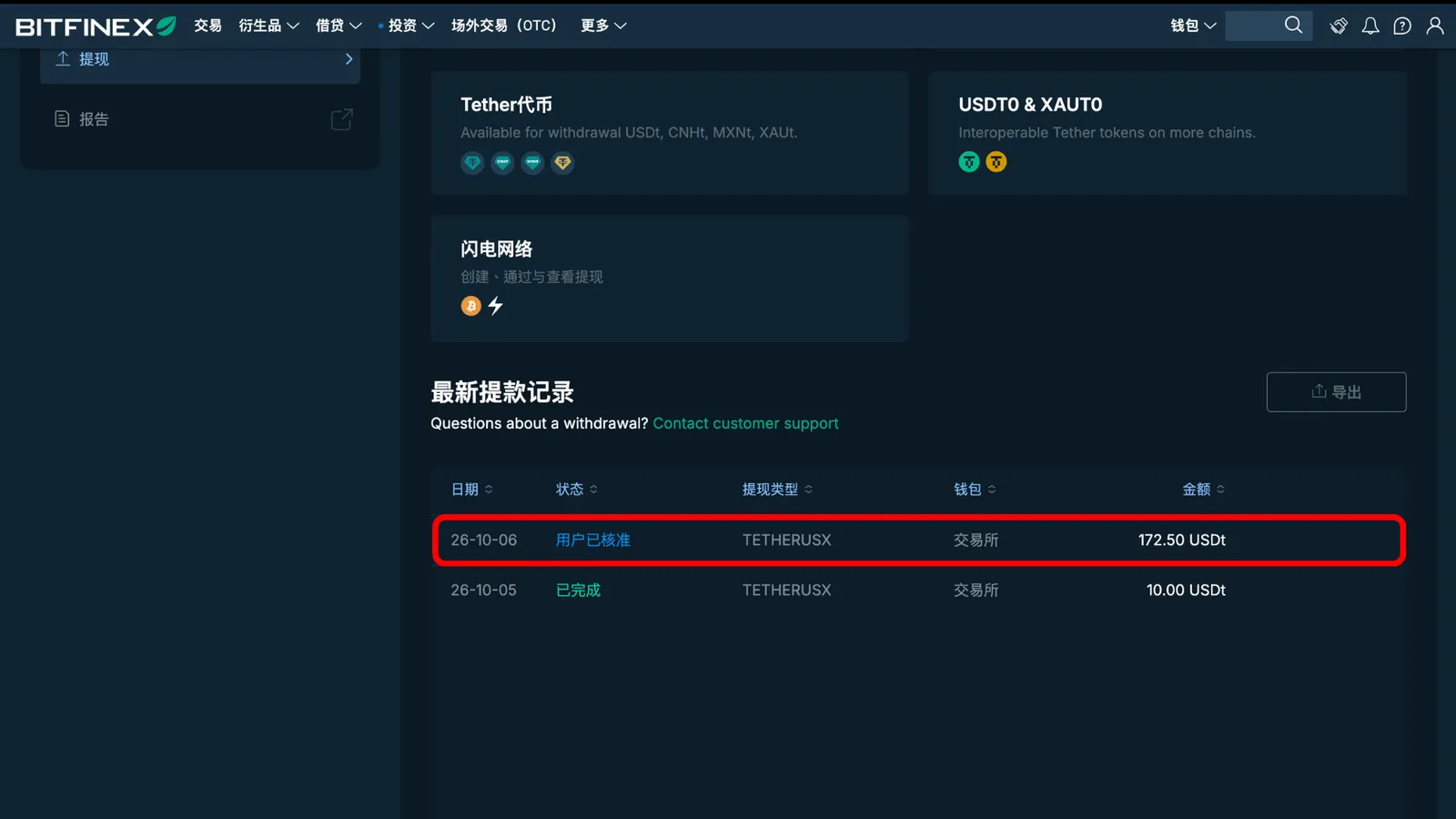
Once everything checks out, click "Approve," and the screen shows "User Approved." After the second approval, your withdrawal is officially done.

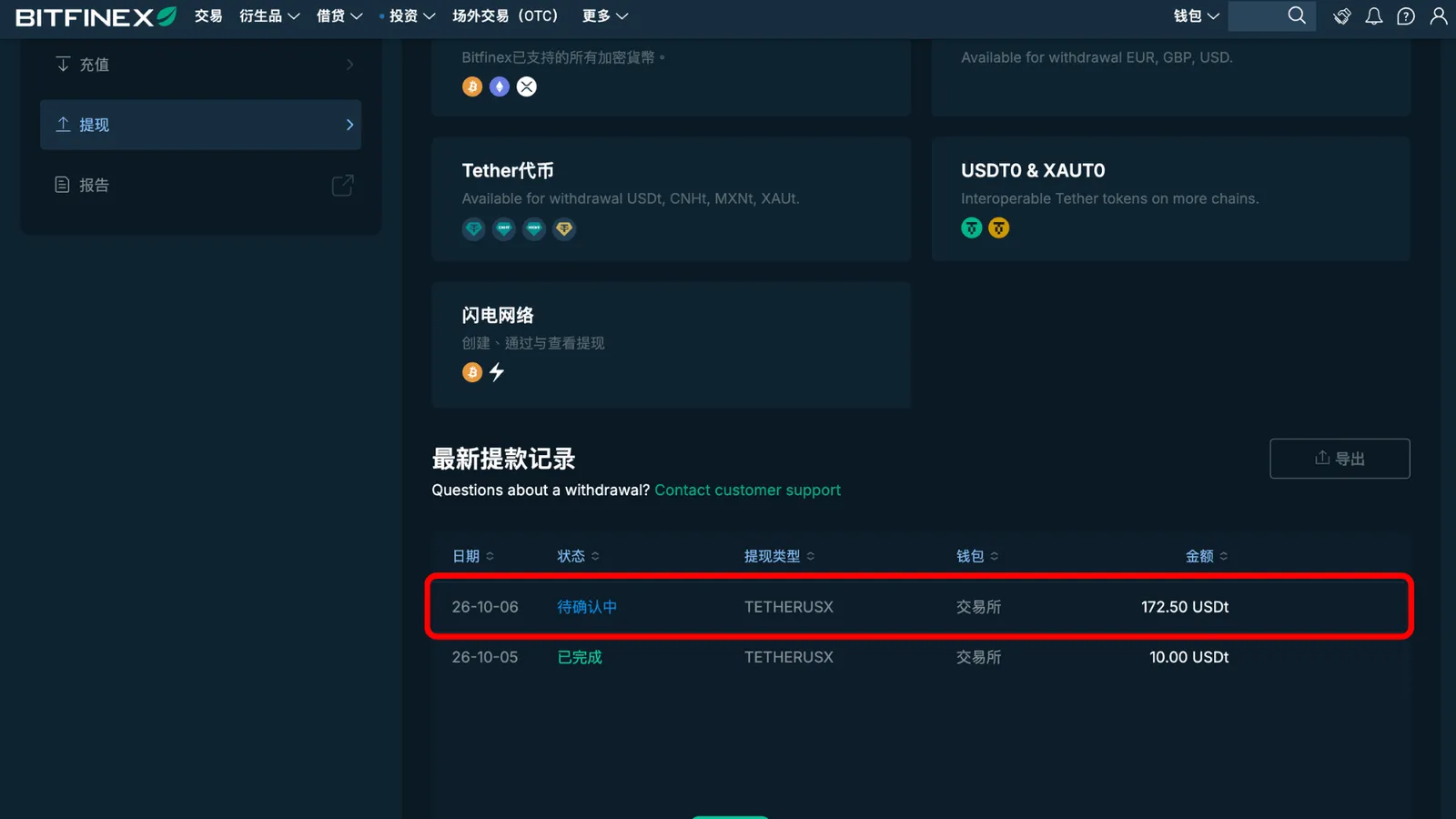
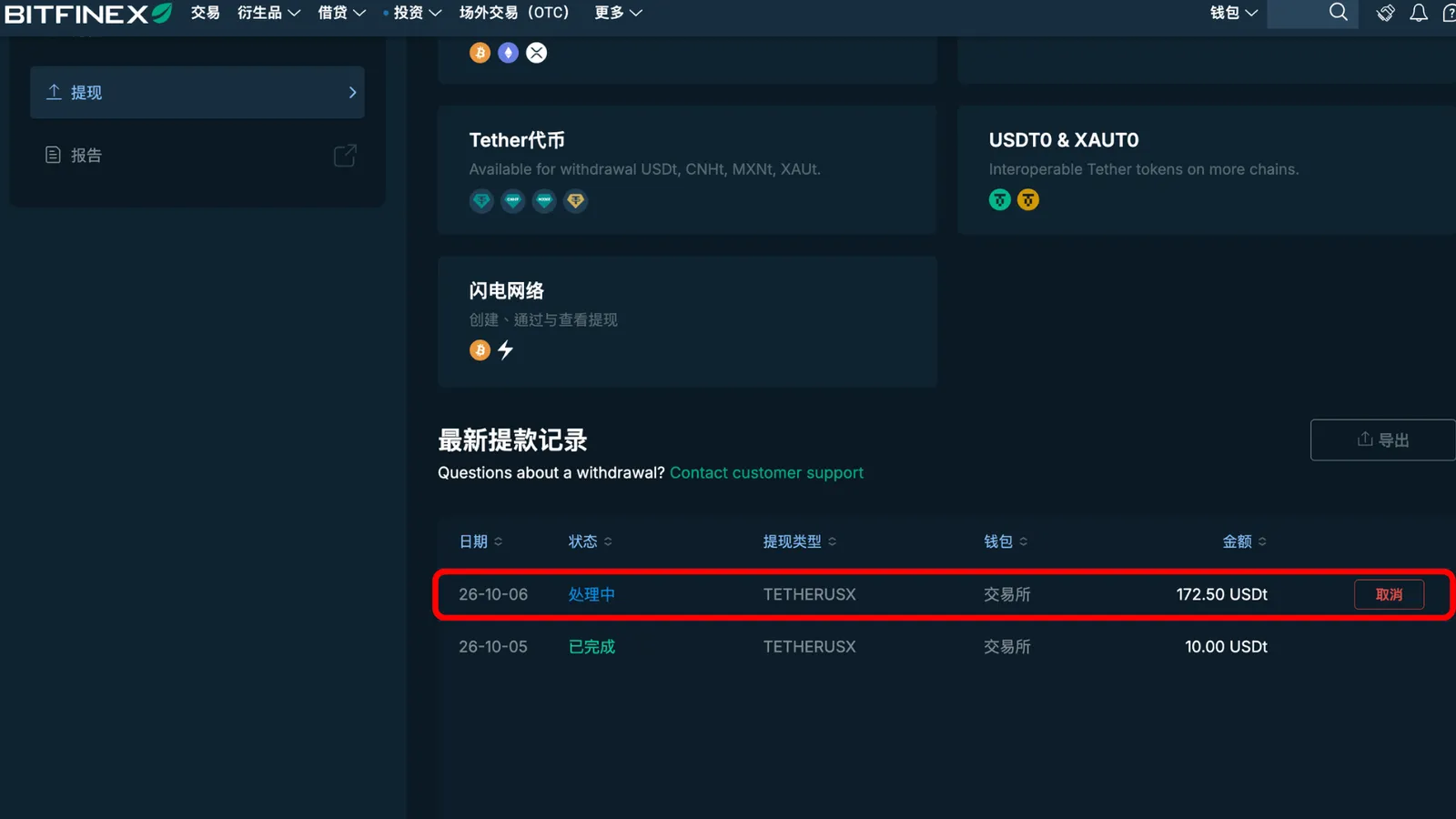
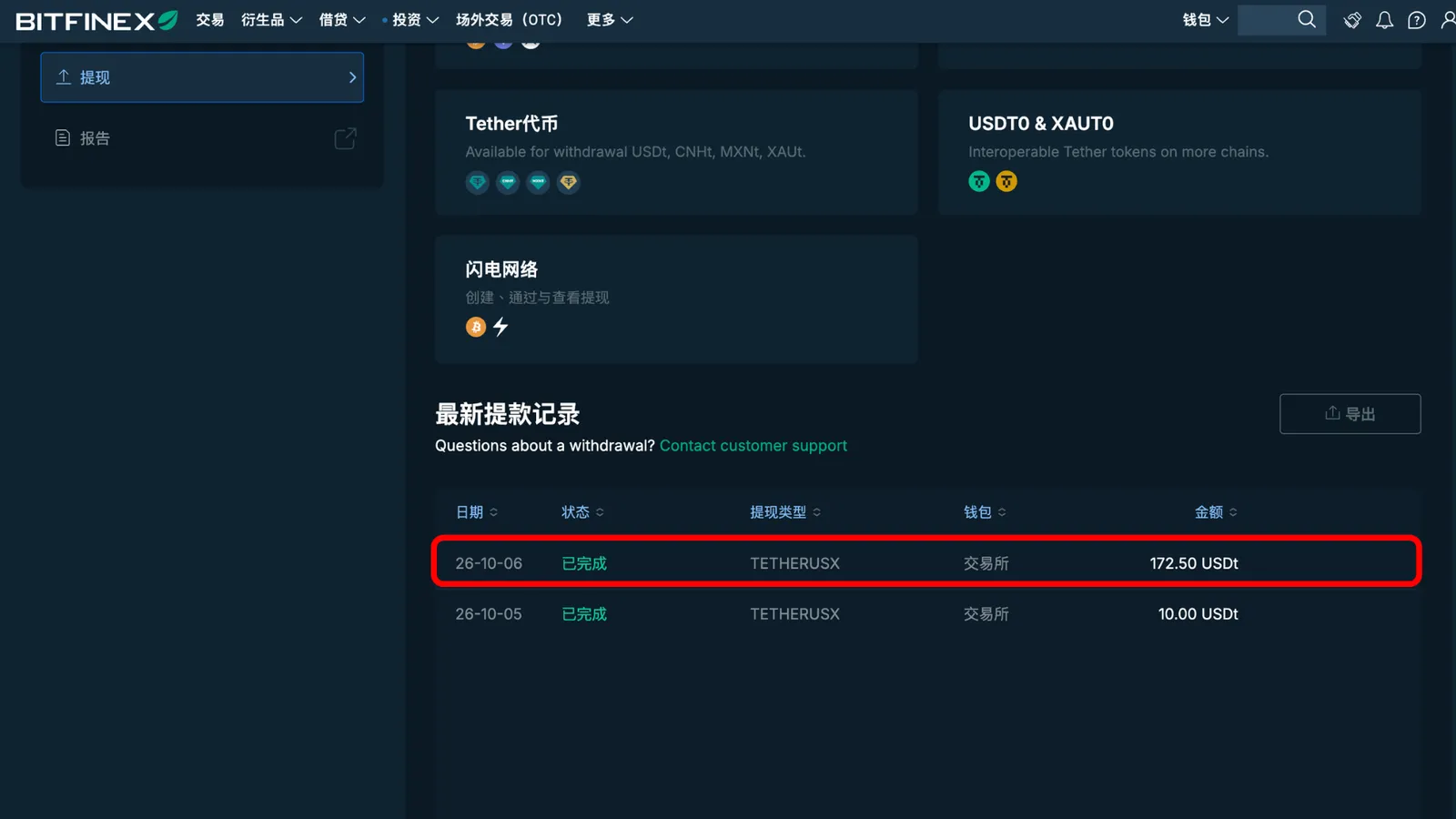
At the bottom of the withdrawal page, under "Latest Withdrawals," the status goes from pending, to processing, to user approved, to completed.

While it says "Processing," you can still click "Cancel Withdrawal" if you notice a mistake, and the money won't go out. But once it's been approved, you can't cancel anymore.

That's why, when you first fill in ReinvestYae's payment amount and withdrawal address, you should always use copy and paste, to avoid errors.

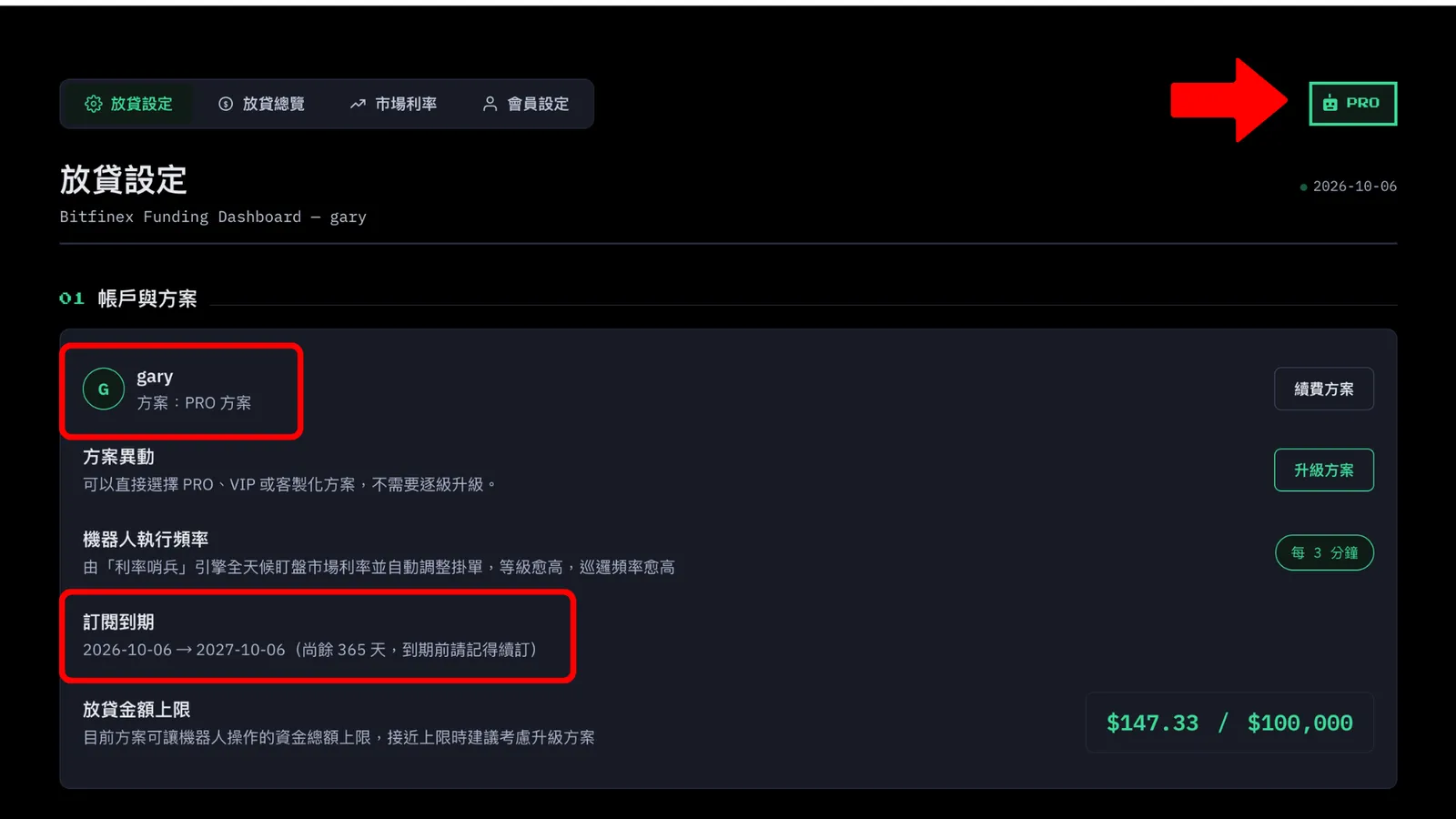
Once the transfer is done, the lending bot activates automatically. Go back to your ReinvestYae dashboard and refresh the page. Your plan badge, lending amount limit, and the bot's run frequency will all update. "Subscription Expiry" shows your start date and your expiration date. And the bot's lending frequency will speed up quickly.

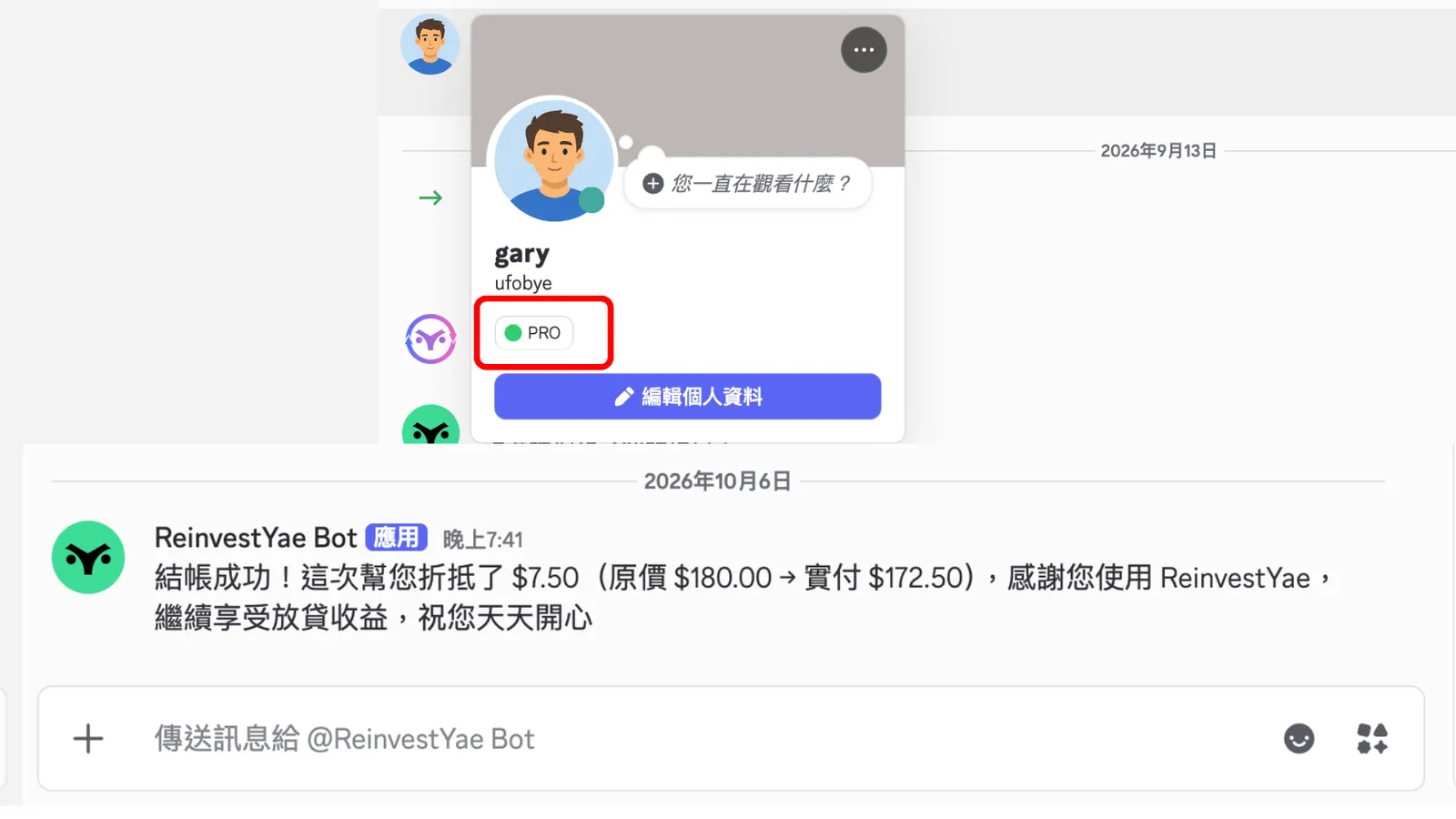
After payment goes through, the Discord bot sends you a private message letting you know checkout was successful. Your subscribed plan also shows up on your profile. So even before you start using the FREE plan, make sure you've joined our Discord community and linked your account to the Discord bot. That's how you'll get the subscription notification.

Q1: What happens if I send a little too much or too little?

A: The system matches your payment using the exact full amount, so if the amount is off, it might not activate automatically. Just send a screenshot of your transfer to ReinvestYae support, and a person will check it for you.

Q2: When is my discount credit taken off?

A: Only after your payment goes through. If you don't pay, your credit isn't used up. The $7.50 sign-up credit and the $5 referral credit are applied automatically at checkout.

Q3: Why can't I pay with a credit card?

A: We use USDT transfers within Bitfinex. There are no fees, and the system can automatically match your payment.

Q4: I can't find Tether (USDT) on the withdrawal page. What's going on?

A: That means there's no USDT in your Exchange wallet. Go back to "Step 2: Internal Transfer" or "Step 3: Buy USDT on the Trading Market."

Q5: Can I pay from a different wallet or another exchange?

A: We recommend sending it from within Bitfinex. If it comes in from another platform, the payment matching can run into errors, so please contact ReinvestYae support first.

Your Exchange wallet has enough USDT (about $2 more than the payment amount)

Choose the Tron (TRC20) network

Copy and paste both the amount and the address using the “Copy” buttons

Have your phone’s Authenticator app ready

Make sure you can receive Bitfinex’s approval email