How to Join Our Discord Community
Discord is our official community and notification platform. You'll use it for three things:
1. Join the ReinvestYae community, catch announcements, and chat with other lending members.
2. Get private message notifications from the lending bot. Only you can see them.
3. Visit the Support Center whenever you have a question.
In this video, I'll walk you through everything: signing up, joining the community, linking the notification bot, and the Support Center. I'll also show you a few Discord features along the way. Discord has a ton of useful stuff, and by the end of this, you'll be able to use it on your own.
STEP 1: Sign Up for Discord
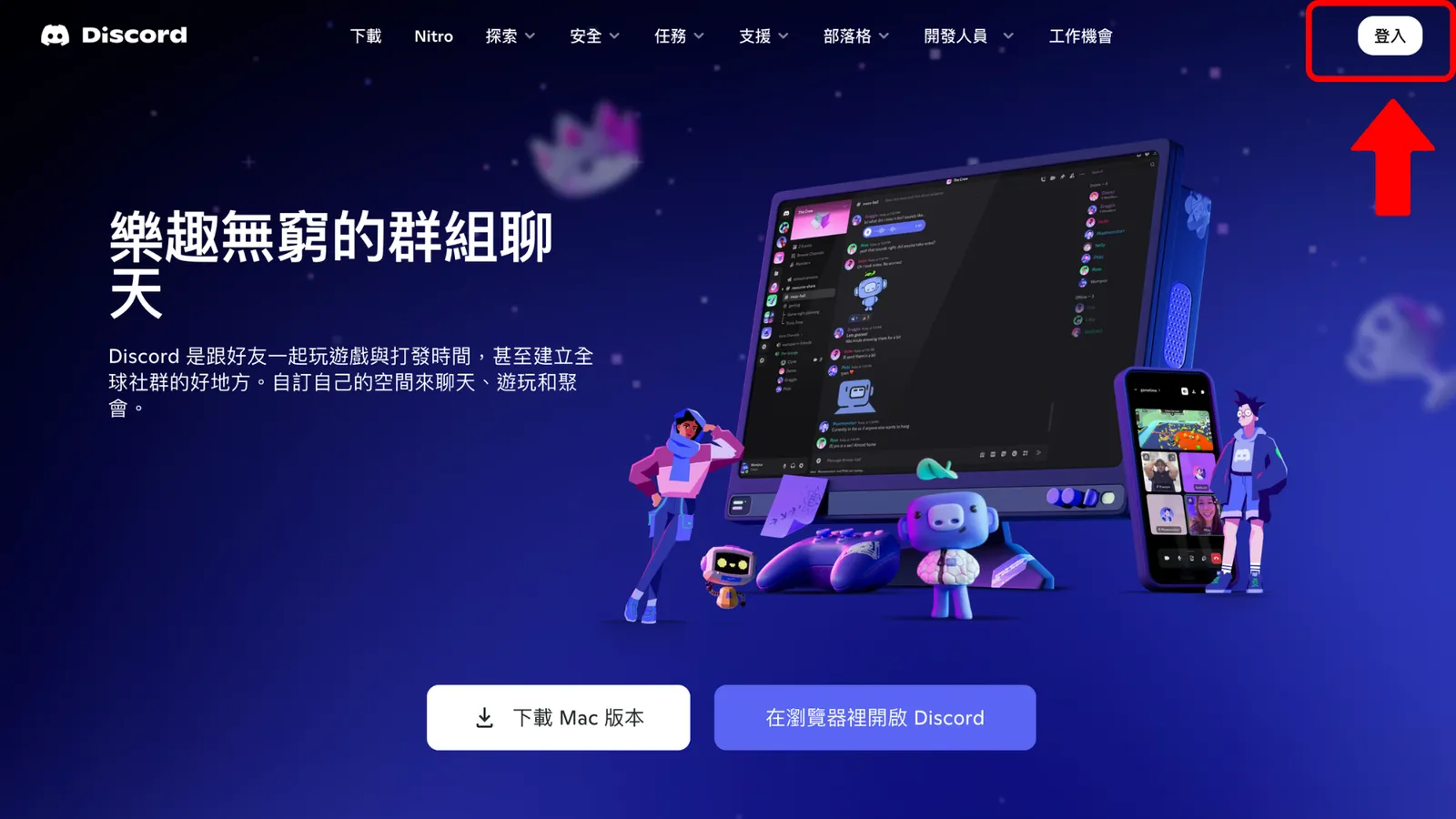
First, open the Discord website and click "Log In" in the top right.
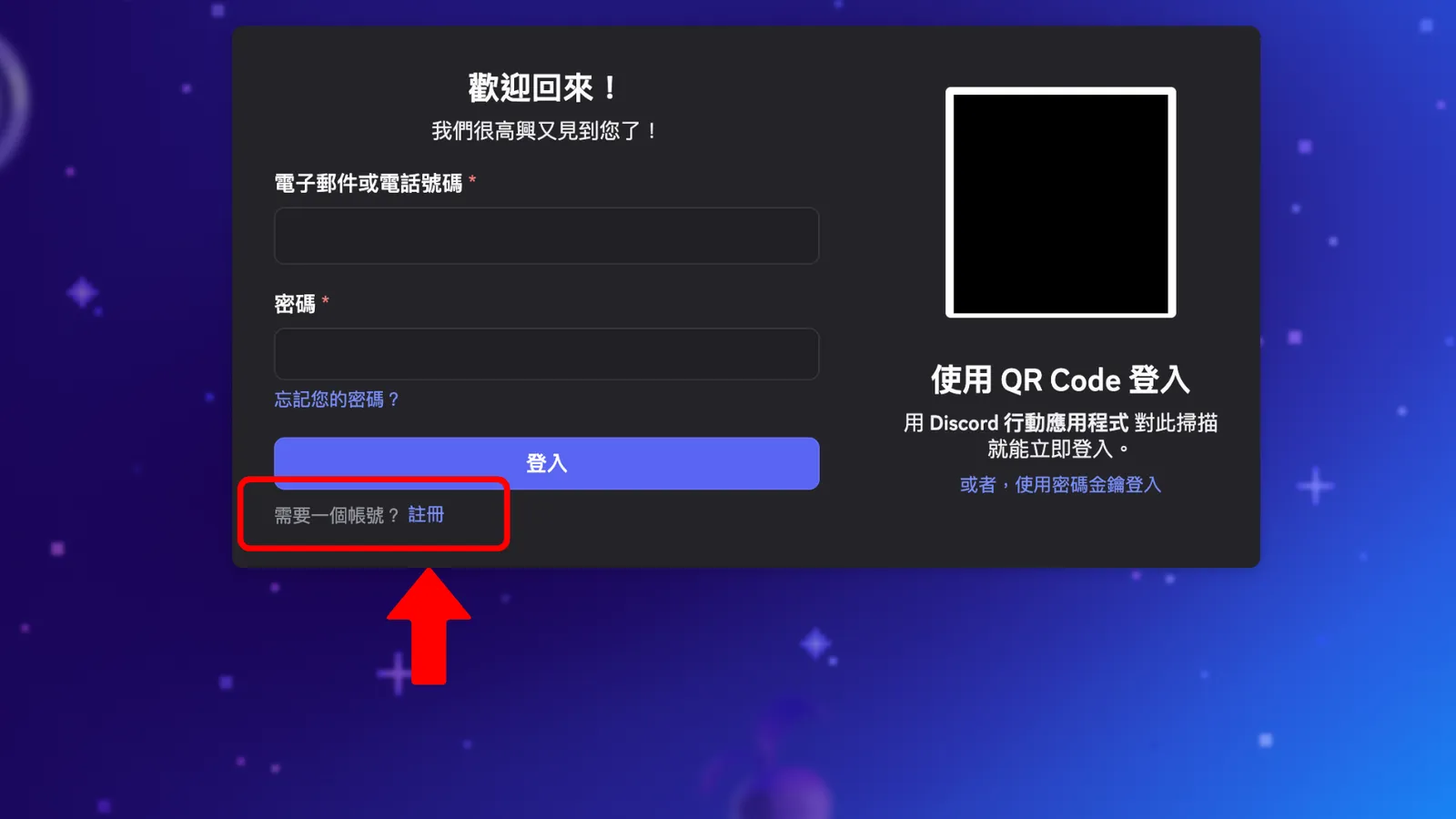
On the next page, click "Register." (You can also download the phone app. The steps look the same.)
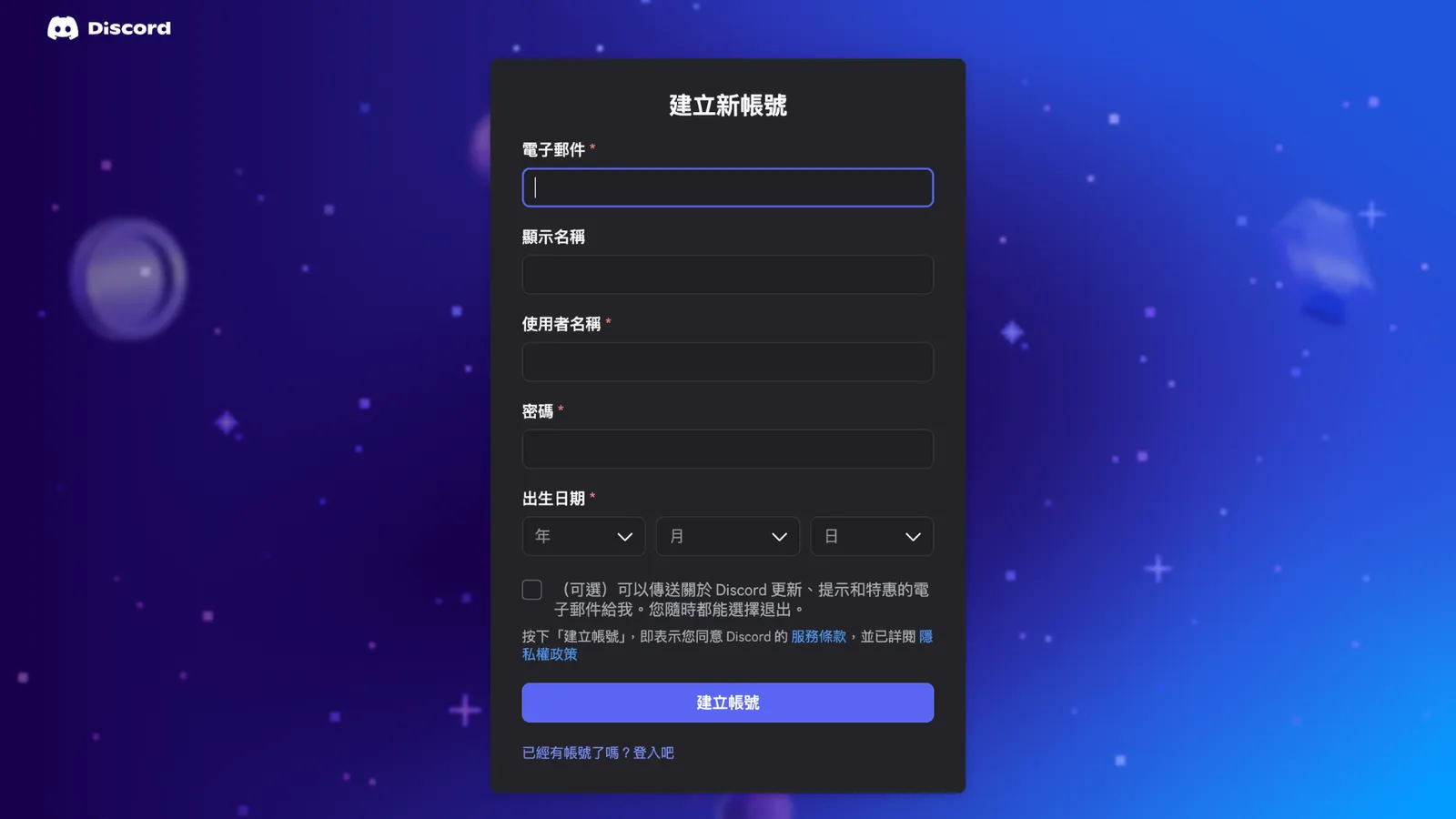
Create a new account:
Fill in your email, a display name (the name other people see, and you can pick anything), a username (it has to be unique), a password, and your birthday. Please use your real birthday, because Discord unlocks some features based on age. When you're done, click "Create Account" and complete the "I'm not a robot" check.
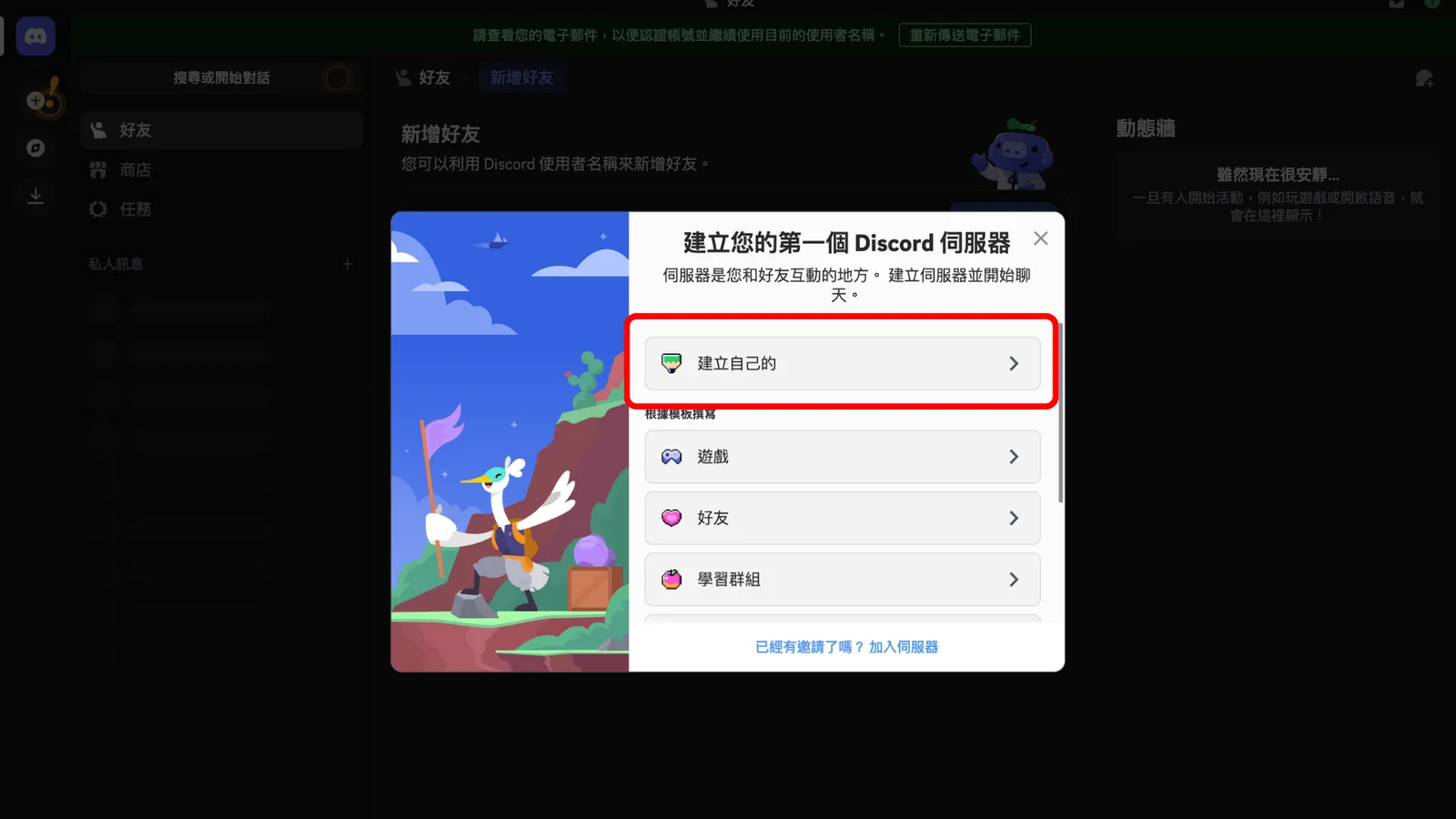
Create a server:
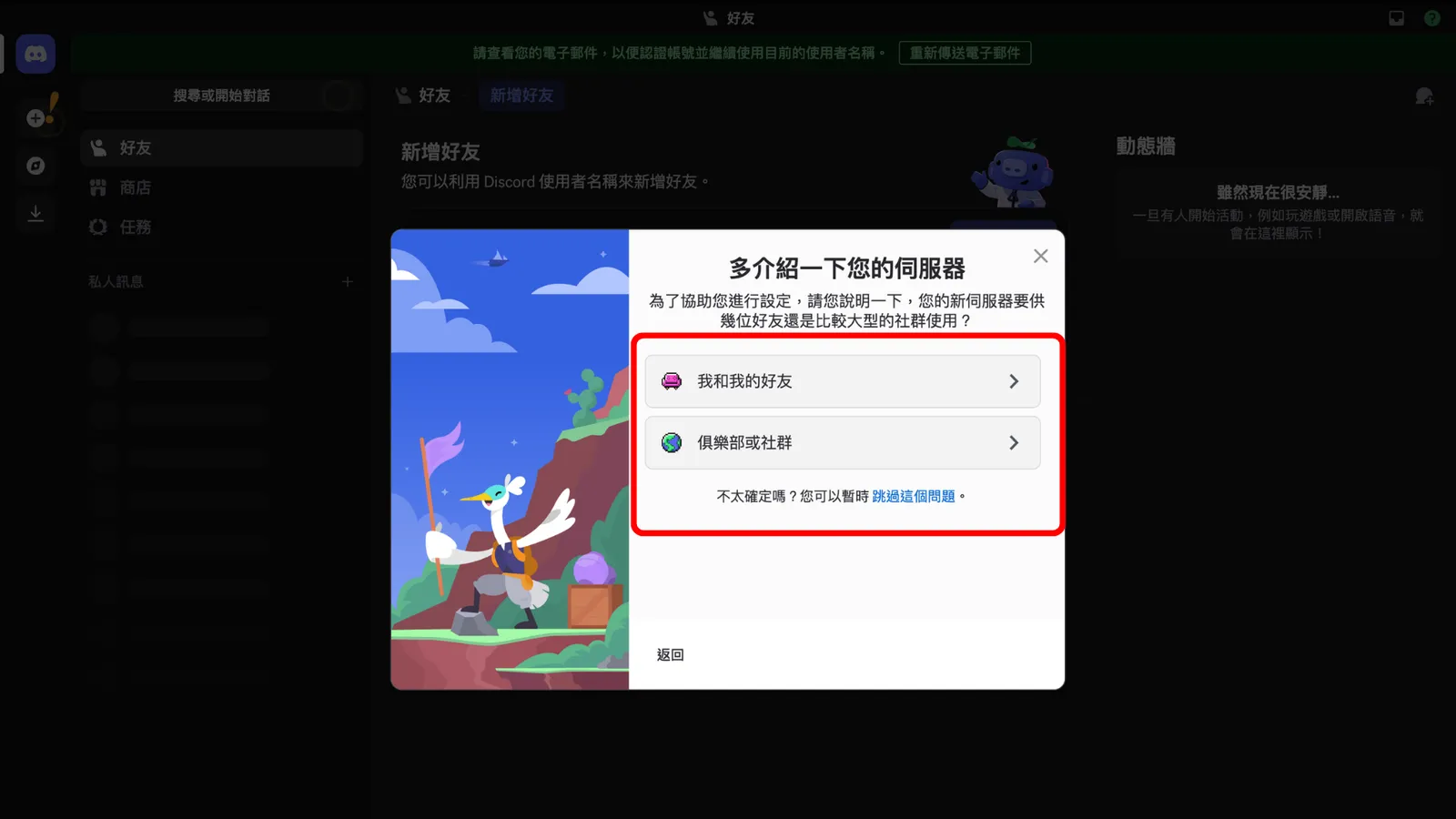
Next, click "Create My Own." On the next page, you'll see "For me and my friends" and "For a club or community." Either one is fine. Pick one and move on to the next page. (A server is basically your own community space. You can invite friends to join, and you can also join spaces other people have created.)
Customize your server:
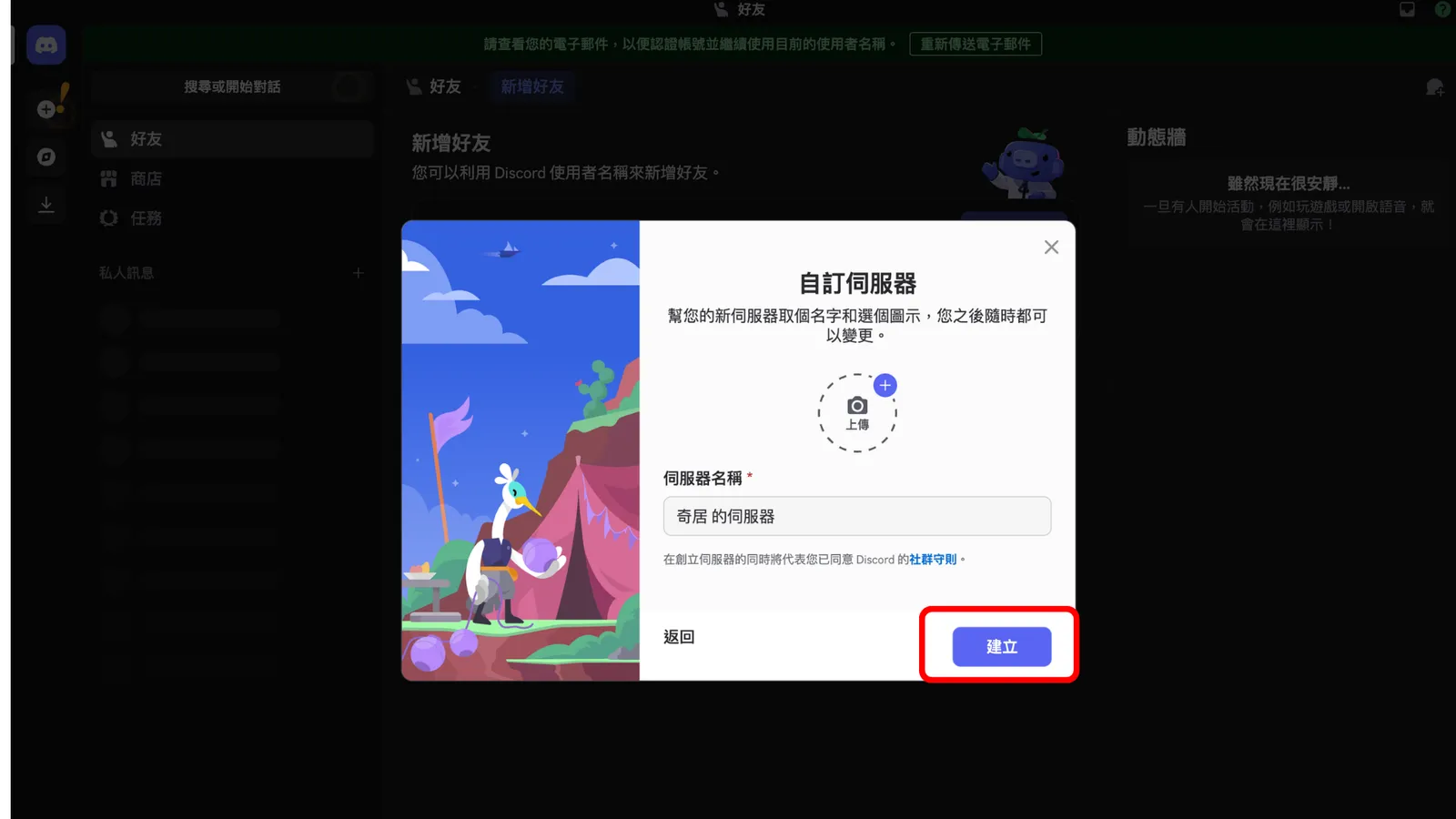
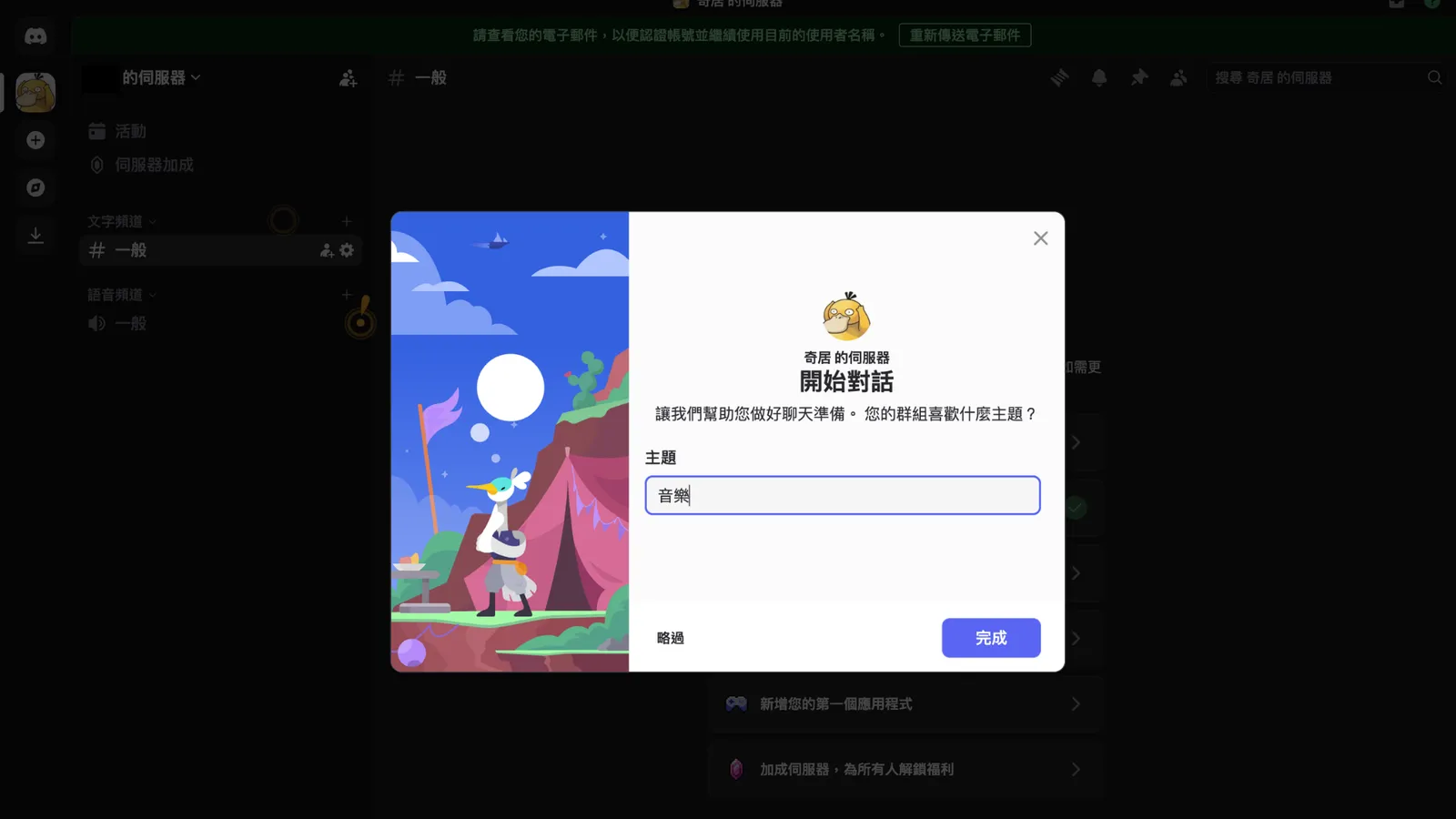
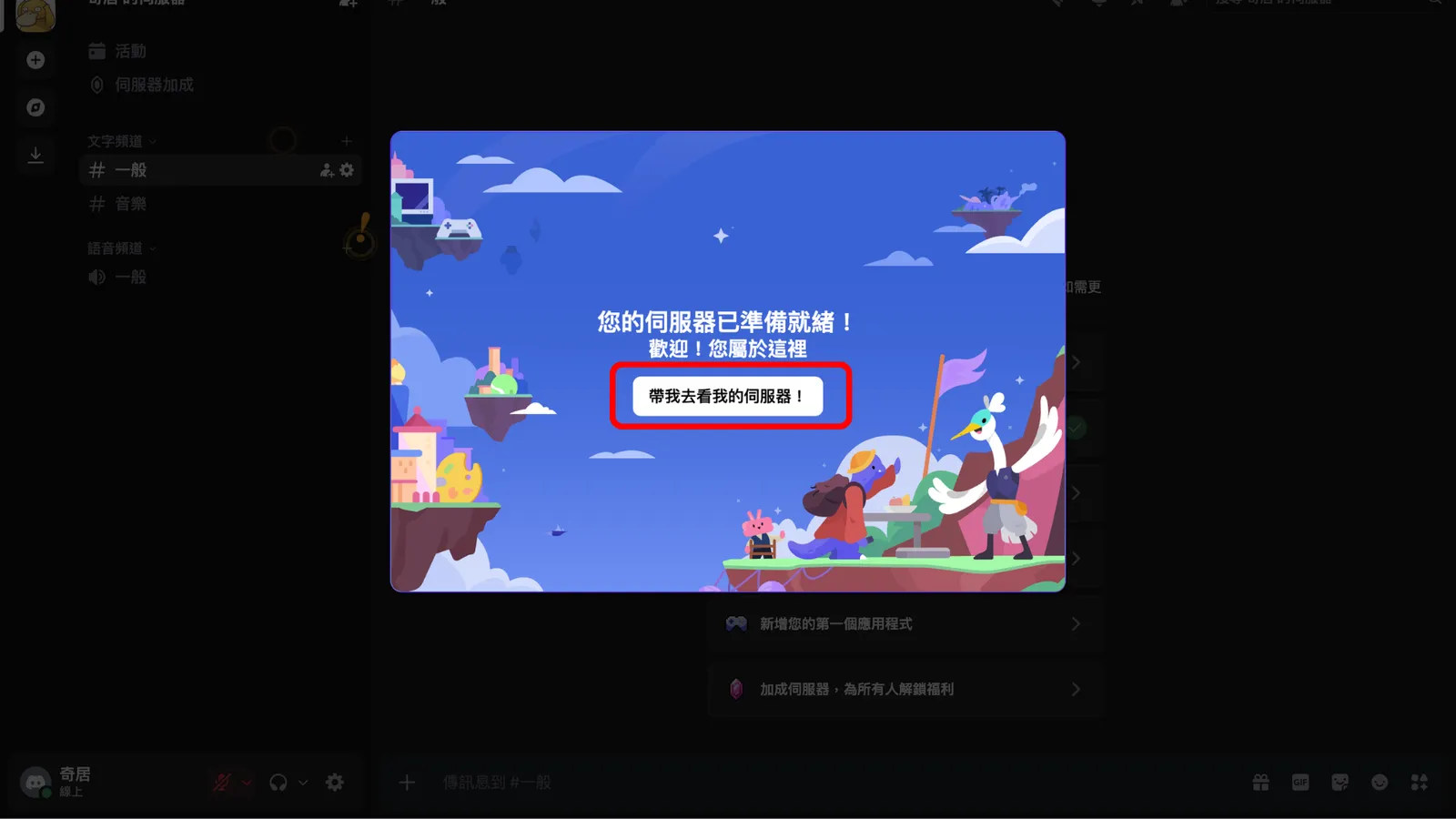
Here you can upload an icon for your server (that's not your own profile picture) and give it a name. When you're done, click "Create." On the next page, pick a theme, or just skip it, then click "Done," and then "Take me to my server." Your server is ready.
Verify your email:
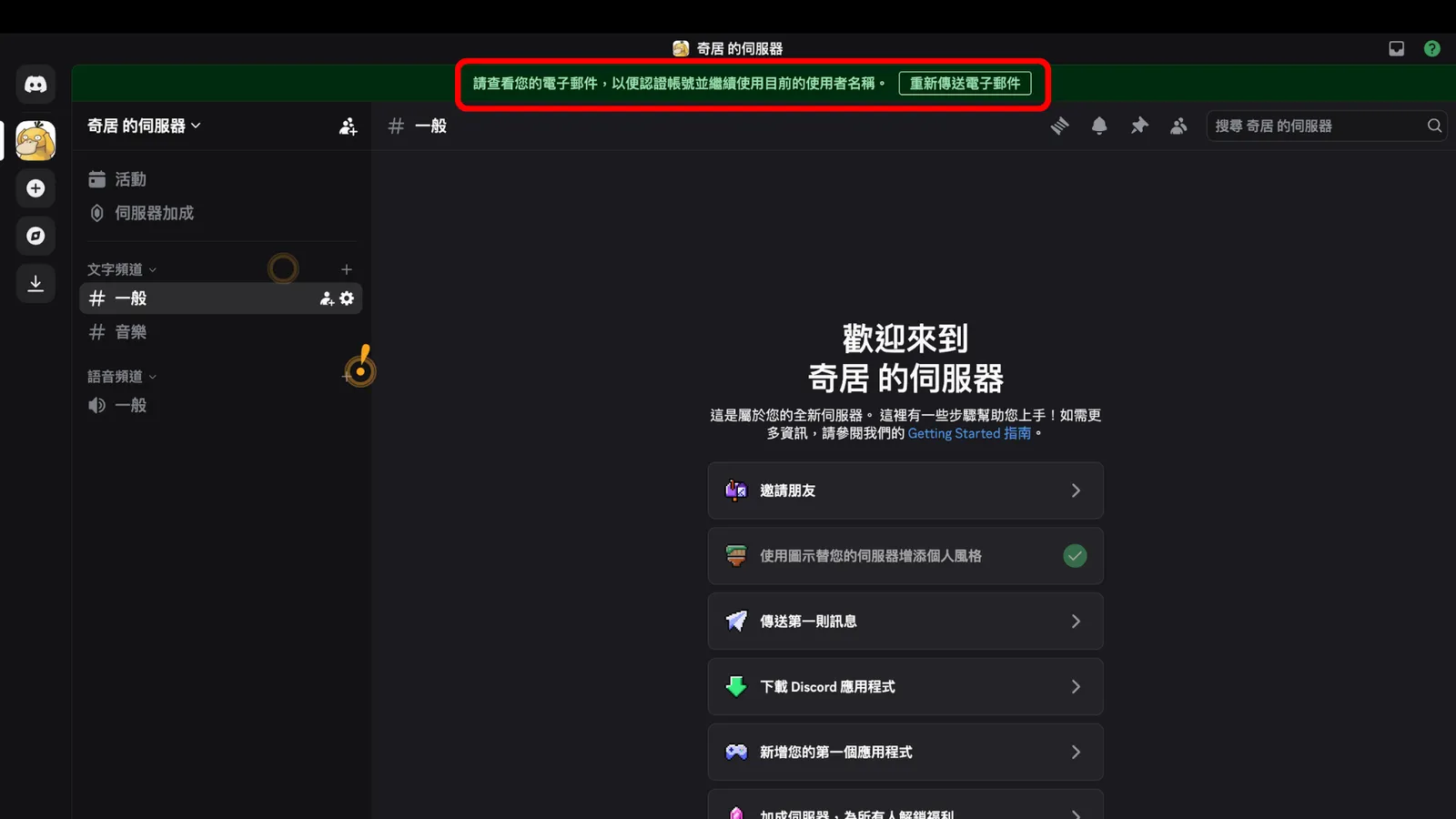
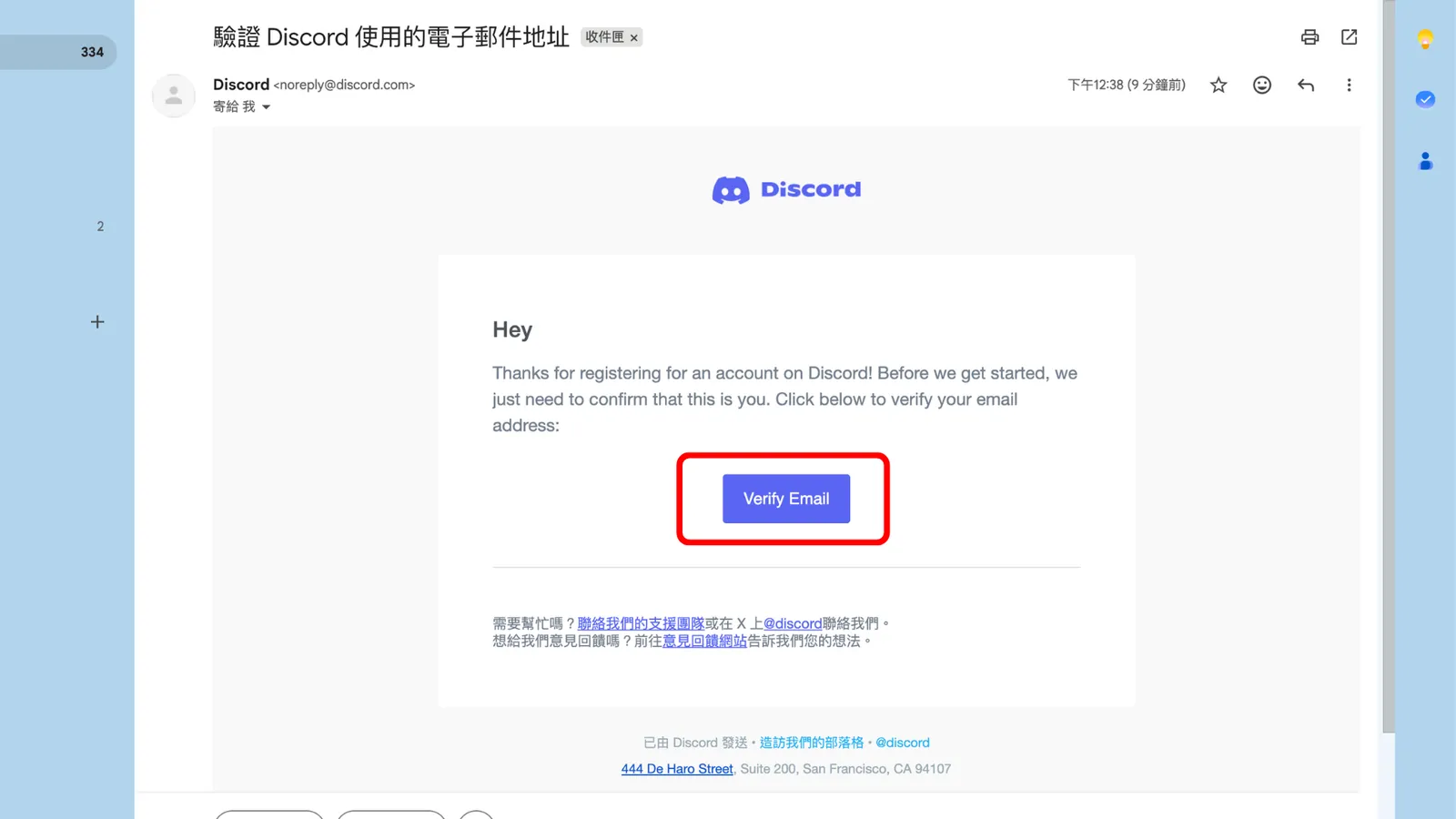
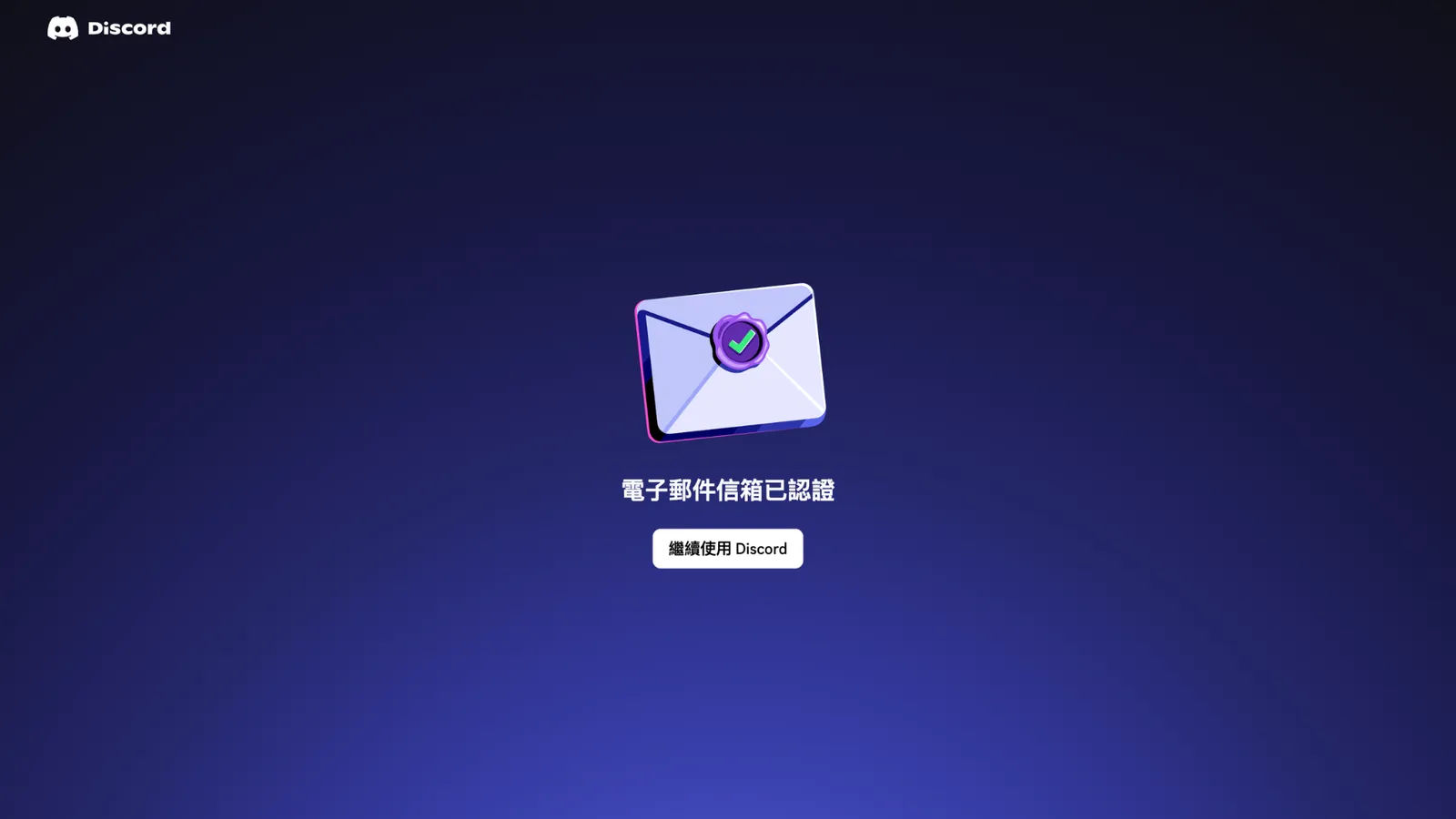
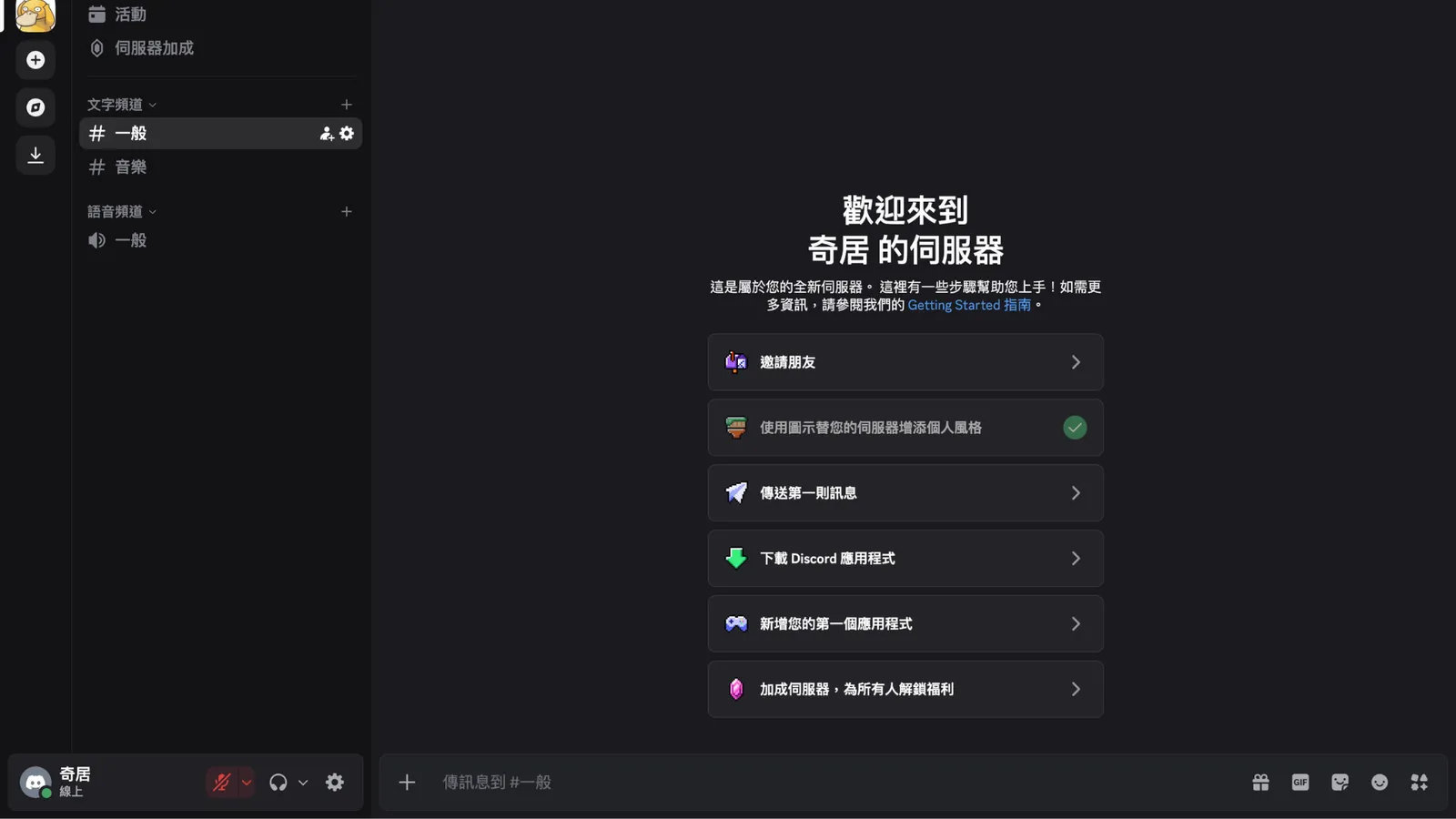
Once you're in your server, you'll see a reminder message at the top. You don't need to click it. Just go to your email and click the confirmation link. After you verify, go back to your server, and the reminder at the top disappears.
A few more settings:
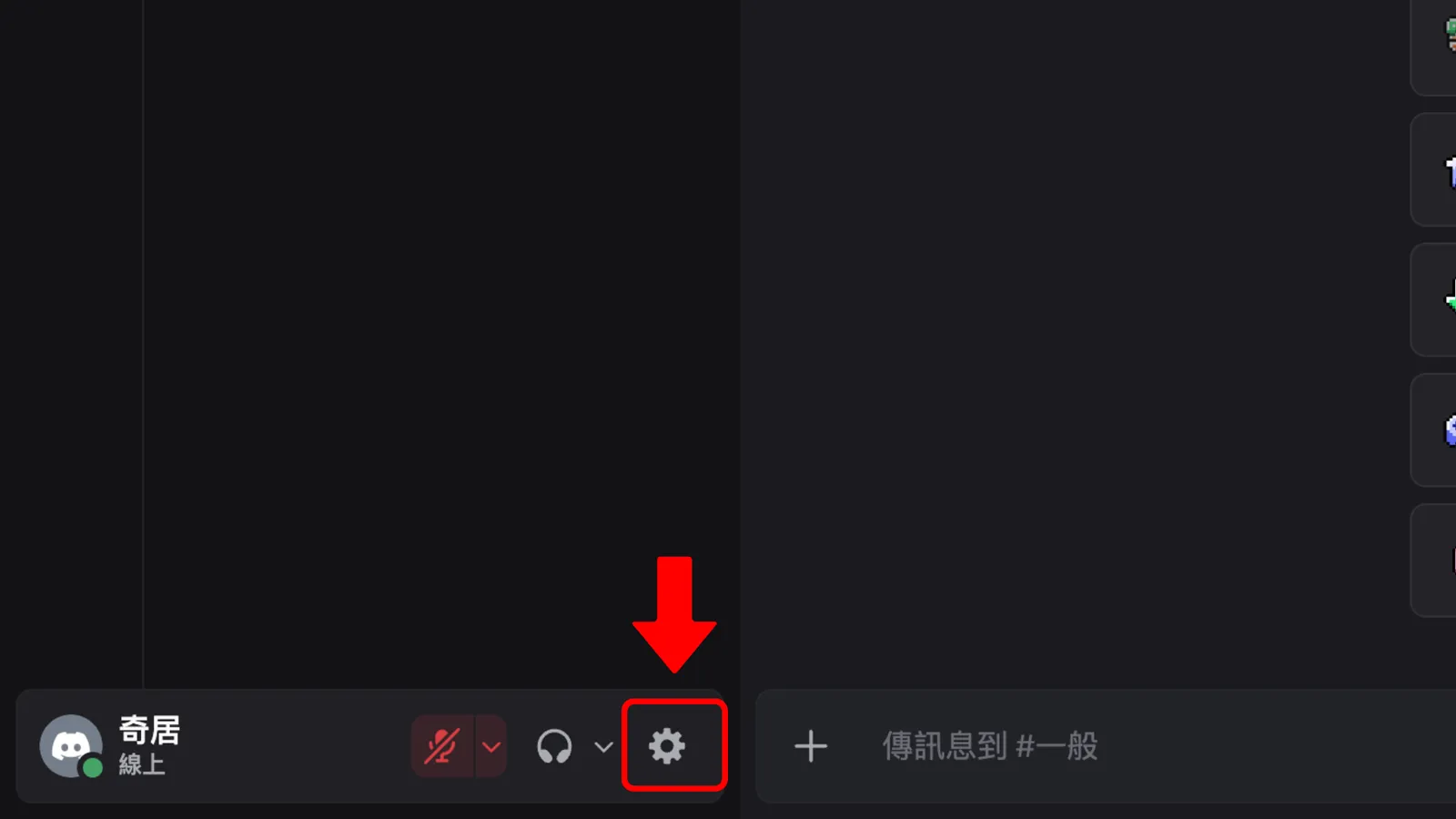
Now I'll show you some settings and features, so you get more comfortable with Discord and it's easier to use. At the bottom left of your server, click the gear icon for Settings.
Settings:
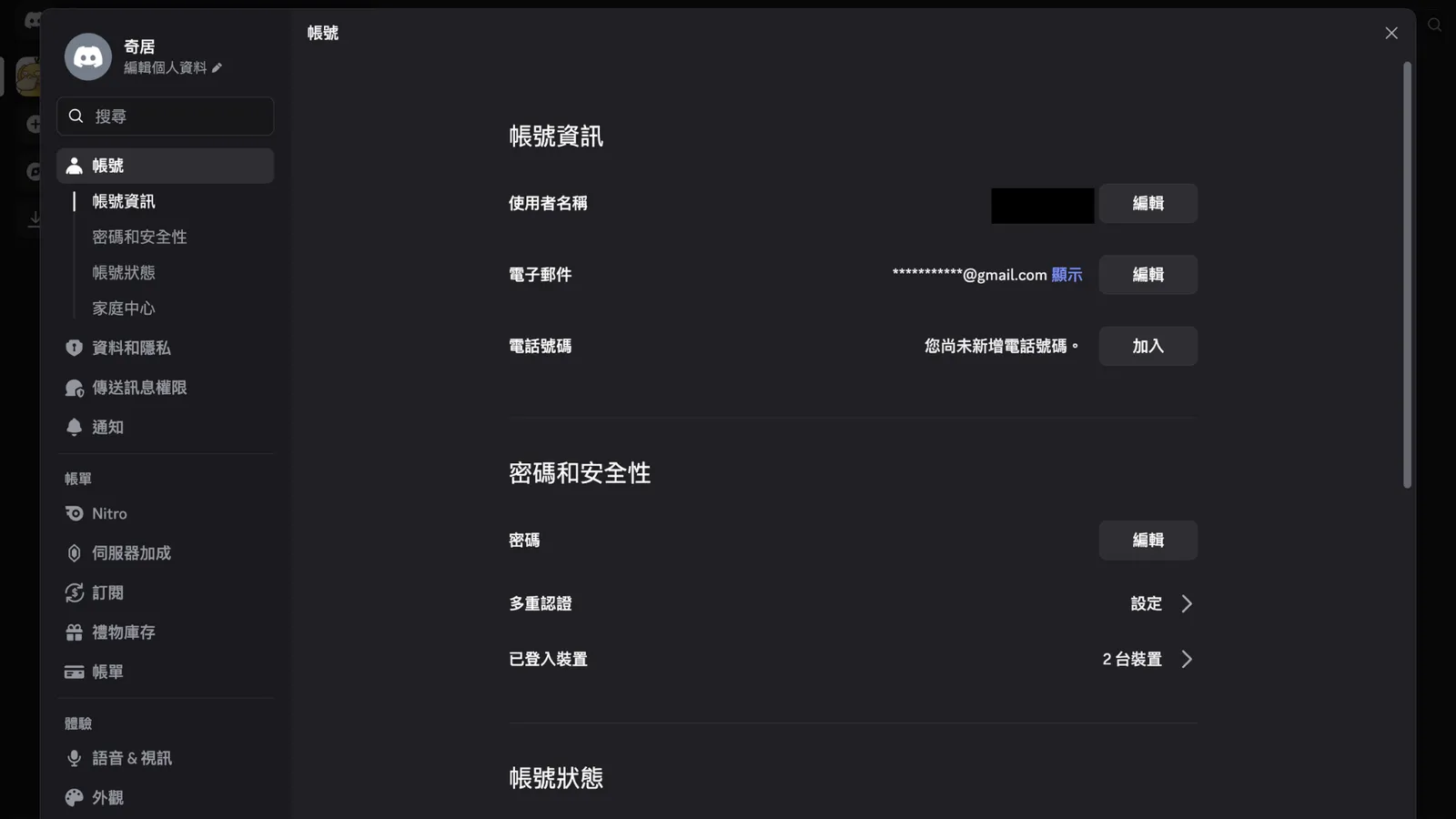
A menu opens on the left with lots of options. I'll go through the more important ones.
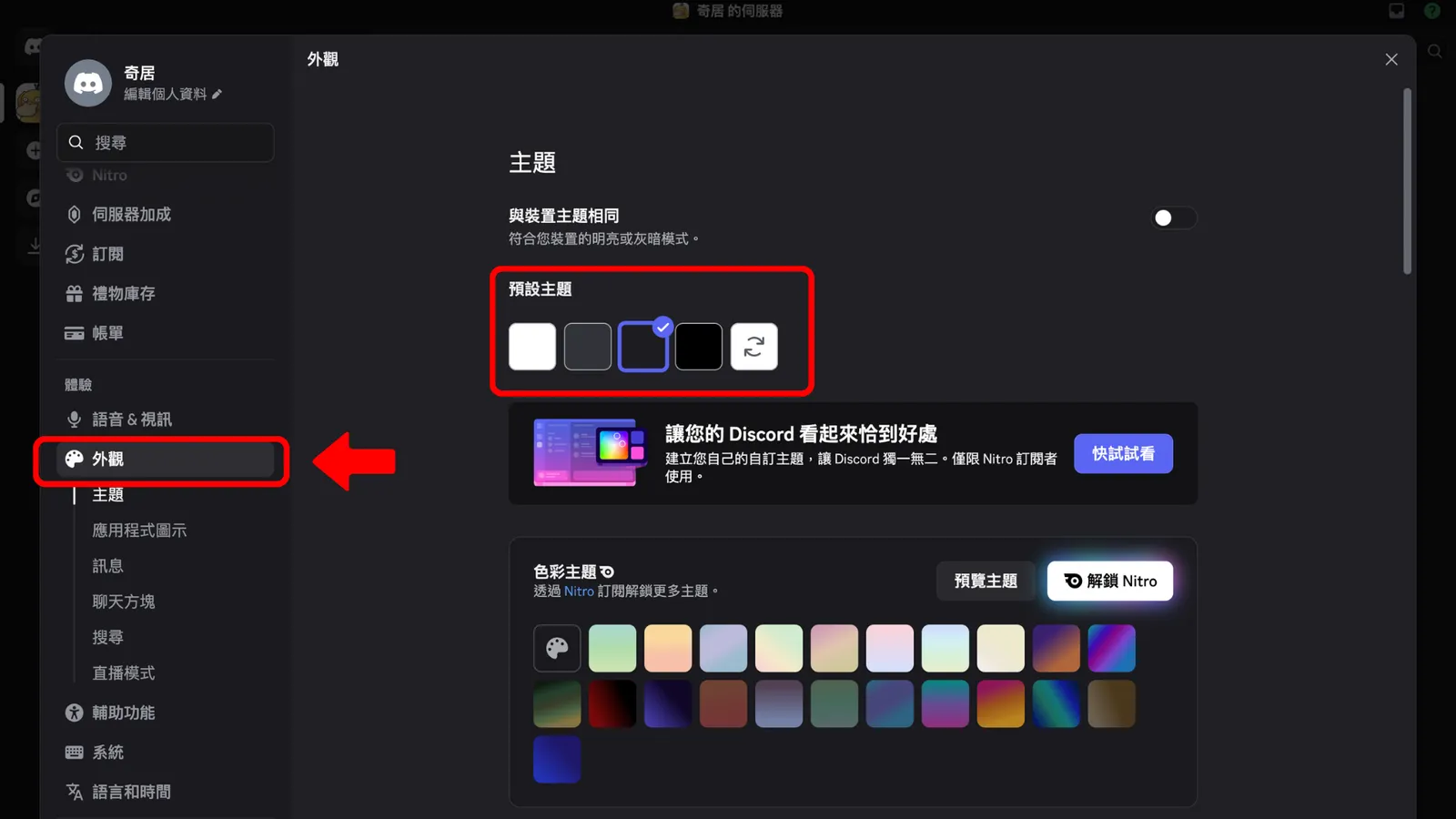
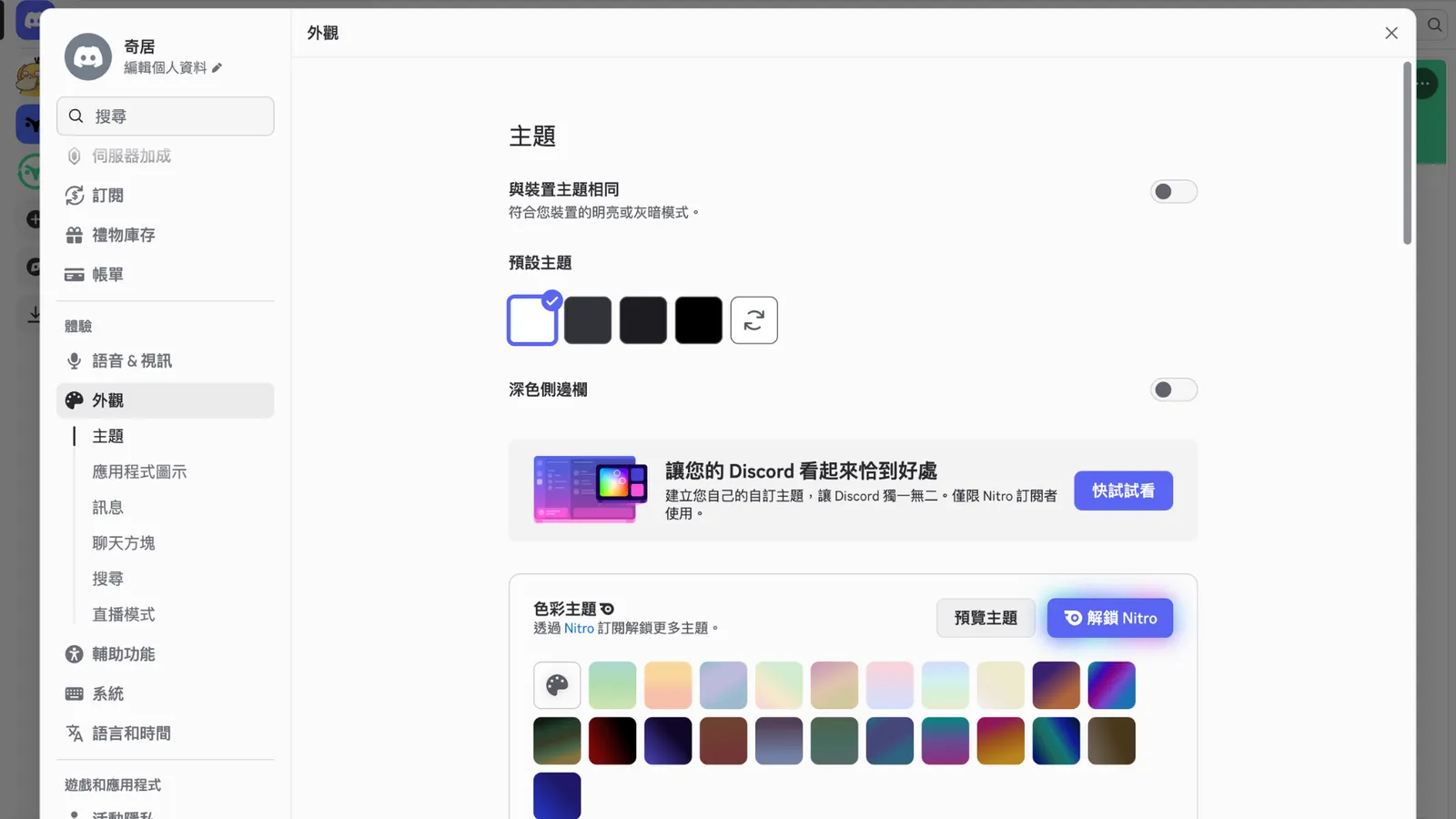
Appearance:
if it feels too dark, you can switch to light mode.
Edit Profile:
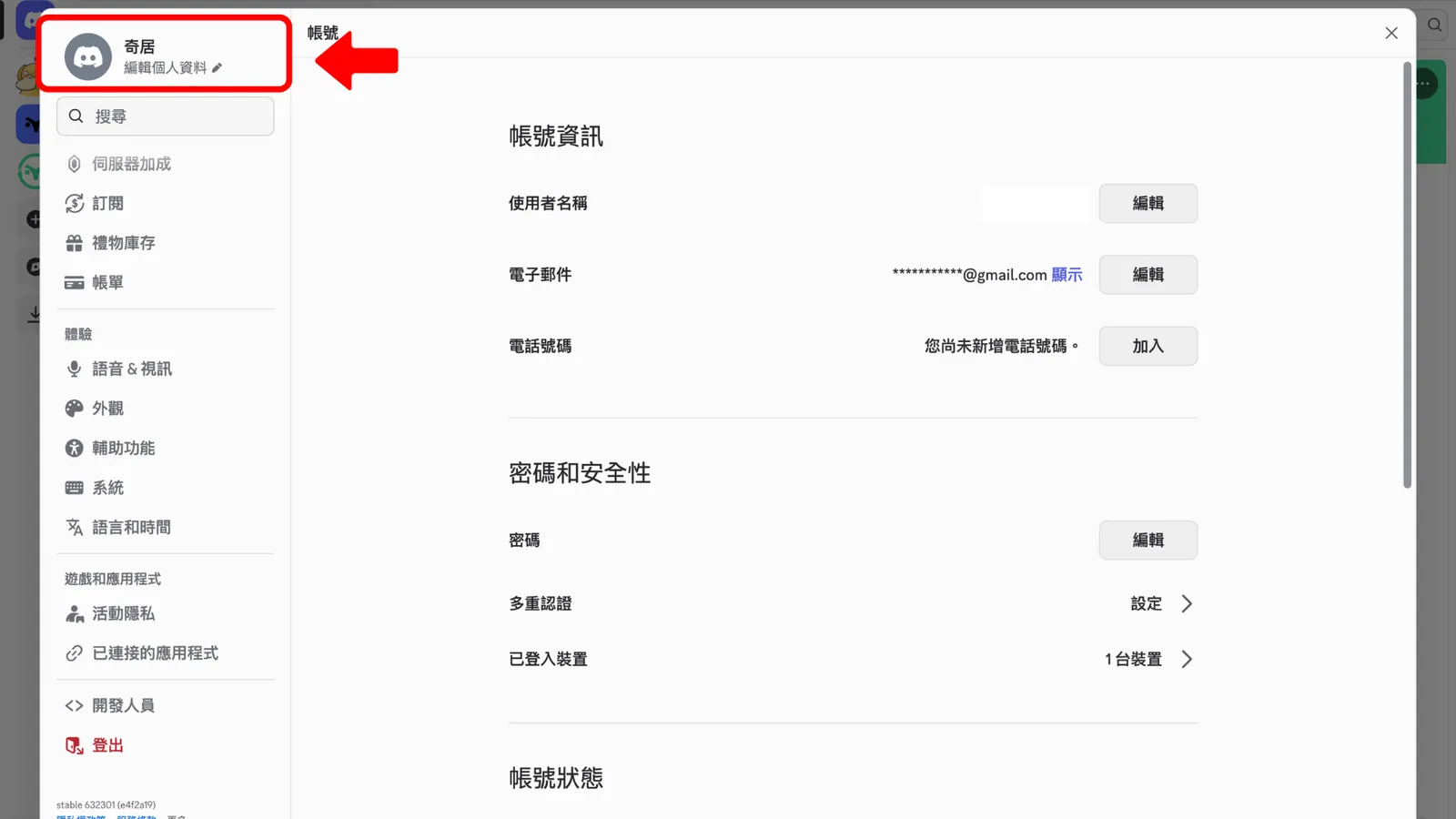
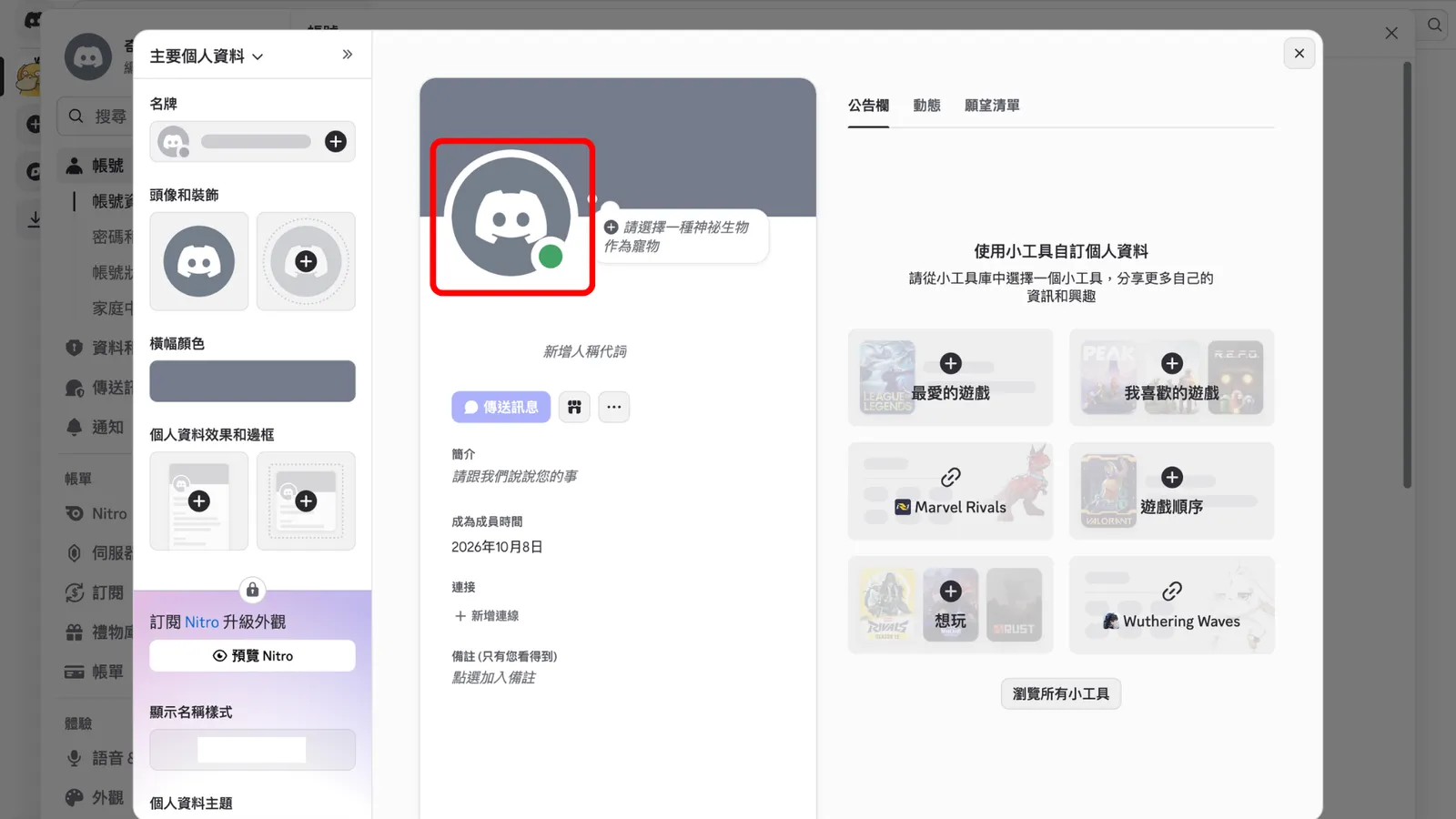
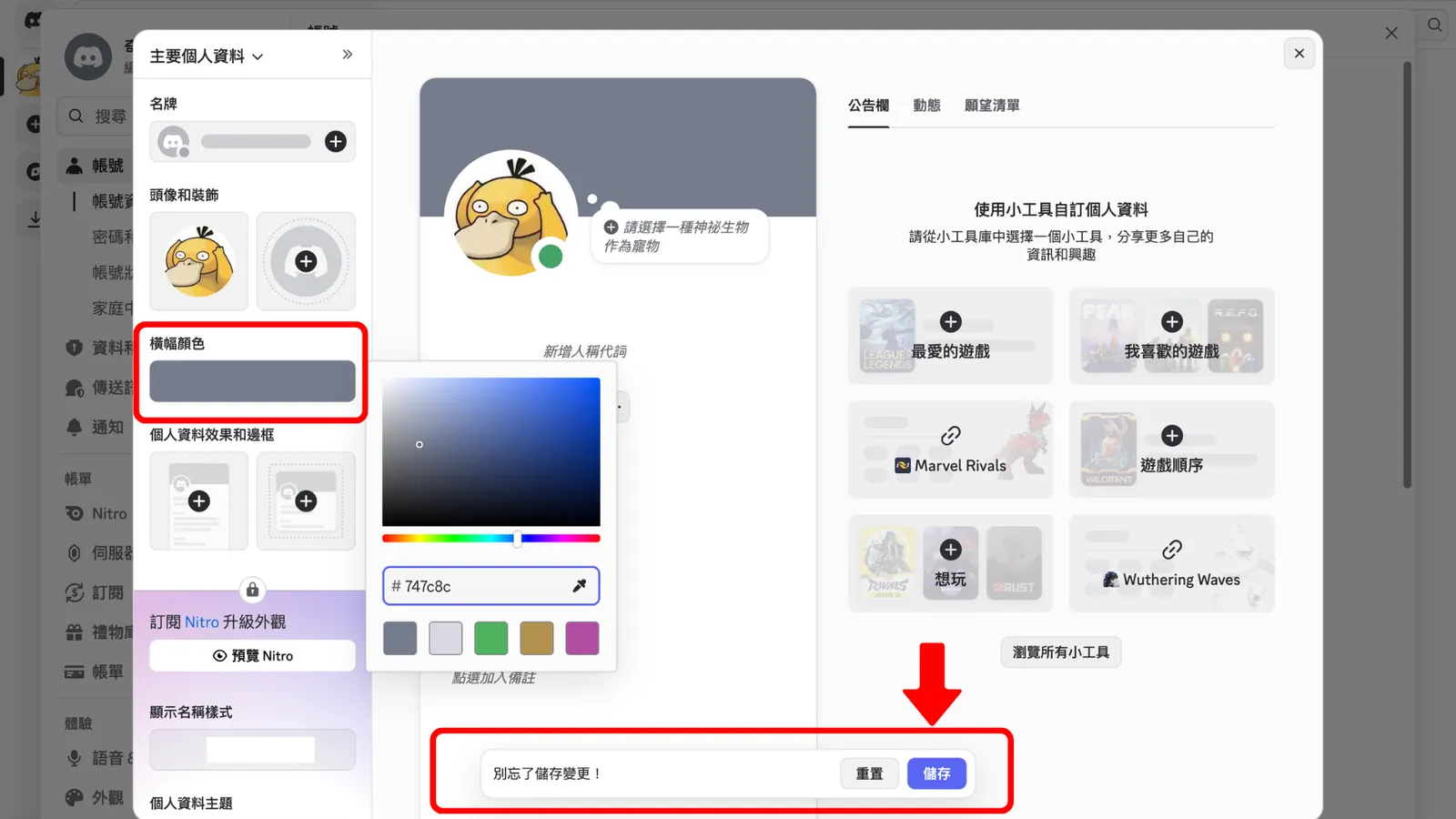
click "Edit Profile" in the top left. This is where you change your own profile picture. You can also pick a banner color you like on the left. Once you're done, remember to click "Save."
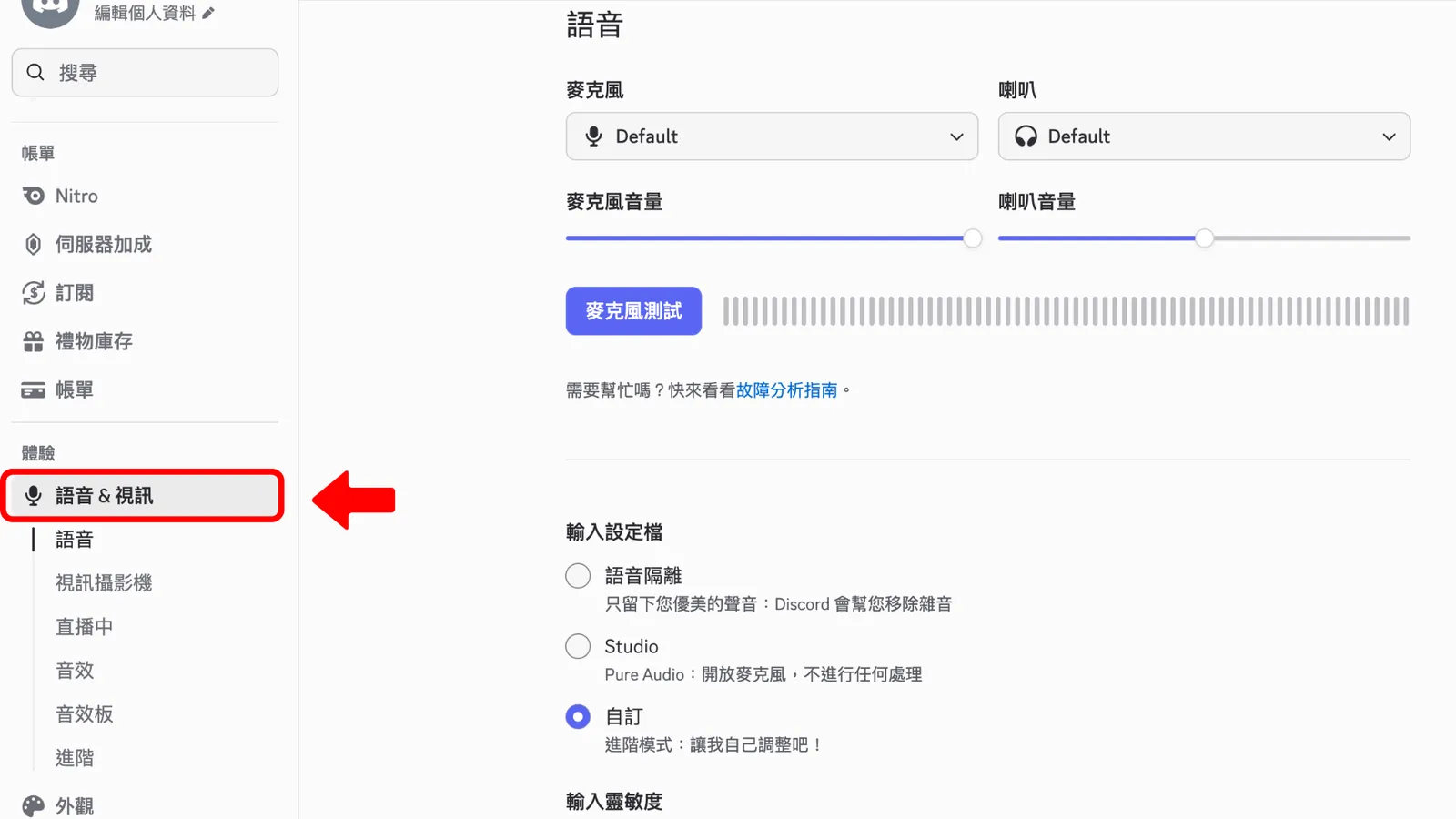
Voice & Video:
if you want to use voice and video, you can adjust that here.
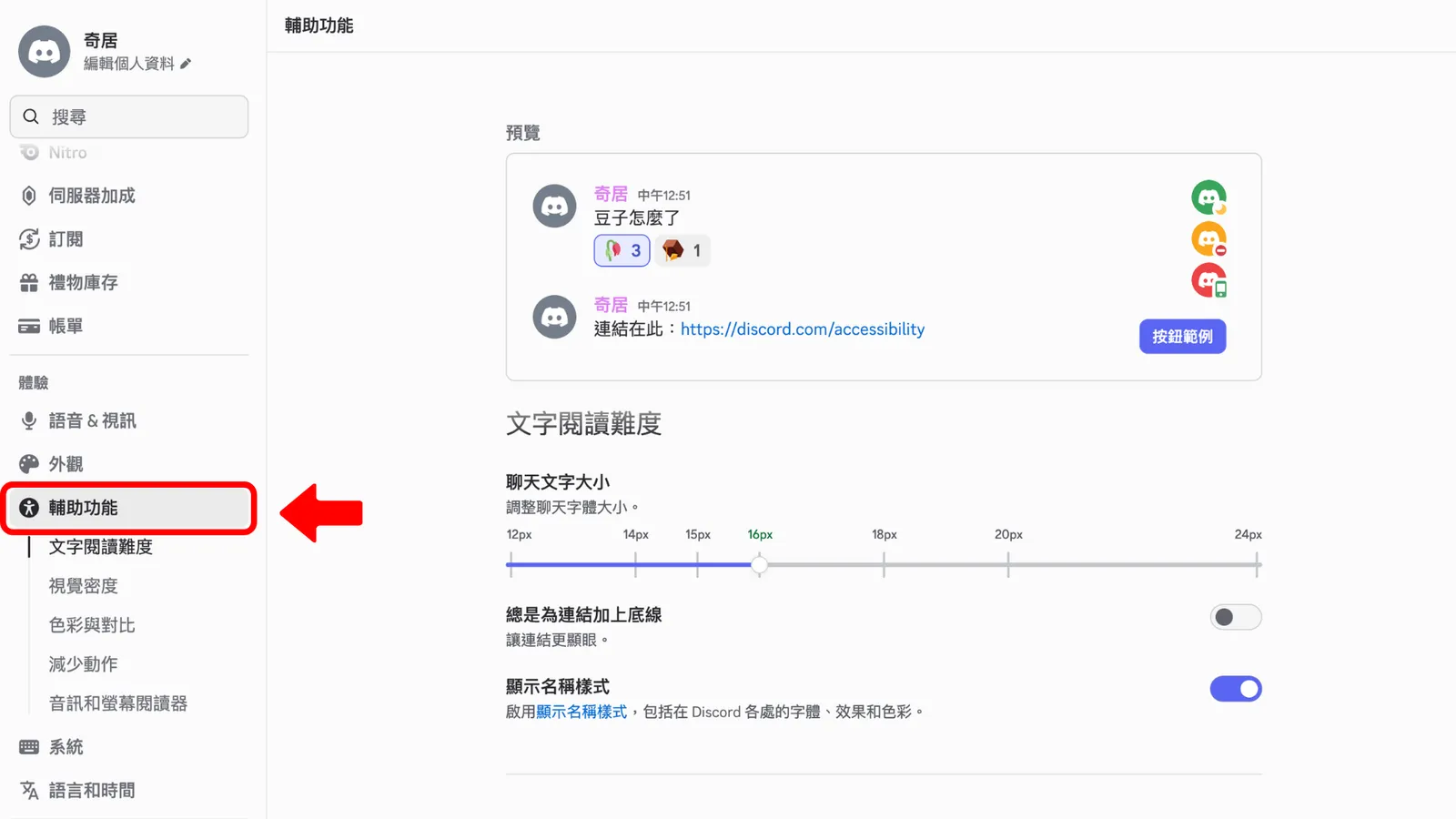
Accessibility:
here you can change the chat text size, and more.
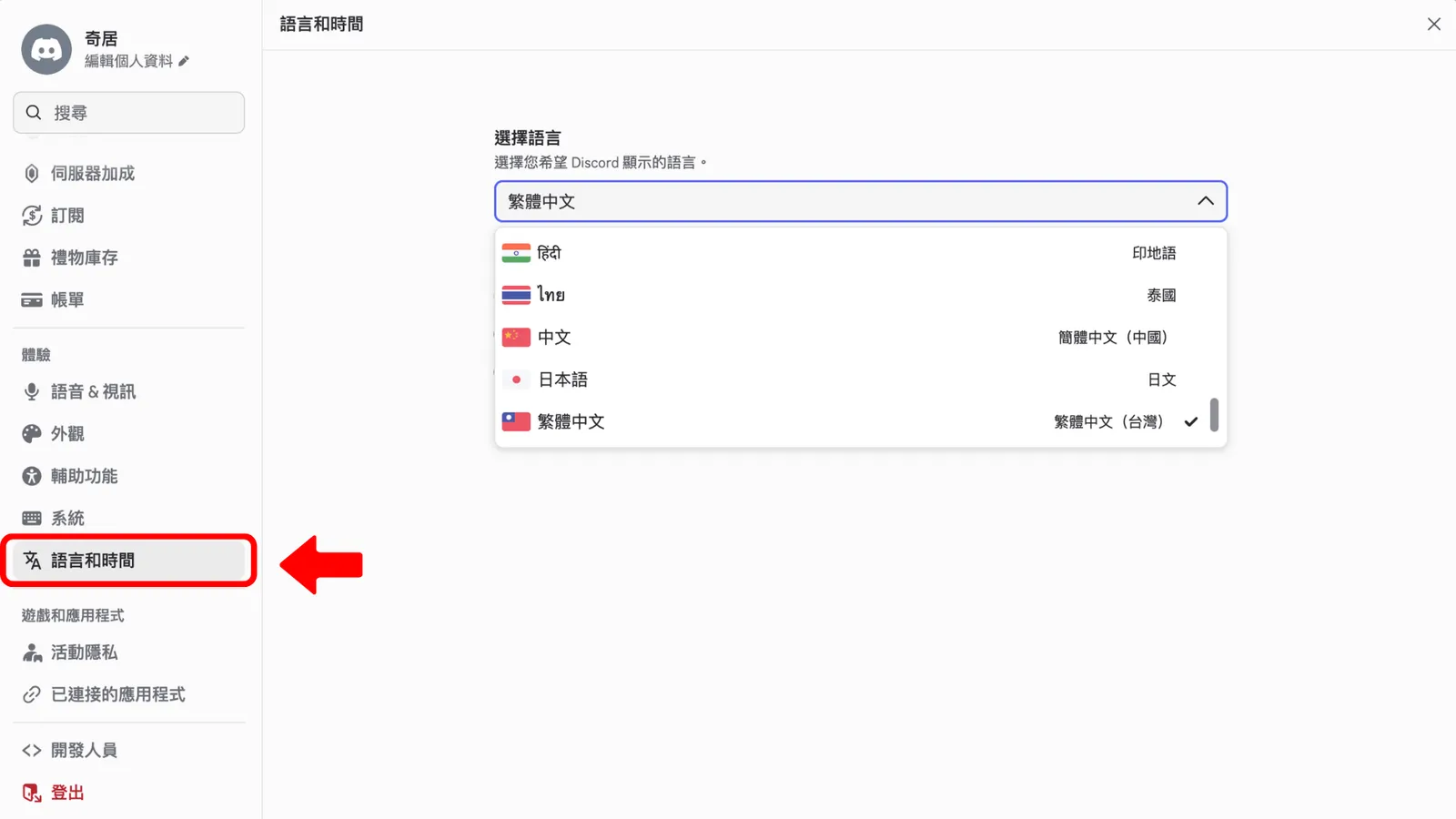
Language and Time:
pick the language for your country.
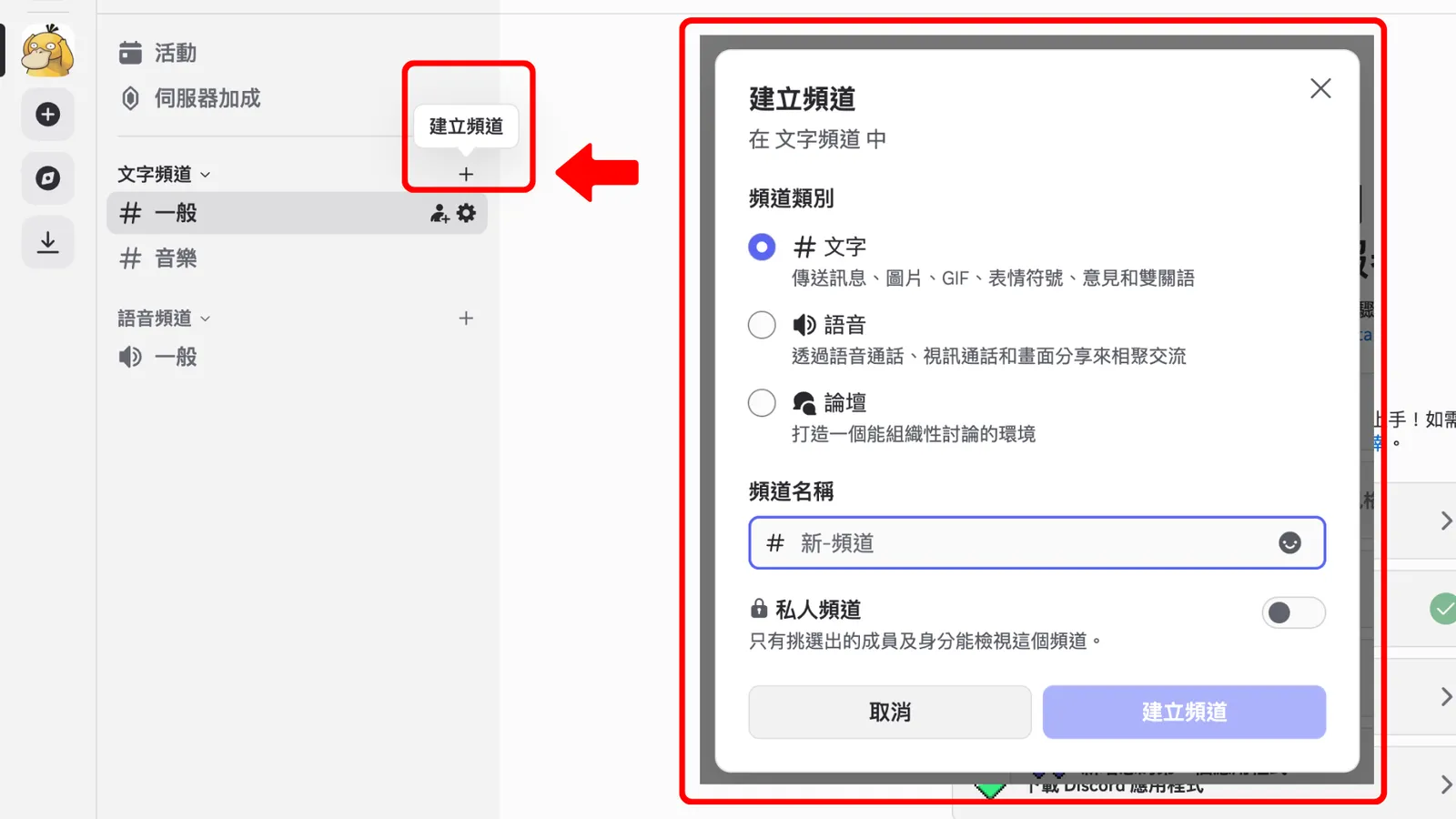
Create a channel:
After setting things up, go back to your server's chat screen. If you want to create another chat room, click "+ Create Channel." You'll see the channel settings. You can make a text channel (everyone chats in text), a voice channel (everyone talks by voice), or a forum (a chat space organized around topics).
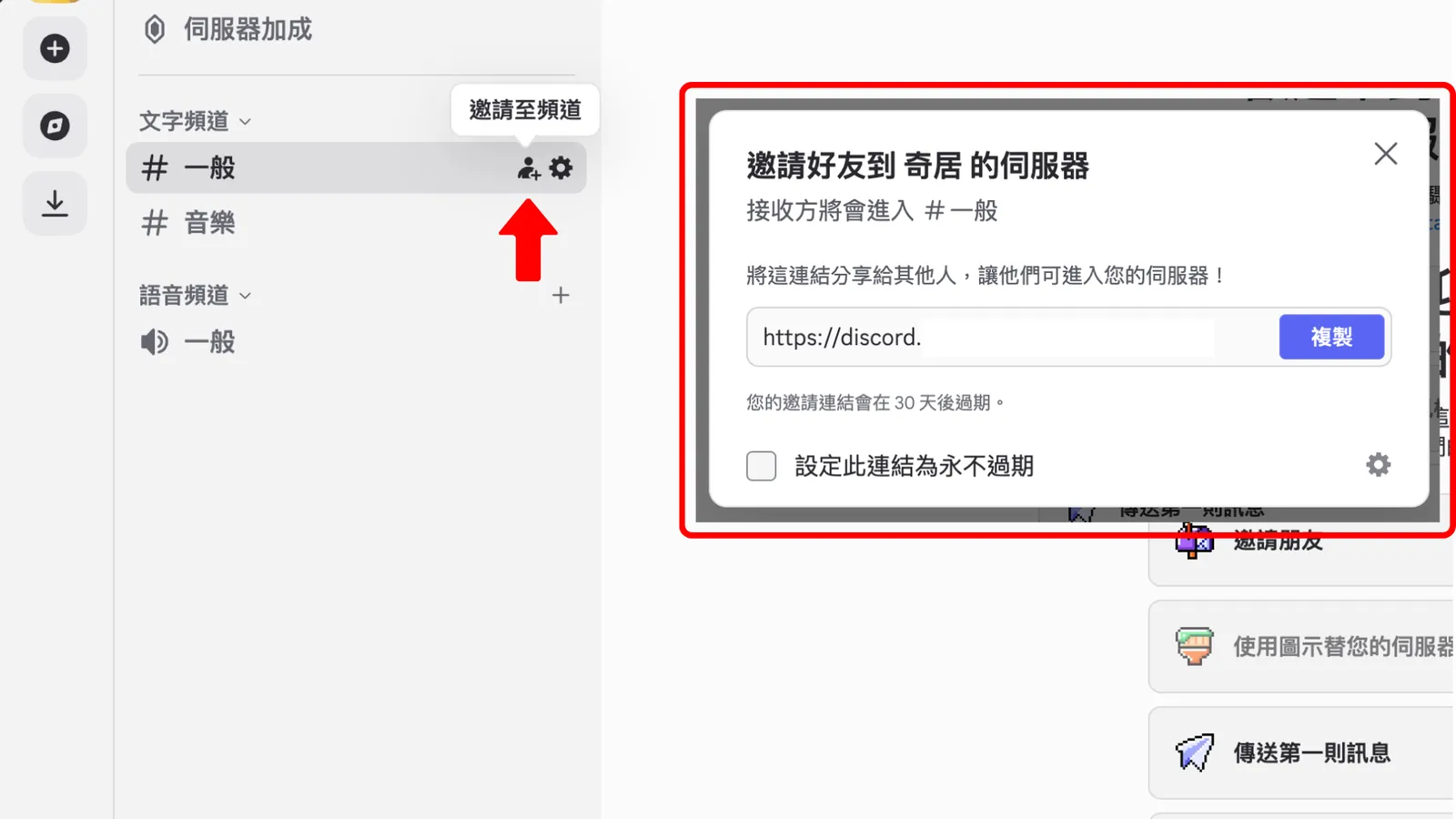
Invite people to a channel:
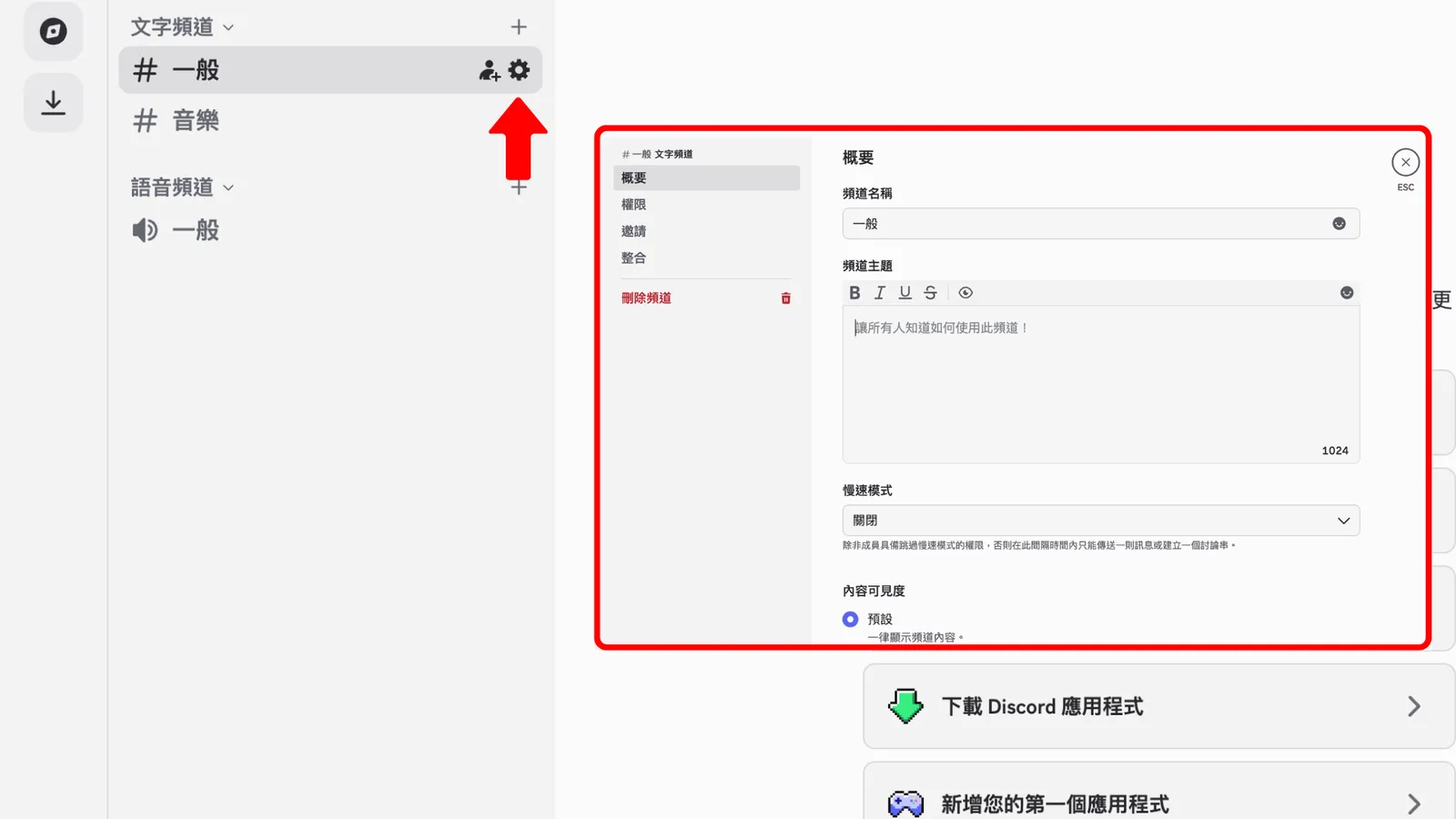
On the right of each channel, there's a person-with-a-plus icon. That's "Invite to Channel." Click it and the invite window pops up. Just know that the link expires after 30 days. If you don't want to keep swapping in new links, tick "Set this link to never expire." Unless you delete the link yourself, it works forever.
Channel permissions:
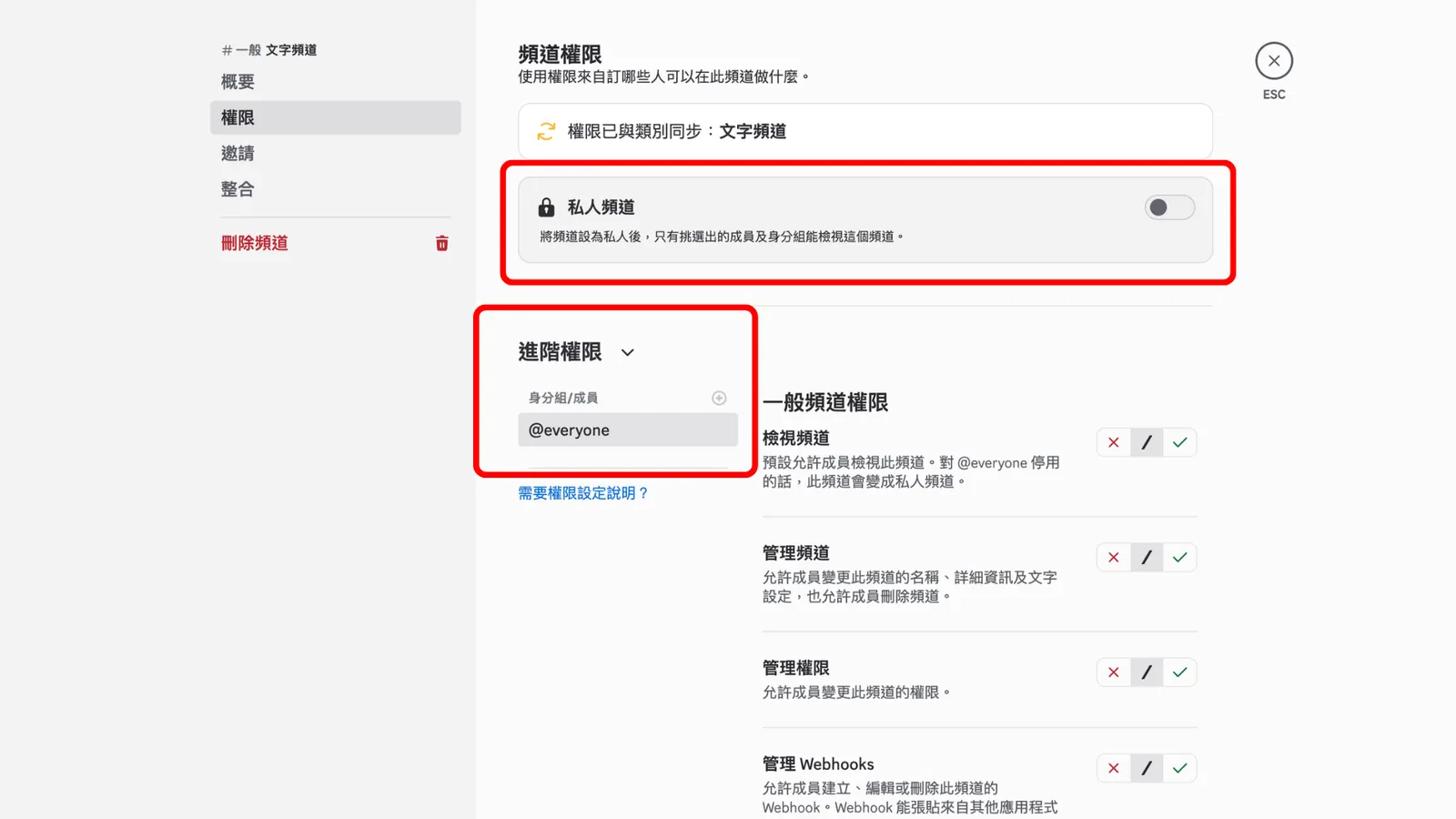
Click the gear next to the person-with-a-plus icon. You can change the channel name and topic here, and the most important part, the permissions. You can make the channel private. Under "Advanced Permissions," click the "+" to make members admins or give them other roles, and set admin permissions under "General Channel Permissions."
Upload stickers:
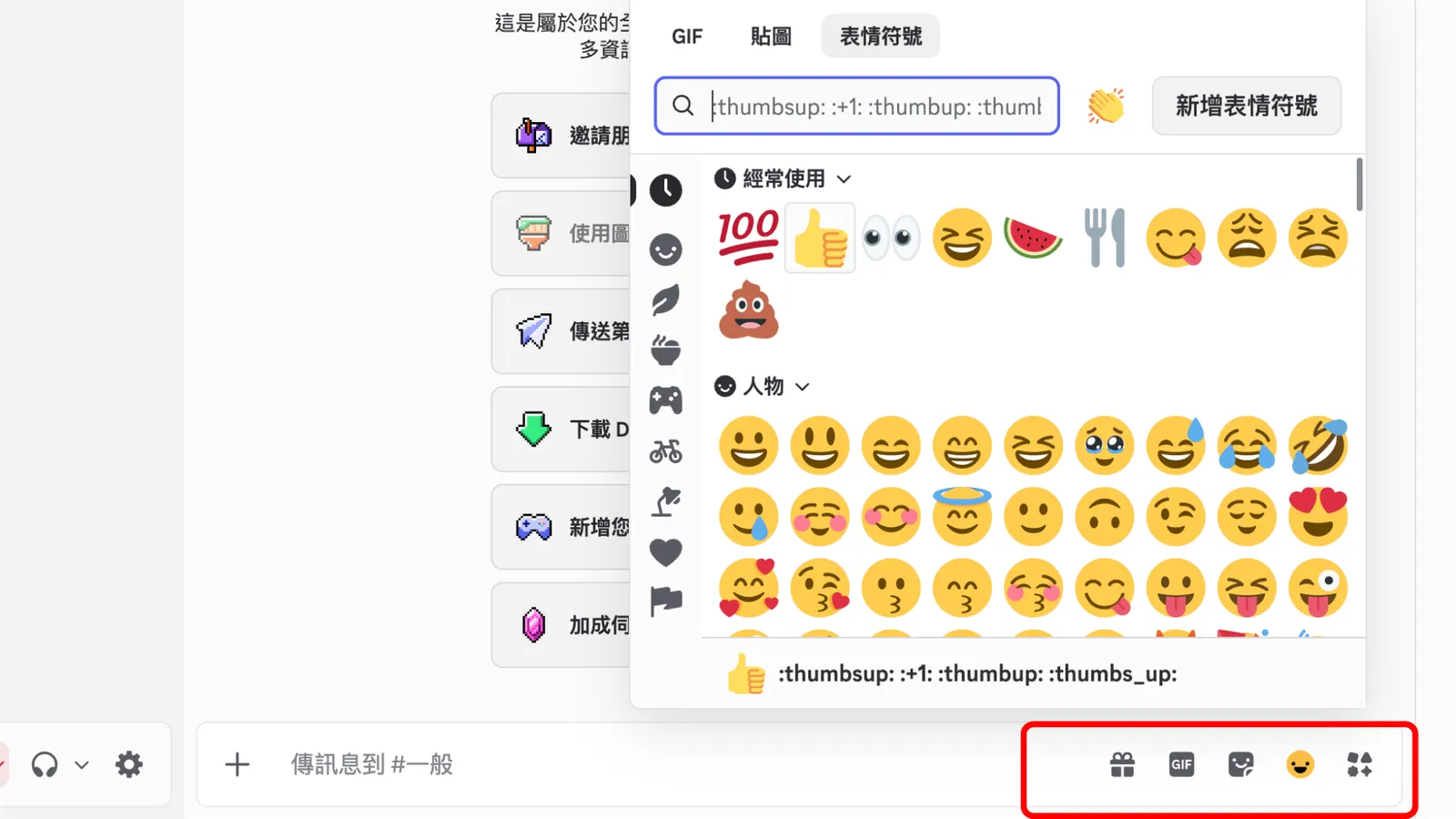
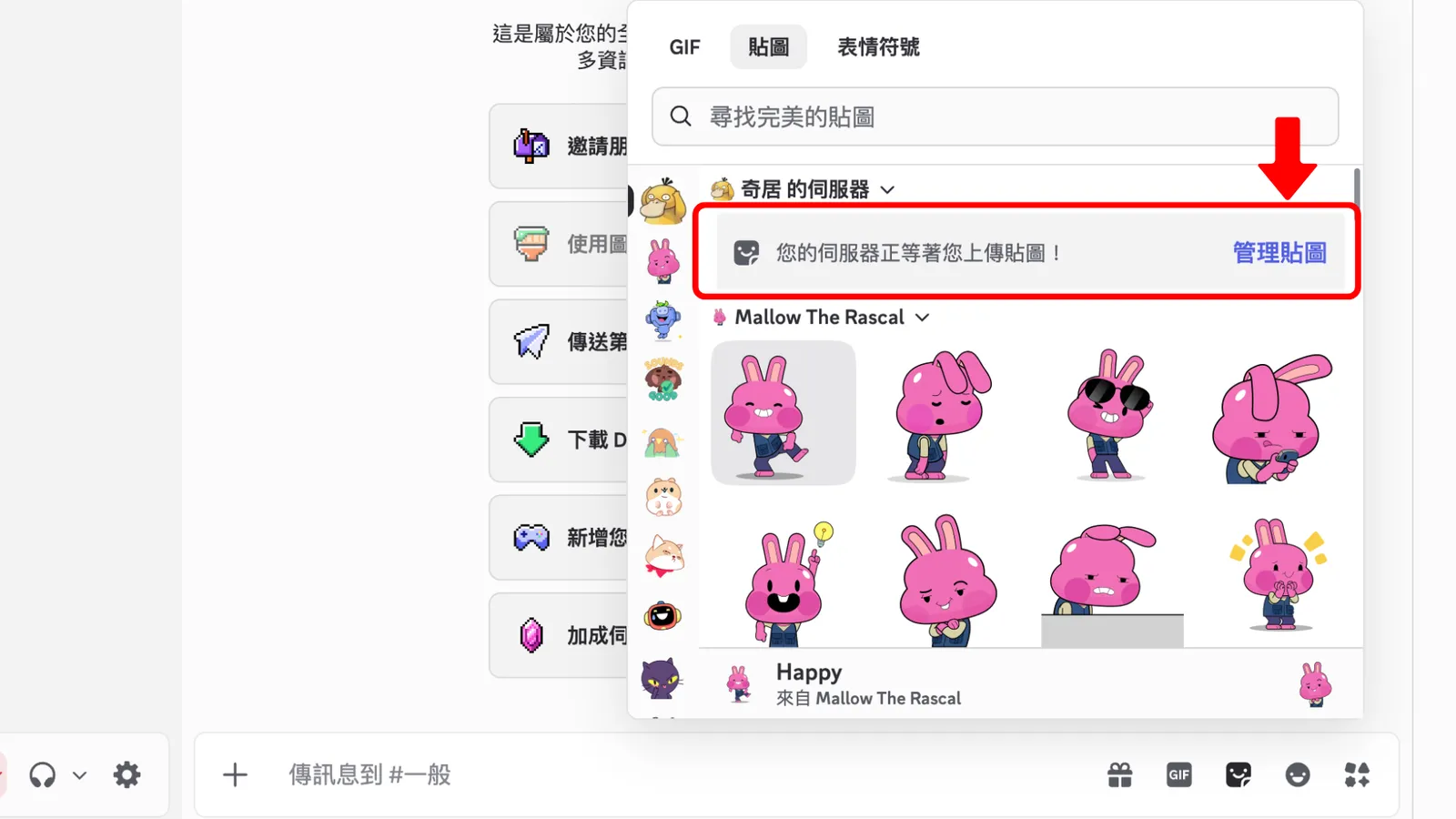
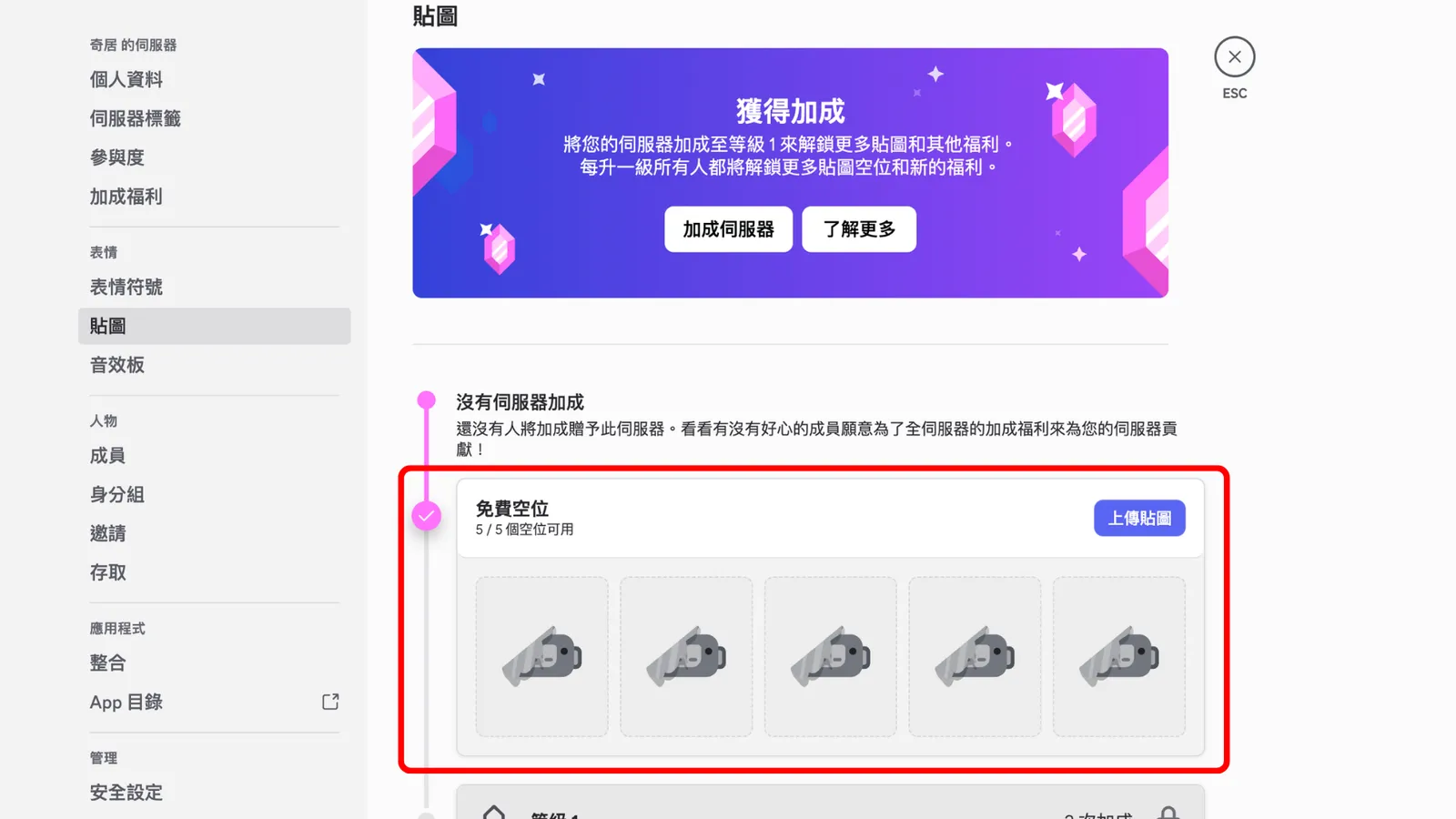
On the right of the message box, you can use "GIF," "Stickers," and "Emoji." Under Stickers there's "Manage Stickers," where you can upload 5 stickers for free.
Upload files and start discussions:
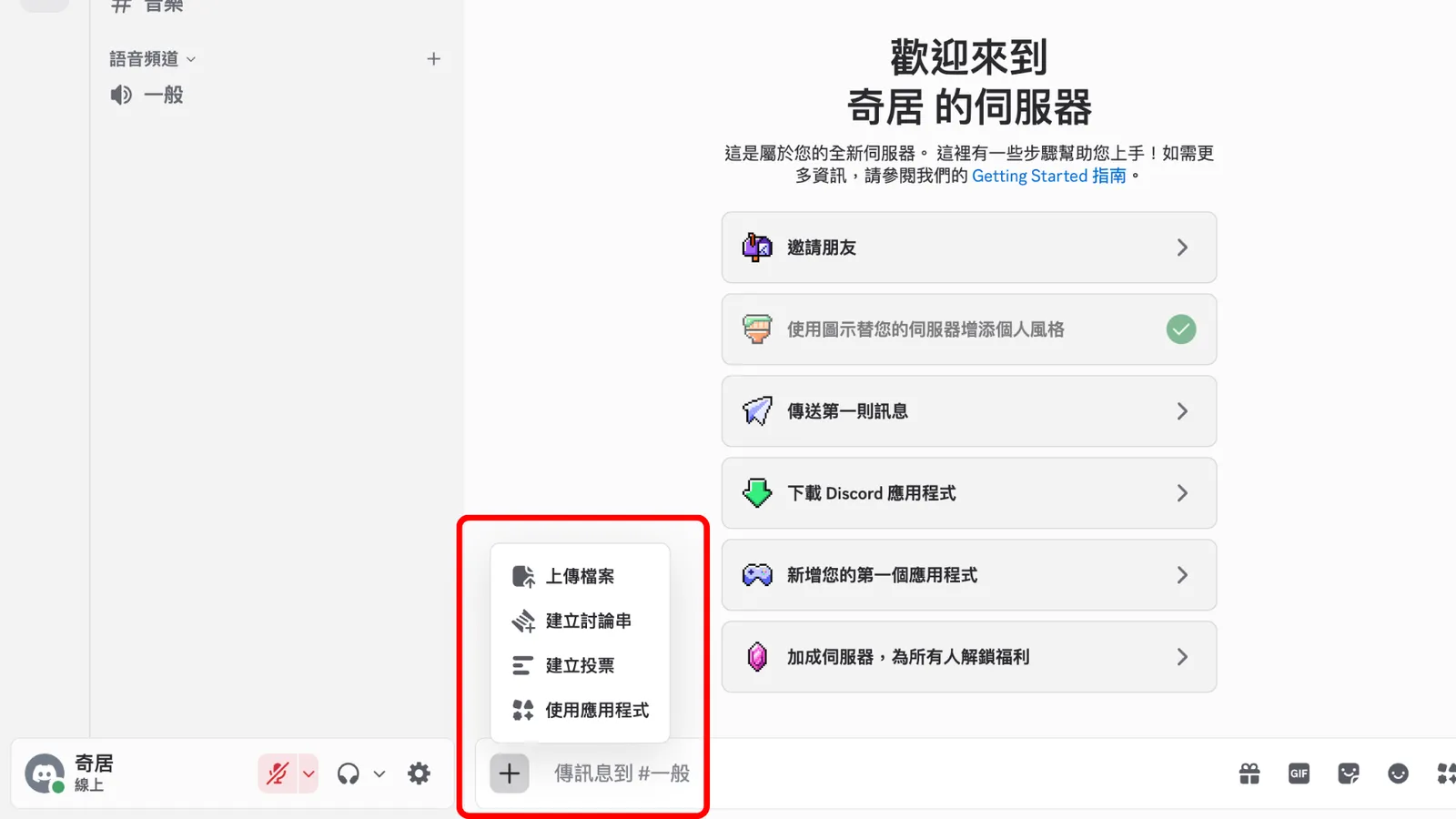
On the left of the message box, click "+" to upload files, create a thread, create a poll, or use apps.
Icons above the message box:
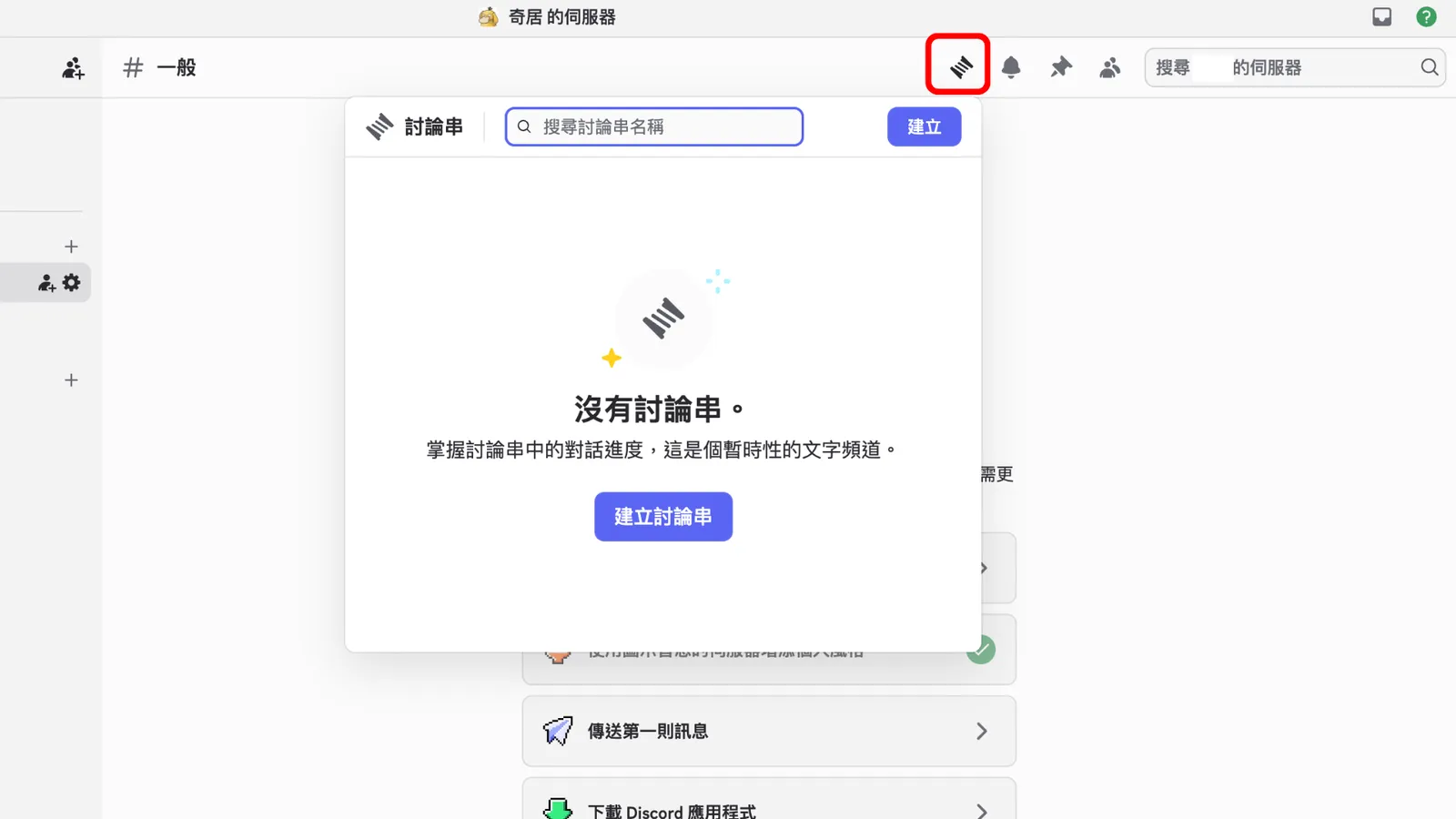
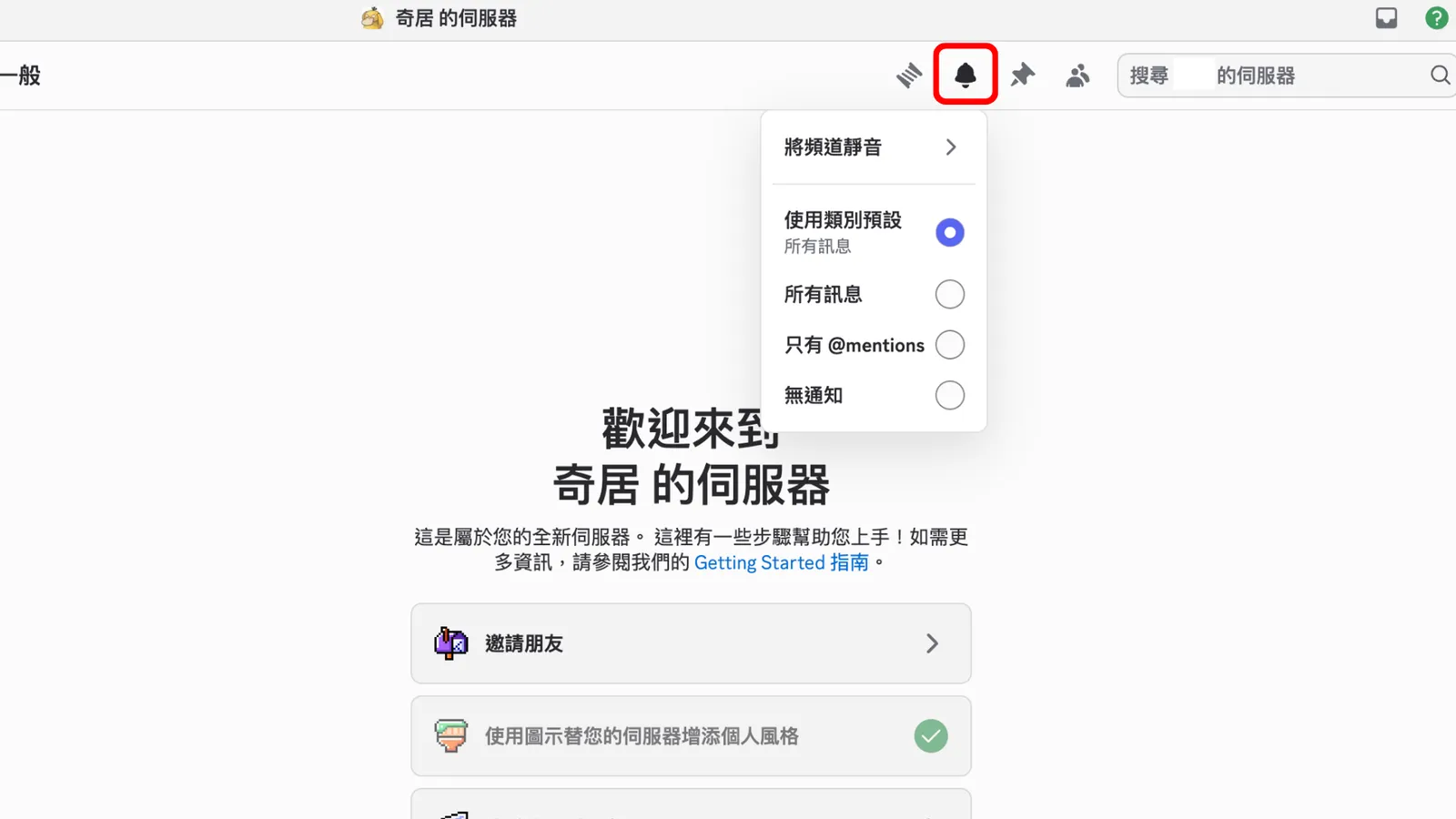
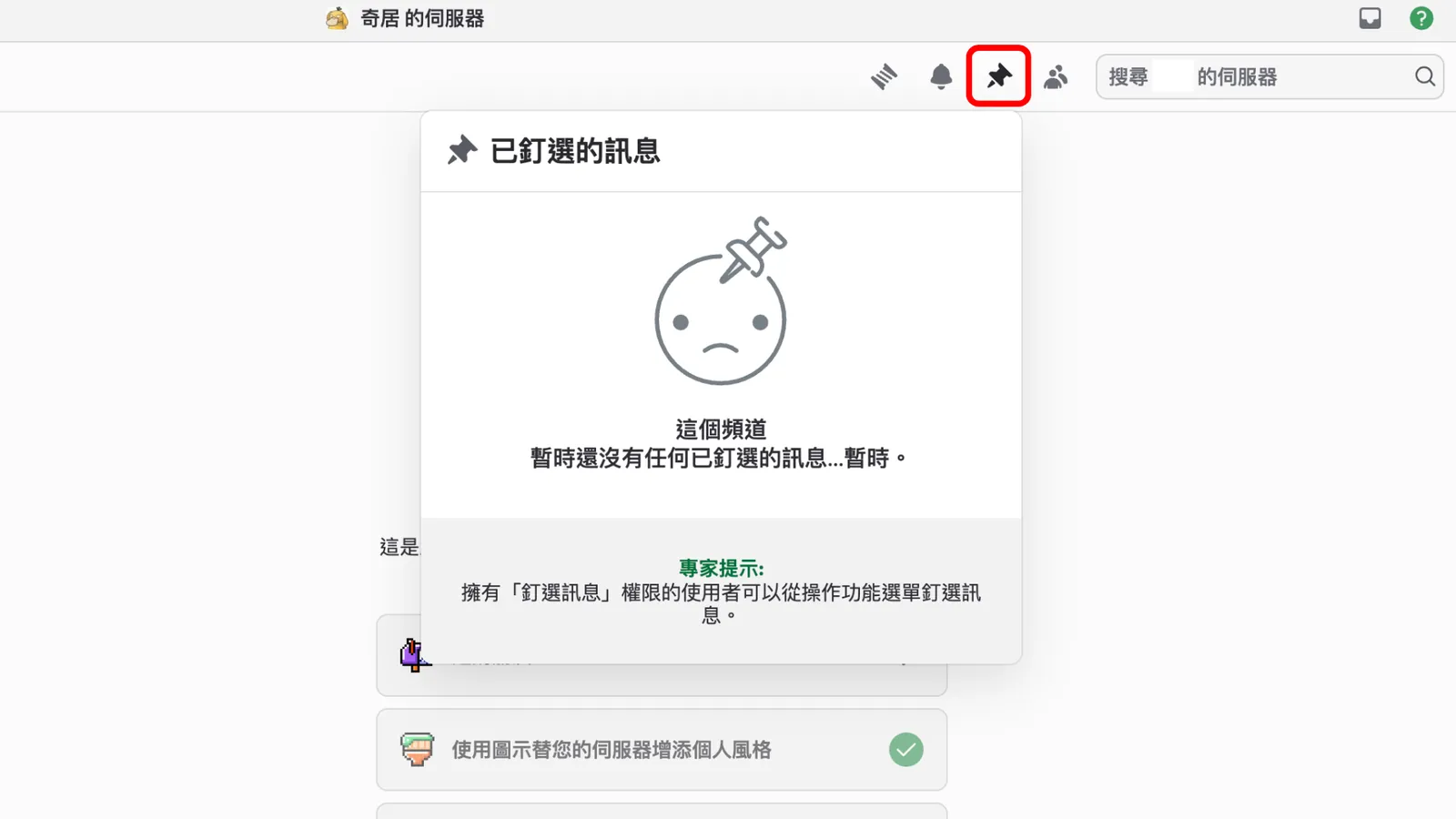
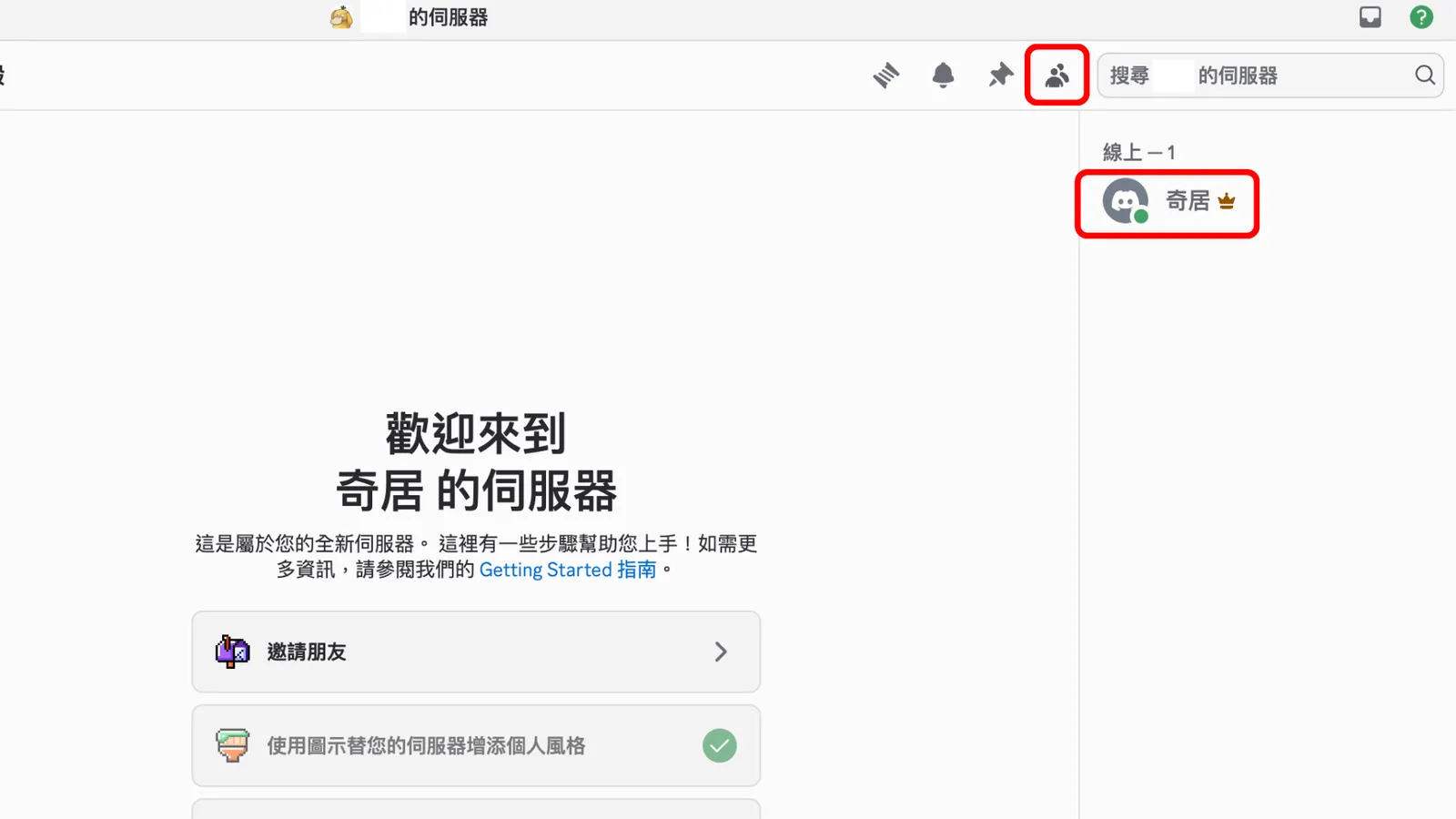
The little icons at the top include Threads, Mute Channel, Pinned Messages, and Member List. Threads and pinned messages show up there once someone sets them up. "Member List" appears in the panel on the right, so you can see how many people are in the channel. You can also tell what role someone has from the little icon next to their name.
All set:
Now that you've got the basic settings and a first feel for Discord, you're ready to join the ReinvestYae community.
STEP 2: Join the ReinvestYae Community
The invite link:
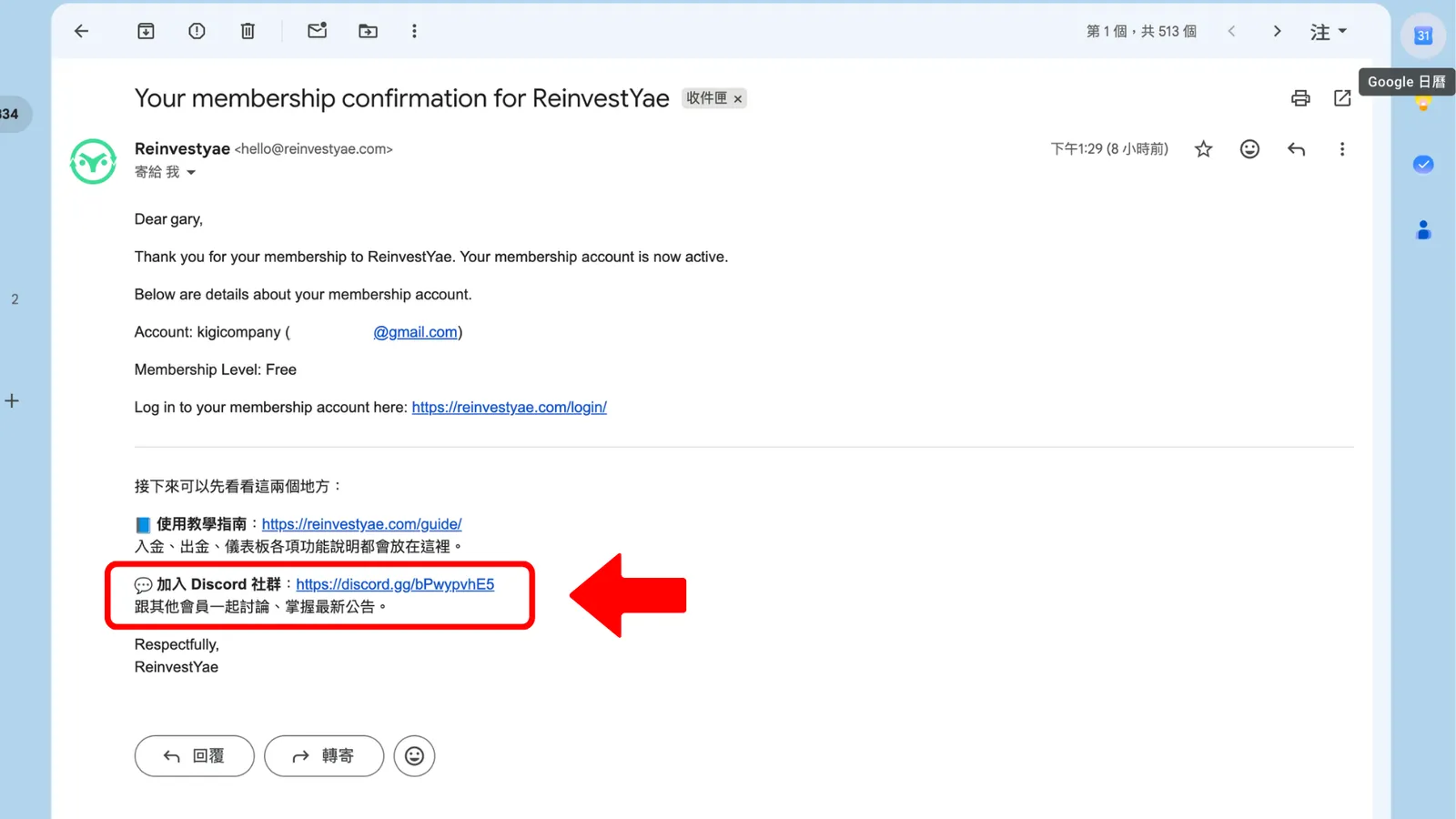
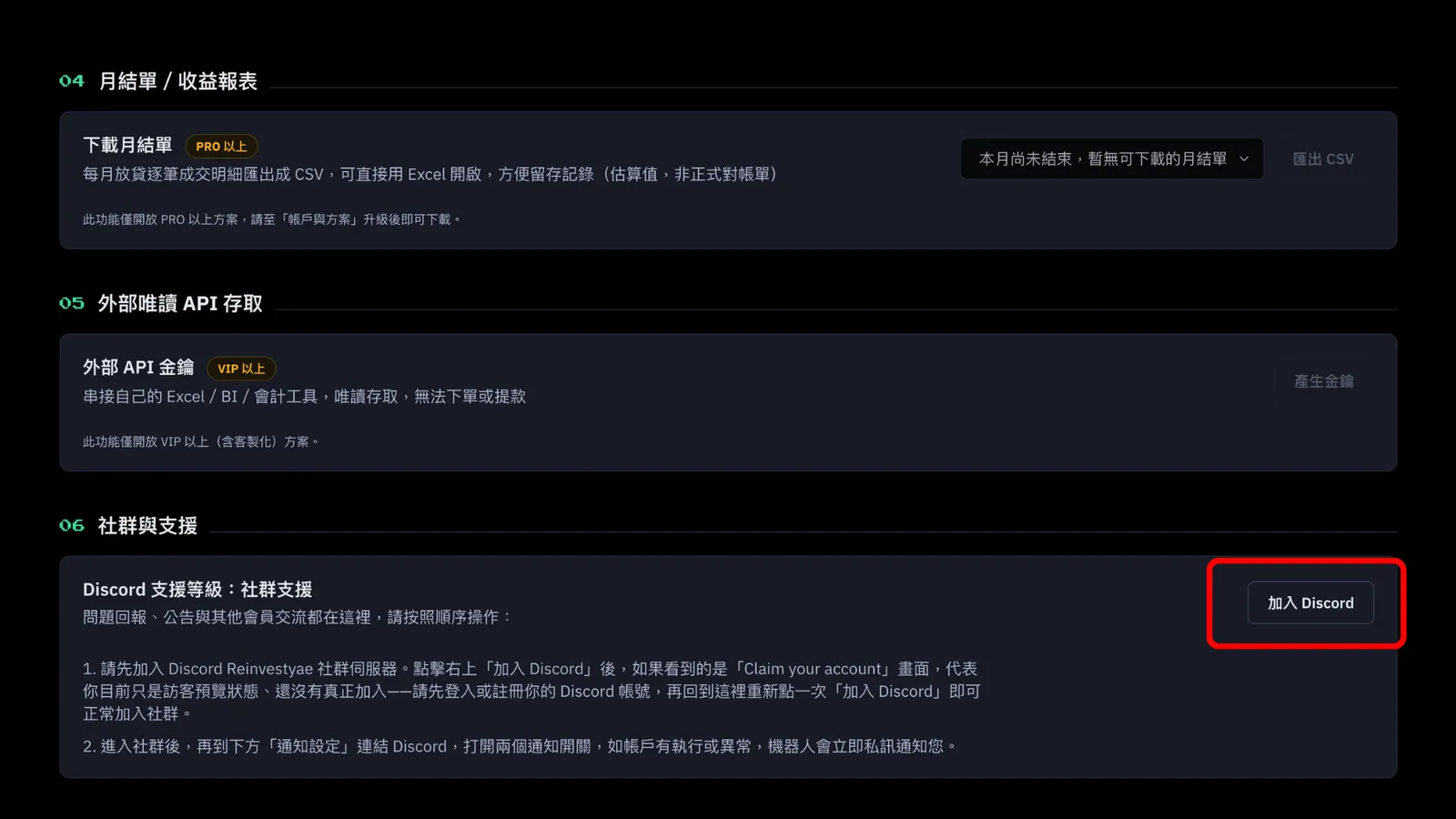
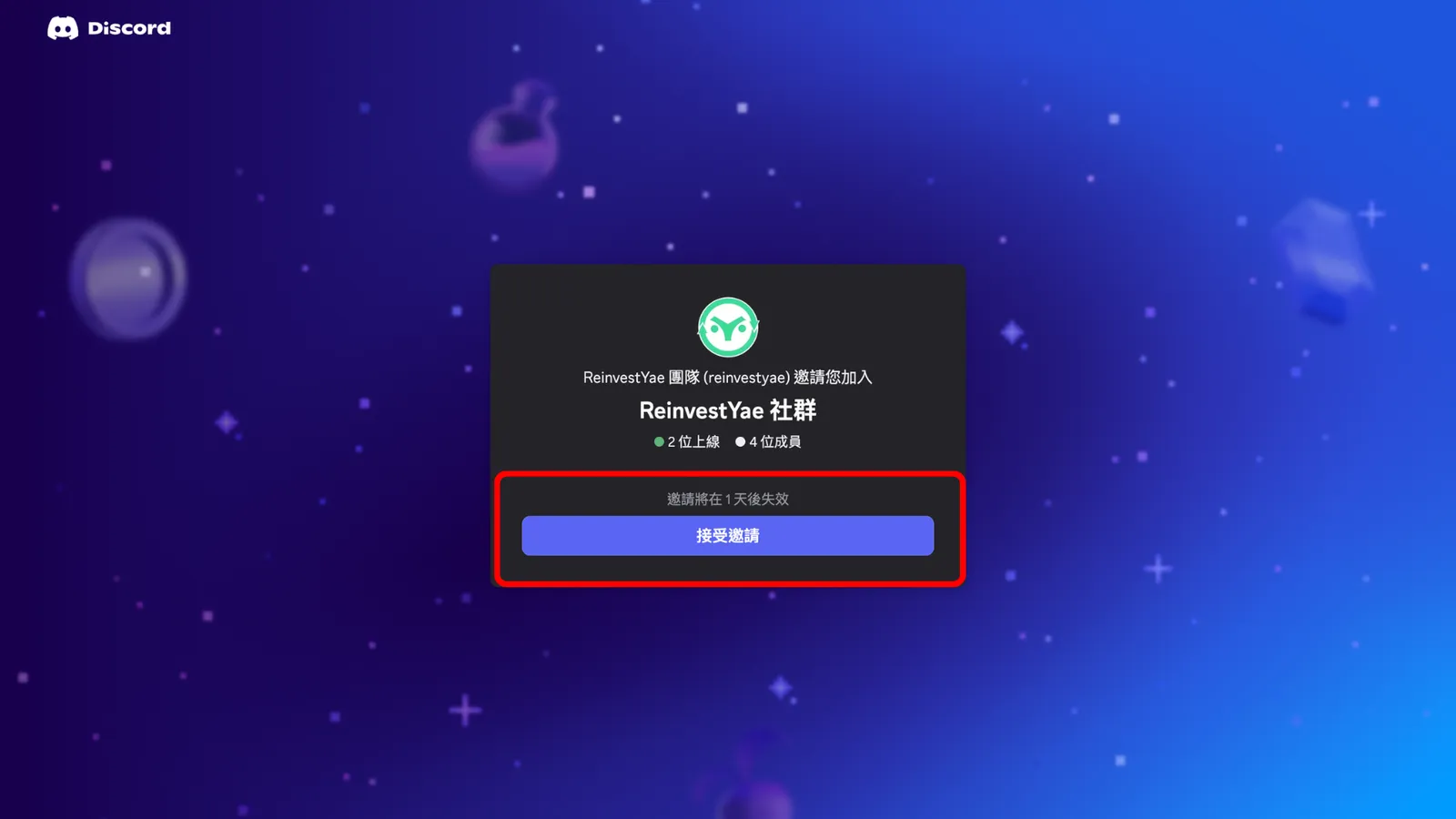
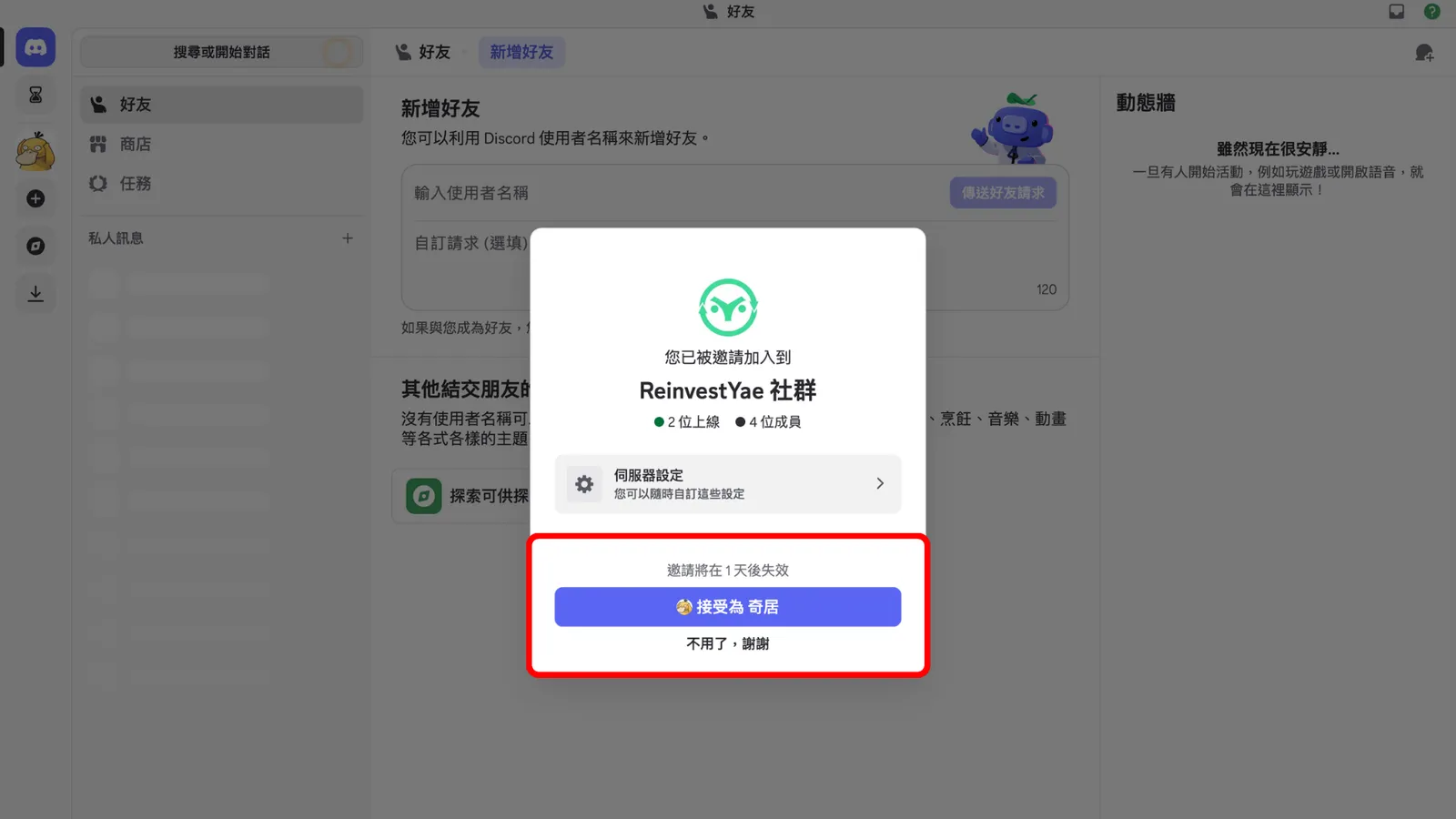
There are two places to find the link to the ReinvestYae Discord community. The first is the confirmation email you get right after signing up for a ReinvestYae membership, which has the join link in it. The second is the "Join Discord" button on your dashboard. Both go to the same link.
Accept the invite:
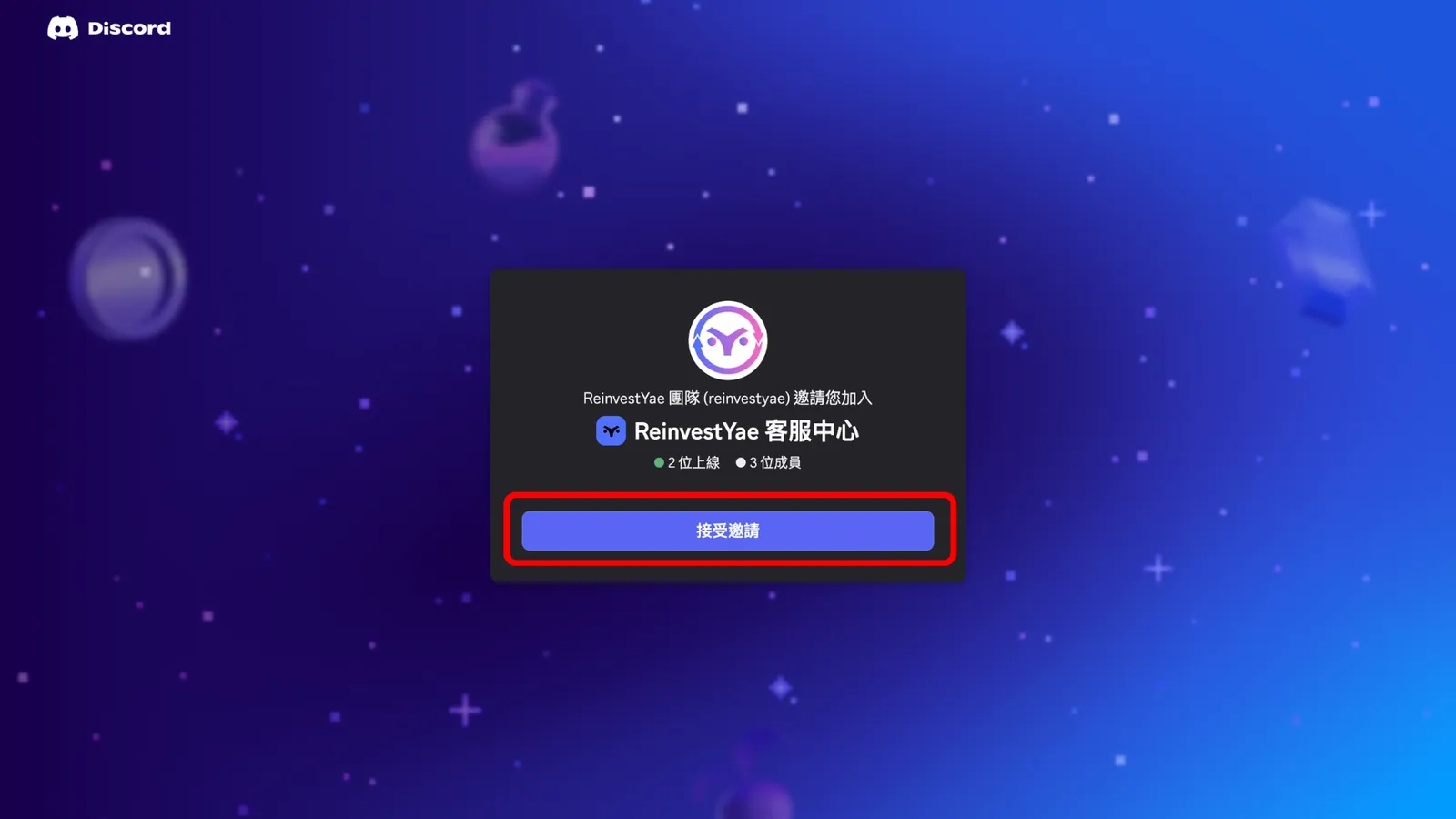
Click the link and you'll land on the invite page. Just click Accept on both pages.
Answer the questions and agree to the rules:
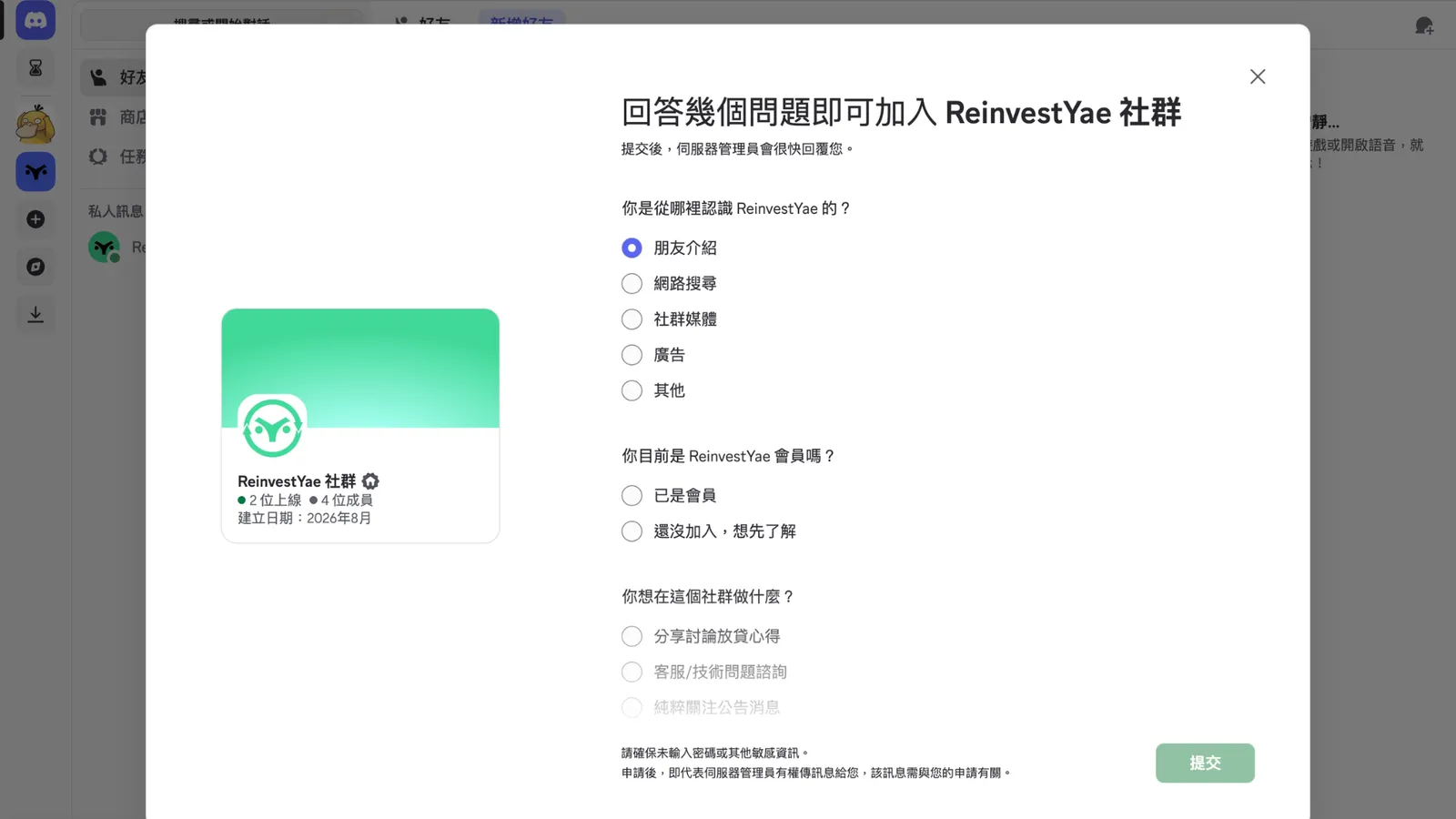
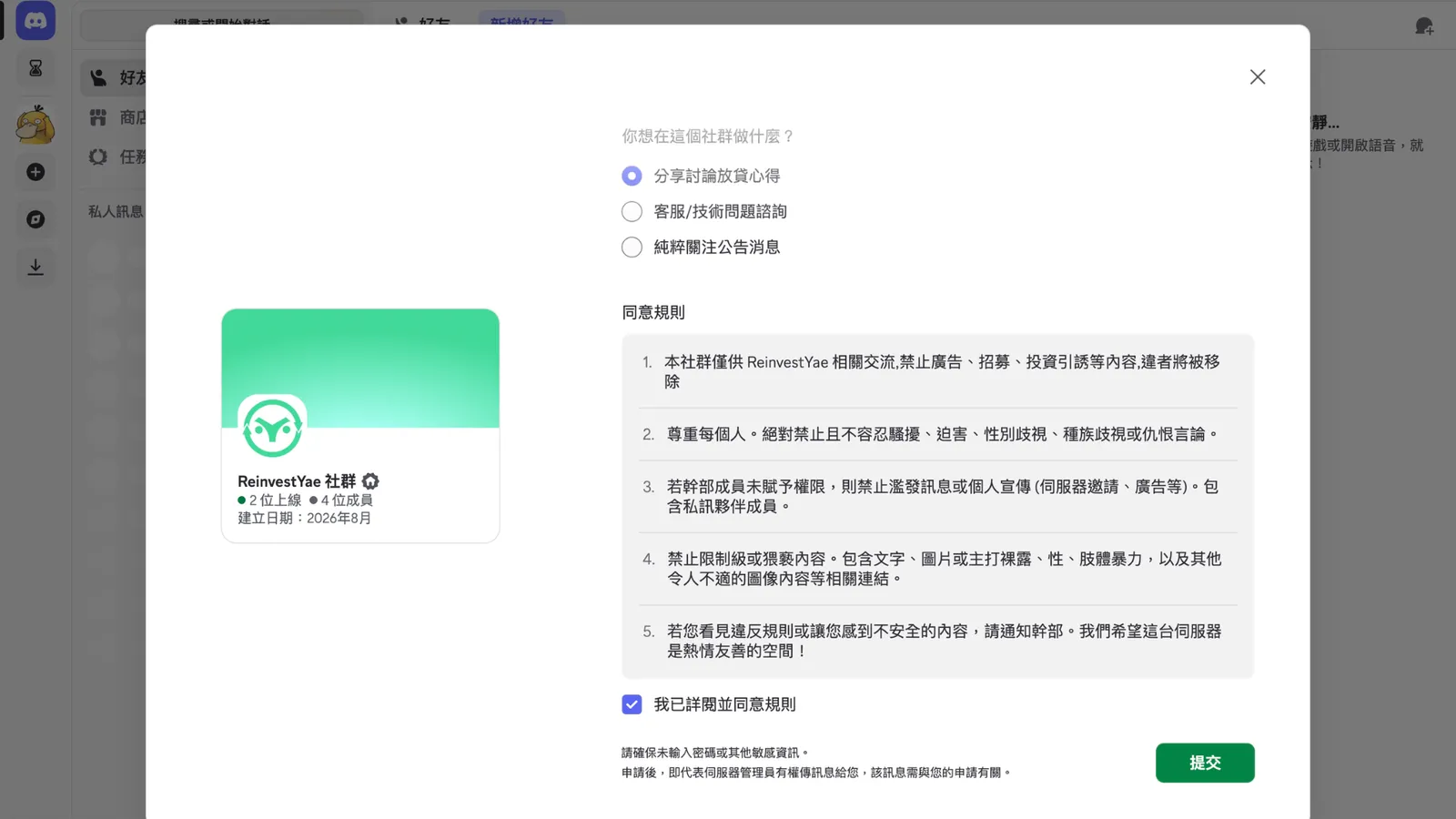
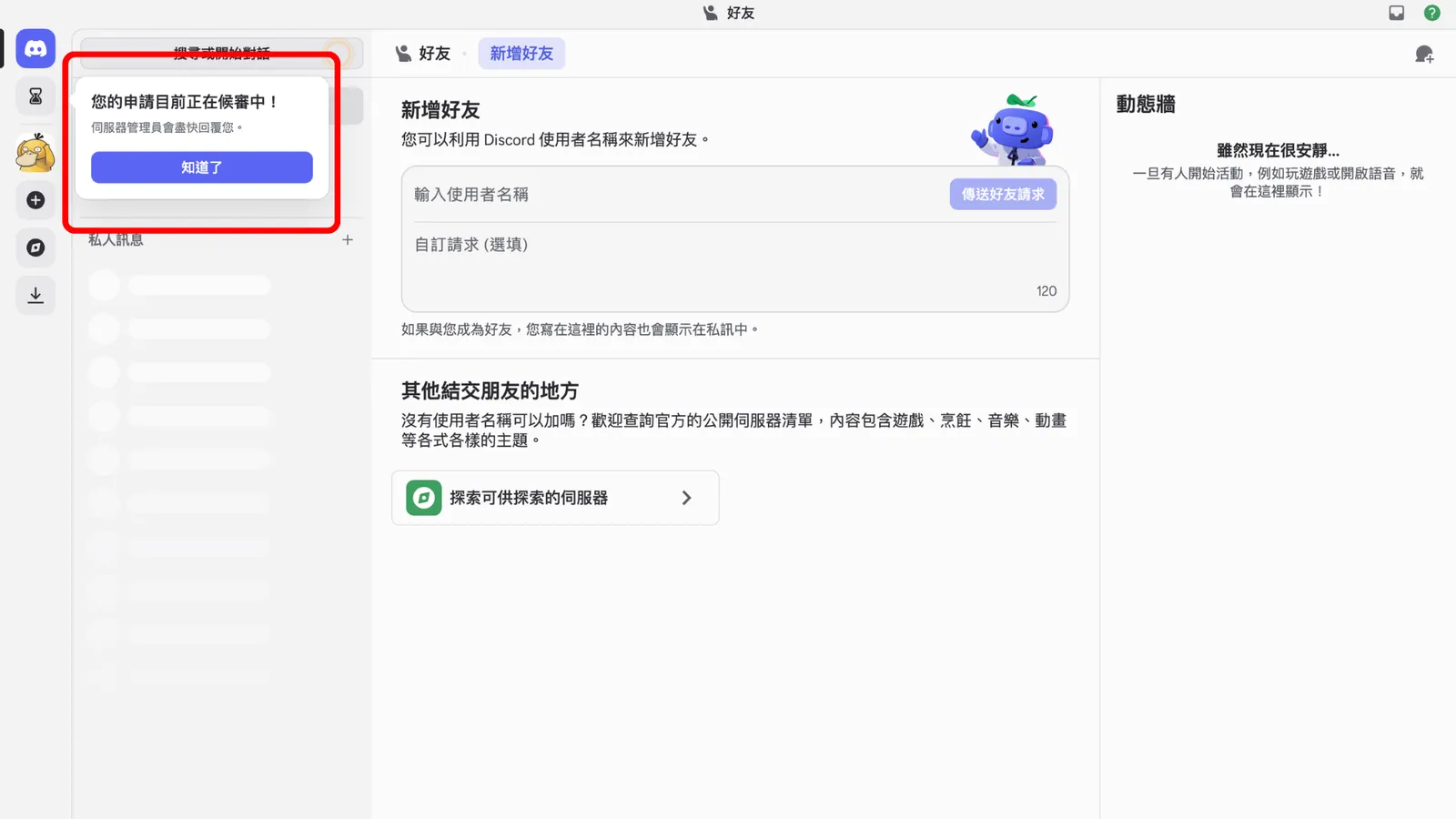
Before you get in, there are a few required questions, and you have to read and agree to the community rules. Fill everything in, click "Submit," and wait for a ReinvestYae admin to approve you.
Approved:
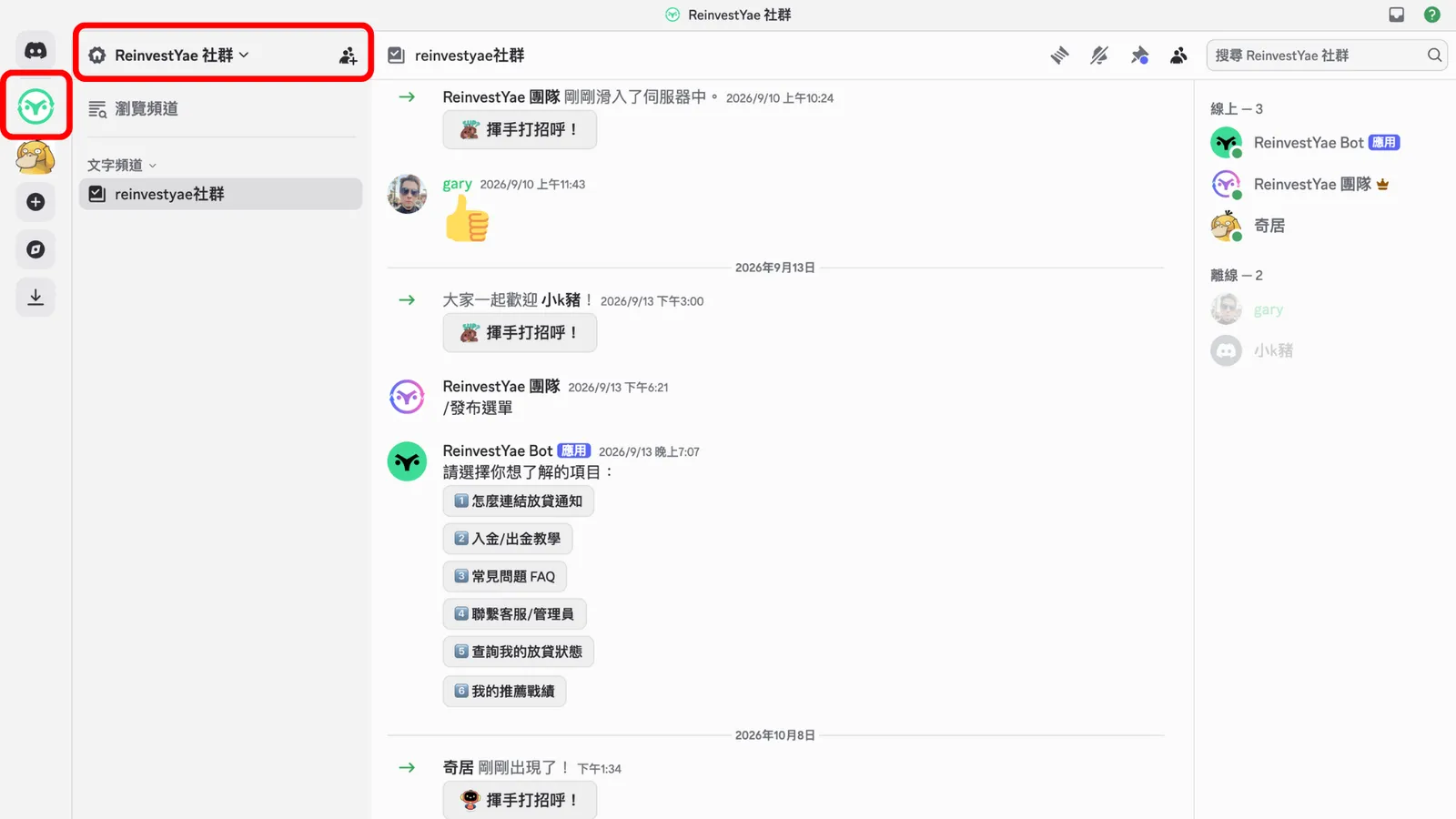
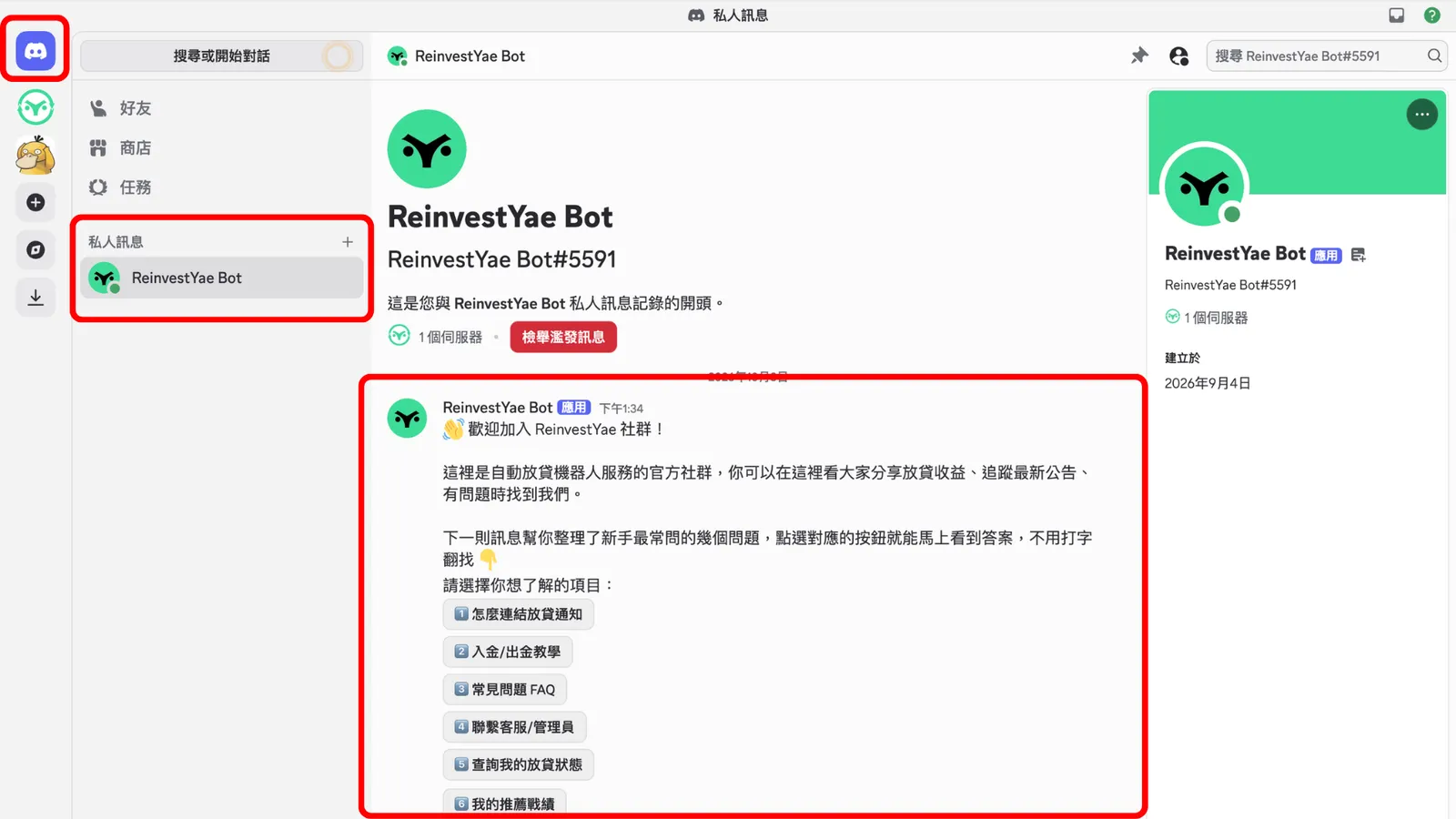
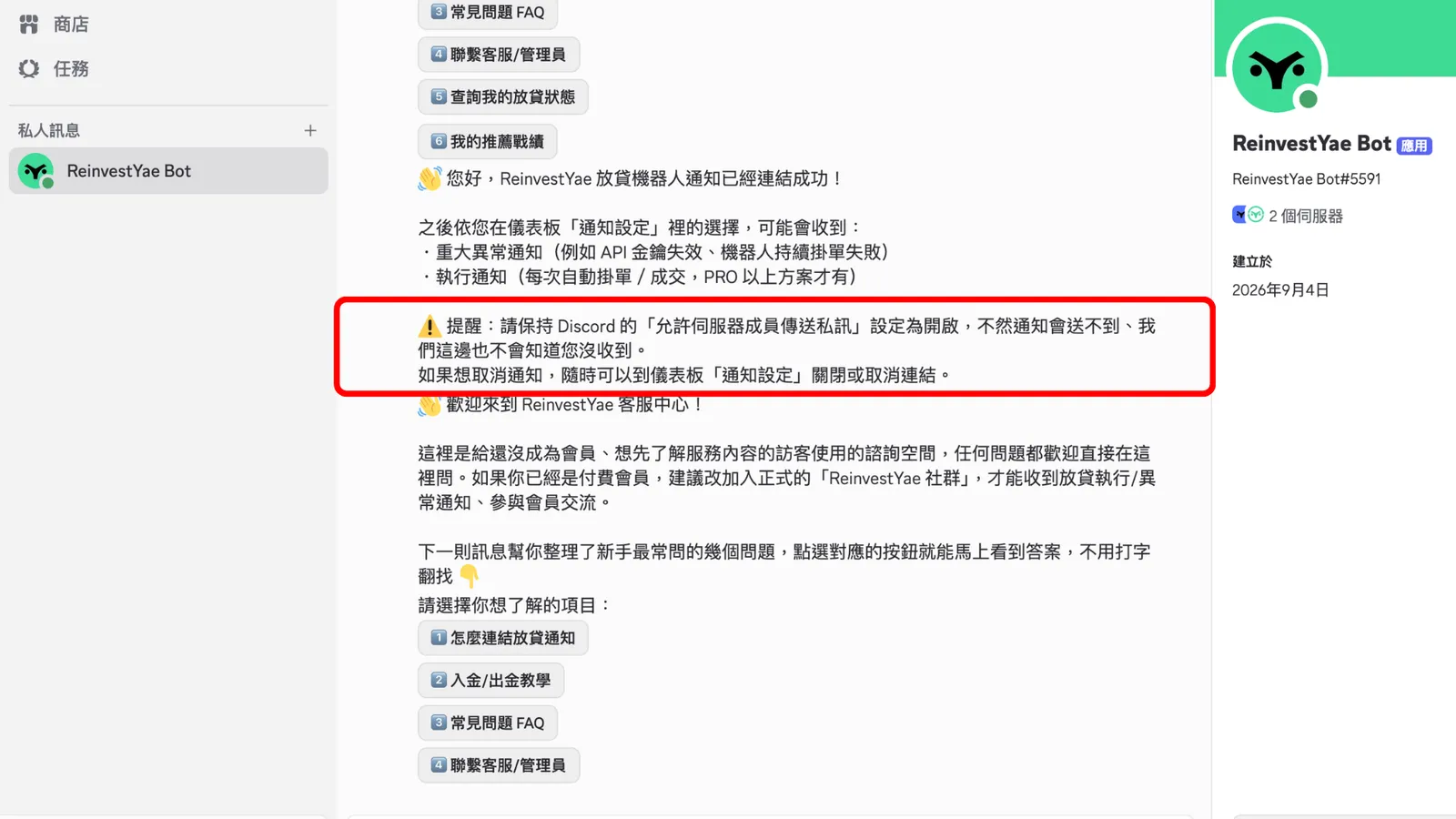
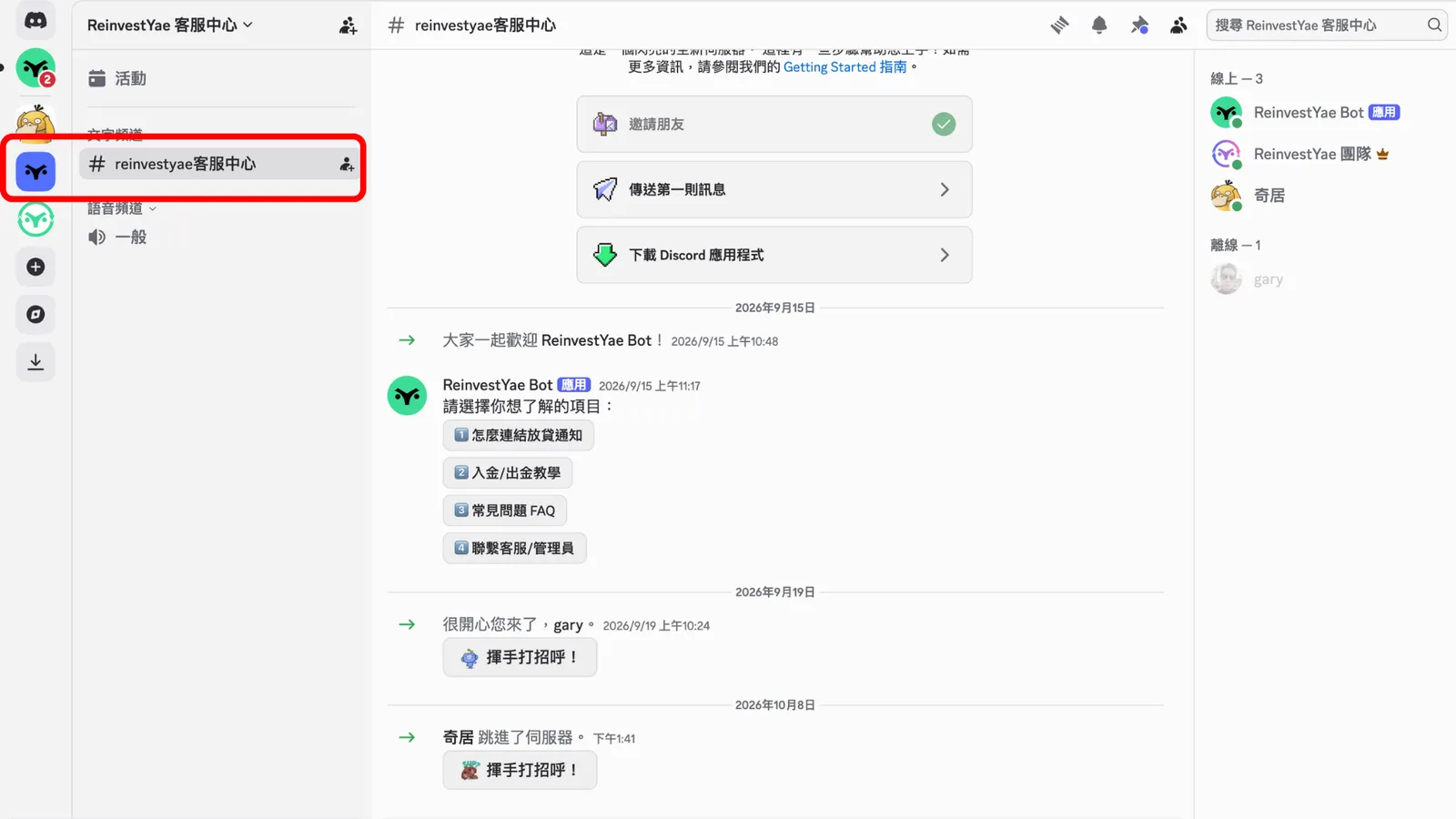
Once you're in the community, you'll see the ReinvestYae logo on the left side and the words "ReinvestYae Community." That means you've successfully joined. The ReinvestYae bot also automatically sends you a private message to welcome you.
You can click the numbered buttons for whatever you want to know, and the bot replies automatically with the info.
Next, you absolutely need to link the ReinvestYae bot. It sends you live updates on your lending activity.
STEP 3: Link the Bot
Link the ReinvestYae Bot
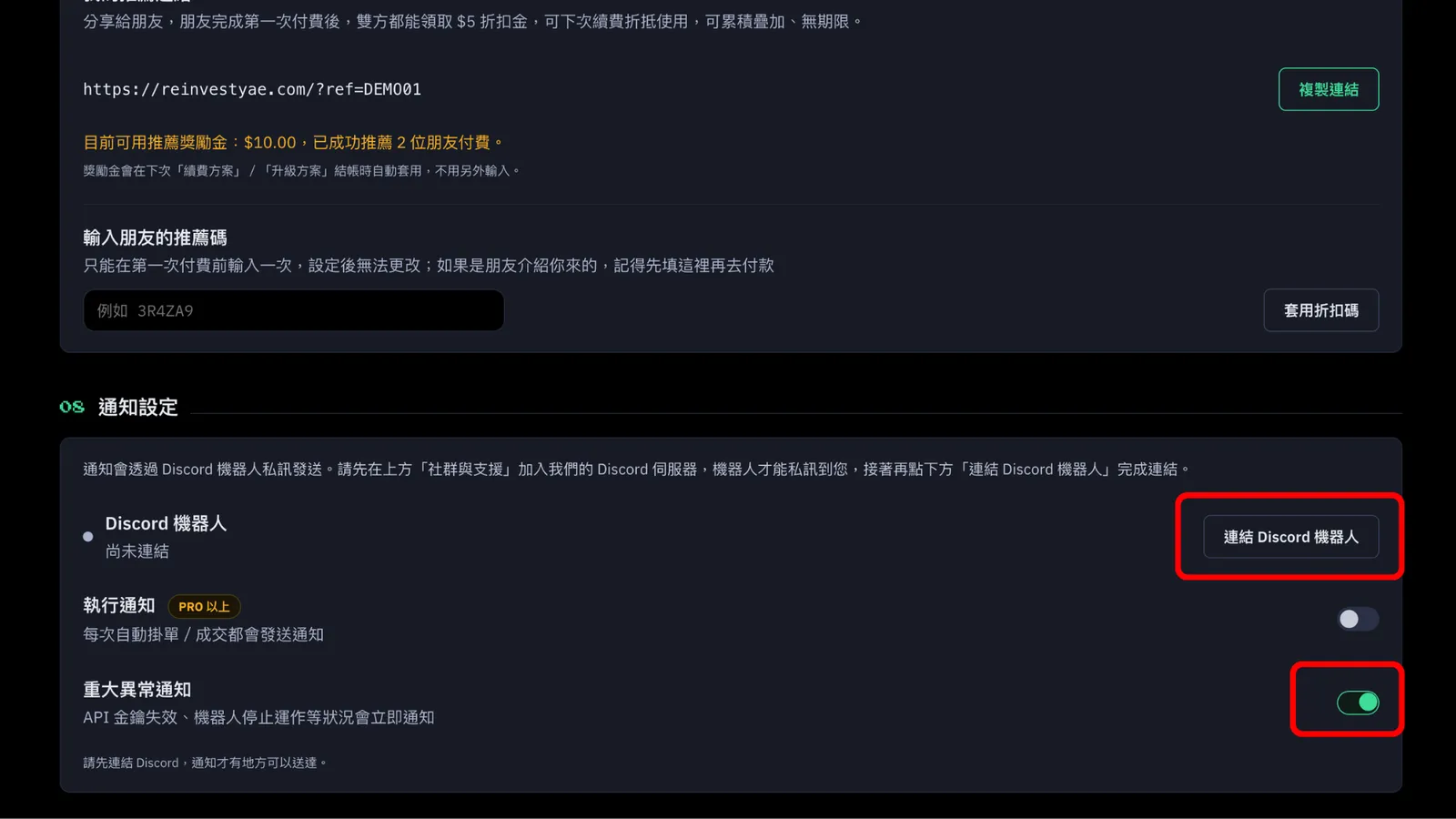
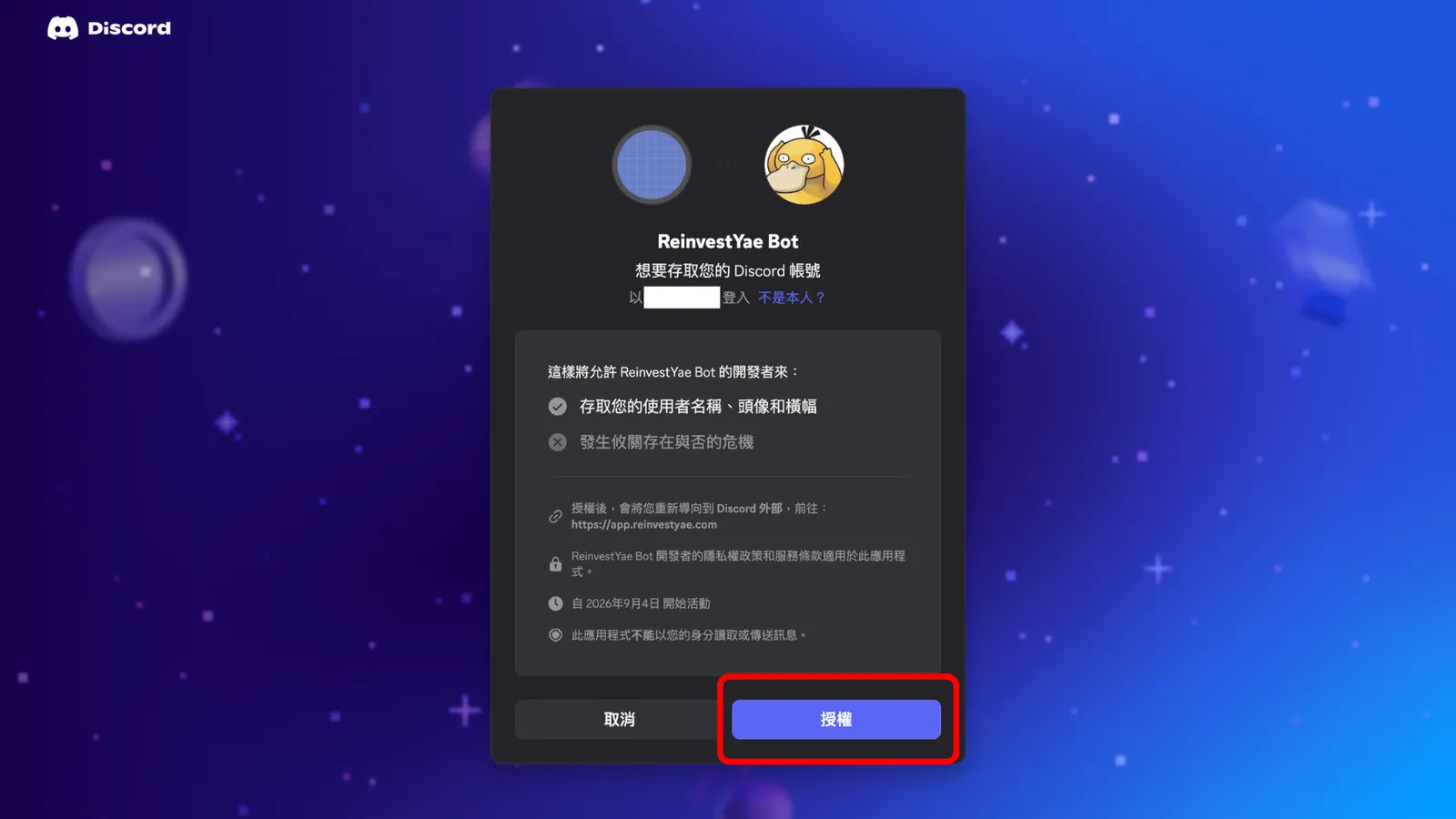
Go to your dashboard, open "Lending Settings," and scroll to the "Notification Settings" section. First, turn on "Critical Alerts," then click "Link Discord Bot." A new tab opens (the Discord authorization page). Click "Authorize." (We only get your Discord account ID, which we use to send you private message notifications.)
Bot connected:
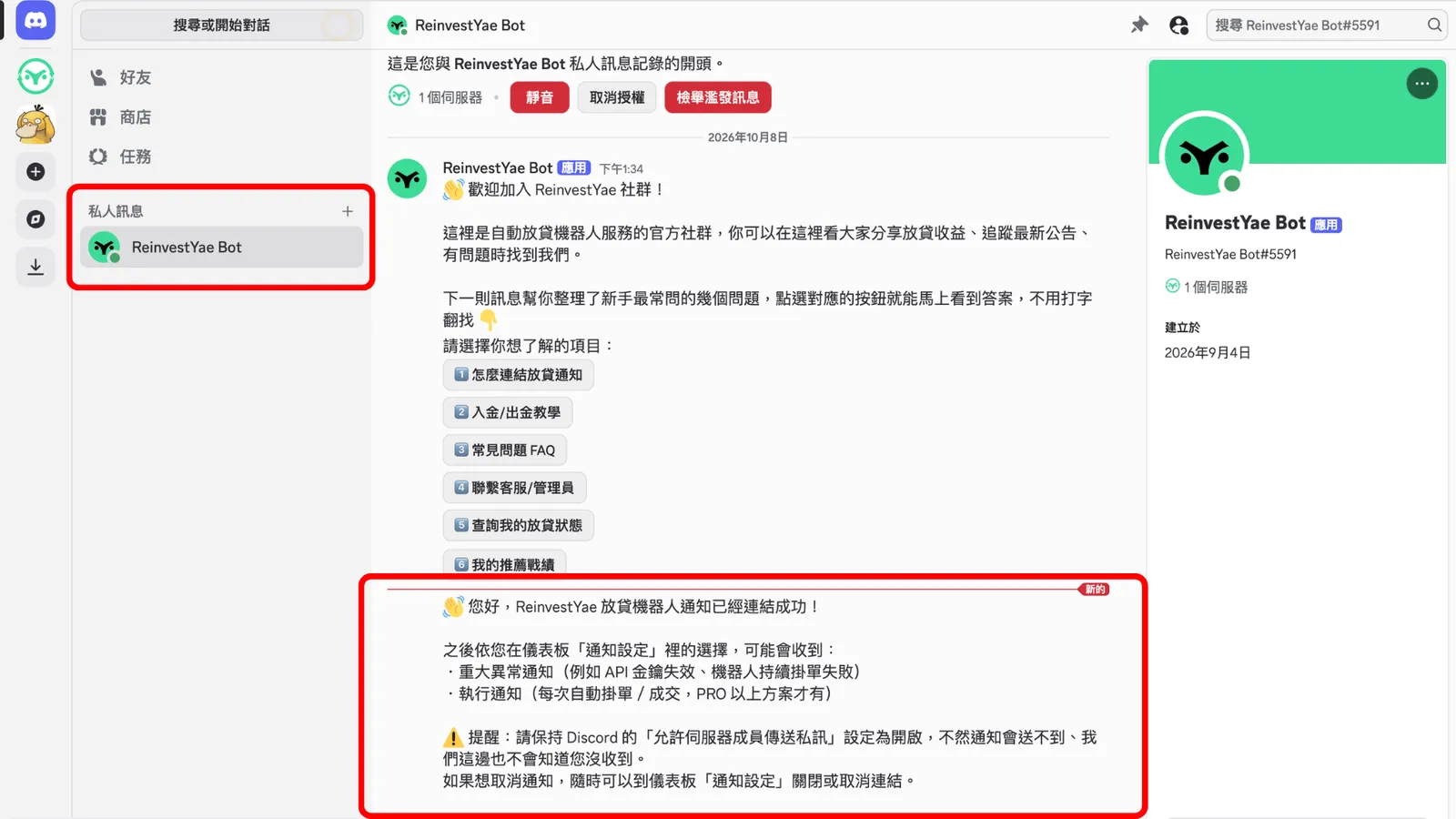
Once it's connected, the bot sends you a private message letting you know it worked. Next comes something even more important: allowing private messages.
Allow direct messages from server members:
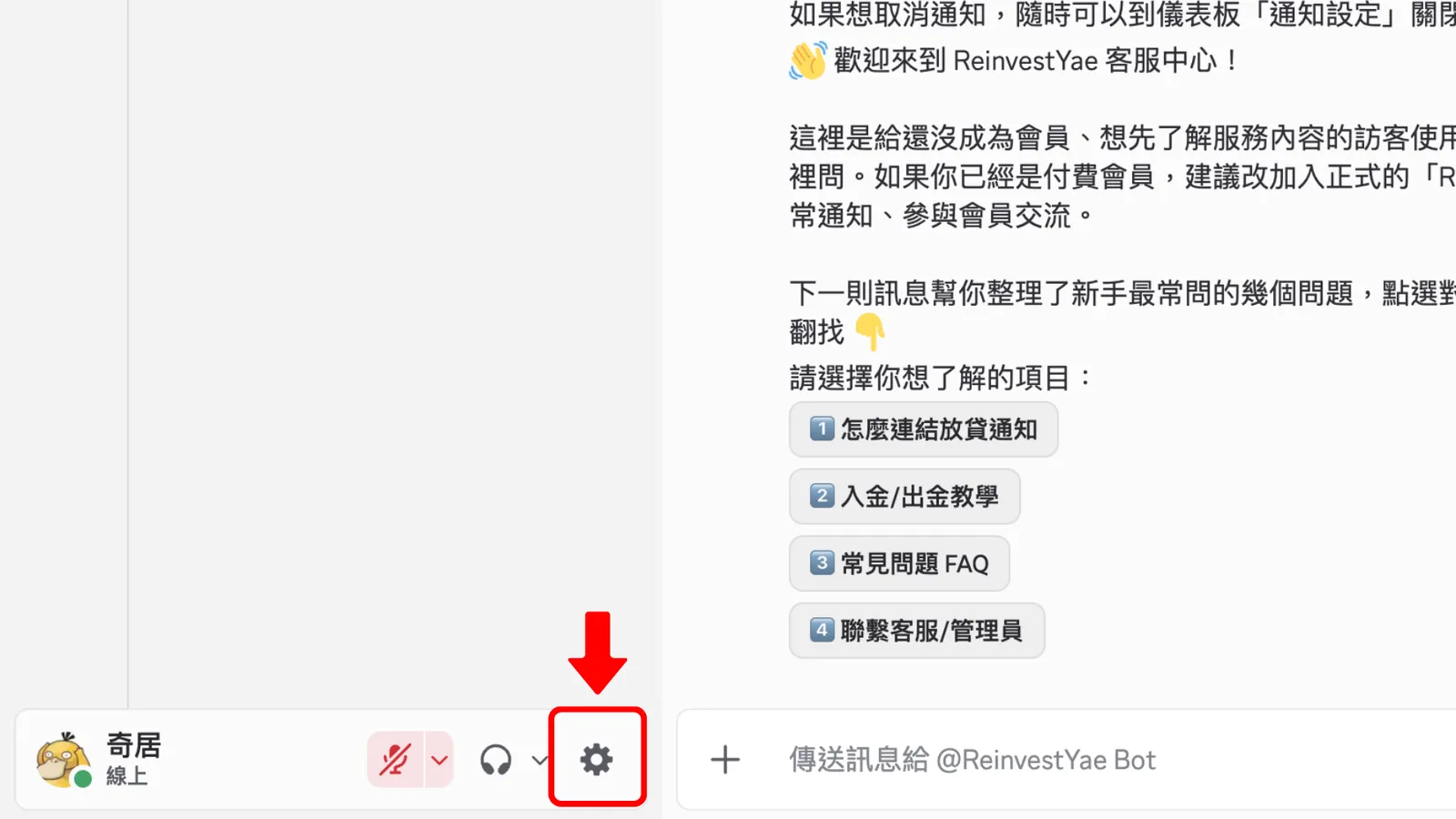
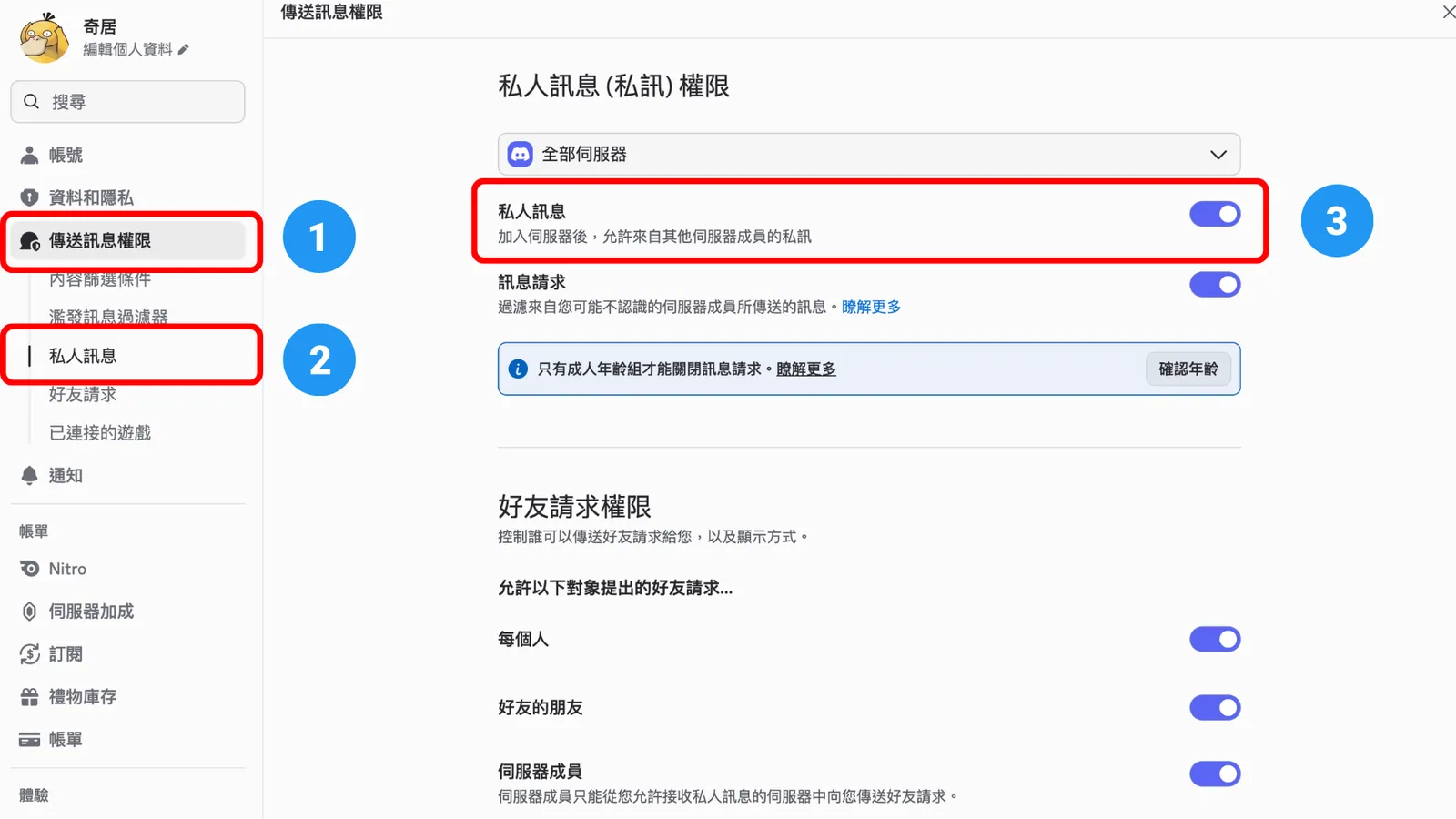
The bot's notifications come to you as private messages. If your Discord blocks private messages, you won't get the notifications, and we won't know you didn't receive them. So click the gear at the bottom left for Settings, then find 1. "Privacy & Safety," 2. "Direct Messages," and 3. the direct messages switch. Check that it's turned on. It has to be on for the bot to send you notifications.
The last step:
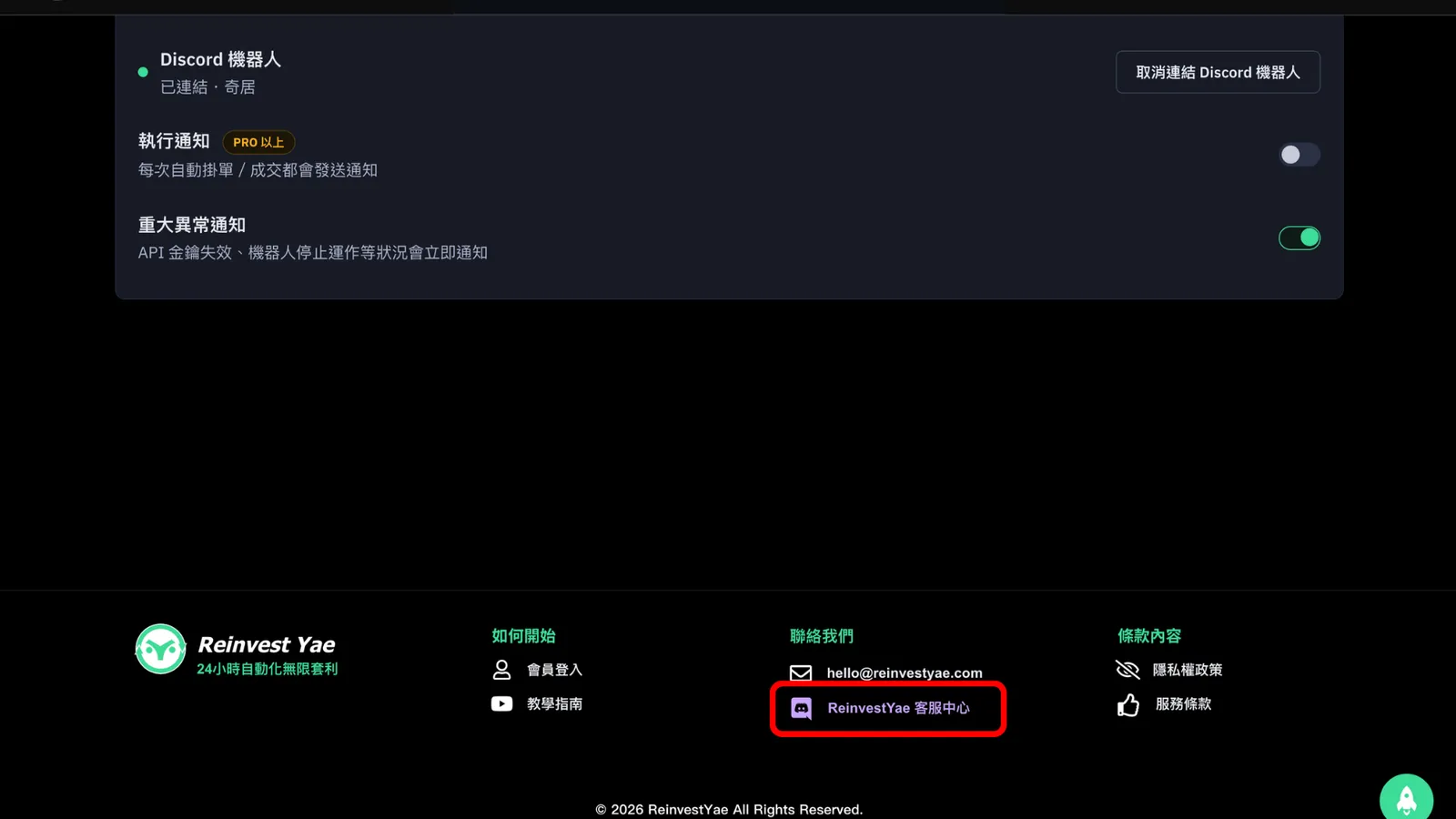
Here's what notifications you can get. Critical alerts, like an invalid API key or the bot repeatedly failing to place offers, are available on all plans. Execution notifications, which tell you every time an offer is placed or matched automatically, are for PRO and above. The last step is joining the ReinvestYae Support Center.
STEP 4: The Support Center
ReinvestYae Support Center
At the very bottom of our website, you'll see "Contact Us" with the ReinvestYae Support Center link. Click it to open the invite, and just click "Accept."
All set:
If the bot's button answers don't solve your problem, send a private message straight to a ReinvestYae team member, or leave a message in a public channel on the server. We'll get back to you as soon as we can.
5.FAQ
Q1: I already have a Discord account. Do I need to sign up again?
A: Nope! Just use your existing account and start from Step 2. When you authorize the notification bot, though, make sure you use the account you actually want to receive the notifications on.
Q2: Once I've joined the community, are notifications already linked?
A: No! Joining the community only gets you the welcome private message. To get the bot's lending notifications, you need to finish Step 3 on your dashboard.
Q3: I switched to a different Discord account. How do I relink?
A: Use your new account, then go back to your dashboard to join the community and link the bot again. You can follow Step 2 and Step 3 in this tutorial.
Q4: I don't want notifications anymore. What do I do?
A: Go to "Notification Settings" on your dashboard and turn off the switch, or unlink. It won't affect how the lending bot runs.
Q5: Can Discord see my Bitfinex assets?
A: No! Notifications only show up in the private messages between you and the bot, so nobody else can see them. And we'll never ask you to share your API key on Discord.